In this article, lets learn how to configure global search in ‘Power Apps Portals’.
What is Global Search in Portals:
- Global search of portals allows you to search for records across multiple entities.
- Allows you to search across multiple columns and configure what columns of an entity would be searchable.
- By default, few OOB portal entities are enabled for Global Search. To name a few ‘Knowledge Article, Blog, Blog Post, Forum, etc…’.
So lets see how to configure global search for other entities. I am taking ‘Account’ entity for this article and you can pick the entity of your choice.
Prerequisites:
- PowerApps account. Refer here to get an account.
- PowerApps Portal. Refer link for steps to enable portal.
Once you fulfill the Prerequisites, you would get the following two Apps in your PowerApps maker portal.
- ‘Portal Management’ – Model-driven App which contain Portal related entities.
- ‘Portal’ – Portal app. I named my Portal App as ‘ExpMay2020’.

Following are the high level steps to enable global search for ‘Account’ entity.
- Add/Update Portal ‘Site Settings’.
- Create a ‘Portal Search’ view in Account entity
- Add Portal ‘Web Page’ to display the search result.
- Add ‘Site Marker’ for the ‘Web Page’
- Grant permissions to Portal Users
- Rebuild Search Index
Lets get started.
Add/Update Portal ‘Site Settings’:
- Open the ‘Portal Management’ Model-driven App.
- Go to ‘Site Settings’ and Add a new ‘Site Setting’ by Name ‘Search/EnableAdditionalEntities’ and Value ‘true’.
- Note: Name should be exact match. If you already have ‘Search/EnableAdditionalEntities’ site setting, make sure the Value is set to ‘true’.

- Also make sure the OOB Site Setting ‘Search/Enabled‘ is set to ‘true’.
- Add a new site setting ‘search/filters’, if not exists already. Open the record, if already exists.
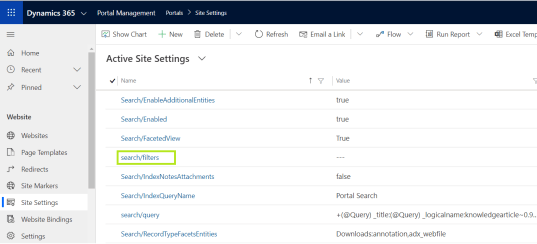
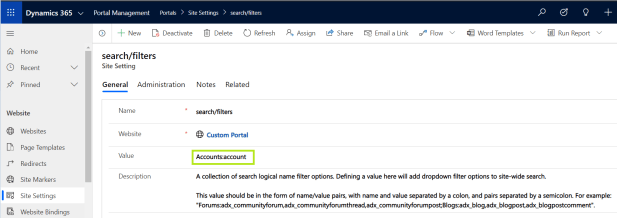
- Set the Value with following pattern {YourDesiredName:EntityLogicalname}.
- In my case, its ‘Accounts:account‘.
- Multiple entities must be separated by Comma(,) (i.e., Accounts:account,Contacts:contact)
Create a ‘Portal Search’ view in Account entity:
Open the Solution and go to ‘Account’ entity.
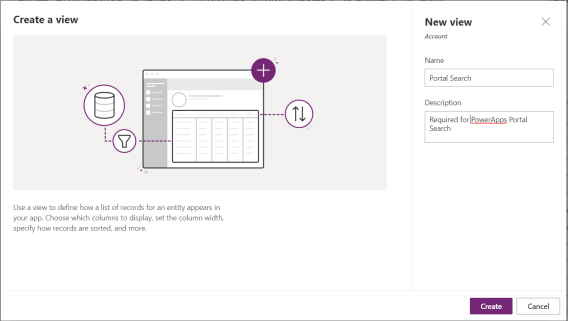
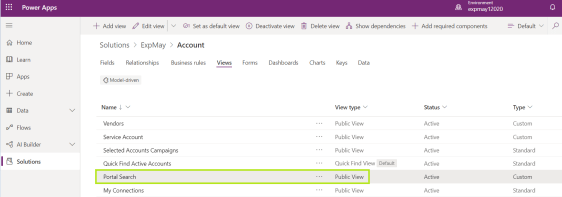
- Create a new View by name ‘Portal Search‘.
- Add the columns which you want to search to the view.
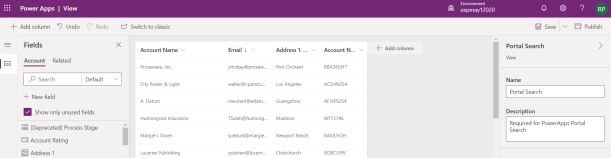
- Save & Publish.
- Once saved, view shows as below.
Add Portal ‘Web Page’ to display the search result:
To open and display the Account record from ‘Global Search’, we need a new ‘Web Page’ with ‘Account’ Entity Form.
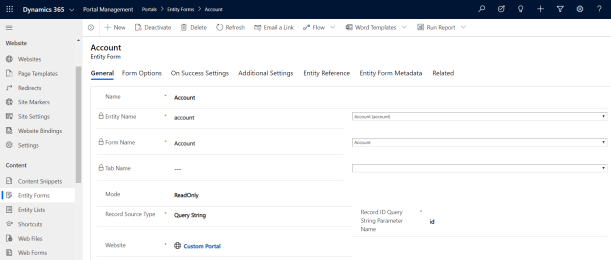
- Create a new ‘Entity Form’ by selecting ‘Account’ entity and map one of the Account form. I’ve named my ‘Entity Form’ as ‘Account’.
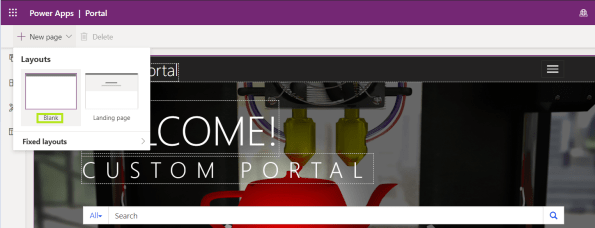
- Create a new blank ‘Web Page’.
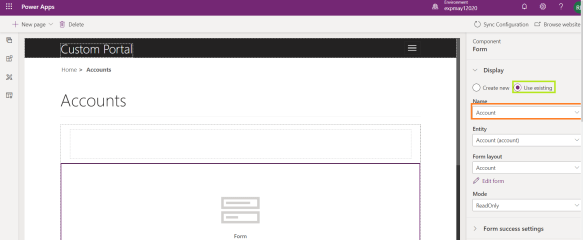
- Add a ‘Form’ component to the ‘Web Page’ and map the ‘Account’ entity form created in previous step.
Add ‘Site Marker’ for the ‘Web Page’:
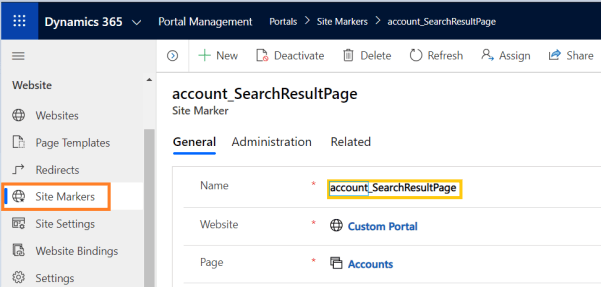
- From the ‘Portal Management’ Model-driven App go to ‘Site Markers’.
- Create a new ‘Site Marker’
- Name : {EntityName_SearchResultPage}. In my case, its ‘account_SearchResultPage’.
- Page: Web Page which we created in previous section.
Grant permissions to Portal Users:
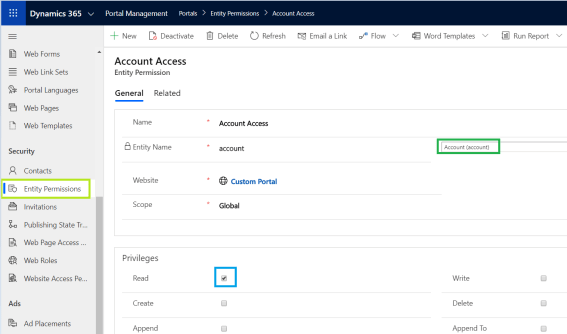
Portal User must have a minimum ‘Global’ Read access on the entity you are configuring global search for. In my case it’s ‘Account’ entity.
- Create a new ‘Entity Permission’ as below.
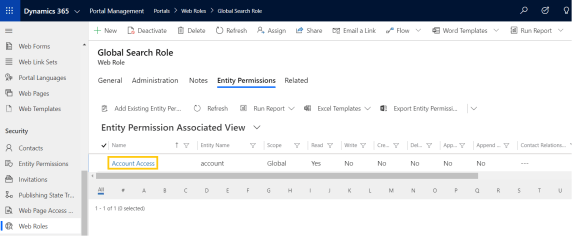
- Create a new ‘Web Role’ and map the ‘Entity Permission’.
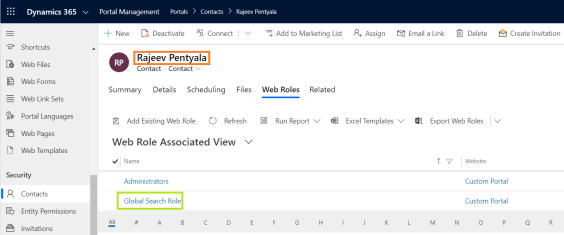
- Grant the ‘Web Role’ to the ‘Portal User’.
Rebuild Search Index:
We left with one last step before we test the Global Search. Its ‘Rebuild Search Index’
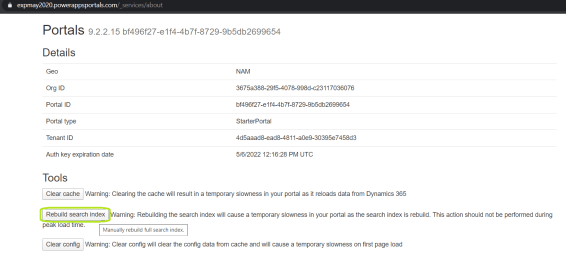
- Connect to your portal. Navigate to ‘../_Services/about’ page.
- Click ‘Rebuild search index’.
Test the Global Search:
- Connect to your Portal.
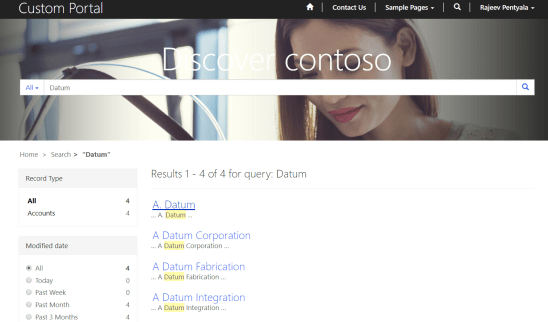
- Click on ‘Magnifier’ symbol from the ribbon and type your Account to Search.
- Note: You can Search only the columns available in your ‘Portal Search’ view added on ‘Account’ entity.

- You would get the matching Accounts as below.
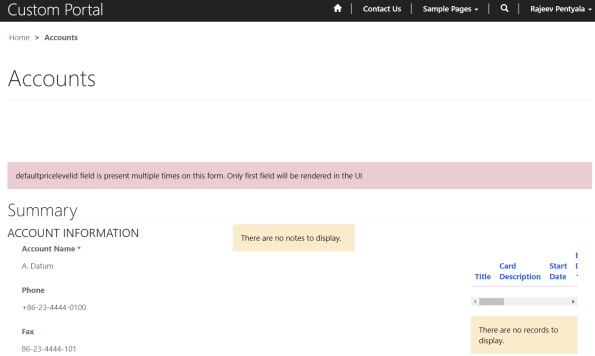
- Click on the one of the Accounts link and you would be redirected to that ‘Account’.
Note:
- Refer this PG’s article for more details.
- To remove the entity from Global Search refer this article.
🙂



![[Step by Step] Configure and run 'Pipelines in Power Platform'](https://rajeevpentyala.com/wp-content/uploads/2024/08/image.png)
 Rajeev Pentyala – Technical Blog on Power Platform, Azure and AI
Leave a reply to Power Apps Portal – Disable Global Search of an Entity | Rajeev Pentyala – Dynamics 365 Blog Cancel reply