In this article, lets see how we can send email to bulk records by forming a query and Email template.
To understanding this better, lets send an email to all the ‘Active Contacts’ in the system.
Below are the required components to send the email to ‘Active Contacts’:
- Query Expression of ‘Active Contacts’
- You need to form your query as per your business requirement.
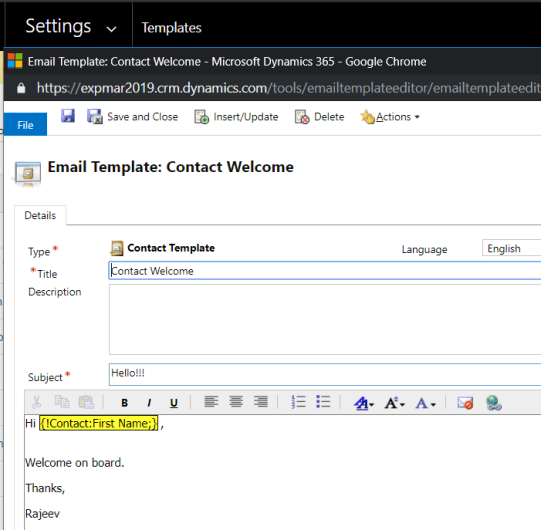
- Email Template
- As we are targeting ‘Active Contacts’, Email Template Type must be of ‘Contact’.
- Email From – Entity Reference of the ‘Sender’
- Email Regarding – Record of which all the created Emails will get associated with.
Lets see the code.
Below is the main method which sends out emails.
public static Guid SendBulkEmail(EntityReference sender, EntityReference mailRegarding, Guid emailTemplateId, QueryExpression querySenders, IOrganizationService crmService){
// Set trackingId for bulk mail request.
var trackingId = Guid.NewGuid();
try{
var bulkMailRequest = new SendBulkMailRequest() {
Query = querySenders,
Sender = sender,
RegardingId = mailRegarding.Id,
RegardingType = mailRegarding.LogicalName,
TemplateId = emailTemplateId,
RequestId = trackingId
};// Execute the async bulk email request
var resp = (SendBulkMailResponse)crmService.Execute(bulkMailRequest);
}
catch (Exception ex)
{
throw;
}return trackingId;
}
Below are the helper methods which pass required inputs for the SendBulkEmail() method.
Get ‘Email Template ID’:
public static Guid GetEmailTemplateId(string emailTemplateName, IOrganizationService crmService)
{
Guid emailTemplateId = Guid.Empty;
var queryBuildInTemplates = new QueryExpression{
EntityName = “template”,
ColumnSet = new ColumnSet(“templateid”, “templatetypecode”),
Criteria = new FilterExpression(LogicalOperator.And)
};queryBuildInTemplates.Criteria.AddCondition(“templatetypecode”, ConditionOperator.Equal, “contact”);
queryBuildInTemplates.Criteria.AddCondition(“title”, ConditionOperator.Equal, emailTemplateName);var templateEntityCollection = crmService.RetrieveMultiple(queryBuildInTemplates);
if (templateEntityCollection.Entities.Count > 0){
emailTemplateId = (Guid)templateEntityCollection.Entities[0].Attributes[“templateid”];
}
else
{
throw new ArgumentException(“Standard Email Templates are missing”);
}return emailTemplateId;
}
Get the ‘From’ and ‘Regarding’:
- Note: For simplicity, I am using current user as ‘From’ and ‘Email Regarding’
public static EntityReference GetCurrentUserId(IOrganizationService crmService){
var systemUserRequest = new WhoAmIRequest();
var systemUserResponse = (WhoAmIResponse)crmService.Execute(systemUserRequest);
return new EntityReference(“systemuser”, systemUserResponse.UserId);
}
Get the Recipients (i.e., Active Contacts) ‘Query Expression’:
public static QueryExpression GetEmailRecipientsQuery(){
var queryContacts = new QueryExpression
{
EntityName = “contact”,
ColumnSet = new ColumnSet(“contactid”),
Criteria = new FilterExpression(LogicalOperator.And)
};queryContacts.Criteria.AddCondition(“statecode”, ConditionOperator.Equal, 0);
//queryContacts.Criteria.AddCondition(“createdby”, ConditionOperator.EqualUserId);
return queryContacts;
}
That’s it, lets see how we do we call the main method
var currentUser = GetCurrentUserId(_service);
var trackingID = SendBulkEmail(currentUser, currentUser, GetEmailTemplateId(“Contact Welcome”, _service), GetEmailRecipientsQuery(), _service);
Execute above lines of code in console and you would get the response as below.

What happens on the execution of the code?:
- A new ‘Bulk Email’ system job gets created. Go to Settings -> System Jobs
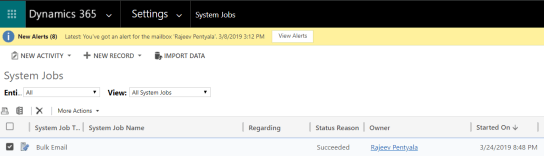
- Once the ‘Status Reason’ turns in to ‘Succeeded’, Go to ‘Advance Find’ and query ‘Email Messages’.
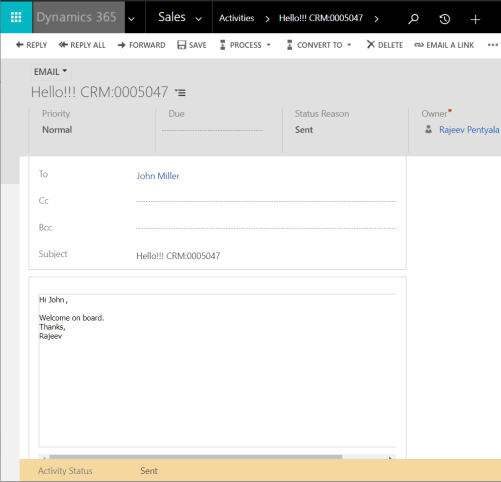
- You should see a new ‘Email’ records for each ‘Active Contact’, as the Query Expression we formed is for ‘Active Contacts’

- Open one of the Emails and you should see the email body copied from ‘Email Template’.
- We can also track the ‘Bulk Email’ job from the code, with below code snippet by passing the ‘Tracking ID’ (i.e., GUID) returned by SendBulkEmail() method.
private const int ARBITRARYMAXPOLLINGTIME = 60;
public static void TrackMailDelivery(Guid trackingId, IOrganizationService crmService){
var bulkQuery = new QueryByAttribute(){
EntityName = “asyncoperation”,
ColumnSet = new ColumnSet(new string[] { “requestid”, “statecode” }),
Attributes = { “requestid” },
Values = { trackingId }
};// Retrieve the bulk email async operation.
var emailResponse = crmService.RetrieveMultiple(bulkQuery);Console.WriteLine(” Retrieved Bulk Email Async Operation.”);// Monitor the async operation via polling.
int secondsTicker = ARBITRARYMAXPOLLINGTIME;Entity createdBulkMailOperation = null;
Console.WriteLine(“Checking operation’s state for ” + ARBITRARYMAXPOLLINGTIME + ” seconds.”);
Console.WriteLine();while (secondsTicker > 0){
// Make sure the async operation was retrieved.
if (emailResponse.Entities.Count > 0){
// Grab the one bulk operation that has been created.
createdBulkMailOperation = emailResponse.Entities[0];// Check the operation’s state.
if (((OptionSetValue)createdBulkMailOperation[“statecode”]).Value != 3){
// The operation has not yet completed.
// Wait a second for the status to change.
System.Threading.Thread.Sleep(1000);
secondsTicker–;// Retrieve a fresh version the bulk delete operation.
emailResponse = crmService.RetrieveMultiple(bulkQuery);
}
else{
// Stop polling because the operation’s state is now complete.
secondsTicker = 0;
}
}
else{
// Wait a second for the async operation to activate.
System.Threading.Thread.Sleep(1000);
secondsTicker–;// Retrieve the entity again
emailResponse = crmService.RetrieveMultiple(bulkQuery);
}
}// Validate async operation succeeded
if (((OptionSetValue)createdBulkMailOperation[“statecode”]).Value == 3){
Console.WriteLine(“Operation Completed.”);
}
else{
Console.WriteLine(“Operation not completed yet.”);
}
}
🙂



![[Step by Step] Beginner : Create a PCF control and add it to a custom page](https://rajeevpentyala.com/wp-content/uploads/2024/12/image-49.png)
 Rajeev Pentyala – Technical Blog on Power Platform, Azure and AI
Leave a comment