Dynamics Portals Entity List is a easy and seamless way to port Dynamics 365 CE entity views to Dynamics Portals.
As an example, if I port ‘Active Contacts’ and ‘Inactive Contacts’ views to Portals, Portal User would start see all the Contacts based on his Web Roles.
Now lets implement a filter condition, to show only those Contacts where the logged in ‘Portal User’ (i.e., Contact) Company belongs to.

With out Filter Condition:
- I logged in to Portal as ‘Rajeev Pentyala’ whose Company is ‘Northwind Traders’ and having ‘Adminstrator’ Web Role.
- I can see all the Contacts irrespective of ‘Company’

With Filter Condition:
- With Filter Condition in place, I will see only those Contacts from my Company ‘Northwind Traders’
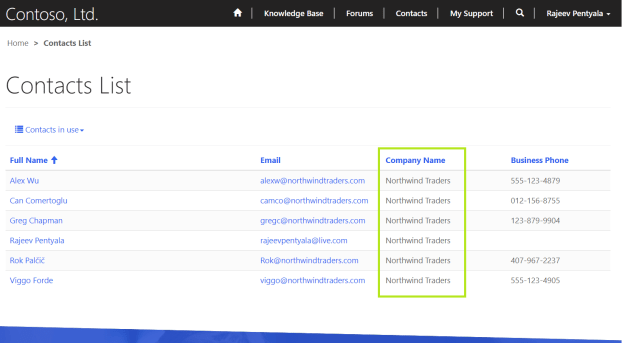
- To configure ‘Filter Condition’
- Open ‘Entity List’ form
- Under ‘Filter Conditions’ section, select ‘Account Attribute’ as ‘Company Name(parentcustomerid)’
- Open ‘Entity List’ form

Metadata Filter:
- What if we have to provide option to the ‘Portal User’ to filter the records based on field values?
- In below screen, Portal User has an option to filter records based on 2 Company Names (i.e., Northwind Traders, Adventure Works)
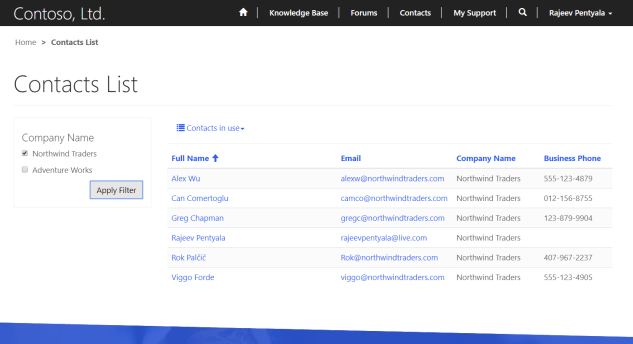
- This behavior can be achieved using ‘Metadata Filter’ option.
- In this article, I am going with ‘FetchXML Filter’ option, to provide filter options based on ‘Company Names’.
- Open ‘Advanced Find’ and prepare the filter.
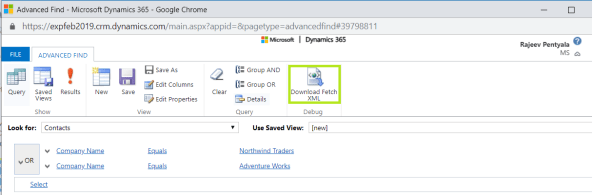
- Download Fetchxml and copy only the <filter> tag
- Note: Add ‘adx:uiname’ property in <filter> tag to customize the filter label in Portal.

- Paste it in ‘FetchXML’ field and Save
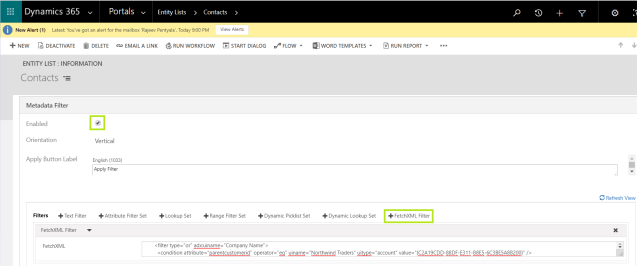
- Notes:
- You can define more than one ‘Metadata Filters’.
- Refer article for detailed usage of Filters.
🙂



![[Step by Step] Beginner : Create a PCF control and add it to a custom page](https://rajeevpentyala.com/wp-content/uploads/2024/12/image-49.png)
 Rajeev Pentyala – Technical Blog on Power Platform, Azure and AI
Leave a comment