Other day, we got a requirement to hide the ‘Search’ control from our Custom portal.

Its very easy to achieve by changing a configuration.
Steps to hide Search control:
- Go to Portals ->Site Settings ->Search/Enabled record
- By default the ‘Value’ will be ‘true’, to hide the ‘Search’ change to ‘false’
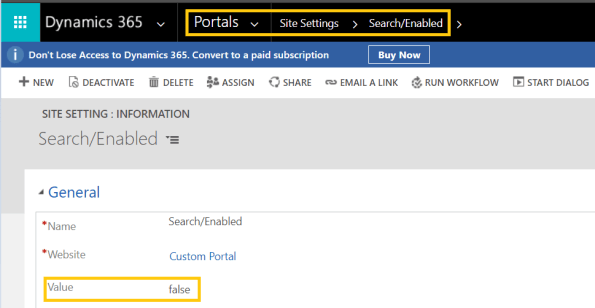
- Save
- Refresh the browser and you should not see the ‘Search’ control

What if you are still seeing the ‘Search’ control:
Sometimes for some reason (Mostly due to caching), you wont see the change immediately.
In this case you can either reset portal/clear the server side cache by following steps below.
Reset the Portal:
- If the change is not taken place for all users you might want to reset the portal.
- Resetting the portal is not feasible option especially when your portal is being tested, as the end users will experience a snag for sometime.
- But if the Portal is in Development phase and you can reset from your ‘D365 Admin Center’
- Go to ‘Admin Center’ -> Applications
- Select your Portal application and click ‘Manage’
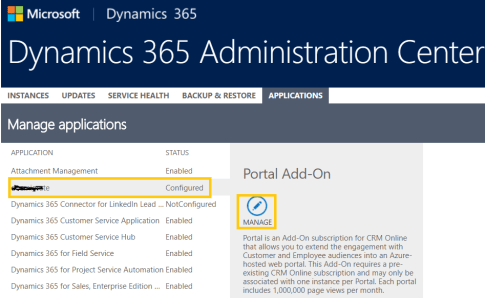
- Select ‘Portal Actions’ -> Reset
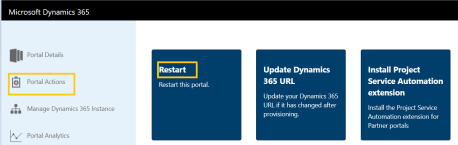
Clear Server Side Cache:
- You can force the portal to refresh its cache immediately.
- To clear the server-side cache, sign in to the portal with Administrator web role
- Navigate to the URL as follows : <Your_portal_URL>/_services/about
- (i.e., You need to append /_services/about end of your portal URL)
- Select Clear Cache.
- Refer this for article more details
🙂



 Rajeev Pentyala – Technical Blog on Power Platform, Azure and AI
Leave a comment