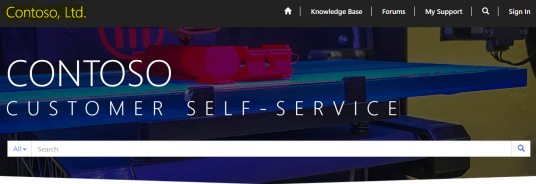
Once you enable “Portal Add On” in your Dynamics instance, your OOB portal would look as below with “Contoso, Ltd.” text at top left corner.
Note: I enabled ‘Customer Service’ portal solution. If you install different solution, UI will be different.
Steps to configure your desired logo on the Portal:
Add PNG/JPG file as ‘Web File’
- Log in to your Dynamics 365 instance
- Navigate to Portals -> Web Files and click ‘New’
- Provide below details on your new ‘Web File’
- Name: Can be anything. This will be referred in ‘Content Snippet’ in following steps
- Parent Page: Home
- Partial Url: Can be anything.
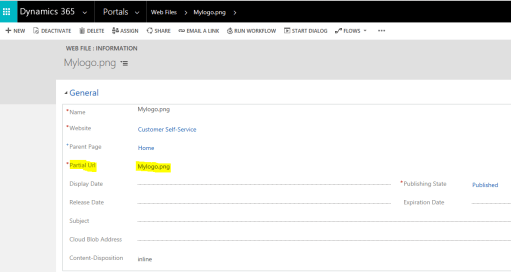
- Save the record
- Go to ‘Notes’ tab and add your png/jpg file as attachment.

Update content snippet with web file reference
- Navigate to Portals -> Content Snippets
- Open “Navbar Left” snippet
- In Value(HTML) field value’s ‘Source’ tag, replace content with below
<p style=”margin-left: -1px;”><img style=”top:-25px; width: 100px; height: 53px; margin-right: 1px; margin-left: 1px; float: left; position: relative;” src=”/{Webfile Name}” /></p>
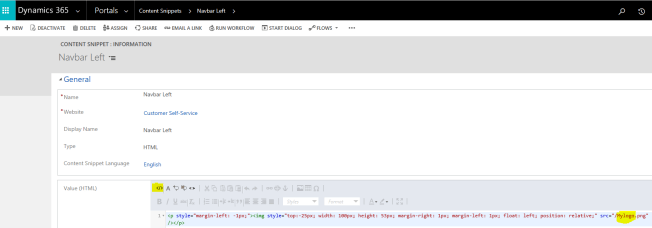
- Save the file
Open/refresh the Portal and you should see your logo. You might want to logout and login if you don’t see the logo.

🙂



 Rajeev Pentyala – Technical Blog on Power Platform, Azure and AI
Leave a comment