In CRM, if you want show your date time fields with either 24 or 12 hour time formats, we can easily do it with either System settings/ Personal options
System settings :-
You can make the SYSTEM level “Time format” setting by
Go to Settings –> Administration –> System settings
Go to “Formats” tab; Click on “Customize”
Go to “Time” tab
Choose the desired “Time Format”
Time formats
Time format Notations
“H” (Upper case) – 24 hour format
“h” (Lower case) – 12 hour format
Personal options :-
You can make the USER level “Time format” setting by
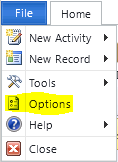
Choose “File –> Options”
Personal Options
Follow the same steps as mentioned for system settings
Note: Personal options always overrides System settings



 Rajeev Pentyala – Technical Blog on Power Platform, Azure and AI
Leave a comment