We get “Add Existing” button when you have relationship between 2 entities and when you select “Associated View” or “Sub grid” of child entity.
Consider this scenario
- I have 2 custom entities in my system
- Policy Holder
- Policy
- I have 1:N relationship between Policy Holder & Policy (i.e., #1 ‘Policy Holder’ can have #N ‘Policies’)
- I have added a sub grid with name “Whole life Policies” of “Policies” entity, on my “Policy holder” form
- When I select sub grid “Whole life Policies” of “Policies” entity, I get both “Add New Policy” & “Add Existing Policy” buttons on my ribbon
Sub Grid with Add existing button

P.S. The availability of “Add Existing” button depends on “Requirement Level” property of “Relationship”
- Going back to the scenario, when I open Relationship form of “Policy Holder” & “Policy”, the “Requirement Level” chosen as “No Constraint”
Requirement level – No constraint

- That’s why I had “Add Existing Policy” button when I chose Policy Sub grid on “Policy Holder” form
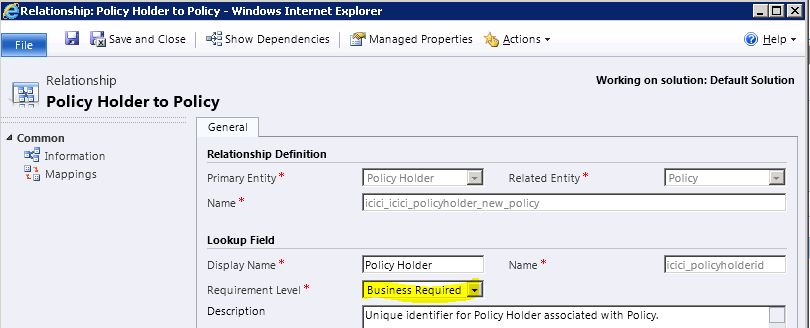
“Add Existing” button will go off if I set “Requirement Level” property to “Business Required”
- Now let me change “Requirement Level” to “Business Required” on Relationship form
Requirement Level – Business Required
- Save & Publish
- Now I don’t get “Add Existing Policy” button when I chose Policy Sub grid on “Policy Holder” form
No Add existing button

Take aways :-
- So this is one way of hiding “Add Existing” button by making “Requirement Level” to “No Constraint” on Relationship customization.
- You can also hide the “Add Existing” button by using Ribbon Customizations.
🙂




 Rajeev Pentyala – Technical Blog on Power Platform, Azure and AI
Leave a reply to Petr Cancel reply