In the previous post, we saw how GitHub Copilot CLI stores your prompt history locally in a file called command-history-state.json.
But did you know Copilot CLI can actually read that history and help you become a better prompter?
Meet the /chronicle slash command!
What is /chronicle?
/chronicleis a built-in slash command that analyses your past session history and generates useful insights — all from data stored locally on your machine.
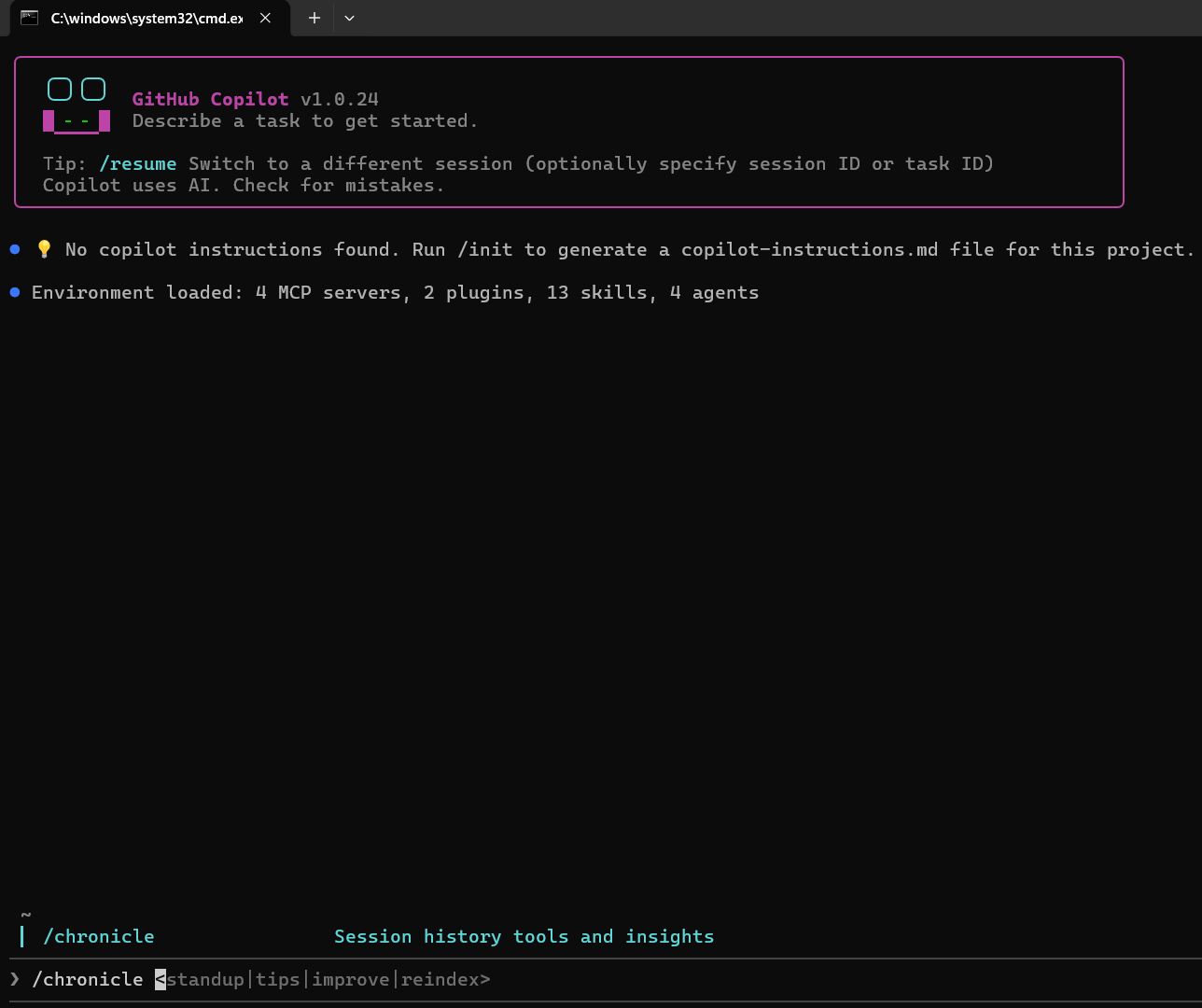
It has four sub-commands:
| Sub-command | What it does |
|---|---|
/chronicle standup | Summarises what you worked on in recent sessions |
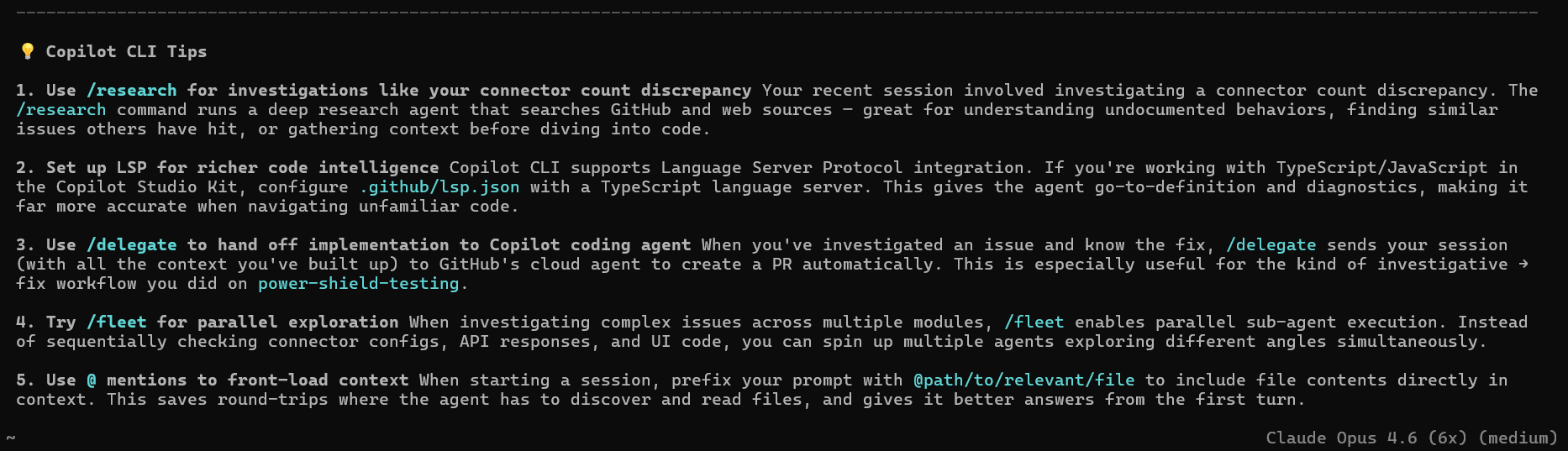
/chronicle tips | Gives personalised tips to use Copilot CLI more effectively |
/chronicle improve | Analyzes your session history to identify patterns where Copilot may have misunderstood your intent and generates custom instructions to help Copilot better understand you in the future. |
/chronicle reindex | Rebuilds the session store from your local session files on disk |
How to use it?
Note:
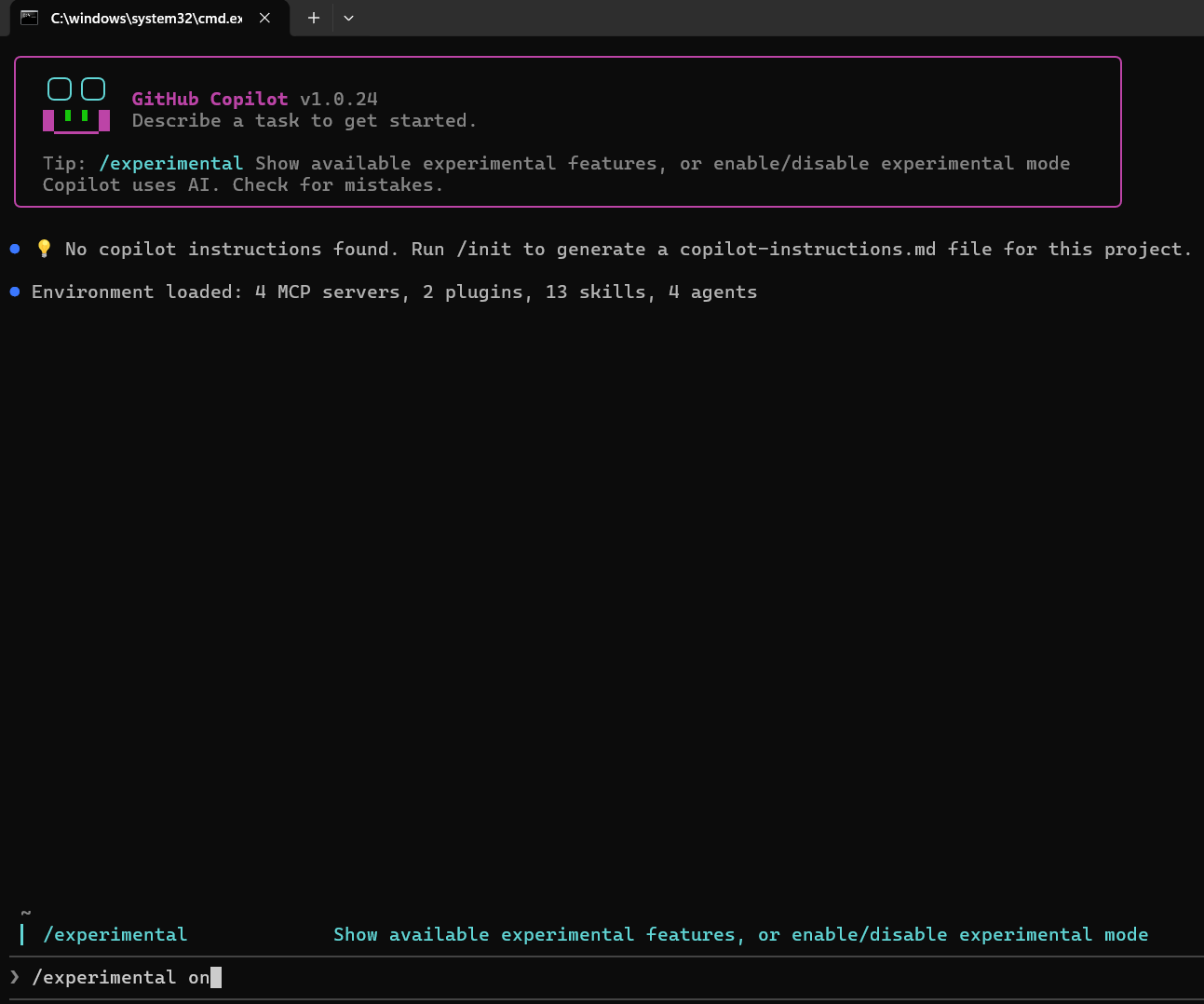
/chronicleis currently an experimental feature. Enable it first by running:
/experimental on
Then run:
/chronicle tips
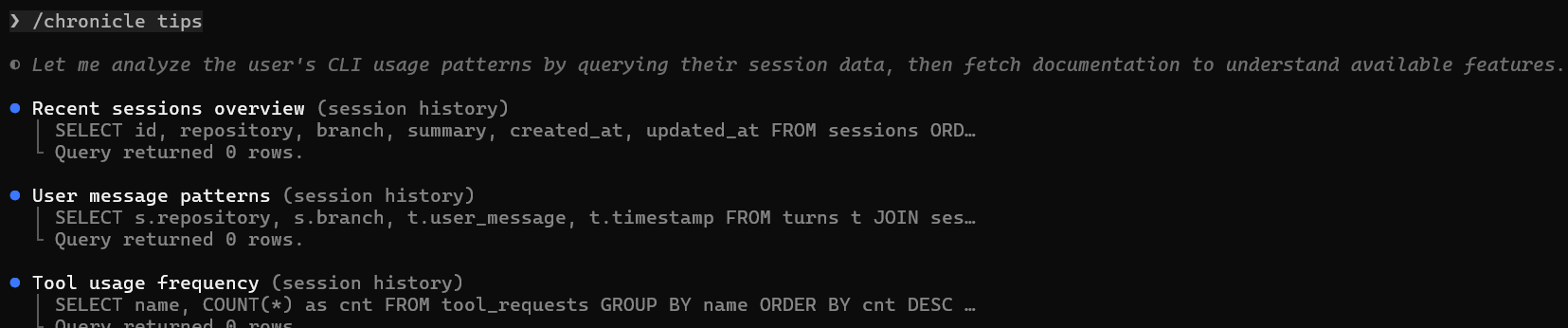
Copilot CLI will query your local session data — your recent sessions, message patterns, and tool usage — and generate personalised tips based on how you have been working.
When should you use these features?
- To continue previous work: Use
copilot --continueorcopilot --resumeto pick up where you left off. - At the start of your day: Run
/chronicle standup last 3 daysto generate a reminder of what you worked on recently and the CLI session you were working in. - Periodically, to level up: Run
/chronicle tipsevery week or two to discover features and workflow improvements you might be missing. - When Copilot keeps making the same mistake: Run
/chronicle improveto identify the pattern and generate custom instructions to fix it. - To recall past work: Ask a free-form question like “Have I worked on anything related to the payments API?” and Copilot will search your history.
Hope this was helpful! 🙂



 Rajeev Pentyala – Technical Blog on Power Platform, Azure and AI
Leave a comment