I wanted to explore Claude Code and installed Claude Code extension in my VS Code.
By default, Claude Code comes with a few interaction modes that control how it makes edits:
- Ask before edits – Claude shows suggestions and asks before making changes.
- Edit automatically – Claude edits files without asking each time.
- Plan mode – Claude first generates a step-by-step plan and waits for your approval before doing anything.

You might have noticed that when Claude tries to run certain things — like npm install or file modifications — it pops up permission prompts asking you to confirm.
That’s because Claude Code is designed to be secure by default, asking before every action that could change your system or code.
If you want to reduce these interruptions, you can enable a bypass permissions mode inside VS Code.
Enabling Bypass permissions mode:
- In the VS Code, open Settings
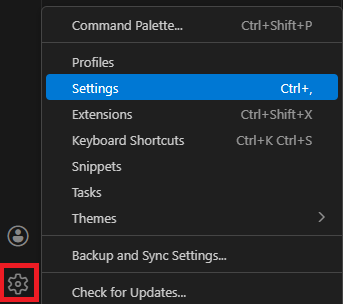
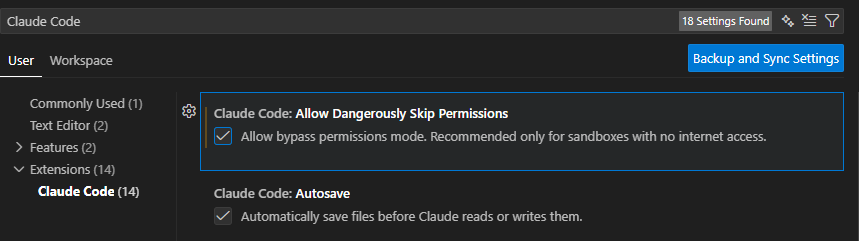
- Search for Claude Code and enable Allow bypass permissions mode.
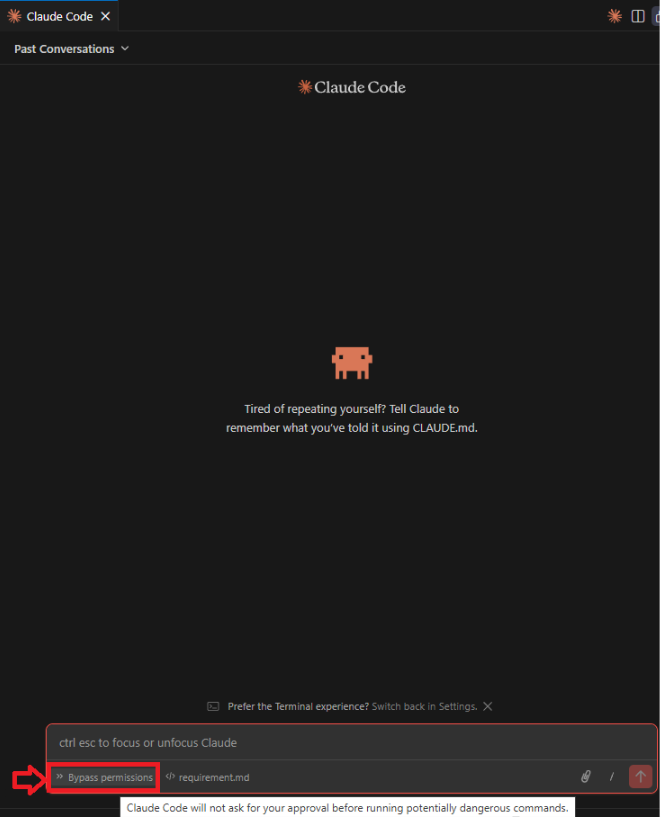
- Start a new Claude Code session. Choose Bypass permissions mode and now Claude will skip many of the permission prompts and work more autonomously in your editor.
- VS Code extension still might ask for permissions even after enabling bypass, due to current limitations.
- Always use bypass mode responsibly — giving an AI agent free run on your codebase has risks if you’re not paying attention.
🙂

 Rajeev Pentyala – Technical Blog on Power Platform, Azure and AI
Leave a comment