Let’s say you found an open-source project or a lab on GitHub and you want to use the code files — specifically, you want to create your own repository by copying only the files, without bringing in branches or commit history.
Did you know that Use this template → Create a new repository is the right option for this?

Lets understand the available options to work on an existing project on GitHub.
Clone:
Use Clone when you want a local copy of the project on your computer, preserving full history locally.
- How it works: It downloads the full repository to your machine. All branches and the complete commit history are copied locally.
- The Link: It stays linked to the original repo. If you have “Write” permissions (like on a team project), you can push changes directly. If you don’t, you can only pull updates down.
- History: You get the full commit history, but it lives on your hard drive.
- Best for: Working on your own projects or projects where you are an official collaborator.
Fork:
Use Fork when you want to experiment or contribute to a project you don’t own.
- How it works: It creates a server-side copy of the repository under your own GitHub account.
- The Link: It maintains a “connection” to the original (called the Upstream). This allows you to submit a Pull Request to give your code back to the original owner.
- History: It copies every single commit and branch from the original.
- Best for: Open-source contributions or taking an existing project in a completely new direction.
Use Template:
This option lets anyone with access to a template repository create a new repository with the same files and structure without branches and commit history.
- When you choose Creating a repository from a template

- By default, branches from the template repository are not included in the new repository.
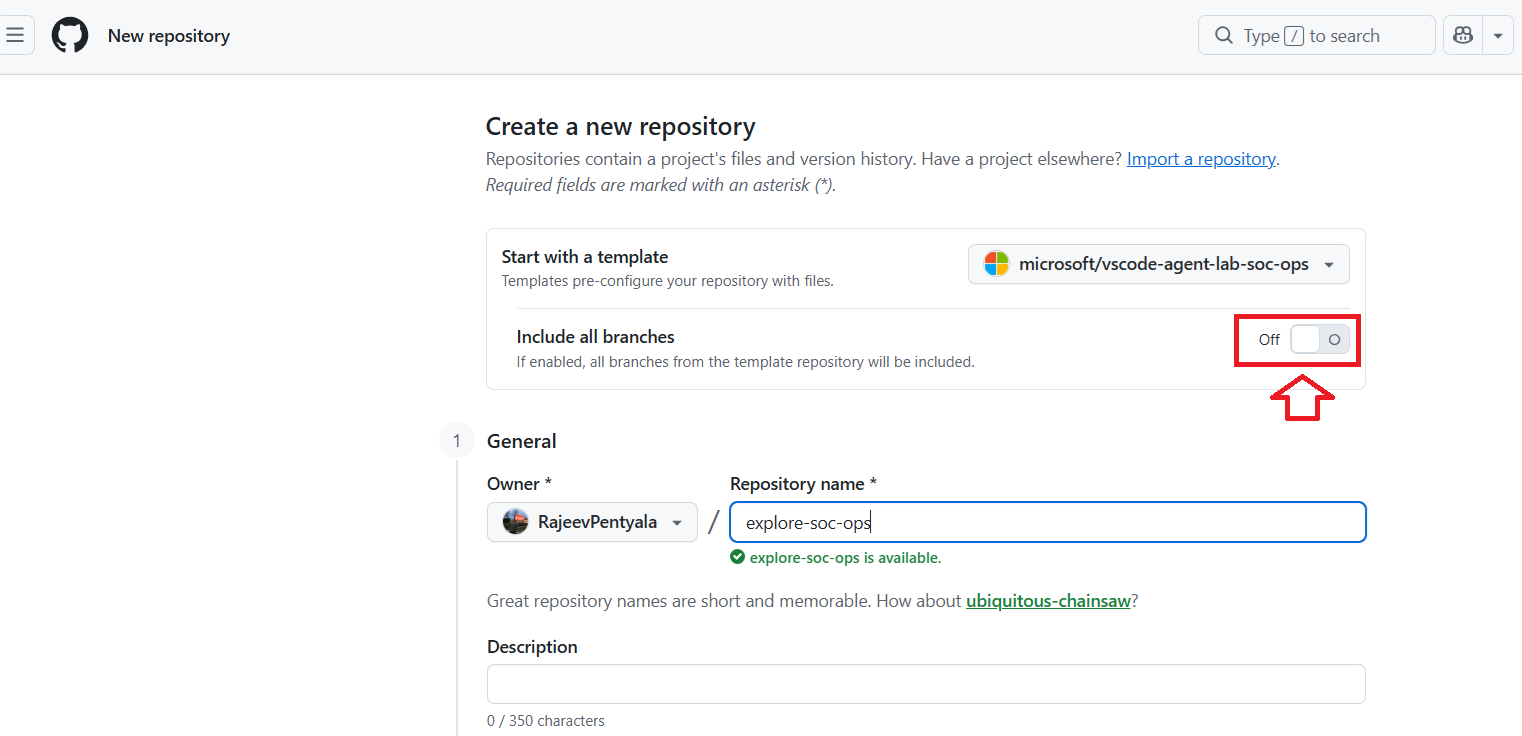
- There is no automatic sync with the original template after creation (unlike Fork).
- Best for: Microsoft solution accelerators, GitHub labs, reference implementations, or internal team projects where everyone starts from the same baseline.
🙂


 Rajeev Pentyala – Technical Blog on Power Platform, Azure and AI
Leave a comment