If you’ve installed the Copilot Studio extension for VS Code and tried to connect to your Copilot Studio environment using the command Copilot Studio: Sign in,

you might have seen this error: Command ‘microsoft-copilot-studio.signin’ not found .
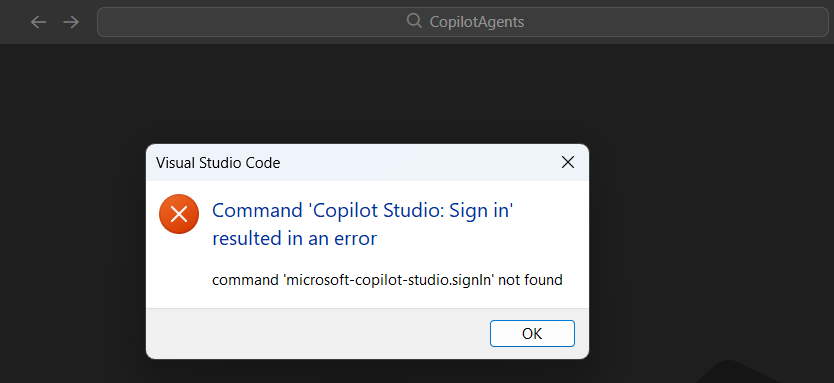
I ran into the same issue, and here’s what worked for me.
Fix:
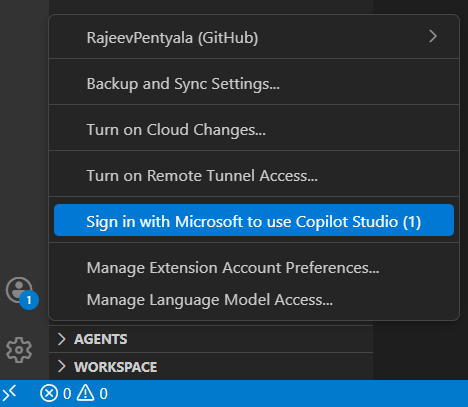
Instead of using the command palette sign-in, try signing in from the Accounts section in VS Code.
- In the VS Code, click on the Accounts icon in the bottom left corner and click Sign in…Copilot Studio, as shown below.
- Complete the sign-in process using your Copilot Studio account.
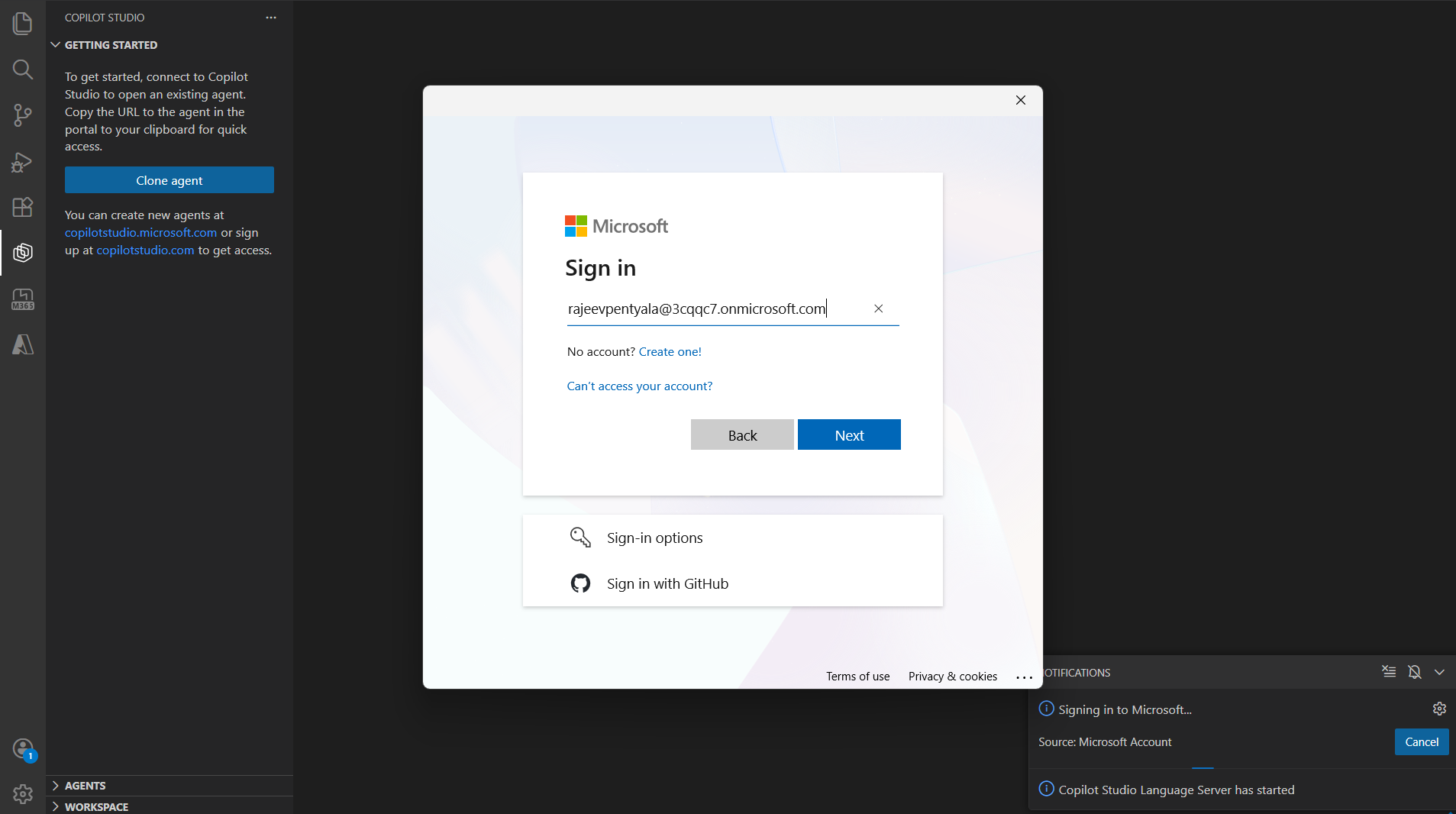
- After signing in successfully, open the Copilot Studio pane, click on Clone agent.
- If you’re prompted to sign in again, complete the sign-in.
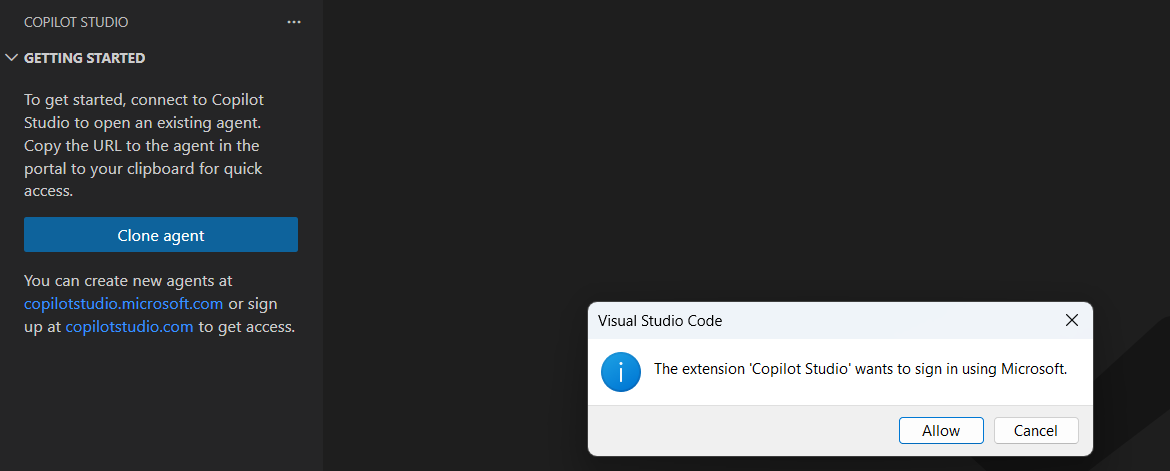
- Select the environment from the list.
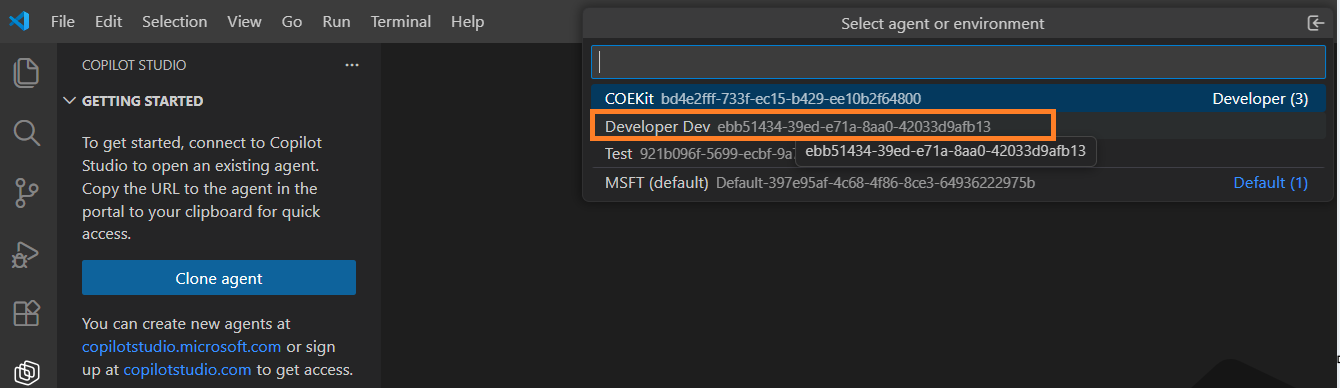
- Choose the Copilot Studio agent you want to clone.
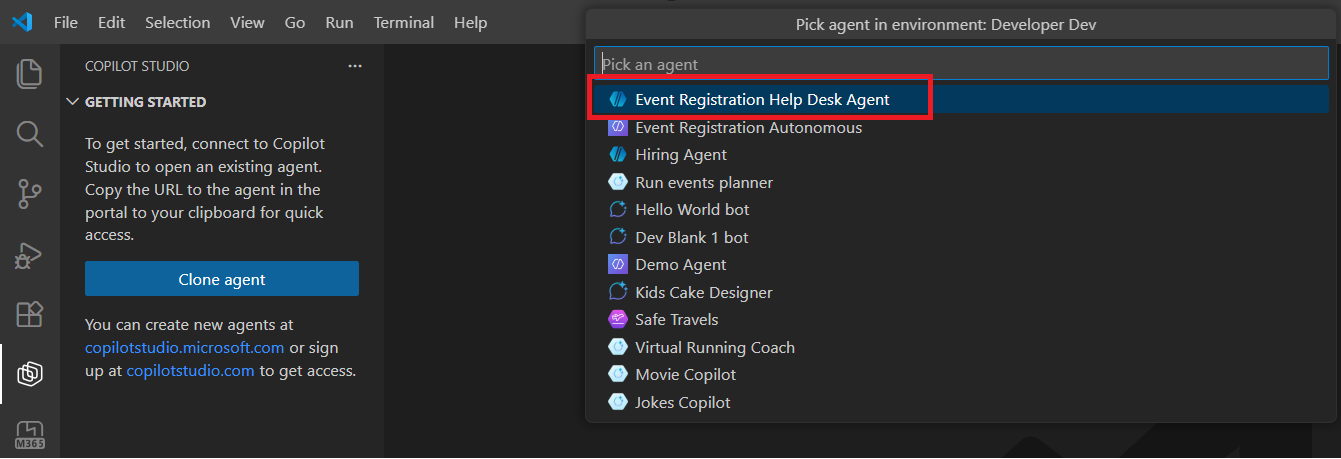
These steps worked for me, and I was able to successfully:
- Connect to the Copilot Studio environment.
- Clone my agent into VS Code
- Start working with the extension normally
If you’re new to the Copilot Studio extension in VS Code, you can refer to my earlier blog post for a complete step-by-step guide: : Copilot Studio VS Code Extension: Clone, Edit, and Sync Agents
🙂


 Rajeev Pentyala – Technical Blog on Power Platform, Azure and AI
Leave a comment