I recently came across the IEnumerable Debugger Visualizer in Visual Studio, and it made debugging IEnumerable collections much easier.
I wanted to share this feature in this blog post and show how it works using a simple C# console application.
This feature is available starting from Visual Studio 2022 (version 17.2 Preview 2).
What is the IEnumerable Debugger Visualizer?
- In C#,
IEnumerable<T>represents a collection that can be iterated. - For example,
IEnumerable<Car>can hold a list ofCarobjects, where each car has properties likeMake,Model,Year, and `Color.
With the IEnumerable Debugger Visualizer, Visual Studio now lets you:
- View all records in a table-like view
- See the count and values clearly
- Filter data using expressions

Now that we understand what the IEnumerable Debugger Visualizer is, let’s see how it works in practice using a simple C# console application.
Using IEnumerable Debugger Visualizer:
Here is the simple console app I used for this demo. It generates a collection of cars and returns it as IEnumerable<Car>.
// See https://aka.ms/new-console-template for more information
Console.WriteLine("Hello, World!");

// Generate a collection of cars
var cars = GenerateCars(50);

Console.WriteLine("Generated Cars:\n");

foreach (var car in cars)
{
    Console.WriteLine($"{car.Year} {car.Make} {car.Model} ({car.Name}) - {car.Color}");
}

// Function to generate a collection of Car objects
static IEnumerable<Car> GenerateCars(int carCount)
{
    string[] names = { "Lightning", "Thunder", "Storm", "Blaze", "Rocket" };
    string[] colors = { "Red", "Blue", "Black", "White", "Silver" };
    string[] makes = { "Toyota", "Honda", "Ford", "Chevrolet", "BMW" };
    string[] models = { "Sedan", "SUV", "Coupe", "Truck", "Hatchback" };

    var random = new Random();
    var carList = new List<Car>();

    for (int i = 0; i < carCount; i++)
    {
        carList.Add(new Car
        {
            Name = names[random.Next(names.Length)],
            Color = colors[random.Next(colors.Length)],
            Make = makes[random.Next(makes.Length)],
            Model = models[random.Next(models.Length)],
            Year = random.Next(2015, 2025)
        });
    }

    return carList;
}

// Car class
class Car
{
    public string Name { get; set; }
    public string Color { get; set; }
    public string Model { get; set; }
    public string Make { get; set; }
    public int Year { get; set; }
}
- Place a breakpoint right after this line:
var cars = GenerateCars(50);
- Build and run the project
- When the debugger hits the breakpoint:
- Hover over the
carsvariable - Click it to open the IEnumerable Visualizer
- Hover over the
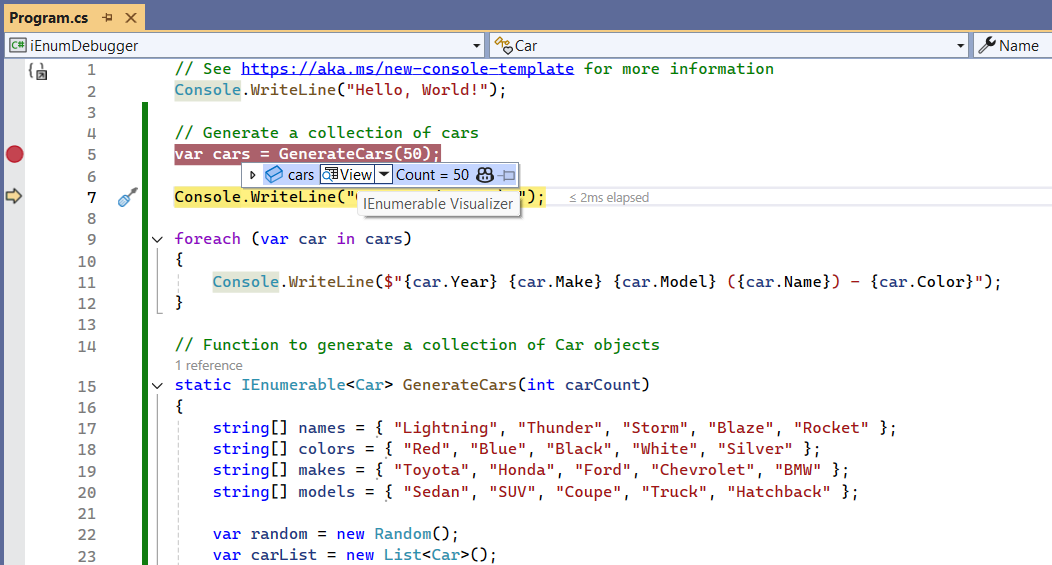
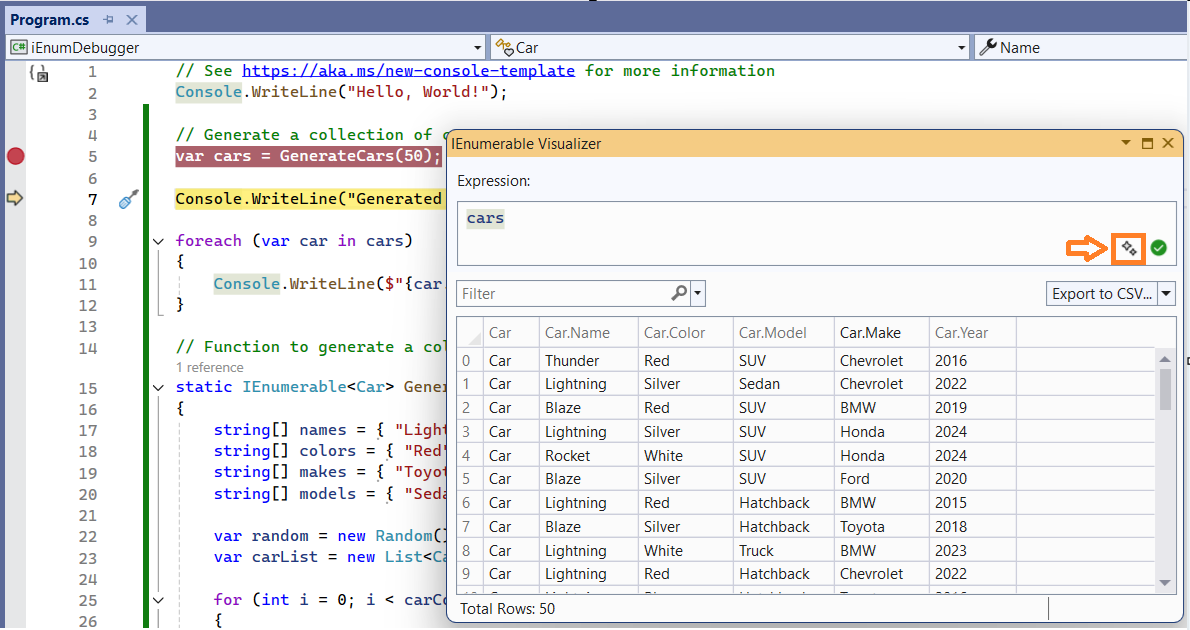
- Once the visualizer opens:
- All car records are shown in a table
- You can clearly see values like
Make,Model,Year, andColor
Filtering Data Using Expressions:
- Click on the ‘Copilot’ icon highlighted below.
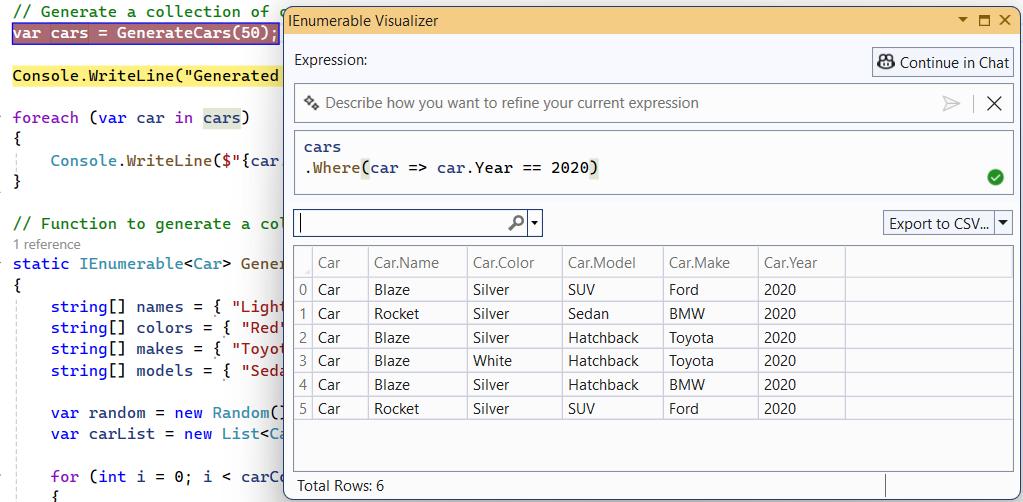
- Enter a natural language query, such as “Get the cars made in 2020”, and submit it.

- The visualizer automatically generates the corresponding expression and filters the data accordingly.
If you work with C# collections, IEnumerable Debugger Visualizer will quickly become part of your daily debugging workflow. If you haven’t tried it yet, open Visual Studio, hit a breakpoint, and give it a try.
🙂



 Rajeev Pentyala – Technical Blog on Power Platform, Azure and AI
Leave a comment