In my last blog post on Power Apps Code Apps, I explained how to create a simple Code App and publish it to a Power Platform environment.
In this article, let’s take it a step further by extending the Code App using Power Platform Connectors.
For this example, I’ll be using the Fluent Sample project from the official Code Apps GitHub repository.
Let’s start with the prerequisites.
Prerequisites:
Authenticate PAC CLI and point to your Power Platform environment:
- Open a command prompt
- Run the pac auth create command to create an authentication profile. This command sets up a connection to the Power Platform environment where you’ll be deploying the Code App.

- After successful execution, you should see a confirmation message indicating that authentication was successful.

Create Office 365 Connections:
- Navigate to Power Apps Maker Portal.
- Go to Data > Connections > New Connection
- Create Office 365 Users connection as shown below.

With the prerequisites complete, let’s move on to setting up the Code App project.
Setting up the Code App project:
As mentioned earlier, I’ll be using the Fluent Sample project from Code Apps Samples.
- Start by cloning the PowerAppsCodeApps repository
git clone https://github.com/microsoft/PowerAppsCodeApps.git

- Open the cloned project using Visual Studio Code
cd PowerAppsCodeApps
code .

- In the VS Code navigate to the samples/FluentSample folder.
Install dependencies and build project:
- Run npm install to install the project dependencies
npm install

- Once installed, run the build command to compile the project.
npm run build

Initiate the Code App and Run locally:
With the project built, the next step is to initiate and run it locally:
- Run pac code init to initialize the Code App project. This step generates a power.config.json file.
pac code init --displayName "CodeAppWithAConnectorDemo" --description "A simple Power Apps Code App with O365 connector"
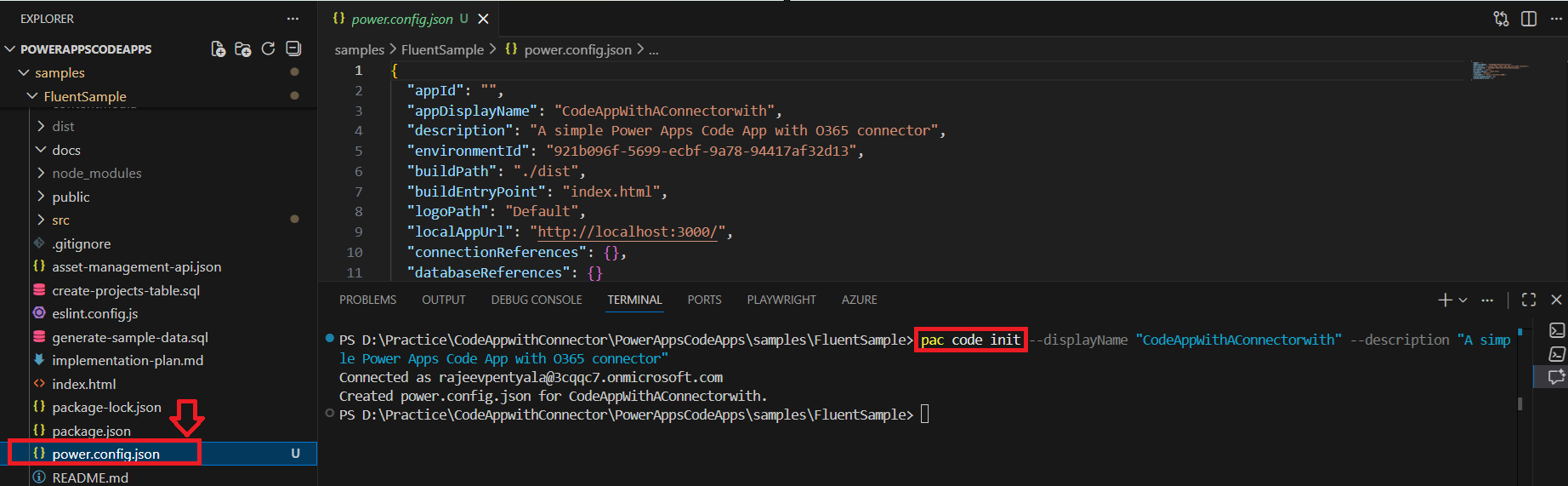
- Then, run
npm run devto start the app locally.
npm run dev
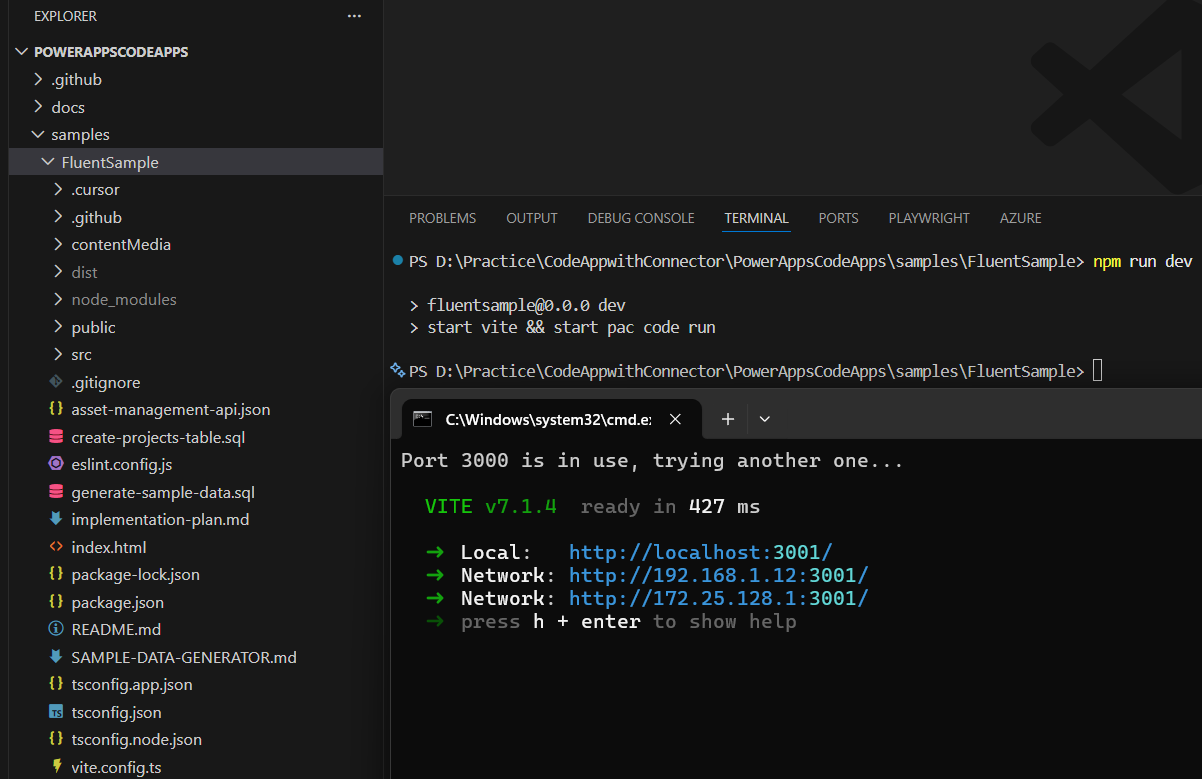
- The
npm run devcommand will output test URLs. Open one of these URLs in your browser to test the application locally.

- Navigate to the Office 365 tab—you’ll see mock data displayed on the screen.

At this point, we’ve successfully configured and run the Code App locally using mock data.
Next, we’ll replace the mock data in the Office 365 tab with real user data by connecting to live services using the connections set up in the prerequisites. Let’s begin.
Replace mocked up data with Real data using Connections:
- Run the pac connection list to list available connections:
pac connection list

- We will be using the office365users connection in our Code App so copy following highlighted:
- Id
- API Id (the value after
apis/)

- Next we need to run the pac code add-data-source command to add the connection to the Code App project. This step automatically generate a typed TypeScript model and service file in the repo.
- Prepare the command using the copied Id and API Id values from previous step and trigger the command.
pac code add-data-source -a "shared_office365users" -c "dea7285872b94e1c992a6c16ff80a548"
- Note: When I first ran the command, I encountered the error:
Error: Invalid URI format - This appears to be a known issue.
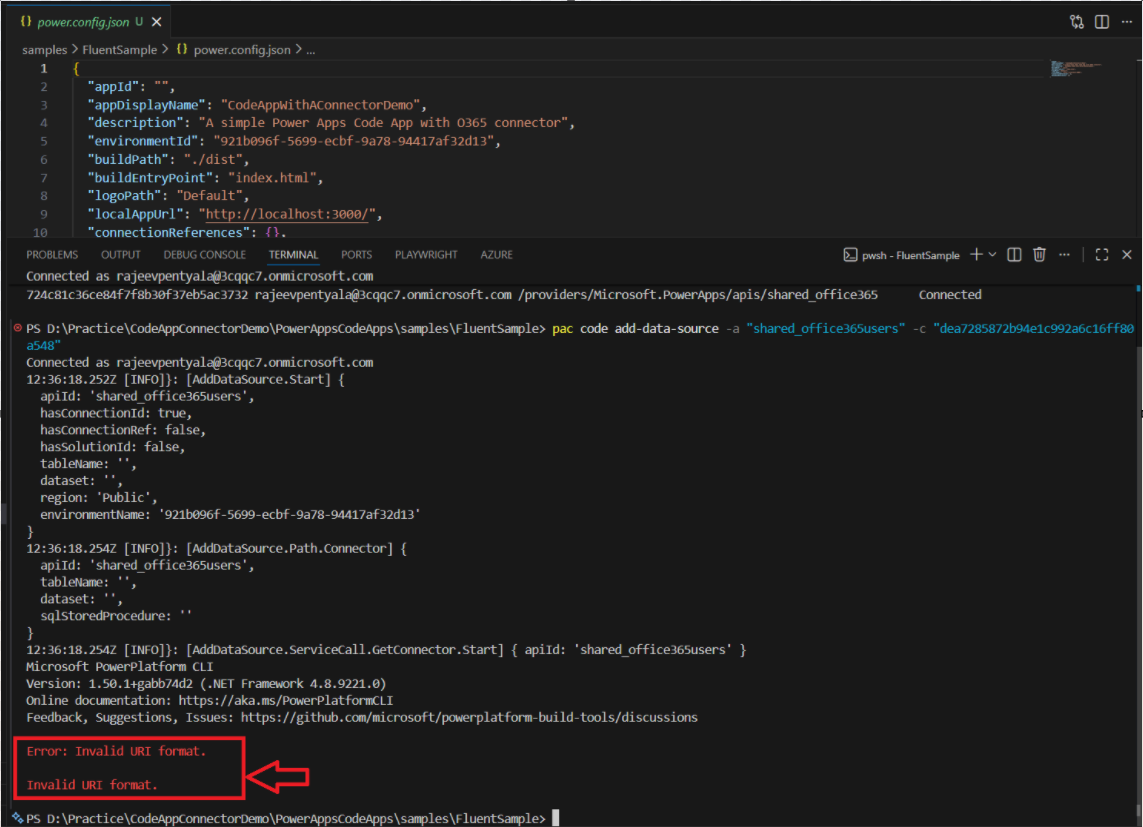
- To resolve, add “region”: “prod” line to the power.config.json file.
- After adding the region setting, re-run the
pac code add-data-sourcecommand. This time, the command executed successfully:

- pac code add-data-source command generated Office365UsersModel.ts and Office365UsersService.ts files as shown below.
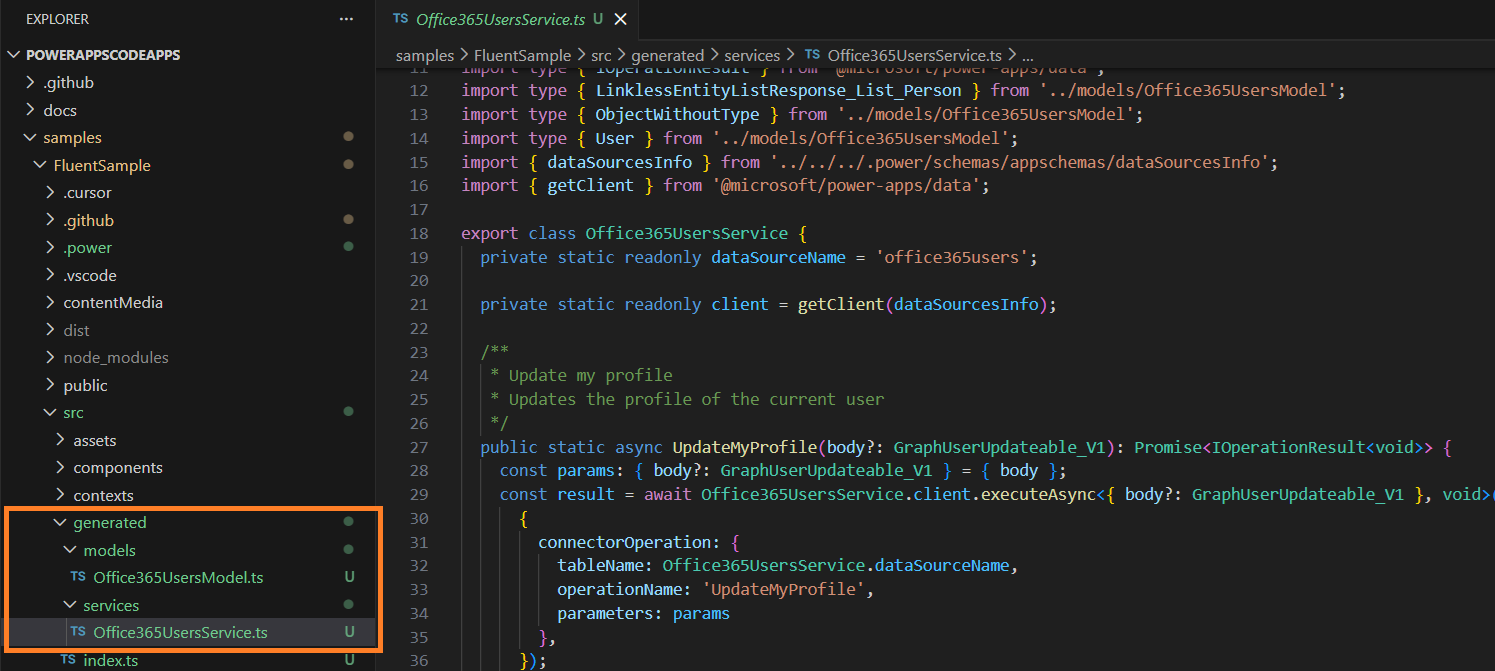
- Next, open the
Office365Page.tsxfile and replace the mock data references with the appropriate object models and service functions from the newly generated files. - I used GitHub Copilot to help update the
Office365Page.tsxfile. Here is the modified file:
import { Text, Card, makeStyles, shorthands, tokens, Input, Badge, Spinner, Avatar } from '@fluentui/react-components';
import { PeopleRegular, SearchRegular, PersonRegular } from '@fluentui/react-icons';
import PageHeader from '../components/PageHeader';
import { useState, useEffect, useCallback } from 'react';
import { Office365UsersService } from '../generated/services/Office365UsersService';
import type { User } from '../generated/models/Office365UsersModel';

const useStyles = makeStyles({
  container: {
    maxWidth: '1200px',
    ...shorthands.margin('0', 'auto'),
    backgroundColor: tokens.colorNeutralBackground1,
  },
  section: {
    marginBottom: '32px',
  },
  sectionHeader: {
    display: 'flex',
    alignItems: 'center',
    ...shorthands.gap('12px'),
    marginBottom: '16px',
  },
  sectionIcon: {
    fontSize: '20px',
    color: tokens.colorBrandForeground1,
  },
  sectionTitle: {
    fontSize: tokens.fontSizeBase400,
    fontWeight: tokens.fontWeightSemibold,
    color: tokens.colorNeutralForeground1,
  },
  grid: {
    display: 'grid',
    gridTemplateColumns: 'repeat(auto-fill, minmax(300px, 1fr))',
    ...shorthands.gap('16px'),
  },
  userCard: {
    ...shorthands.padding('16px'),
    height: 'fit-content',
    backgroundColor: tokens.colorNeutralBackground1,
  },
  userCardHeader: {
    display: 'flex',
    alignItems: 'center',
    ...shorthands.gap('12px'),
    marginBottom: '8px',
  },
  userName: {
    fontSize: tokens.fontSizeBase300,
    fontWeight: tokens.fontWeightSemibold,
    color: tokens.colorNeutralForeground1,
    marginBottom: '4px',
  },
  userDetails: {
    fontSize: tokens.fontSizeBase200,
    color: tokens.colorNeutralForeground2,
    lineHeight: tokens.lineHeightBase200,
  },
  searchBox: {
    maxWidth: '600px',
    width: '100%',
    marginBottom: '16px',
  },
  mockDataBadge: {
    marginBottom: '16px',
  },
});

export default function Office365Page() {
  const styles = useStyles();
  const [searchTerm, setSearchTerm] = useState('');
  const [users, setUsers] = useState<User[]>([]);
  const [loading, setLoading] = useState(false);
  const [currentUser, setCurrentUser] = useState<User | null>(null);
  const [userPhotos, setUserPhotos] = useState<Record<string, string>>({});

  // Load current user profile
  useEffect(() => {
    const loadCurrentUser = async () => {
      try {
        const result = await Office365UsersService.MyProfile();
        if (result.data) {
          setCurrentUser(result.data);
          console.log('Loaded current user profile:', result.data.DisplayName);
          // Load the current user's photo
          const photo = await loadUserPhoto(result.data.Id);
          if (photo) {
            setUserPhotos(prev => ({ ...prev, [result.data.Id]: photo }));
          }
        }
      } catch (error) {
        console.error('Error loading current user:', error);
        // Fallback: show message that Office 365 connection is available but may need permissions
      }
    };
    loadCurrentUser();
  }, []);

  // Load user photo
  const loadUserPhoto = async (userId: string): Promise<string | null> => {
    try {
      const result = await Office365UsersService.UserPhoto(userId);
      if (result.data) {
        // The photo comes as base64 data, create a data URL
        return `data:image/jpeg;base64,${result.data}`;
      }
    } catch (error) {
      console.error(`Error loading photo for user ${userId}:`, error);
    }
    return null;
  };

  // Helper function to load user photos
  const loadPhotosForUsers = useCallback(async (newUsers: User[]) => {
    const photoPromises = newUsers.map(async (user: User) => {
      const photo = await loadUserPhoto(user.Id);
      return { userId: user.Id, photo };
    });

    const photoResults = await Promise.all(photoPromises);
    const photoMap: Record<string, string> = {};
    photoResults.forEach(({ userId, photo }: { userId: string, photo: string | null }) => {
      if (photo) {
        photoMap[userId] = photo;
      }
    });

    setUserPhotos(prev => ({ ...prev, ...photoMap }));
  }, []);

  // Search users with simple SearchUser approach
  useEffect(() => {
    const searchUsers = async () => {
      // If search term is empty, clear users and don't search
      if (!searchTerm.trim()) {
        setUsers([]);
        setLoading(false);
        return;
      }

      setLoading(true);
      setUsers([]); // Clear existing users when starting new search

      try {
        console.log('Searching users with term:', searchTerm);

        const pageSize = 50;
        const result = await Office365UsersService.SearchUser(
          searchTerm.trim(),
          pageSize
        );

        if (result.success && result.data) {
          setUsers(result.data);
          console.log('Users loaded:', result.data.length);

          // Load photos for the users
          await loadPhotosForUsers(result.data);
        } else {
          console.error('Search failed');
          setUsers([]);
        }
      } catch (error) {
        console.error('Error searching users:', error);
        setUsers([]);
      } finally {
        setLoading(false);
      }
    };

    // Add debouncing to avoid too many API calls
    const debounceTimer = setTimeout(searchUsers, 500);
    return () => clearTimeout(debounceTimer);
  }, [searchTerm, loadPhotosForUsers]);

  return (
    <div className={styles.container}>
      <PageHeader
        title="Office 365 Connector Example"
        subtitle="This page demonstrates Office 365 connector integration with user profiles and organizational directory data."
        icon={<PeopleRegular />}
      />

      {currentUser ? (
        <Badge className={styles.mockDataBadge} appearance="tint" color="success">
          ✅ Connected to Office 365 (Welcome, {currentUser.DisplayName}!)
        </Badge>
      ) : (
        <Badge className={styles.mockDataBadge} appearance="tint" color="brand">
          🔄 Loading user data...
        </Badge>
      )}

      {/* Information Note */}
      <Card style={{ padding: '16px', backgroundColor: tokens.colorNeutralBackground2, marginBottom: '24px' }}>
        <div style={{ textAlign: 'center' }}>
          <Text style={{ color: tokens.colorNeutralForeground2, lineHeight: tokens.lineHeightBase300, display: 'block', marginBottom: '8px', fontSize: tokens.fontSizeBase200 }}>
            ✅ Connected to live Office 365 directory
          </Text>
          <Text style={{ color: tokens.colorNeutralForeground2, lineHeight: tokens.lineHeightBase300, fontSize: tokens.fontSizeBase100 }}>
            📚 Search for users in your organization using the search box below. For more information, check out our{' '}
            <a
              href="https://github.com/microsoft/PowerAppsCodeApps/blob/FluentSample/docs/how-to-connect-to-data.md"
              target="_blank"
              rel="noopener noreferrer"
              style={{
                color: tokens.colorBrandForeground1,
                textDecoration: 'none',
                fontWeight: tokens.fontWeightSemibold
              }}
            >
              data connection guide
            </a> 🔗
          </Text>
        </div>
      </Card>

      {/* Current User Profile Section */}
      {currentUser && (
        <section className={styles.section}>
          <div className={styles.sectionHeader}>
            <PersonRegular className={styles.sectionIcon} />
            <h3 className={styles.sectionTitle}>My Profile</h3>
          </div>

          <Card className={styles.userCard} style={{ maxWidth: '600px' }}>
            <div className={styles.userCardHeader}>
              <Avatar
                name={currentUser.DisplayName}
                size={64}
                image={userPhotos[currentUser.Id] ? { src: userPhotos[currentUser.Id] } : undefined}
              />
              <div>
                <div className={styles.userName} style={{ fontSize: tokens.fontSizeBase400 }}>
                  {currentUser.DisplayName}
                </div>
                <div style={{ fontSize: tokens.fontSizeBase300, color: tokens.colorNeutralForeground2, fontWeight: tokens.fontWeightMedium }}>
                  {currentUser.JobTitle}
                </div>
              </div>
            </div>
            <div className={styles.userDetails}>
              <div style={{ display: 'grid', gridTemplateColumns: '1fr 1fr', gap: '12px', marginBottom: '16px' }}>
                <div>
                  <div><strong>Email:</strong> {currentUser.Mail || 'Not available'}</div>
                  <div><strong>User Principal:</strong> {currentUser.UserPrincipalName || 'Not available'}</div>
                  <div><strong>Department:</strong> {currentUser.Department || 'Not specified'}</div>
                  <div><strong>Company:</strong> {currentUser.CompanyName || 'Not specified'}</div>
                </div>
                <div>
                  <div><strong>Office:</strong> {currentUser.OfficeLocation || 'Not specified'}</div>
                  <div><strong>Mobile:</strong> {currentUser.mobilePhone || 'Not available'}</div>
                  <div><strong>Business Phone:</strong> {currentUser.BusinessPhones?.length ? currentUser.BusinessPhones[0] : 'Not available'}</div>
                  <div><strong>City:</strong> {currentUser.City || 'Not specified'}</div>
                </div>
              </div>

              {(currentUser.GivenName || currentUser.Surname || currentUser.Country || currentUser.PostalCode) && (
                <div style={{ borderTop: `1px solid ${tokens.colorNeutralStroke2}`, paddingTop: '12px', marginTop: '12px' }}>
                  <div style={{ display: 'grid', gridTemplateColumns: '1fr 1fr', gap: '12px' }}>
                    <div>
                      {currentUser.GivenName && <div><strong>First Name:</strong> {currentUser.GivenName}</div>}
                      {currentUser.Surname && <div><strong>Last Name:</strong> {currentUser.Surname}</div>}
                    </div>
                    <div>
                      {currentUser.Country && <div><strong>Country:</strong> {currentUser.Country}</div>}
                      {currentUser.PostalCode && <div><strong>Postal Code:</strong> {currentUser.PostalCode}</div>}
                    </div>
                  </div>
                </div>
              )}

              <div style={{ borderTop: `1px solid ${tokens.colorNeutralStroke2}`, paddingTop: '12px', marginTop: '12px', fontSize: tokens.fontSizeBase200, color: tokens.colorNeutralForeground3 }}>
                <div><strong>Account Status:</strong> {currentUser.AccountEnabled ? '✅ Active' : '❌ Disabled'}</div>
              </div>
            </div>
          </Card>
        </section>
      )}

      {/* Users Section */}
      <section className={styles.section}>
        <div className={styles.sectionHeader}>
          <PeopleRegular className={styles.sectionIcon} />
          <h3 className={styles.sectionTitle}>Organization Directory</h3>
        </div>

        <Input
          className={styles.searchBox}
          placeholder="Enter a search term to find users in your organization..."
          contentBefore={<SearchRegular />}
          value={searchTerm}
          onChange={(e) => setSearchTerm(e.target.value)}
        />

        <div className={styles.grid}>
          {loading && users.length === 0 && (
            <div style={{ display: 'flex', justifyContent: 'center', padding: '20px', backgroundColor: tokens.colorNeutralBackground1 }}>
              <Spinner size="medium" label="Loading users..." />
            </div>
          )}
          {users.map((user: User) => (
            <Card key={user.Id} className={styles.userCard}>
              <div className={styles.userCardHeader}>
                <Avatar
                  name={user.DisplayName}
                  size={48}
                  image={userPhotos[user.Id] ? { src: userPhotos[user.Id] } : undefined}
                />
                <div>
                  <div className={styles.userName}>{user.DisplayName}</div>
                  <div style={{ fontSize: tokens.fontSizeBase200, color: tokens.colorNeutralForeground2 }}>
                    {user.JobTitle || 'No title specified'}
                  </div>
                </div>
              </div>
              <div className={styles.userDetails}>
                <div style={{ display: 'grid', gridTemplateColumns: '1fr', gap: '8px', marginBottom: '12px' }}>
                  <div>
                    <div style={{ fontSize: tokens.fontSizeBase200 }}><strong>Email:</strong> {user.Mail || 'Not available'}</div>
                    <div style={{ fontSize: tokens.fontSizeBase200 }}><strong>Department:</strong> {user.Department || 'Not specified'}</div>
                    <div style={{ fontSize: tokens.fontSizeBase200 }}><strong>Office:</strong> {user.OfficeLocation || 'Not specified'}</div>
                    {user.mobilePhone && <div style={{ fontSize: tokens.fontSizeBase200 }}><strong>Mobile:</strong> {user.mobilePhone}</div>}
                    {user.BusinessPhones?.length && <div style={{ fontSize: tokens.fontSizeBase200 }}><strong>Business Phone:</strong> {user.BusinessPhones[0]}</div>}
                  </div>
                </div>

                {(user.CompanyName || user.City || user.Country) && (
                  <div style={{ borderTop: `1px solid ${tokens.colorNeutralStroke2}`, paddingTop: '8px', marginTop: '8px' }}>
                    {user.CompanyName && <div style={{ fontSize: tokens.fontSizeBase200 }}><strong>Company:</strong> {user.CompanyName}</div>}
                    {user.City && <div style={{ fontSize: tokens.fontSizeBase200 }}><strong>City:</strong> {user.City}</div>}
                    {user.Country && <div style={{ fontSize: tokens.fontSizeBase200 }}><strong>Country:</strong> {user.Country}</div>}
                  </div>
                )}

                <div style={{ borderTop: `1px solid ${tokens.colorNeutralStroke2}`, paddingTop: '8px', marginTop: '8px', fontSize: tokens.fontSizeBase100, color: tokens.colorNeutralForeground3 }}>
                  <div><strong>Status:</strong> {user.AccountEnabled ? '✅ Active' : '❌ Disabled'}</div>
                </div>
              </div>
            </Card>
          ))}
          {!loading && !searchTerm.trim() && (
            <div style={{ padding: '20px', textAlign: 'center', color: tokens.colorNeutralForeground2 }}>
              <SearchRegular style={{ fontSize: '48px', marginBottom: '8px' }} />
              <div>Enter a search term to find users in your organization</div>
            </div>
          )}
          {!loading && searchTerm && users.length === 0 && (
            <div style={{ padding: '20px', textAlign: 'center', color: tokens.colorNeutralForeground2 }}>
              <PersonRegular style={{ fontSize: '48px', marginBottom: '8px' }} />
              <div>No users found for "{searchTerm}"</div>
            </div>
          )}
        </div>

        {users.length > 0 && (
          <Text style={{ marginTop: '16px', color: tokens.colorNeutralForeground2, textAlign: 'center', display: 'block' }}>
            Showing {users.length} users
          </Text>
        )}
      </section>

      {/* Integration Note */}
      <Card style={{ padding: '20px', backgroundColor: tokens.colorNeutralBackground2, marginTop: '32px' }}>
        <div style={{ textAlign: 'center' }}>
          <Text style={{ color: tokens.colorNeutralForeground2, lineHeight: tokens.lineHeightBase300, display: 'block', marginBottom: '12px' }}>
            ℹ️ <strong>Office 365 Integration Active</strong> - Displaying live organizational data
          </Text>
          <Text style={{ color: tokens.colorNeutralForeground2, lineHeight: tokens.lineHeightBase300, fontSize: tokens.fontSizeBase200 }}>
            📚 For more information on data connections and permissions, check out our{' '}
            <a
              href="https://github.com/microsoft/PowerAppsCodeApps/blob/FluentSample/docs/how-to-connect-to-data.md"
              target="_blank"
              rel="noopener noreferrer"
              style={{
                color: tokens.colorBrandForeground1,
                textDecoration: 'none',
                fontWeight: tokens.fontWeightSemibold
              }}
            >
              data connection guide
            </a> 🔗
          </Text>
        </div>
      </Card>
    </div>
  );
}
- After making the changes, rebuild the project and confirm there are no errors.
npm run build
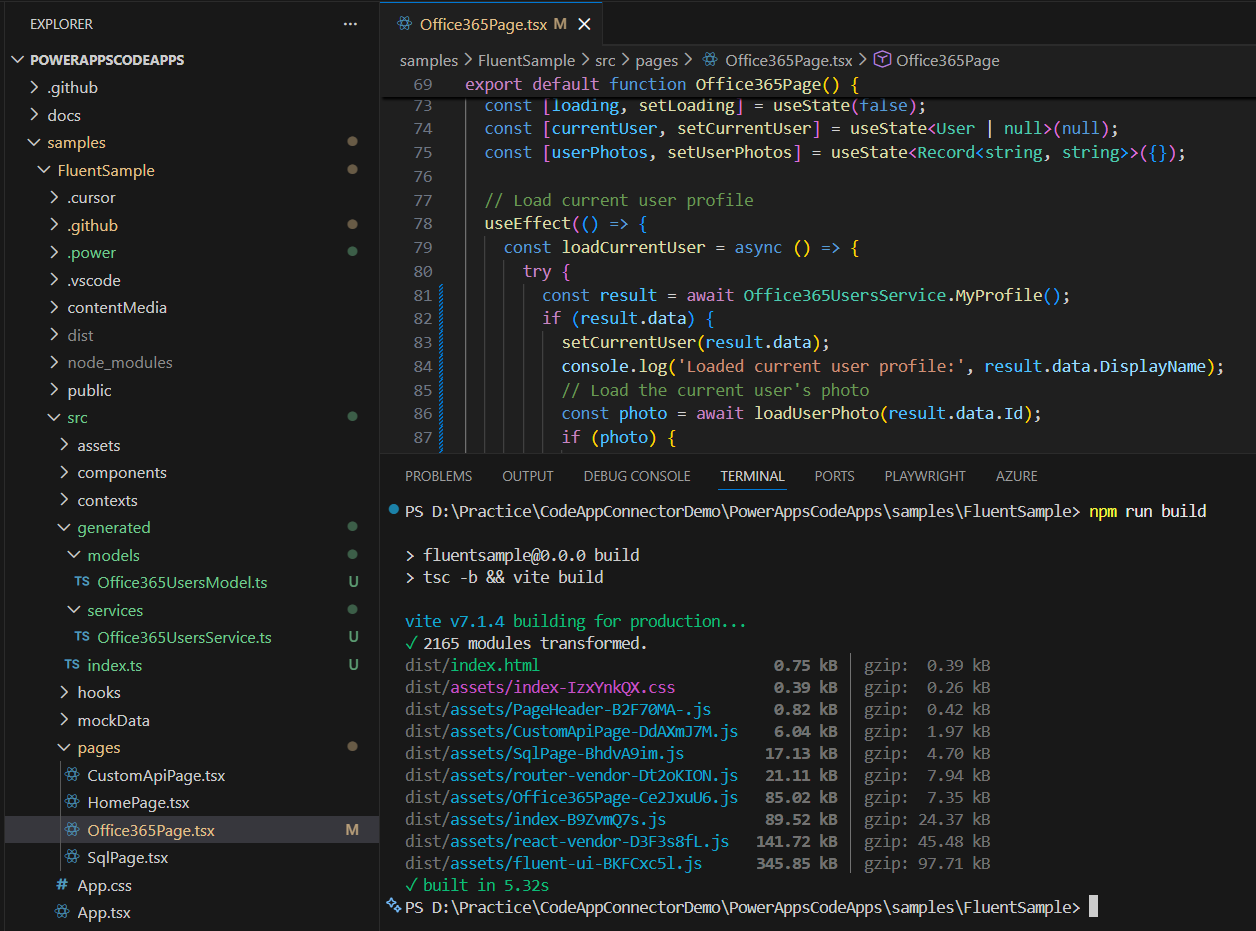
At this point, we’ve successfully replaced the mock data in Office365Page.tsx with real user data and built the project.
Next, we’ll publish the Code App to the Power Platform environment and test it.
Test the Code App:
- Run the pac code push command to push the Code App to your Power Platform environment.
pac code push
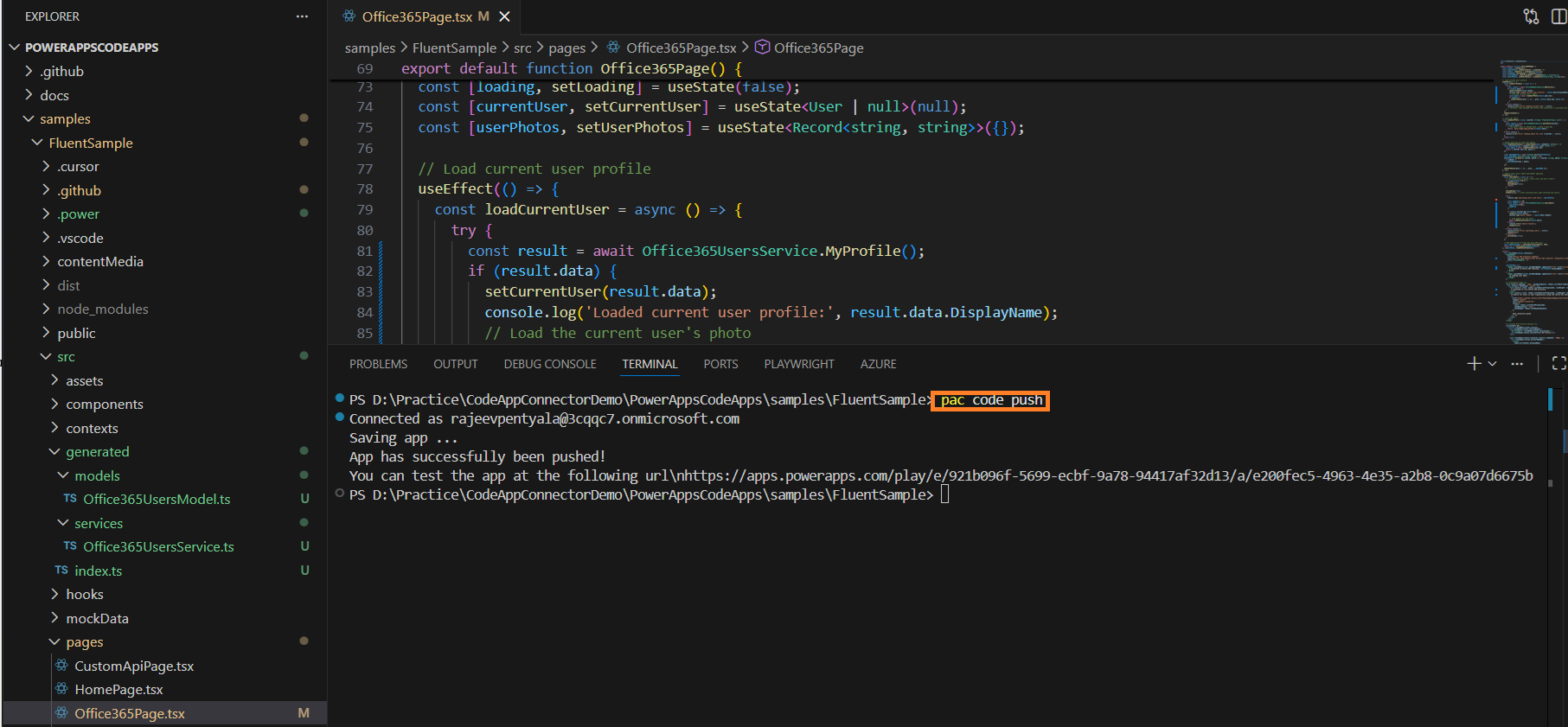
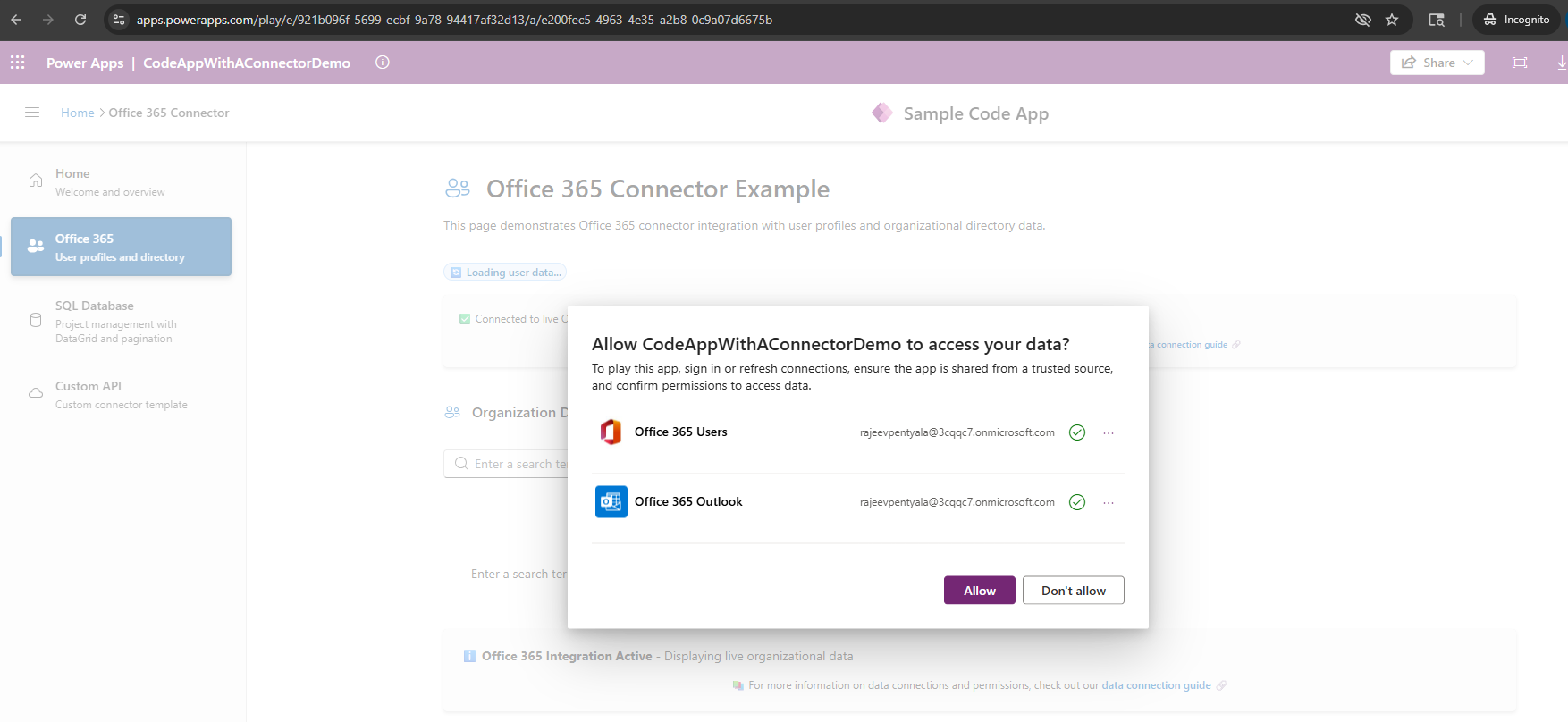
- Once the app is deployed, open it using the generated URL. Navigate to the Office 365 tab.
- The app will prompt you to allow the connectors. Click Allow to grant the necessary permissions.
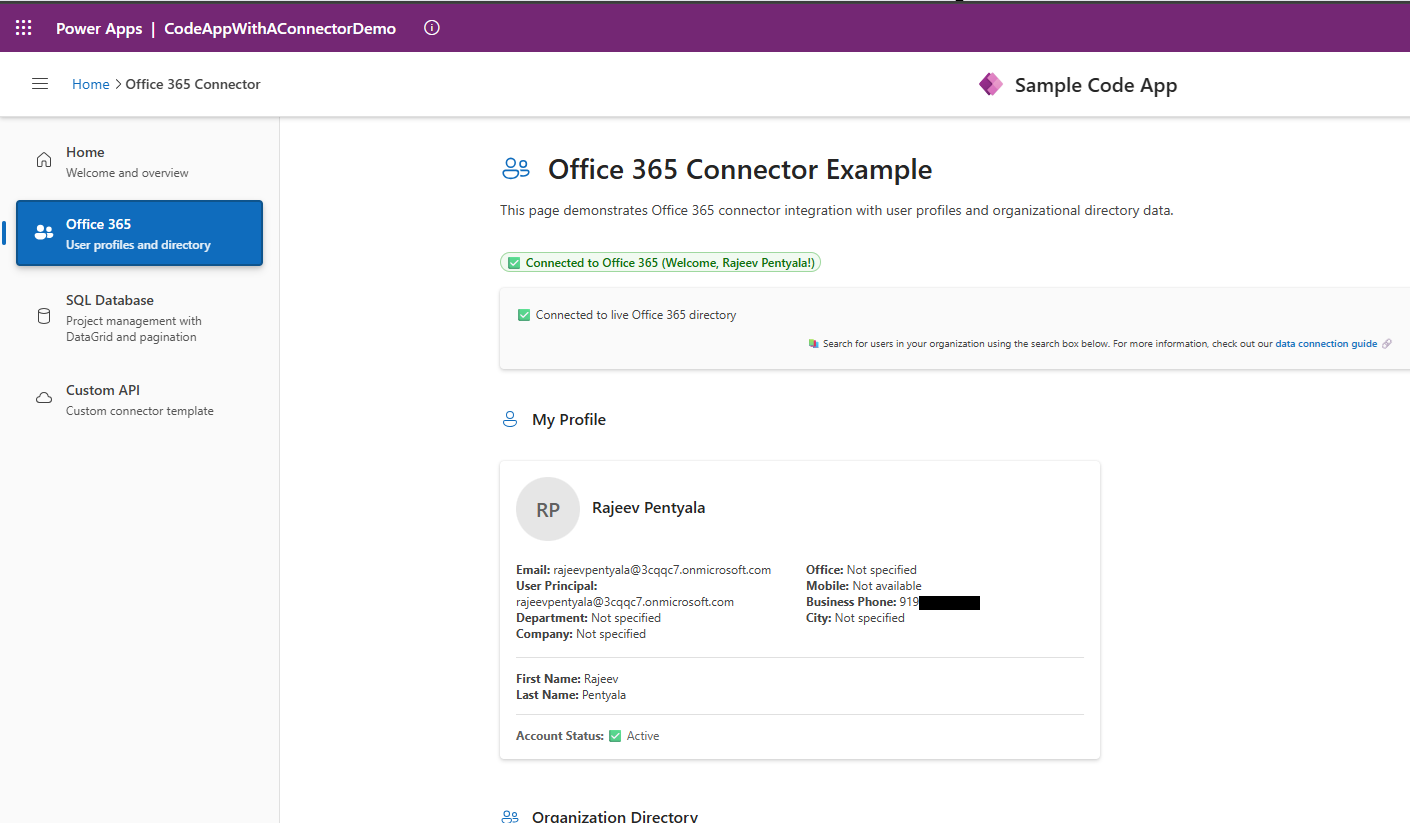
- After that, the Office 365 page will display real user data, confirming the integration was successful.
I hope this article helped you understand how to enhance a Power Apps Code App by integrating real data using Power Platform connectors.
🙂



 Rajeev Pentyala – Technical Blog on Power Platform, Azure and AI
Leave a comment