Monitor in Power Apps offers insights and recommendations to enhance app performance. It provides makers with detailed information on their app’s performance and actionable steps to improve their apps.
Prerequisites
- Tenant-level analytics must be turned on to make data available for Monitor experiences.
- You must be assigned to the system administrator role of the environment
Turn on tenant-level analytics:
- Sign in to the Power Platform admin center.
- In the navigation pane, select Manage.
- In the Manage pane, select Tenant settings.
- On the Tenant settings page, select Analytics.
- In the Analytics pane, turn the Tenant-level analytics option to Enable.
- Select Save.

Using Monitor in Power Apps Maker Portal:
- Sign in to Power Apps.
- On the left navigation, select Apps.
- On the command bar, select Monitor.
- On the left navigation pane, select the
 pin button next to Monitor.
Use Monitor:
- The Monitor page displays metric cards at the top, highlighting the top three underperforming apps for each metric.
- If all apps perform well on a specific metric, then no apps are listed in the card.
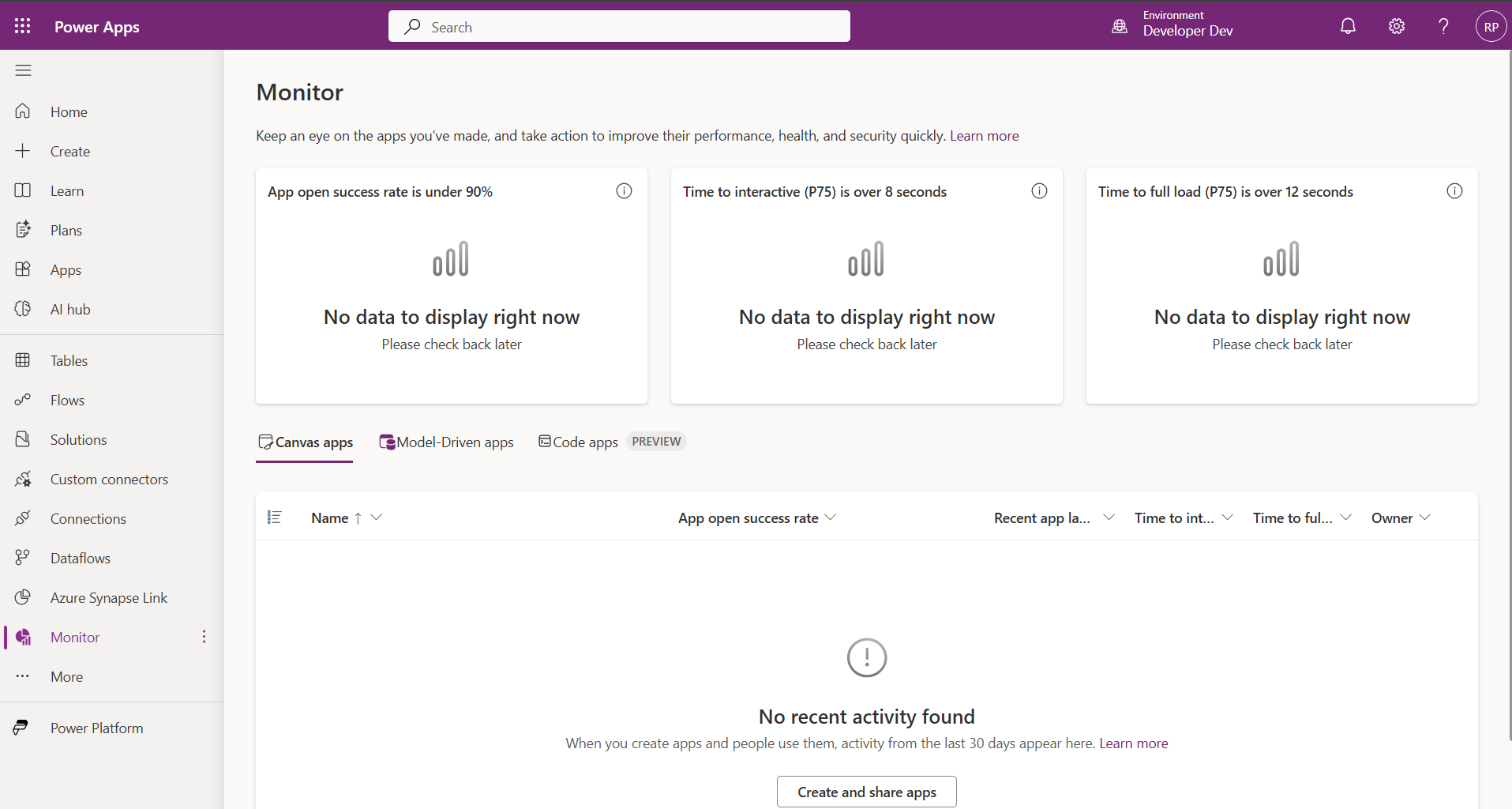
- Following are Metrics:
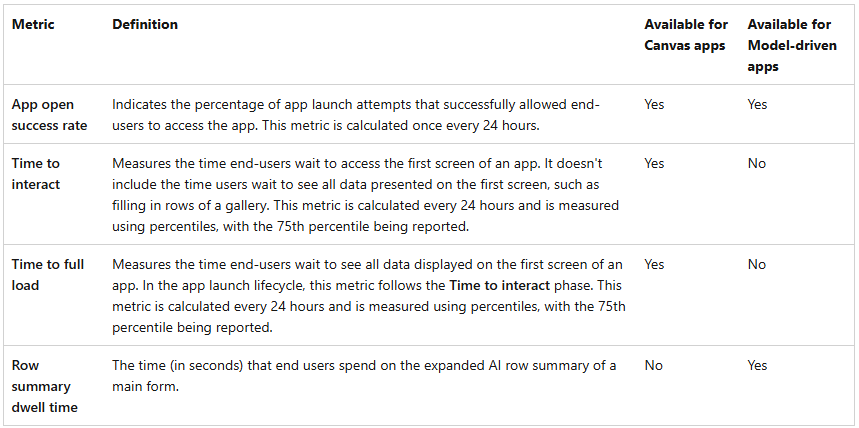
Refer this Microsoft documentation for more details : Use Monitor to get insights and recommendations for your app
🙂



 Rajeev Pentyala – Technical Blog on Power Platform, Azure and AI
Leave a comment