In my previous article : Integrate Agent into a C# Console App Using the Agents SDK, I explained how to trigger a Copilot Studio agent using the Microsoft 365 Agents SDK.
In this article, we’ll learn how to build a complete C# console application that communicates with your Copilot Studio agent programmatically using the Direct Line API
What is Direct Line API:
Direct Line is Microsoft’s REST API that lets any application send messages to and receive responses from Copilot Studio agents, just like a human would in a chat window.
For this article, I will be using Microsoft.Bot.Connector.DirectLine NuGet package in my C# console project.
As for the Copilot Studio agent, I’ll be using the Website Q&A agent, which I created using the out-of-the-box Website Q&A template.

Now that our Copilot agent is ready, the next step is to build a C# console project that uses the Direct Line API.
Building the C# console App with Direct Line API:
I’ve uploaded the working C# console project to my GitHub repo : CopilotAgentDirectlineAPI. Follow the steps below to get started:
- Clone the repo : https://github.com/RajeevPentyala/CopilotAgentDirectlineAPI.git
- In the cloned project, Create a new appsettings.json file by copying the content from appsettings.template.json.

- Next, we need to get the Copilot agent’s secret, which is required to establish a connection using the Direct Line API.
- Open your Copilot Studio agent
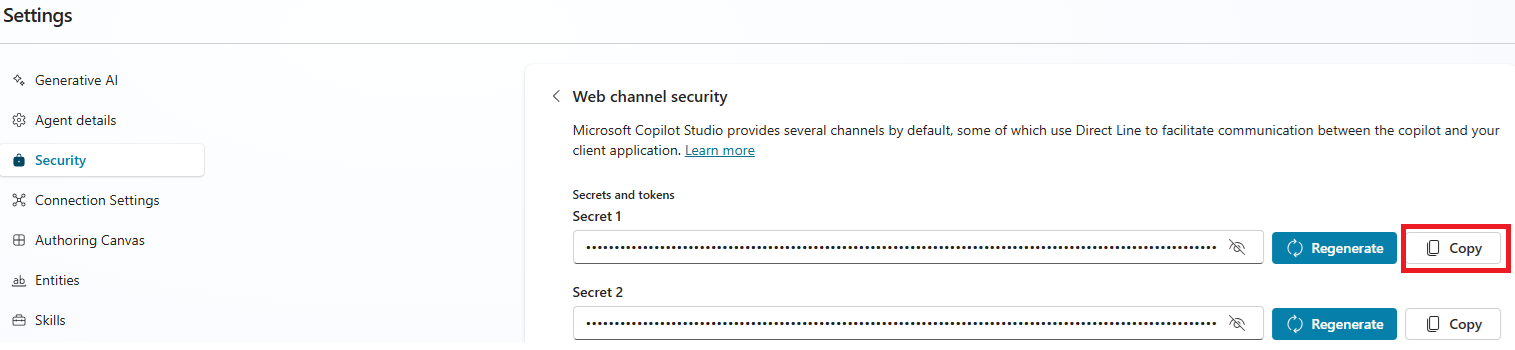
- Go to Settings > Security > Web channel security
- Copy either Secret 1 or Secret 2
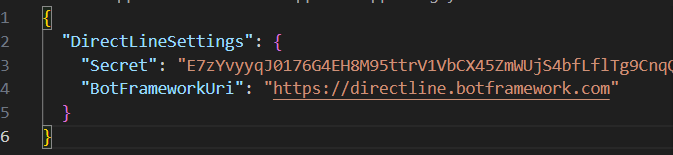
- Once you have the secret, paste it into the
Secretfield in theappsettings.jsonfile, as shown below.
- Build the project.
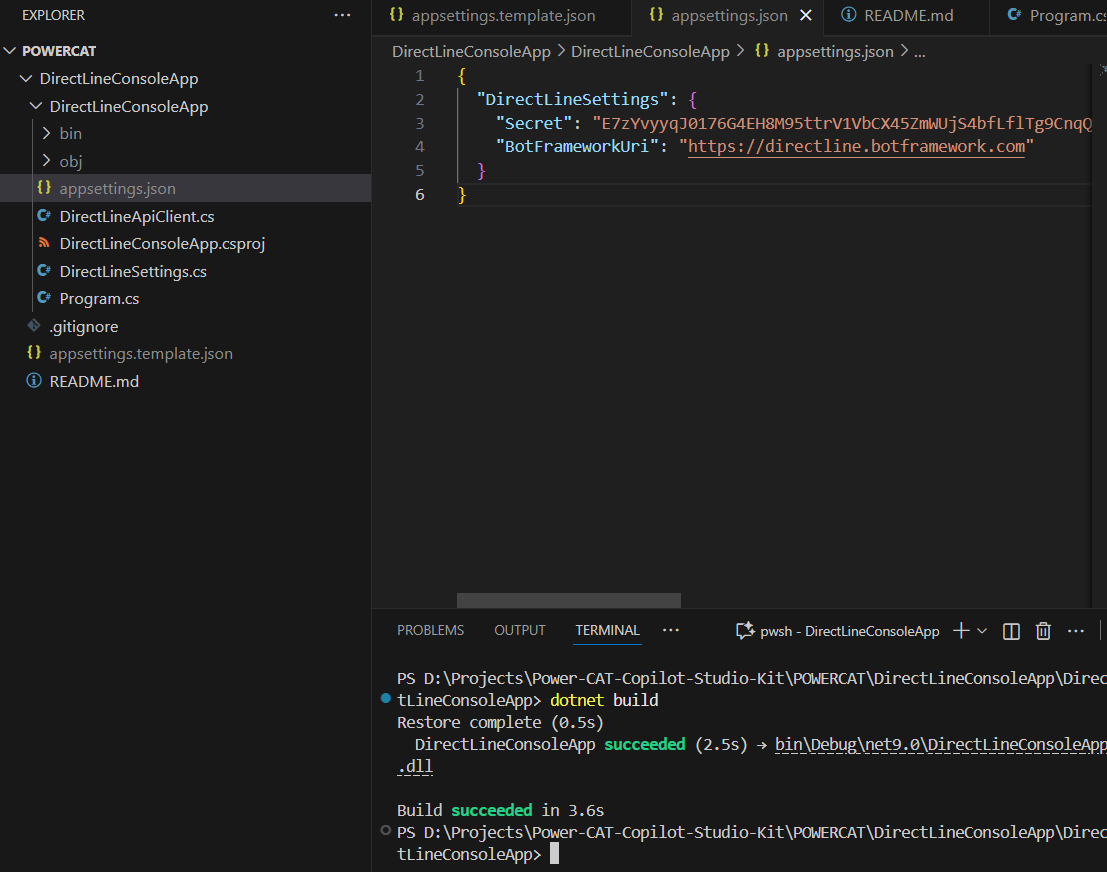
We’ve successfully cloned the C# console project and configured the Copilot agent’s secret in the appsettings.json file.
Now it’s time to test the setup by chatting with the agent using the Direct Line API.
Test the Console App Using the Direct Line API:
- Run the project.
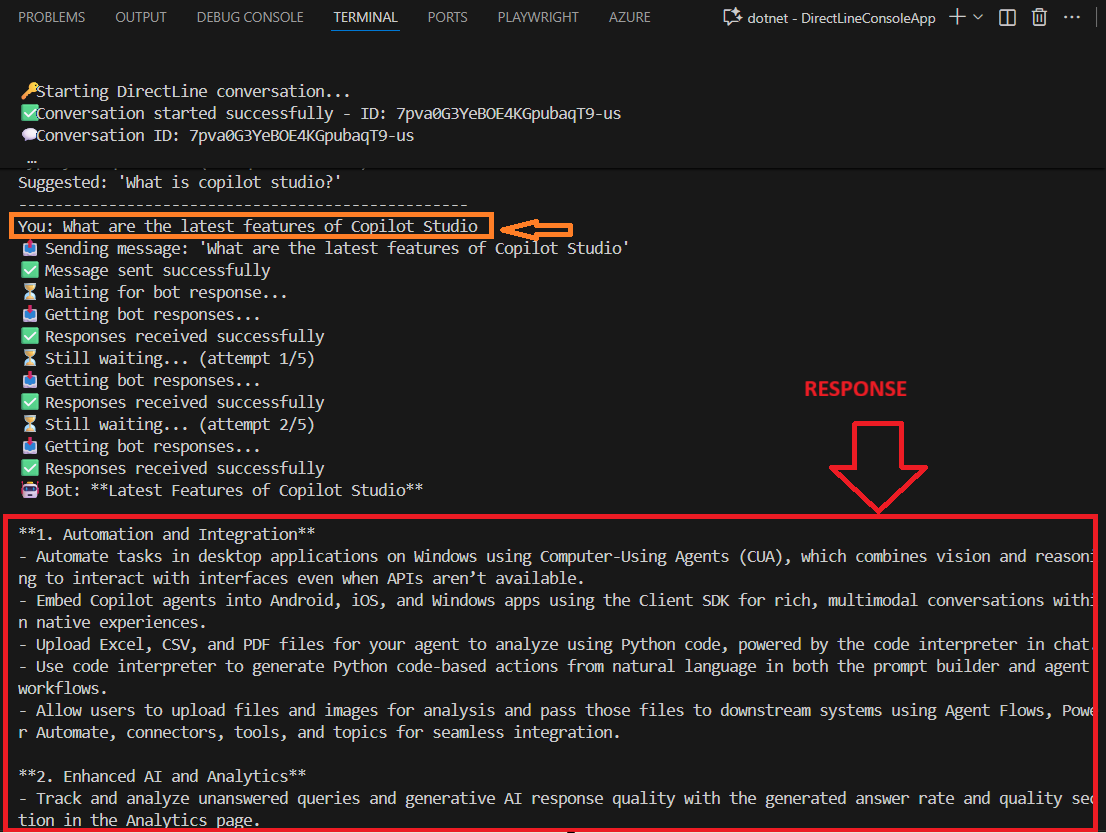
- The console app will establish a connection with your Copilot agent using the Direct Line API. Once connected, you’ll see the Conversation ID displayed in the console.
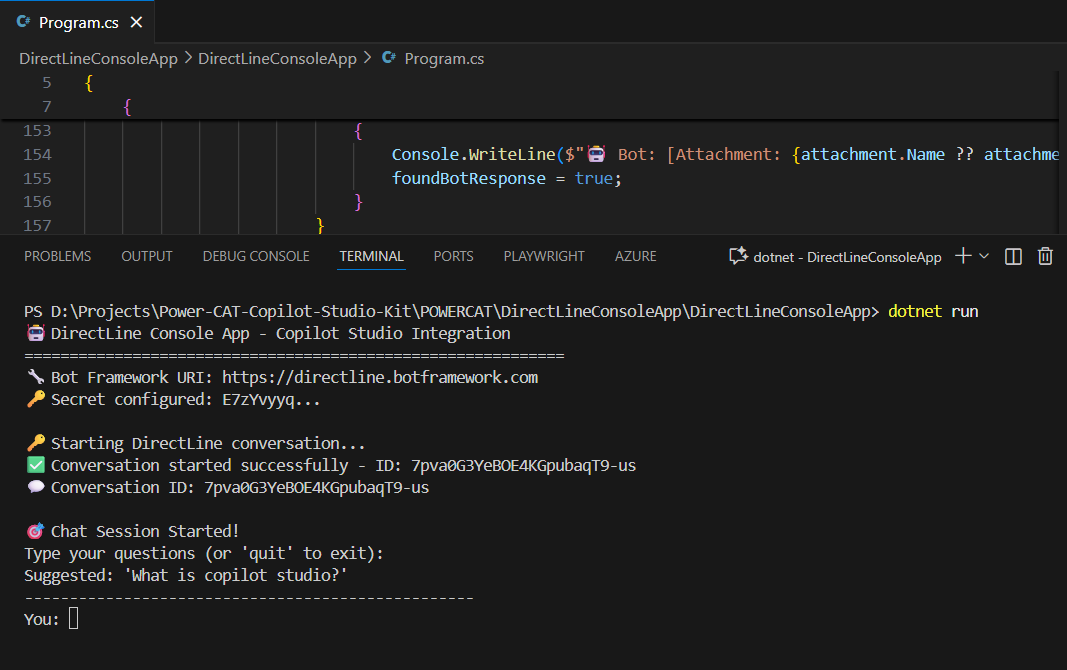
- Next, send a message to the agent.
- For example, I sent: “What are the latest features of Copilot Studio?”
The agent responded as shown below:
I hope this guide helped you understand how to connect a Copilot Studio agent to a C# console app using the Direct Line API.
🙂





 Rajeev Pentyala – Technical Blog on Power Platform, Azure and AI
Leave a comment