In the previous blog post : Trigger Agent Flows from Topics, I configured a Topic with a Generative Message action to generate a registration confirmation message along with a motivational quote.

When you test the agent, the response from the Generative Message action appears as shown below.
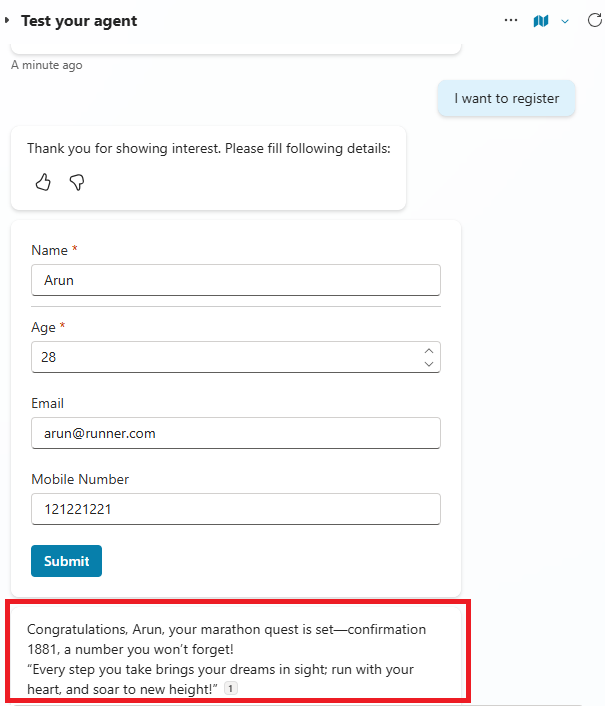
But did you know that you can format the response text by specifying its format and style using the Response Formatting option?
Configuring Response formatting:
To customize how your agent’s messages appear, follow these steps:
- Navigate to Agent → Settings → Responses → Response formatting.

- Configure your preferred response style as shown below.

- Save the changes.
- Now, test the Agent again — you’ll notice that the response includes emojis and other elements you configured under Response Formatting.
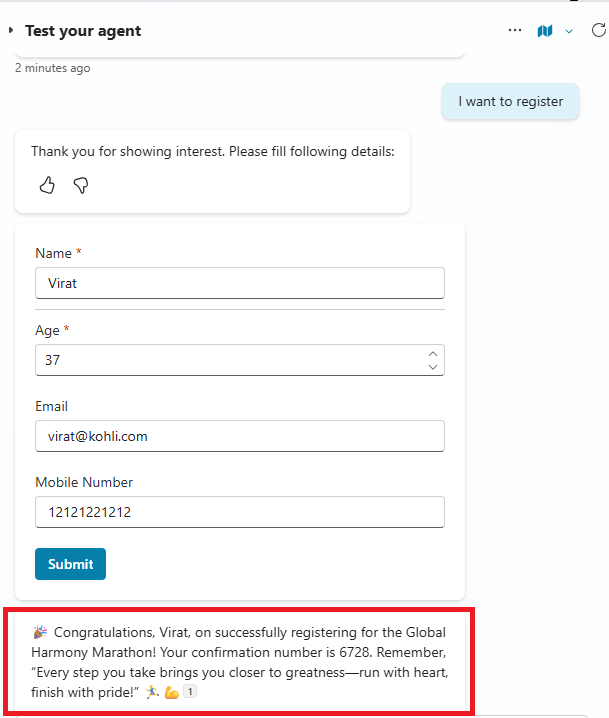
- 💡 Important: If the Response Formatting configuration conflicts with other Agent instructions, the Response Formatting settings will take precedence.
- For example, if the Agent instructions (i.e., Instructions specified under Overview > Instructions) specify “Do not add emojis” but the Response Formatting option includes “Add emojis,” the agent will follow the Response Formatting setting and display emojis in the response.
🙂



 Rajeev Pentyala – Technical Blog on Power Platform, Azure and AI
Leave a comment