Let’s say you’re testing an agent and encounter an exception. You want to troubleshoot the issue and understand which topic/tool caused the issue.
Did you know you can capture the conversation content and diagnostic data, and save it as a file? This allows you to analyze the information and troubleshoot issues—such as the agent not responding as expected—using the Save Snapshot feature.
In this article, we’ll explore how to use the Save Snapshot feature.
Using Save Snapshot feature:
- In my agent, I created a topic and intentionally called the same topic again to generate an error.

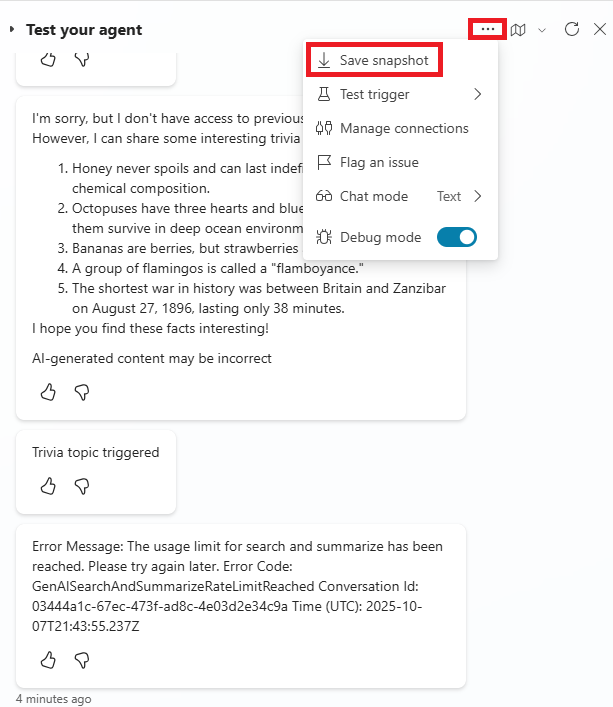
- I then tested the agent and received the error as shown below. To download the snapshot, at the top of the Test your agent pane, select the More icon (…), then select Save snapshot.
- When you click Save Snapshot, a pop-up appears. Click on Save
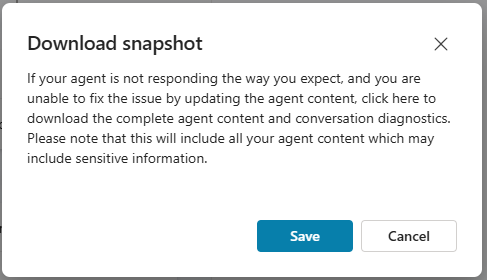
- A .zip named botContent will be downloaded.

- After unzipping the folder, you’ll find two files:
- dialog.json contains conversational diagnostics, including detailed descriptions of errors.
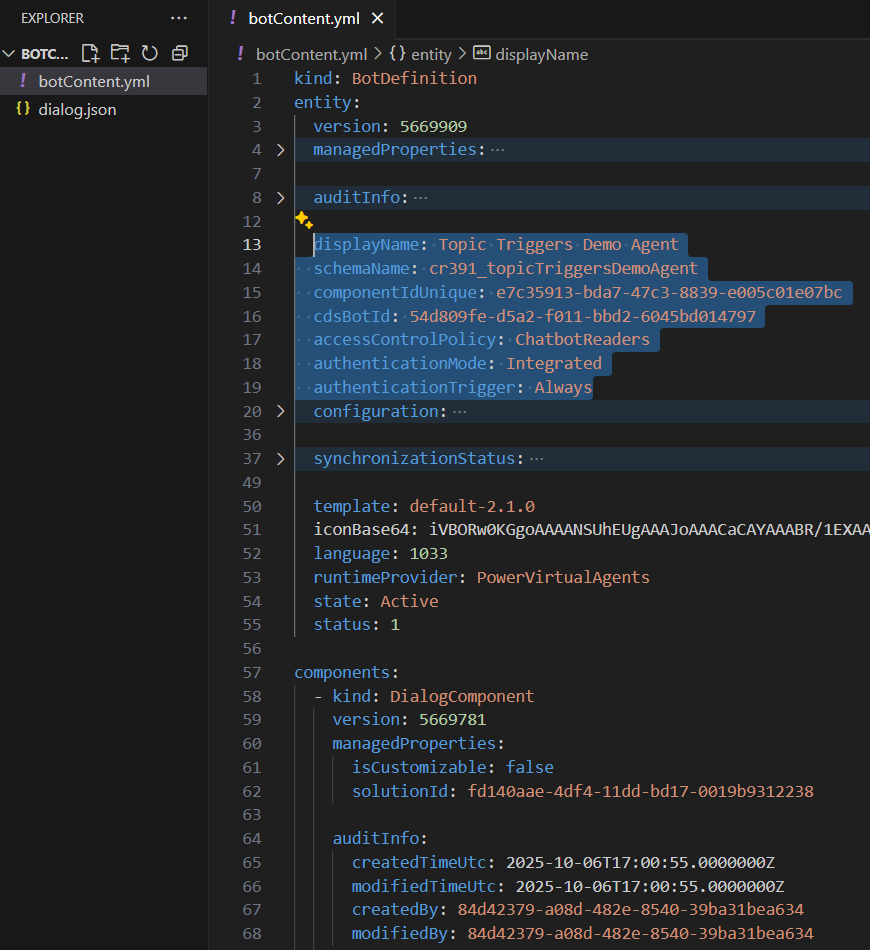
- botContent.yml contains the agent’s topics and other content, including entities and variables.

- Open the files in a code editor. In the dialog.json file, you’ll find the error details and the corresponding topic, as shown below.

- The botContent.yml file contains useful information about the bot.
🙂


![[Step by Step] Beginner : Create a PCF control and add it to a custom page](https://rajeevpentyala.com/wp-content/uploads/2024/12/image-49.png)
 Rajeev Pentyala – Technical Blog on Power Platform, Azure and AI
Leave a comment