In my previous article, I have explained about the Power Apps Code Apps , a new way for developers to bring Power Apps capabilities into web apps built in a code-first IDE.
In this article, we’ll learn how to build a Code App and publish it to a Power Platform environment. Specifically, we’ll cover:
- Prerequisites
- How to enable Code Apps in a Power Platform environment
- Getting started with one of the Code App examples
- Running the Code App locally
- Publishing the Code App to Power Platform
Lets start with the prerequisites.
Prerequisites:
Install the following software in your machine:
- Visual Studio Code
- Node.js (LTS version)
- Git
- Power Apps CLI
Once you have the required software installed, let’s move on to the environment settings.
Enable code apps on a Power Platform environment:
- Go to Power Platform Admin Center
- Select your Environment
- Navigate to Settings > expand the Product subsection > select Features
- Find the feature Power Apps Code Apps and use the Enable code apps toggle for enablement.

- Click Save
Note:
If the Code Apps setting doesn’t appear under Features, append the query string ?ecs.ShowCodeAppSetting=true to the admin center URI.

Once the environment setting is enabled, let’s set up the Visual Studio Code prerequisites. These are required to publish the Code App to the environment.
Visual Studio Code Prerequisites:
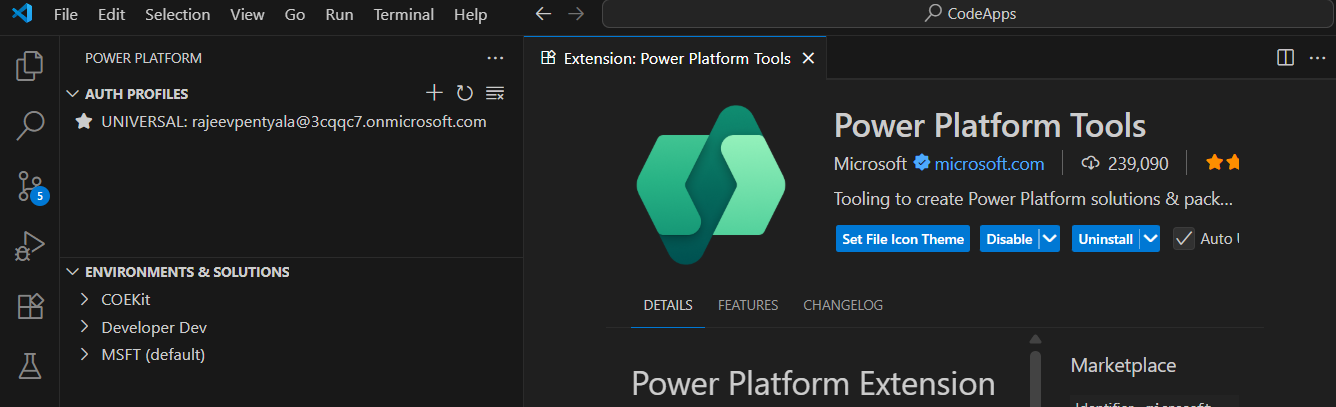
- Open Visual Studio Code and install the Power Platform Tools extension
- Open the Power Platform Tools extension and click on + to connect to the Power Platform environment.
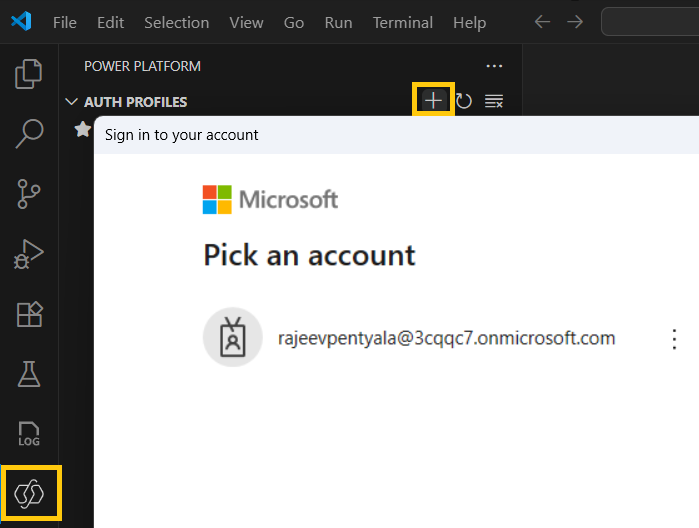
- Once connected you will see the list of environments.

Next we can proceed with the Code App configuration.
Getting started with Code App example:
In this article, we’ll use the FluentSample example available on Microsoft Code Apps GitHub project.

Follow the steps below to get started.
- Create an empty folder. (For example, I named mine PowerAppsCodeApps).
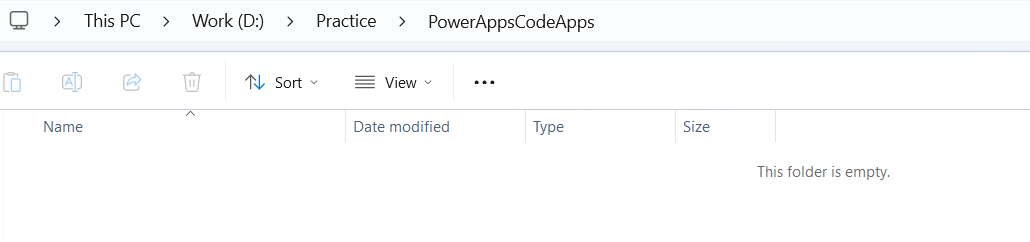
- Open Visual Studio Code (VS Code) and load the folder you just created.
- Open a terminal in VS Code.
- Clone the PowerAppsCodeApps repository from GitHub.
git clone https://github.com/microsoft/PowerAppsCodeApps.git

- Navigate to the ..\PowerAppsCodeApps\samples\FluentSample

- Trigger the npm install command
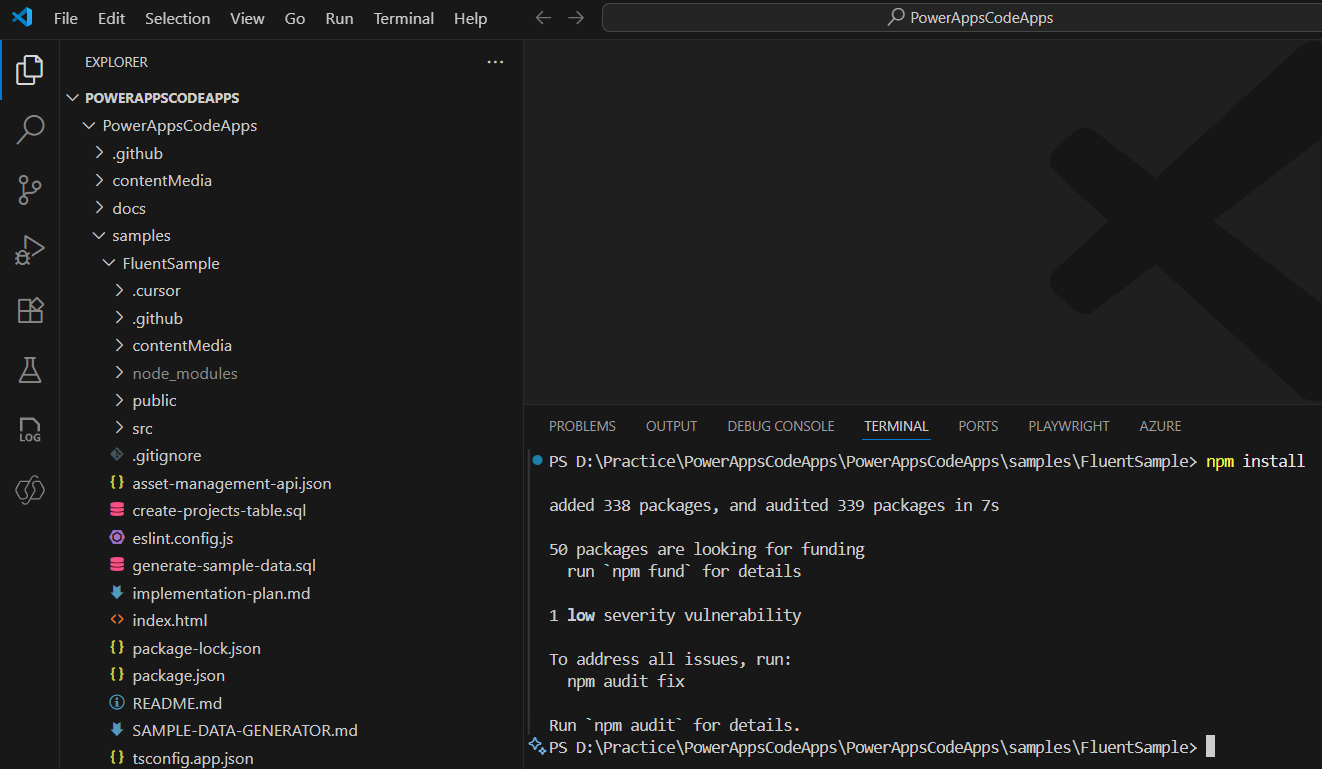
- Trigger npm run build command to make sure project is builds without errors.
npm run build
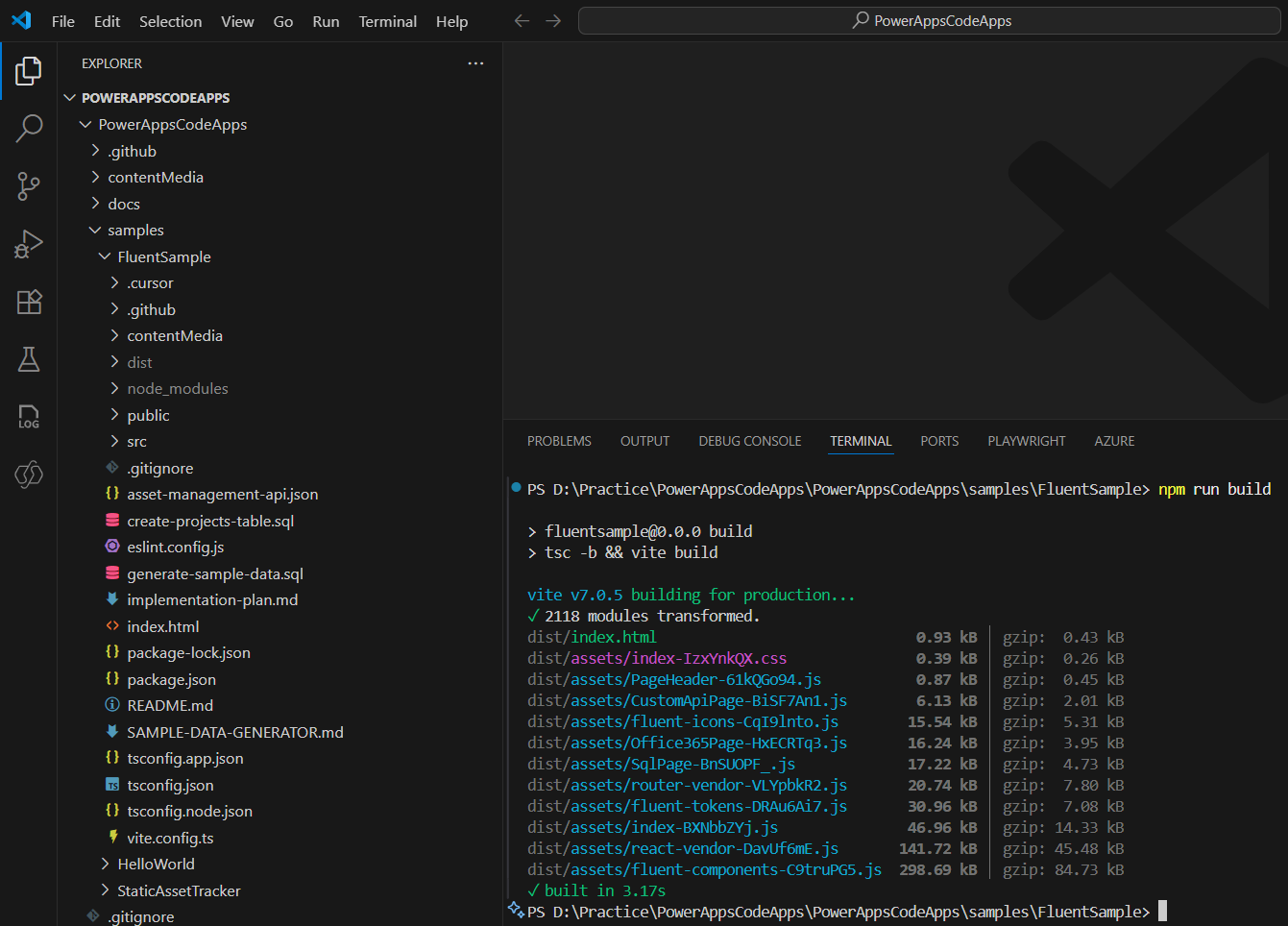
Once the project builds successfully, you can run and test the Code App locally before publishing it to Power Platform.
Run the code app locally:
- Trigger pac code init command.
pac code init --displayname MyFirstCodeApp

- Next trigger npm run dev command, which opens the Code App locally.
npm run dev

- Click on http://localhost:3000/ which opens the code app locally.

After completing your tests, you can publish the Code App to Power Platform.
Publish the code app to Power Platform:
To deploy the app to the Power Apps environment
- Trigger pac code push command
pac code push
- You may get following error:
Error: The environment config does not match the current environment.

- To fix this, get the Environment ID of your Power Apps Environment.
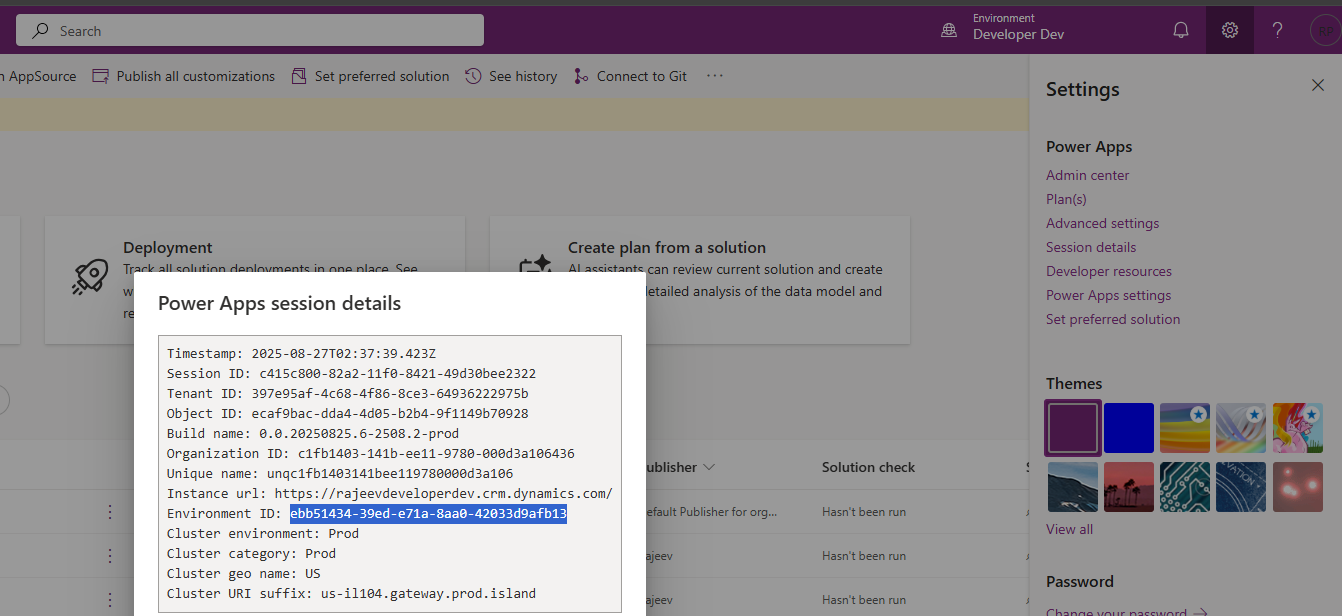
- Open the power.config.json file and paste the copied Environment ID.
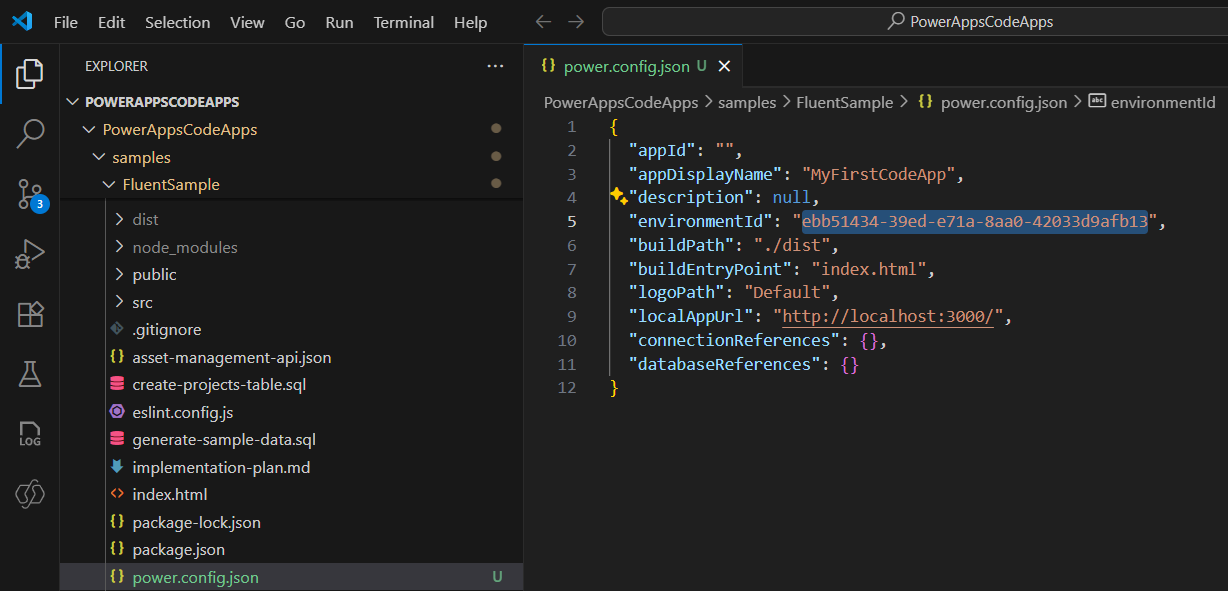
- Trigger the pac code push command again
- The Code App will be published, and you’ll also receive the published app URL as shown below:
App has successfully been pushed!
You can test the app at the following url
https://apps.powerapps.com/play/e/Default-397e95af-4c68-4f86-8ce3-64936222975b/a/081a07d8-8fee-467a-b5e1-f8fc0c4a1315

- You can either use the URL to play the App or navigate to the Environment > Apps in the Power Platform.

I hope this article helped you understand the steps required to deploy and run a Code App. In upcoming articles, I’ll explain how to build a Code App from scratch.
🙂



 Rajeev Pentyala – Technical Blog on Power Platform, Azure and AI
Leave a comment