Lets say you are a beginner Microsoft Azure developer and you want to :
- Work with Queues by pushing messages and reading them.
- Learn Azure Functions, especially triggers that run code when a message is posted in a queue.
Normally, these tasks require an Azure Subscription. But what if I told you that you can test all of this locally using Azurite, a lightweight emulator for Azure Storage, without needing a subscription?
What is Azurite?
- Azurite is an open-source emulator that provides a free local environment for testing your Azure Blob, Queue, and Table Storage applications.
- When you’re satisfied with how your application works locally, you can easily switch to using an Azure Storage account in the cloud.
In this article, I’ll show you how to build a simple Azure application using Azurite. We will cover two scenarios:
- Building a C# console project to send messages to a Queue
- Building a C# Azure Function with a QueueTrigger that automatically processes the messages posted in the queue.
The best part? Everything runs locally on your machine, and when you’re ready for production, you can deploy to Azure without changing a single line of code!
Now that you understand the basics and the scenarios, let’s get started.
Prerequisites:
- Download VS Code
- Install Azurite extension in VS Code

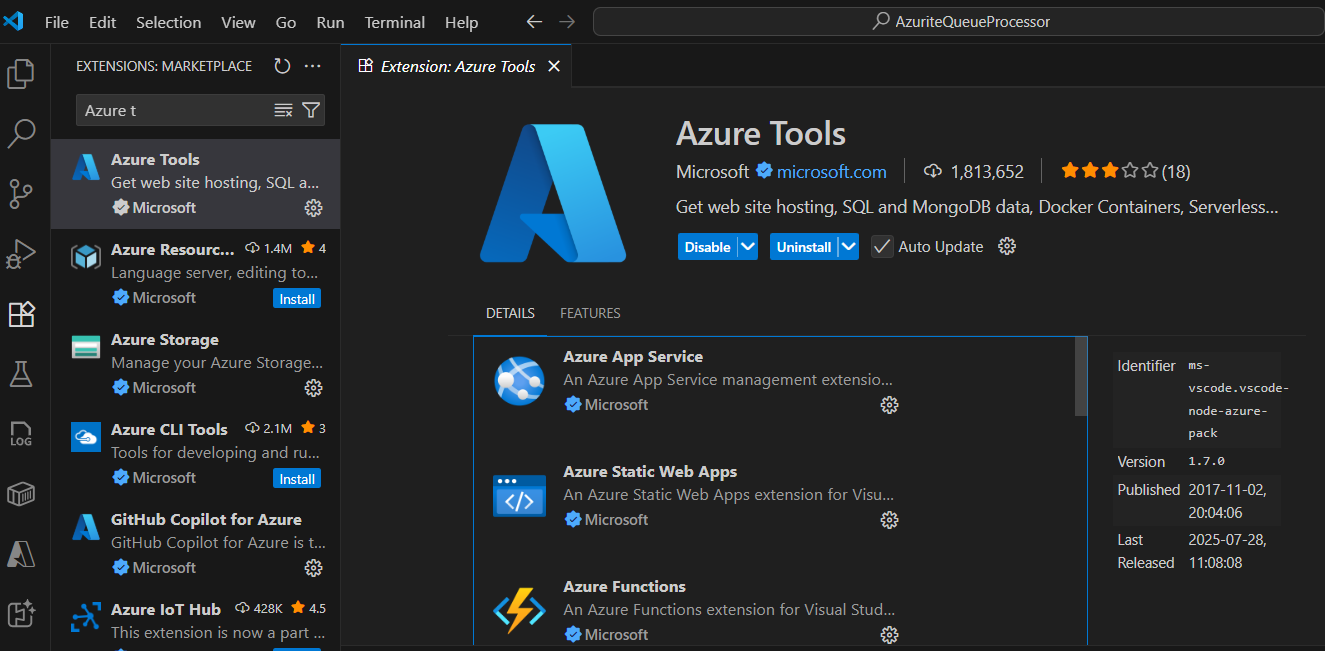
- Install Azure Tools extension
- Install Azure Functions extension
- GitHub copilot : This is my favorite. 100% of this code has been generated by this 🙂
Now lets gets started with the scenarios
Scenario 1: C# Console Project to Post Messages into a Queue
A queue is a simple storage service that holds messages until your application processes them. It’s often used to decouple different parts of a system—for example, one app adds messages, and another app reads and processes them.
The first step is to create a new queue. Follow the steps below:
Create a Queue (Local with Azurite)
- Open VS Code
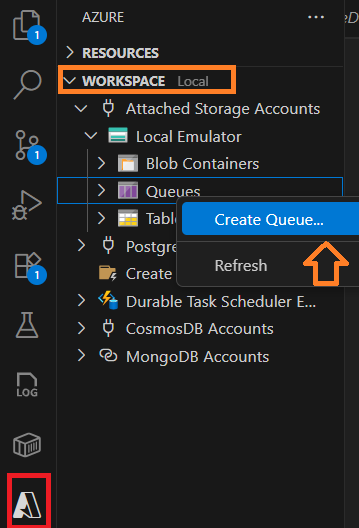
- Open the Azure Tools extension > WORKSPACE Local
- Select Queues > Create Queue…
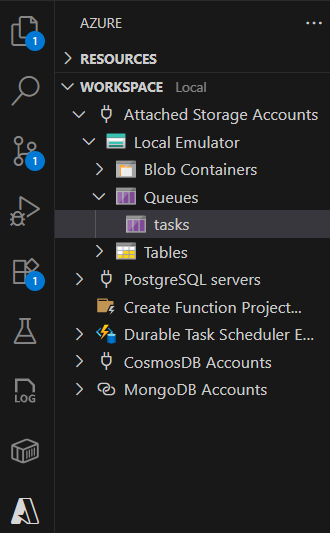
- Name the queue (example: tasks).
Start Azurite (Local Storage Emulator)
- Open VS Code Command Palette
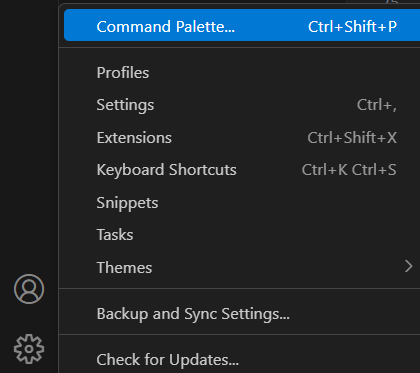
- Type Azurite: Start

- Once started you will see the [Azure Queue Service] Running on http://127.0.0.1:10000 message in VS Code footer as shown below.

Now we’re ready to create a C# project to post and read queue messages.
Create a C# project to work with Queues:
- Create a new C# console project.
- Add following two appsettings files

- “ConnectionString”: “UseDevelopmentStorage=true” denotes you are using queues locally. When you move to Azure, replace the
Storageconnection string with your real Azure Storage account connection string (no code changes needed). - My Program.cs file is simple. In the PushMessagesToQueue function I a mpusing four strings to the queue as highlighted below.

- ReadMessagesFromQueue function read the messages posted in queue.

- Build and run the project to create four messages in the tasks queue locally. When you’re ready for the cloud, update only the connection string to point to your Azure Storage account—everything else stays the same.

Scenario 2: C# Function project acts as a queue listener
We will create a C# Function project that listens for new messages in a queue and processes them automatically.
- In VS Code, create a new Azure Functions project (you can also ask GitHub Copilot to scaffold it).
- Choose:
- Runtime: .NET
- Trigger template: Queue trigger
- Function name:
QueueListenerFunction(example) - Queue name:
tasks
- Add this settings file
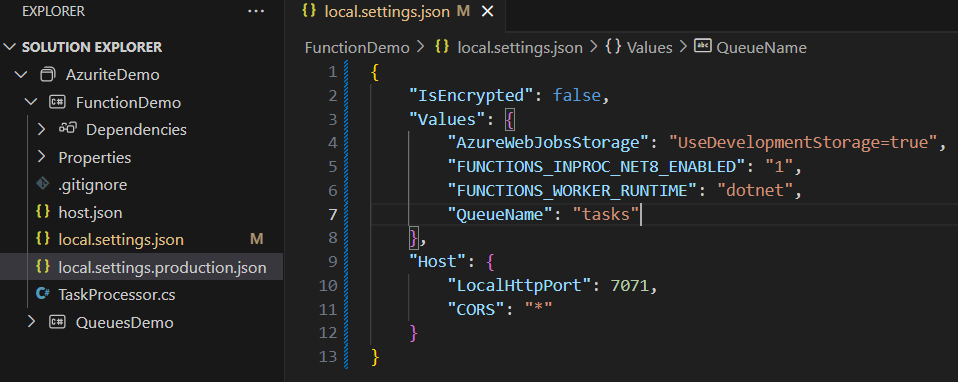
- With “AzureWebJobsStorage”: “UseDevelopmentStorage=true”, setting:
- Azure Functions Runtime interprets “UseDevelopmentStorage=true”
- Connects to local Azurite at http://127.0.0.1:10001
- Monitors the “tasks” queue in local Azurite
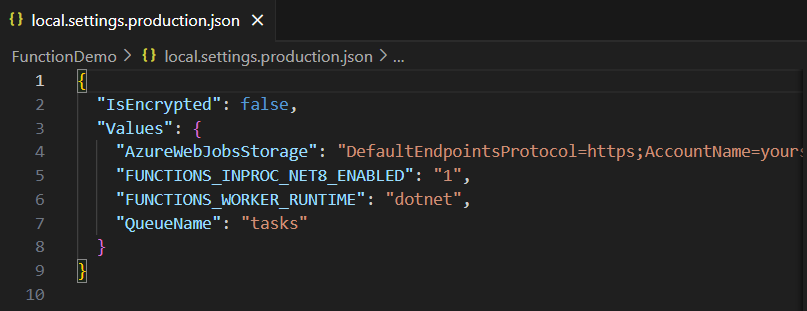
- To switch to Azure cloud, replace ‘UseDevelopmentStorage=true‘ with Azure Cloud Service Bus connection string. This setting is mentioned in local.settings.production.json file.
- Create a simple function as shown below with QueueTrigger which reads and print posted queue message.
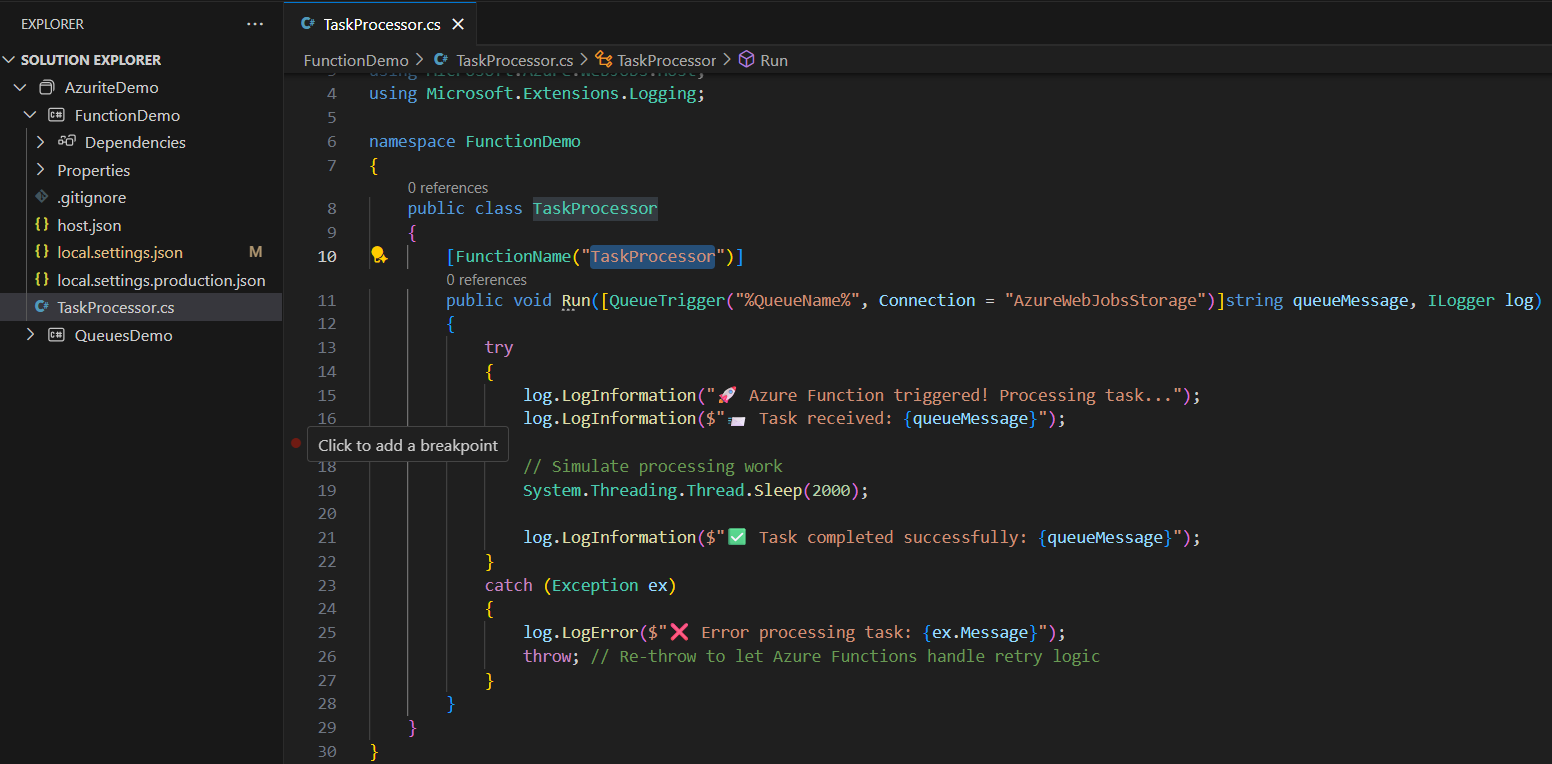
- Build and Start the function using func start command. The function will begin listening to the
tasksqueue in Azurite.
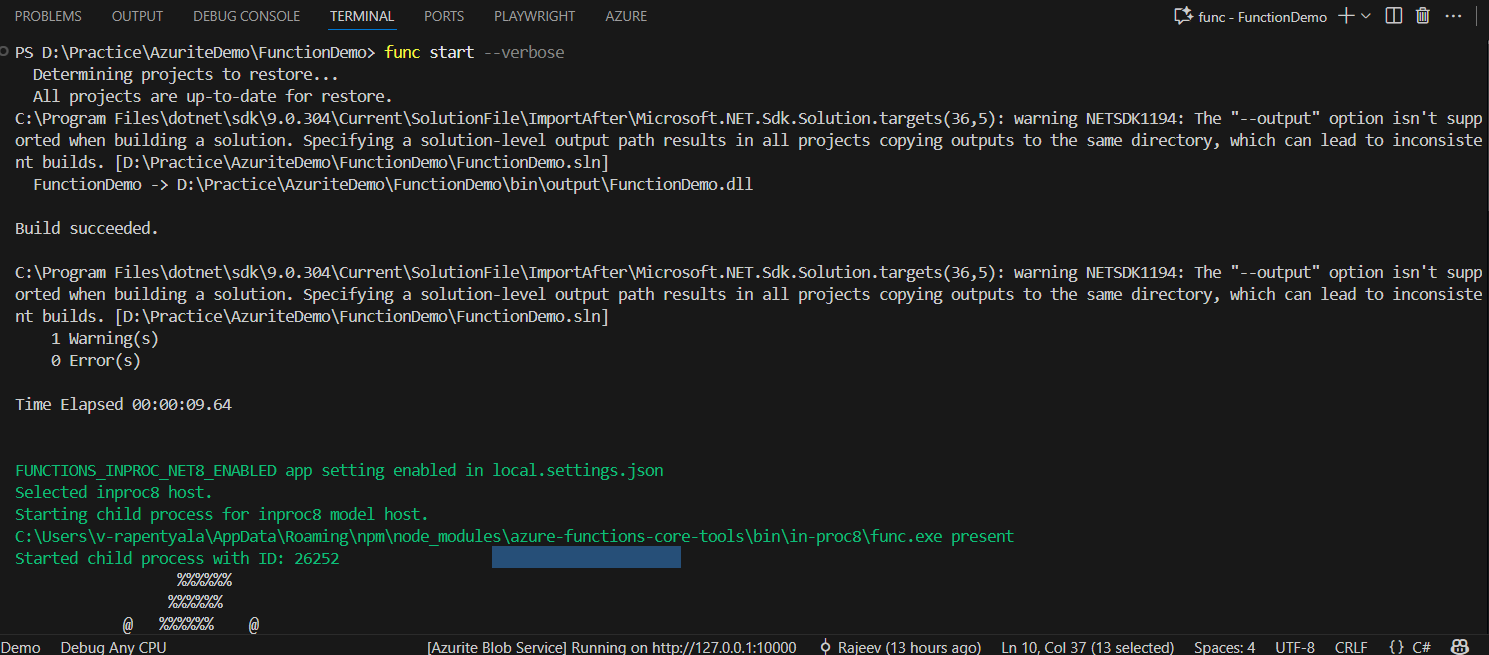
Now you have both projects ready:
- Console app that posts messages to the
tasksqueue. - Azure Function that automatically reads and processes those messages.
Run the console app to enqueue messages, and watch the Function logs to see them being processed locally. When you’re ready for the cloud, update only the connection string(s) to your Azure Storage account—no code changes required.
Test both Azure Queue and Azure Function projects
- Let’s run both projects side by side:
- On the left, the QueuesDemo console project posts four messages to the
tasksqueue. - On the right, the FunctionDemo project listens to the queue and prints the messages as they arrive.
- On the left, the QueuesDemo console project posts four messages to the

Conclusion
Azurite is a powerful tool that makes Azure development accessible to everyone. You don’t need an Azure subscription to start learning cloud development or to build and test applications locally.
Key Takeaways
- ✅ Develop Azure applications completely offline.
- ✅ Zero cost for learning and development
- ✅ Seamless transition from local to cloud
- ✅ Same APIs and behavior as production Azure
- ✅ Faster development cycle with instant feedback
The best part? The skills you practice with Azurite apply directly to production Azure development.
You can find the complete source code for this tutorial on GitHub: Azurite Demo
🙂


 Rajeev Pentyala – Technical Blog on Power Platform, Azure and AI
Leave a comment