In my previous article : Create an Agent and Use Adaptive Cards , I explained how to build the Virtual Running Coach Agent using Microsoft Copilot Studio

In this article, let’s explore Agent security authentication and how to prevent Agent makers from choosing No authentication by using a DLP Policy.
Agents Authentication Options:
- Open the Agent in Copilot Studio
- Go to Settings, and select Security.

- Select Authentication. The following authentication options are available:

In this article, I will focus specifically on the No authentication option and how to restrict Agent makers from selecting it.
No authentication:
- If you opt this option, your agent doesn’t require your users to sign in when interacting with the agent.
- An unauthenticated configuration means your agent can only access public information and resources.
Restricting makers to choose ‘No authentication’
As mentioned in the section above, Agent makers can choose the ‘No authentication‘ option, which allows anyone with the link to chat with the agent.
With a DLP policy, you can enforce that Agent makers must configure user authentication with either Authenticate with Microsoft or Authenticate manually in Copilot Studio.
You can configure the DLP policy by following these steps.
- In the Power Platform admin center, under Security > Data and privacy, select Data policy.

- Create a new policy, or choose an existing policy to edit.

- Enter a name for the policy then select Next.

- Search for Chat without Microsoft Entra ID authentication in Copilot Studio connector and select.
- Click on Block button.
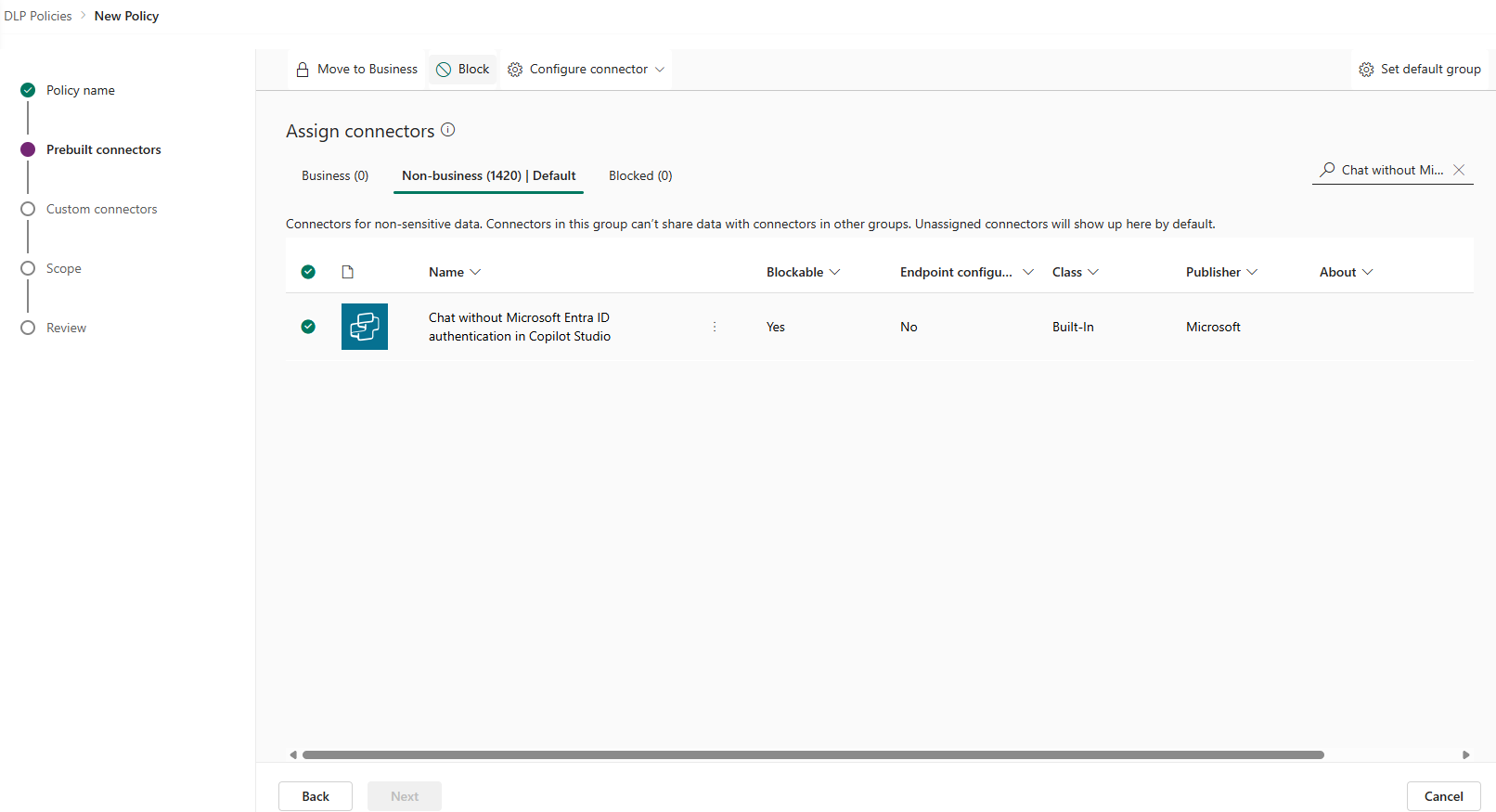
- Chat without Microsoft Entra ID authentication in Copilot Studio connector will be now shown under Blocked

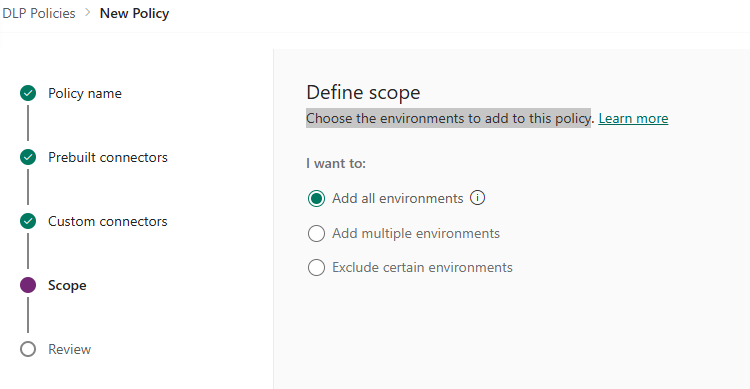
- Under Scope, choose the environments to add to this policy. I’ve chosen Add all environments
- Finally click on Create policy to complete the policy creation.
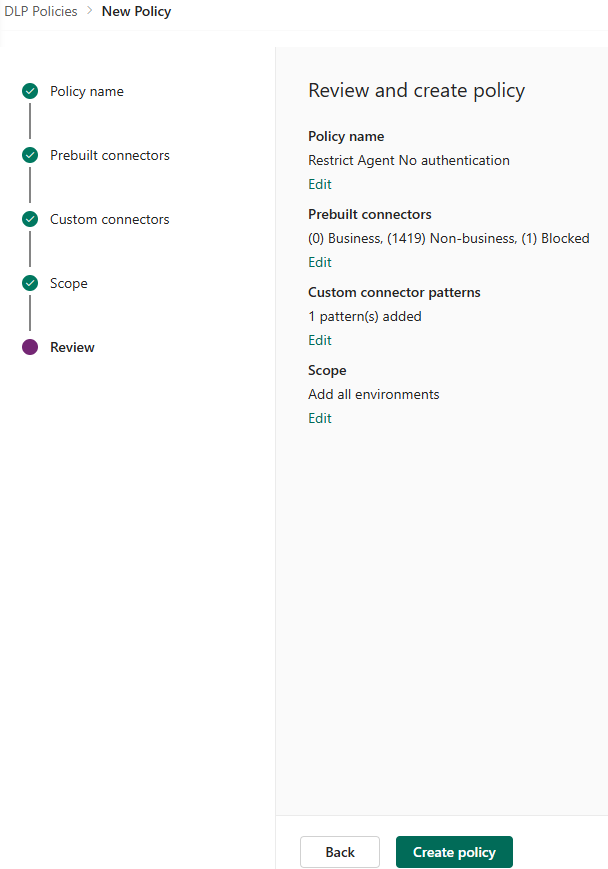
Now that we’ve configured the DLP policy, let’s see how it enforces restrictions on makers by navigating to Copilot Studio.
Confirm policy enforcement in Copilot Studio
- Open the Agent in Copilot Studio
- Go to to Settings > Security > Authentication page of your Agent
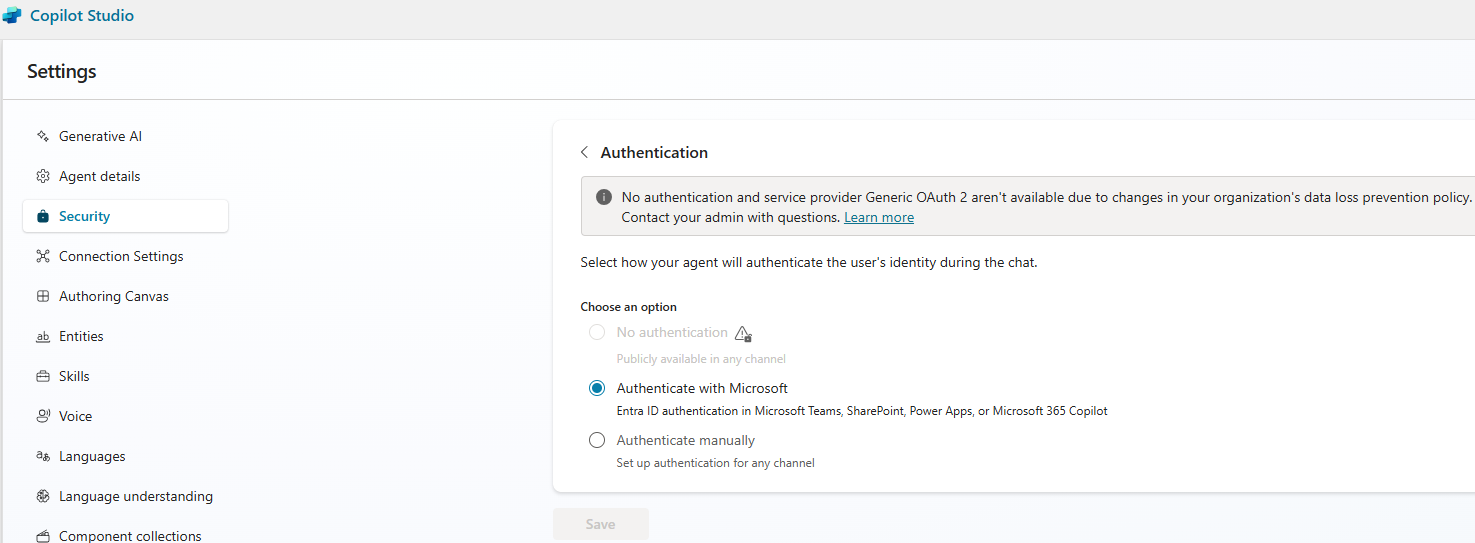
- You will see the No authentication option option is disabled, along with a banner message indicating that a DLP policy is being enforced.
🙂



 Rajeev Pentyala – Technical Blog on Power Platform, Azure and AI
Leave a comment