Did you know that, you can now build a generative page that’s created using AI from the Model Driven App designer.

In this blog post, I will explain how to get started and build a simple Generative Page
Prerequisites
- The Power Platform environment must be located in the US region.
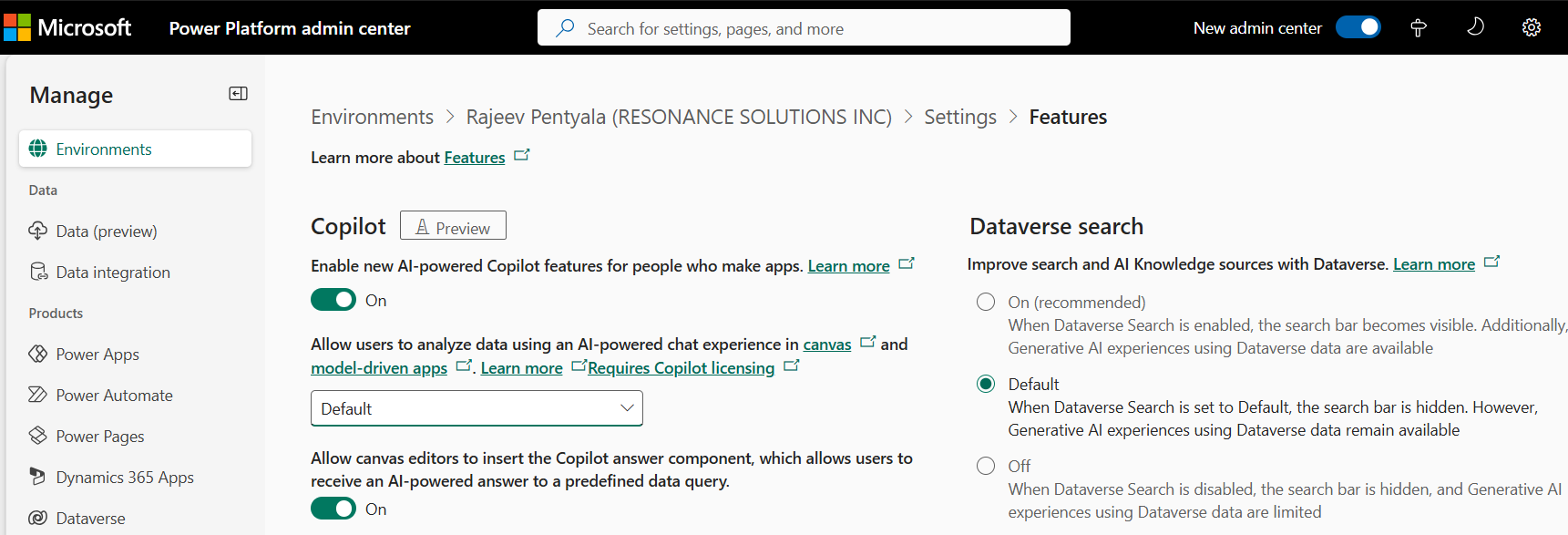
- The Enable new AI-powered Copilot features for people who make apps environment setting must be enabled. More information: Copilot environment setting
Create a generative page in model-driven apps
- Sign in to Power Apps.
- Create a new or open a model-driven app for editing.
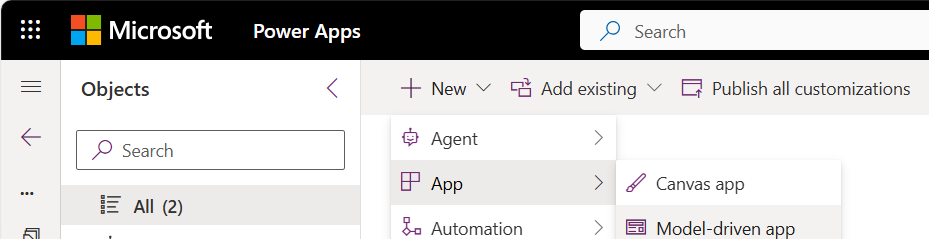
- Add the tables to the App which you want to use in Generative Pages
- In the app designer, select Add a page > Describe a page.

- In the textbox, type a description of the type of page you want to create. For example, you could enter :
Build a page showing Account records as a gallery of cards using a modern look and feel. Include name, entityimage on the top, and website, email, phone number. Make the gallery scrollable by using data from the Account table.
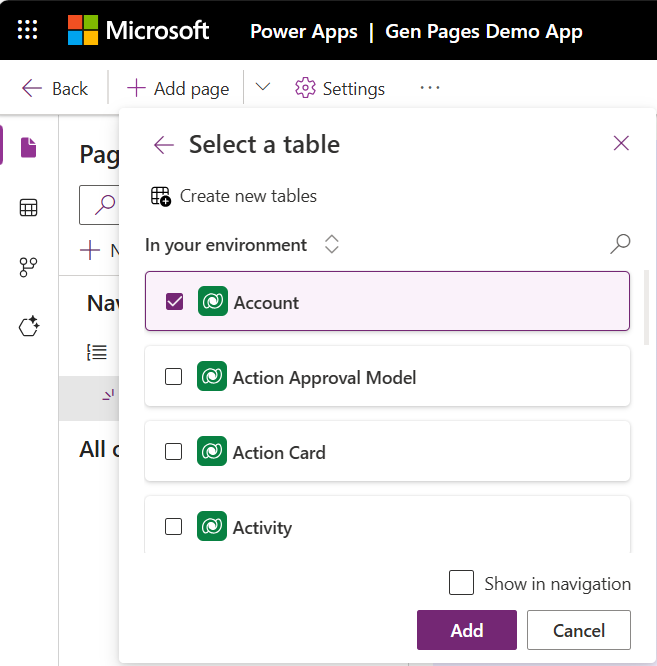
- Click Add table to select all the required Tables.

- I’ve chosen the Account table

- Optionally upload an image to guide the UI of your generated page by selecting Add data > Attach image. This can be a rough napkin sketch or a higher resolution image. For example, I have this image.

- I have uploaded the image and added this statement to the prompt:
Use the attached image for UI reference.
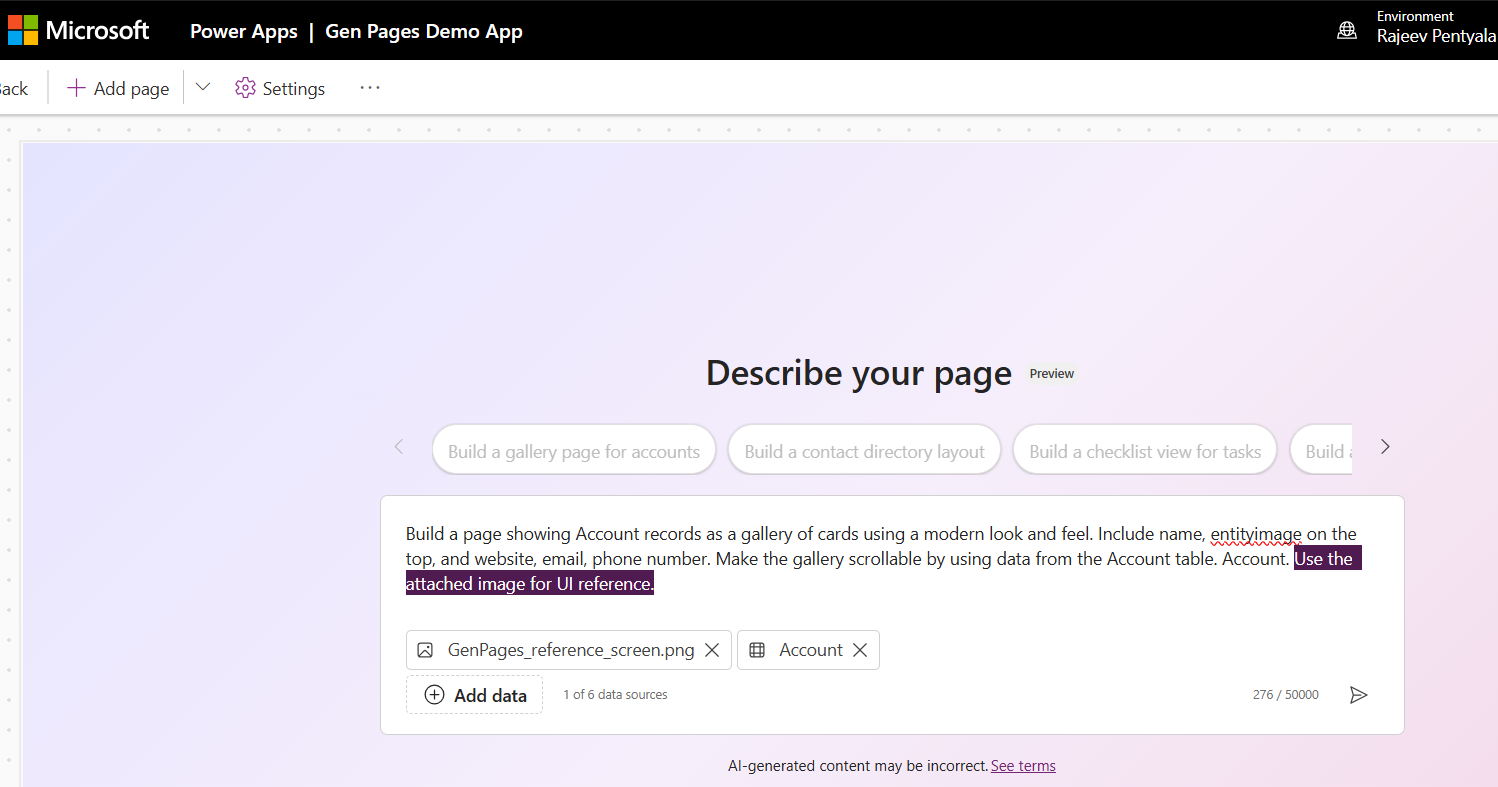
- When you’re finished describing the page, click on the Generate icon .
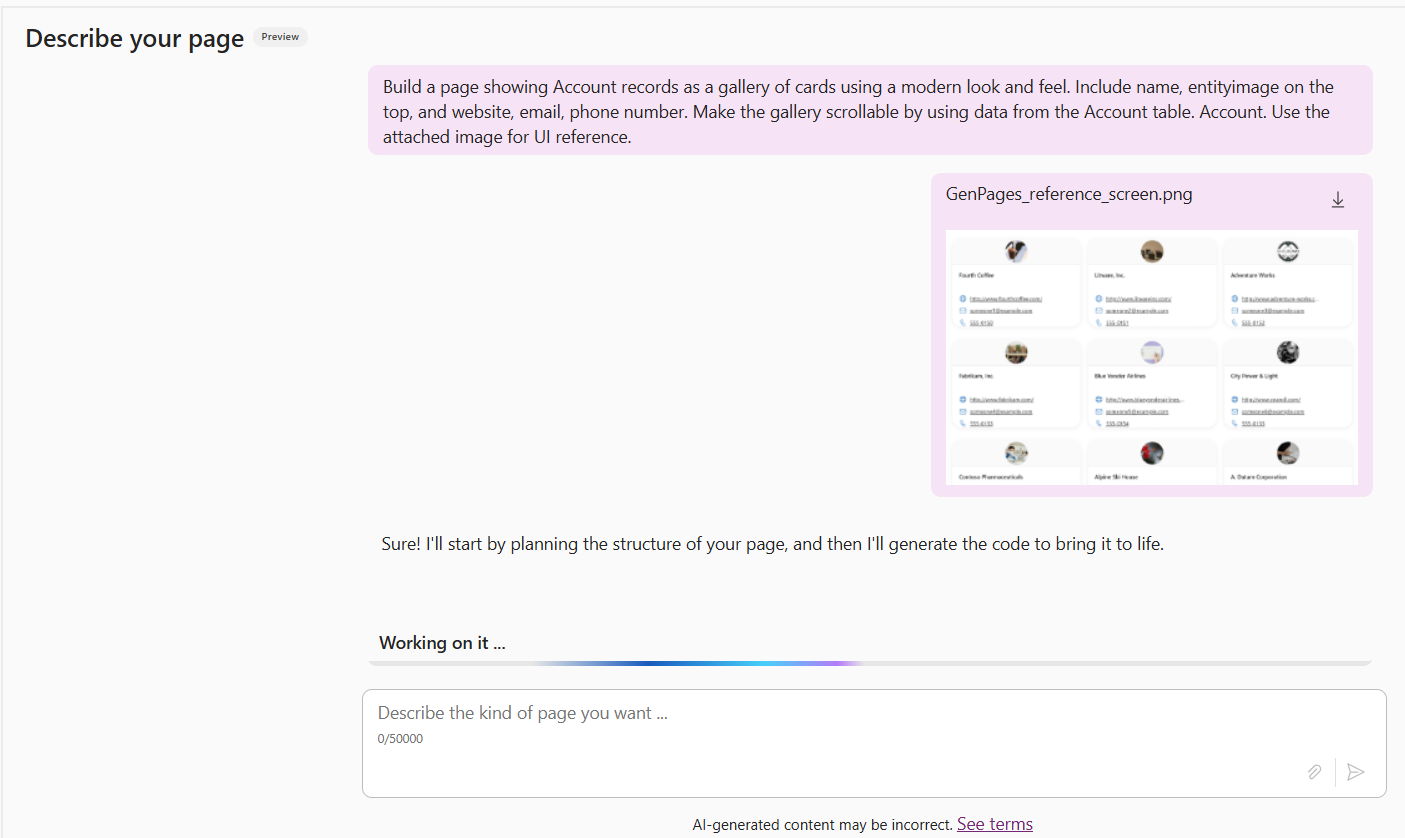
- When the agent finishes building your page, the user experience is displayed. If the user experience isn’t already displayed, you can view it by selecting Preview.
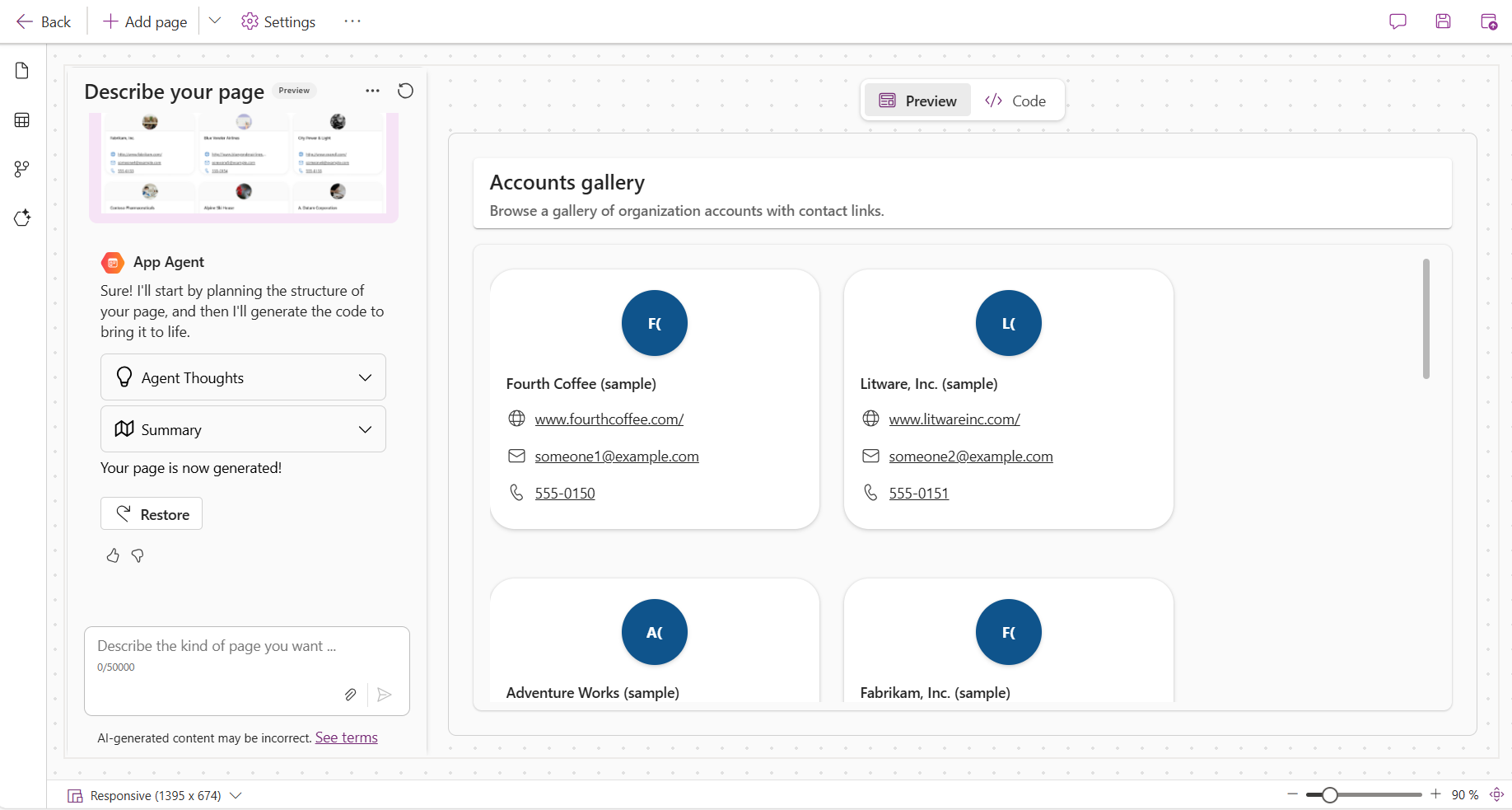
- If you notice the generated code, its a React component

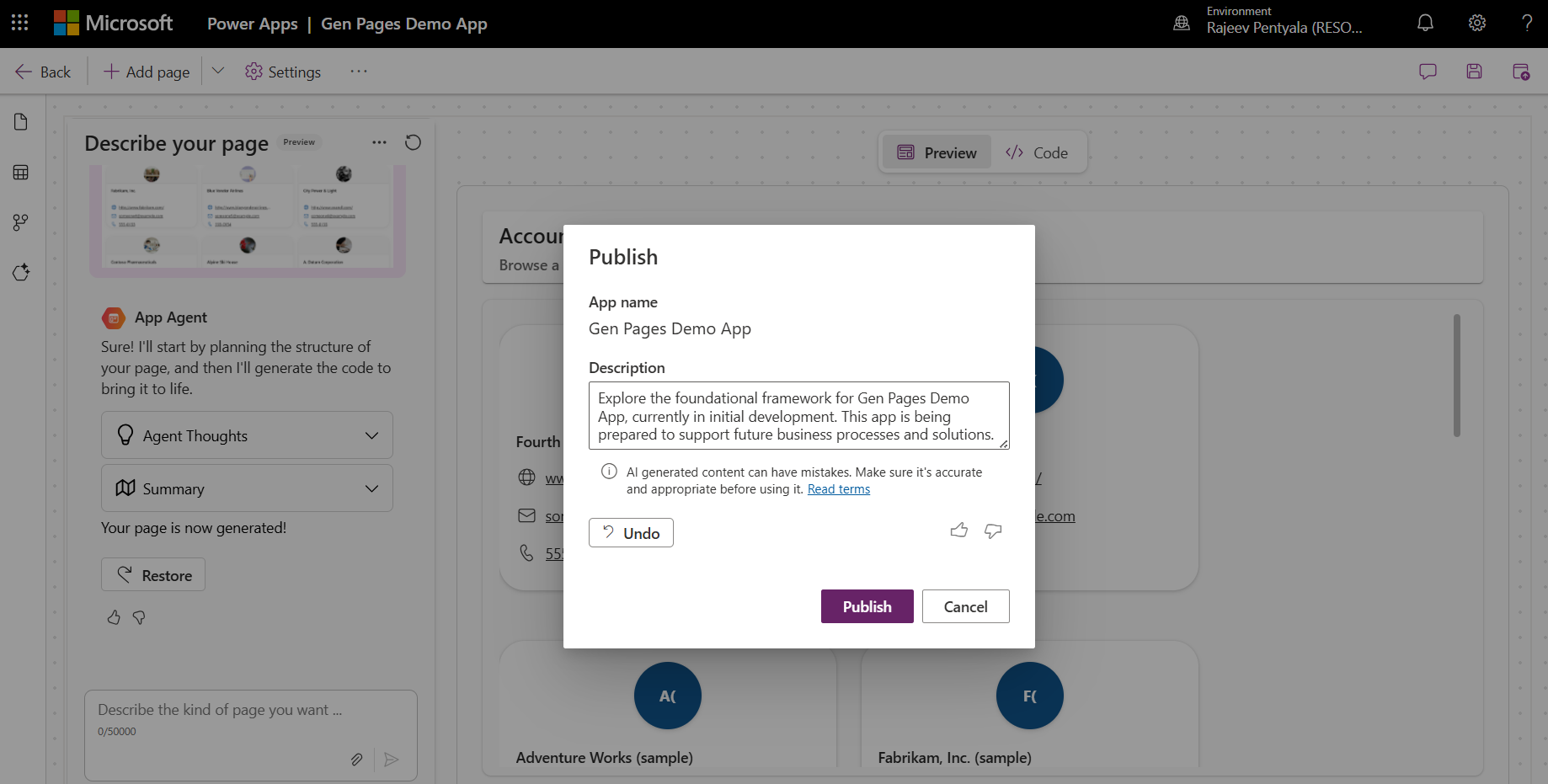
- When you’re satisfied with the generated page, provide a meaningful Title.

- Select Save and Publish.
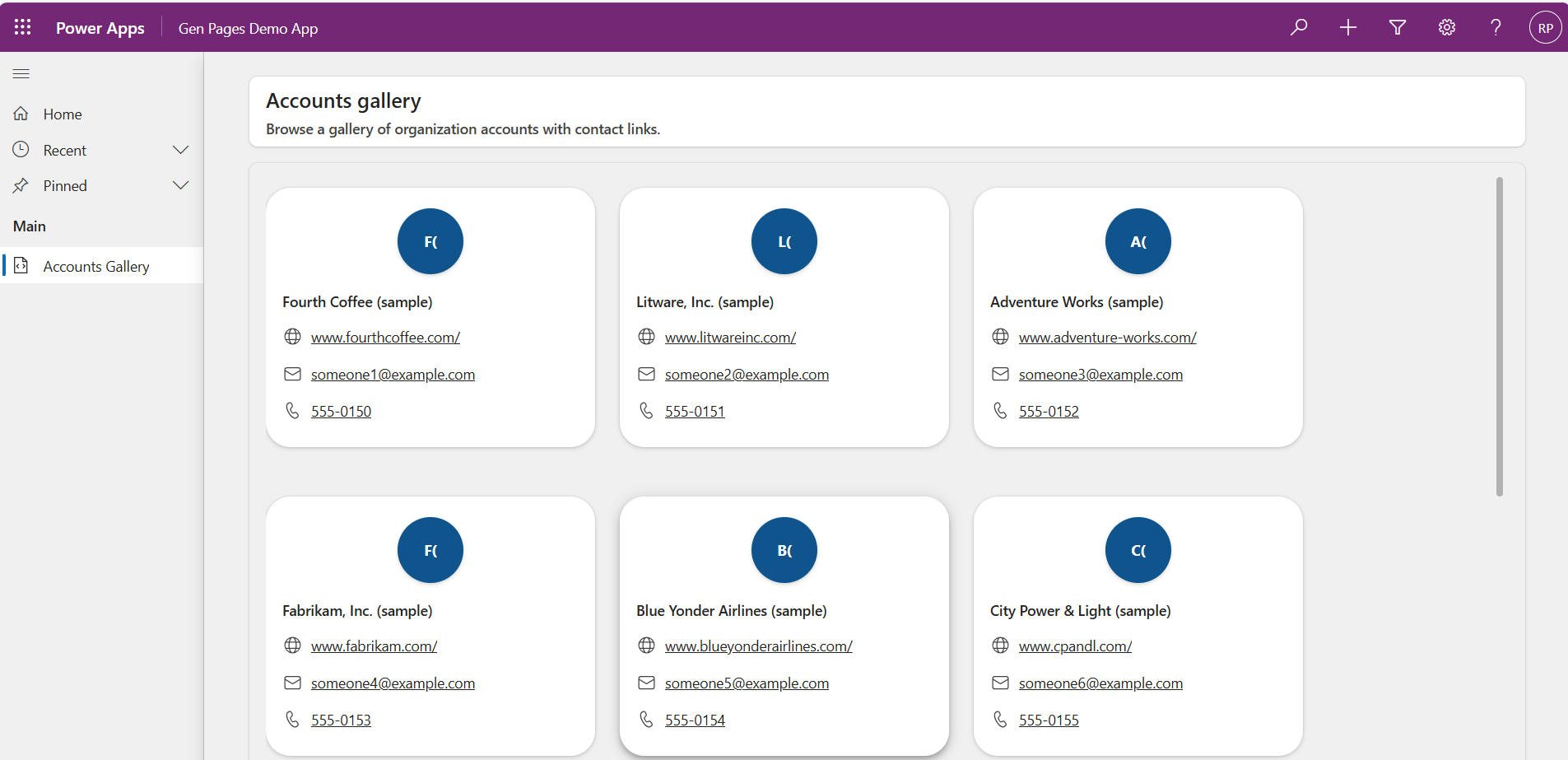
- Play the App and you will see the Generative Page rendered.
Important Points:
At the time of writing this blog post there are few limitations as listed below:
- Generative pages are currently only supported in model-driven apps.
- Generative pages can connect to only Dataverse tables (up to 6 for a single page). You can perform CRUD operations against these tables. No other data sources can be used.
- You must add all needed Dataverse tables in the first prompt.
- The maker experience for generative pages do not require any additional AI or message credits.
- Generated pages can’t be exported and imported in other Power Platform with Dataverse environments.
Please refer this documentation for more details
🙂


 Rajeev Pentyala – Technical Blog on Power Platform, Azure and AI
Leave a comment