In my previous blog post Create an Agent and Use Adaptive Cards, I explained the steps to build an Agent using Microsoft Copilot Studio.
If you’ve noticed, the Agent we’ve created belongs to an environment. So how do we move the agent to another environment?

You can export and import agents using solutions so you can move your agents across multiple environments.
However, there are a few important nuances to understand before doing so.
Where an Agent specific components stored?
When you create an agent in Copilot Studio without selecting a specific Dataverse solution, the agent’s components are automatically mapped under the Preferred Solution.
- To view these components:
- Navigate to Settings > View solution
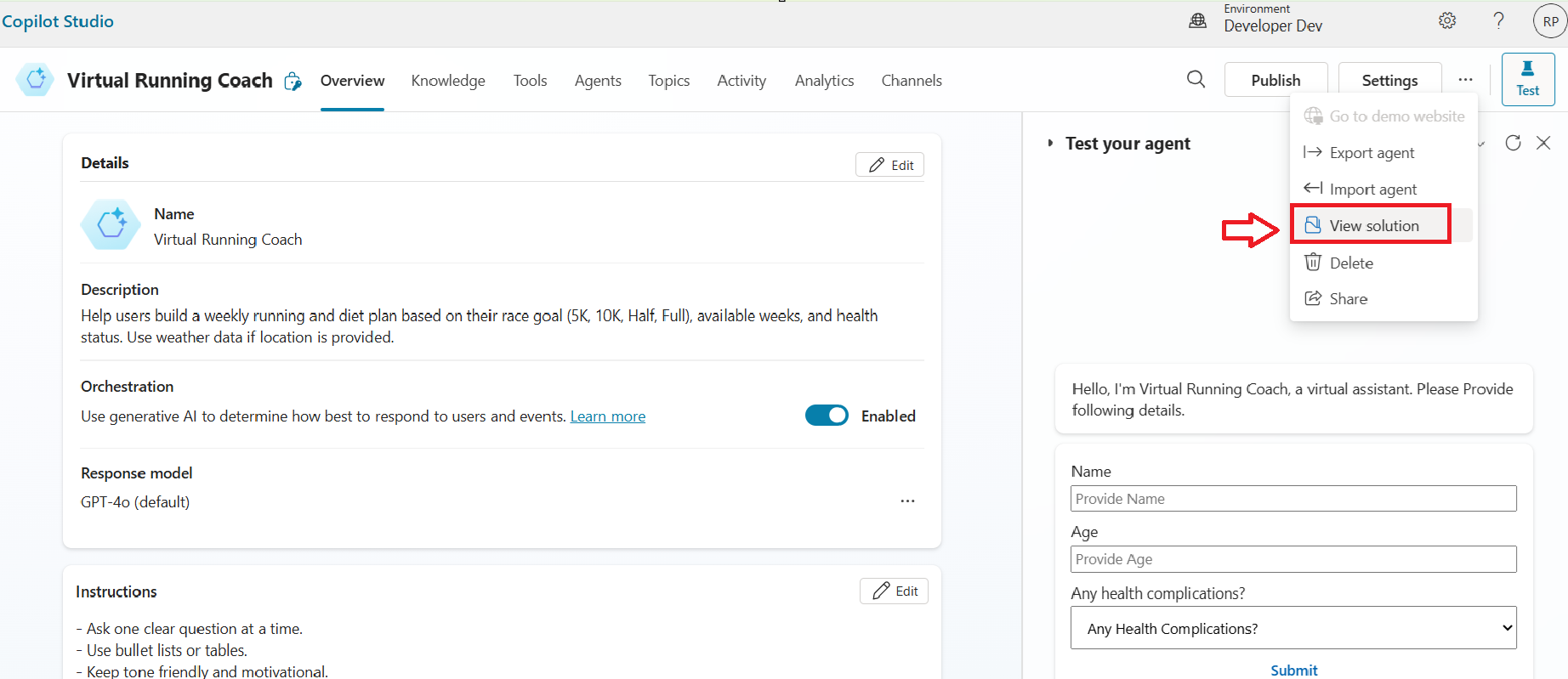
- You will be redirected to the Dataverse solution that is set as Preferred
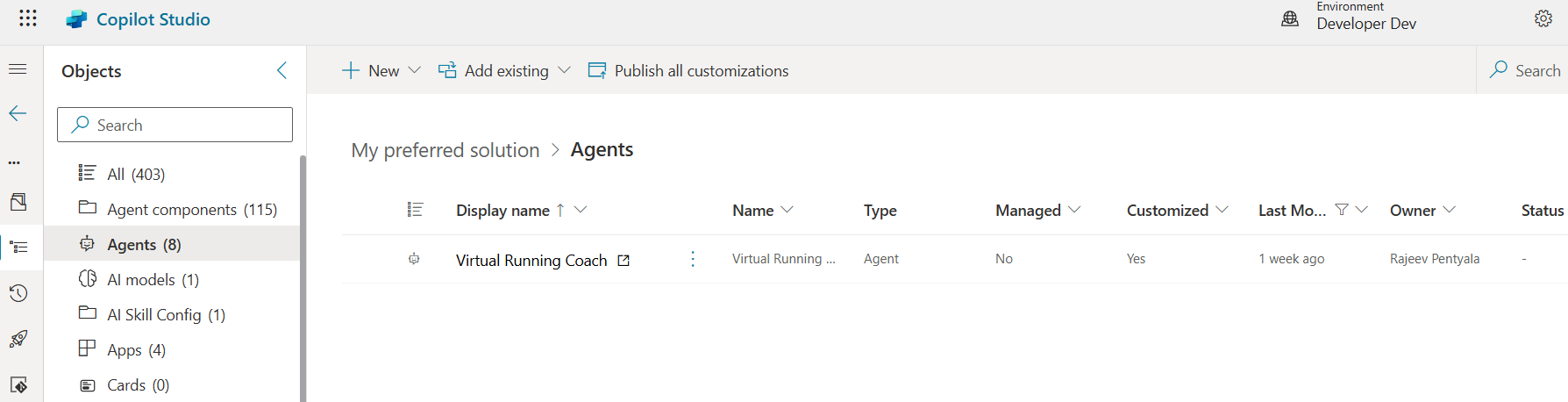
- In my case, preferred solution name is ‘My preferred solution’, so all the agent components were automatically mapped to that solution by default.
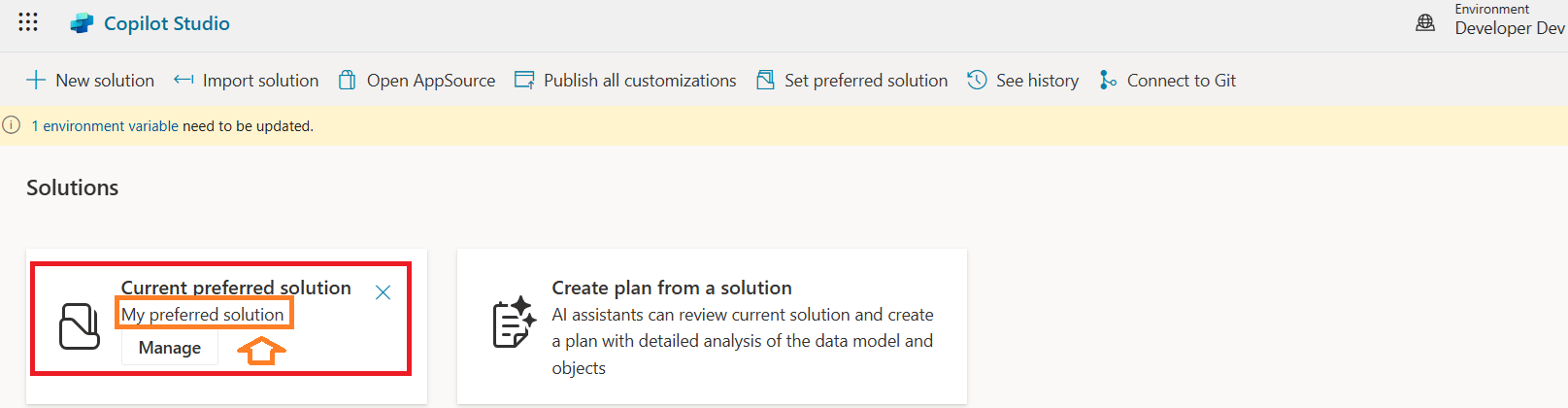
In summary, if you don’t specify a solution during the creation of Agent the components will be mapped to the Preferred Solution
If you want to map your agent components to a specific solution of your choice, follow these steps:
Map a solution to your agent:
- In the Copilot Studio, create a new solution.
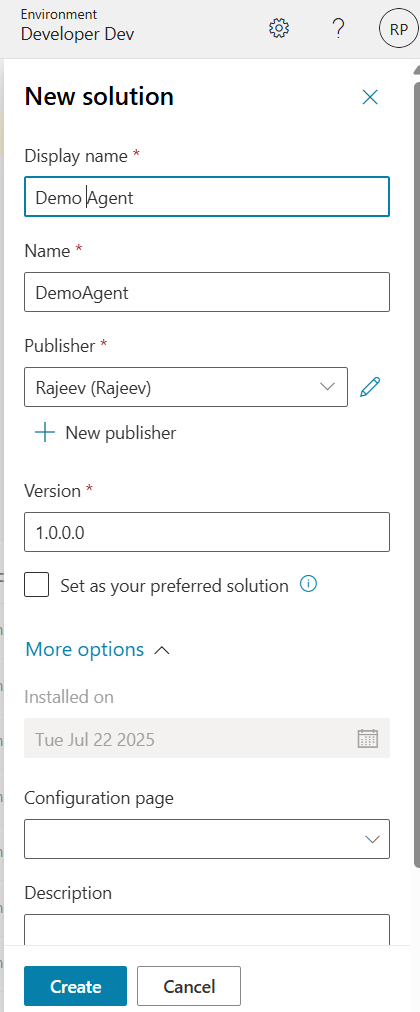
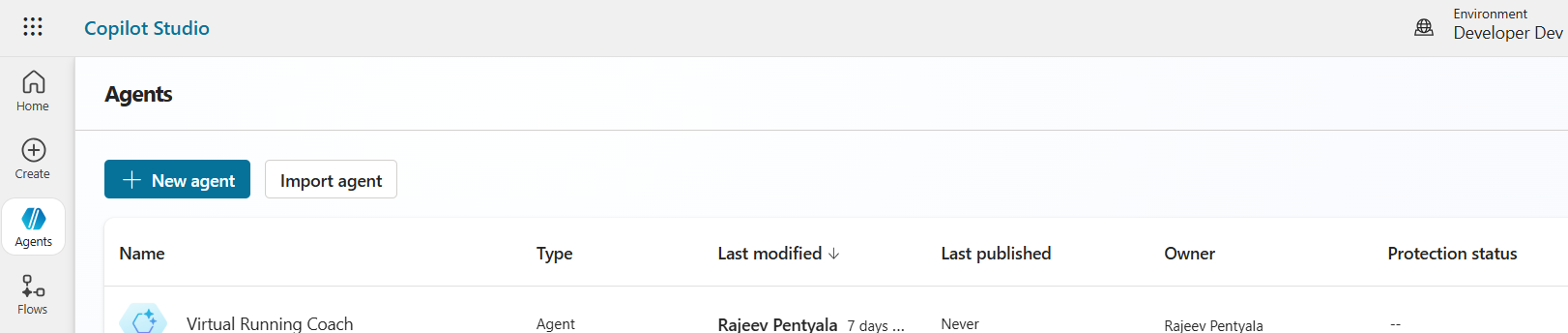
- Click on Agents > New agent
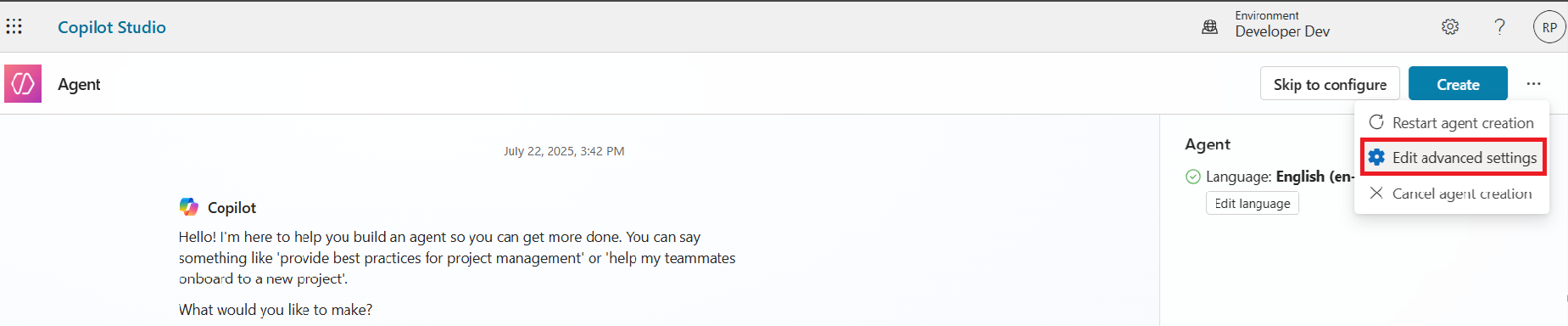
- Click on … > Edit advanced settings
- Choose the Dataverse Solution and specify agent’s Schema Name
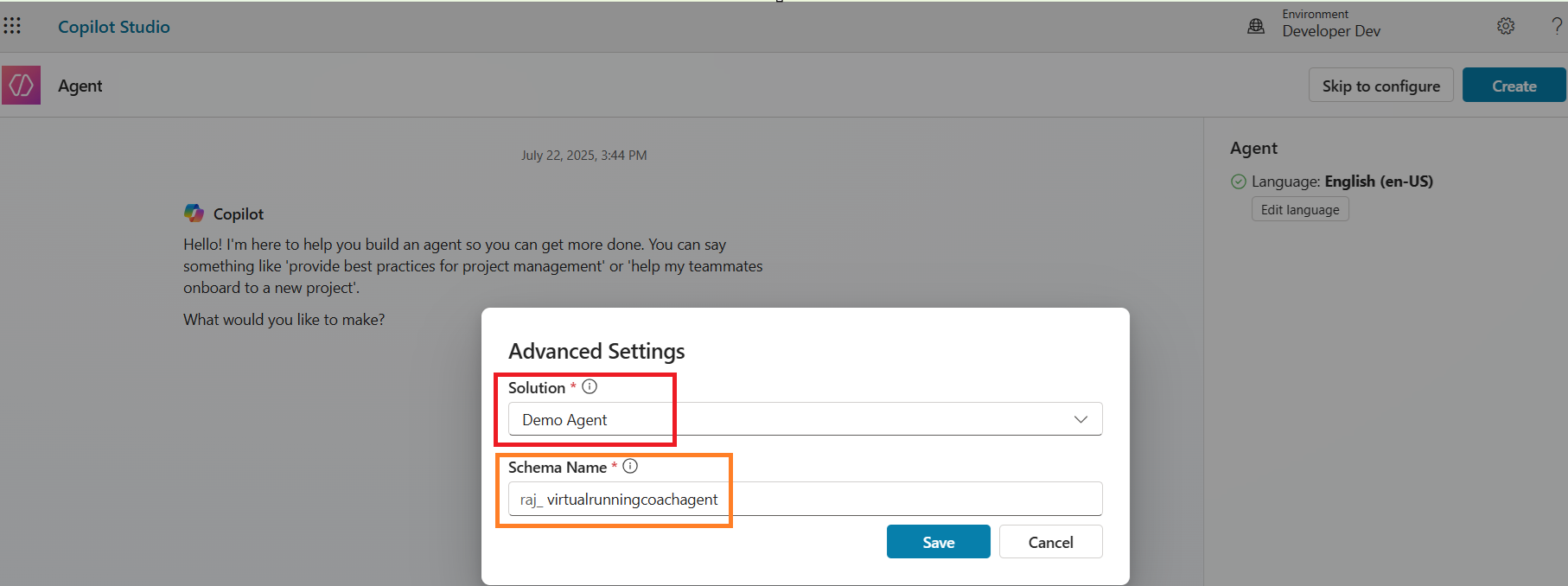
- Click Save
- That’s all you need to do. Now all the Agent specific components will be mapped to the chosen solution.
Refer this article for more details.
🙂



 Rajeev Pentyala – Technical Blog on Power Platform, Azure and AI
Leave a comment