In this article, let’s explore how to use GitHub Copilot in Visual Studio Code (VSCode) and understand how Custom Instructions can tailor Copilot’s suggestions to align with your team’s coding standards—complete with practical examples.
What is GitHub Copilot:
- GitHub Copilot is an AI coding assistant that helps you write code faster and with less effort, allowing you to focus more energy on problem solving and collaboration.
- Its free to use for individual developers.

- All you need is a GitHub account and you can Sign up for free.

Now that you know the prerequisites for using GitHub Copilot, let’s see it in action inside VSCode.
Getting started with GitHub Copilot in VSCode:
- Install the VSCode. If you haven’t already, download and install VSCode from here.
- Open VSCode. and you will find the GitHub Copilot icon at the top as shown below.

- When you type your first prompt or accept a suggestion, Copilot will ask you to connect your GitHub account. Authenticate with GitHub.

Create a C# console project using Copilot:
Now that GitHub Copilot is ready to use, let’s start by creating a simple C# console project. Ask/prompt Copilot with something like:
Create a C# core console project. On the Program.cs print 'Hello World'
- GitHub Copilot shows a proposed directory structure and asks you to Create a Workspace.

- Click on Create Workspace, then browse and select the folder where you want to save the C# project.
- Once created, your C# project will have a proper folder structure as shown below.
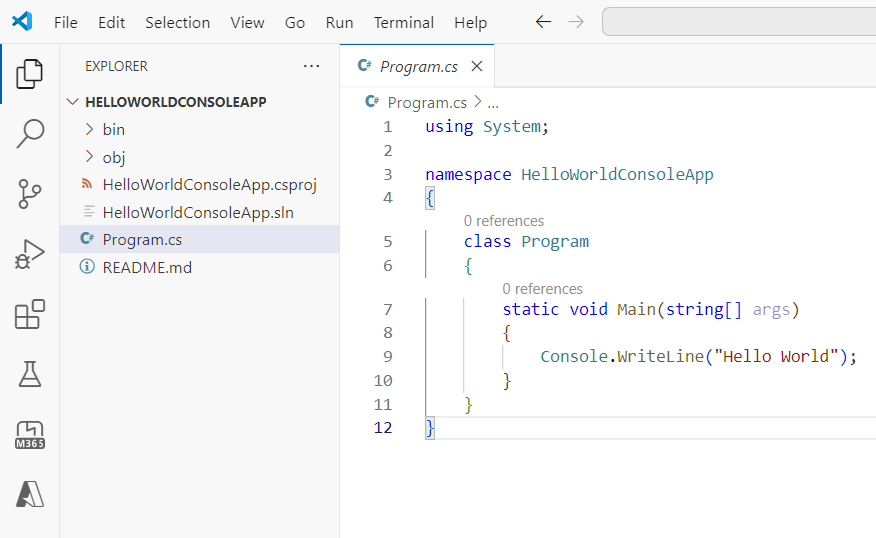
- Now, let’s enhance the code further with this prompt:
Add a new function to check whether a number is Palindrome or not.
- Copilot will suggest the function. If you’re happy with the proposed code, click on Apply to… button as shown below.
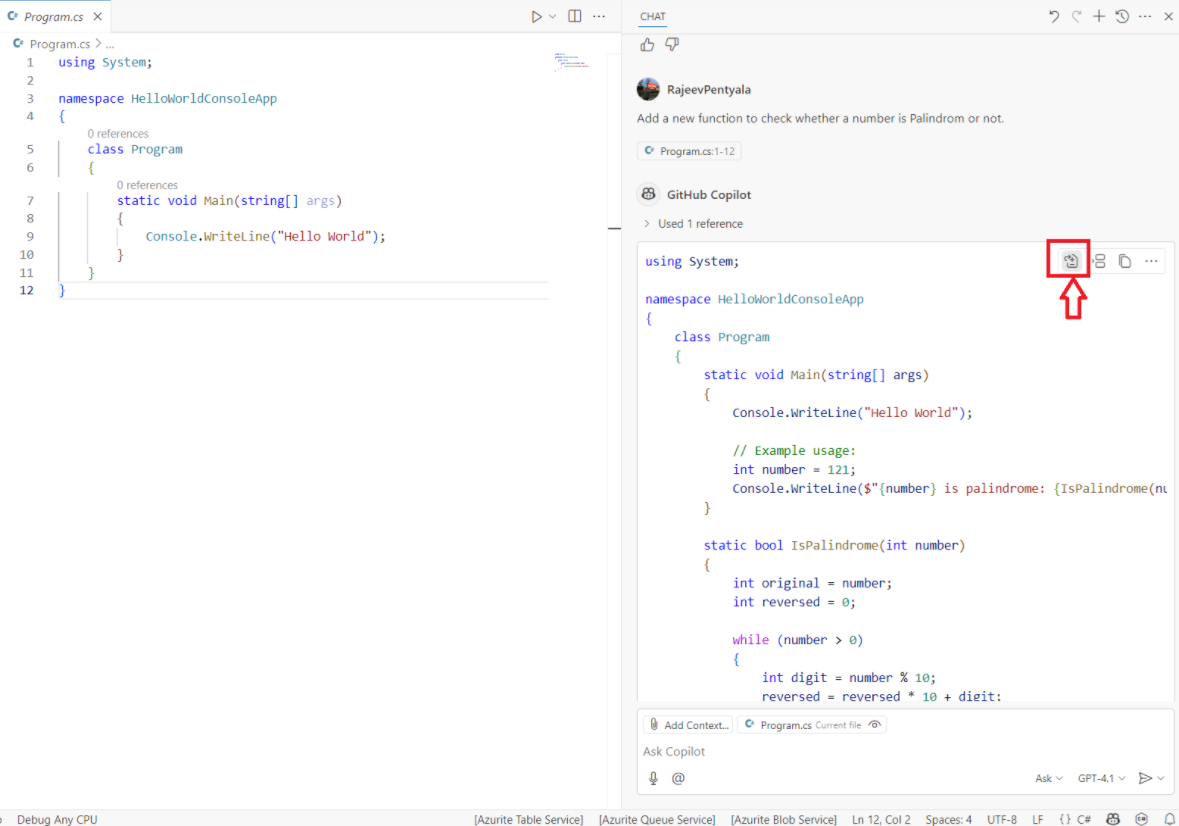
- This will insert the function into your
Program.csfile. Click Keep to persist the changes.

So far, we’ve seen how GitHub Copilot helps generate working C# code with minimal effort. It successfully created the IsPalindrome function as expected.
Taking It to the Next Level:
Now, imagine your organization has established coding standards—like requiring:
- Function names in PascalCase
- Every method to have a
<summary>XML comment - Private fields to use
_camelCaseformat
This is where the Custom Instructions feature of GitHub Copilot shines.
Let’s explore how to configure these instructions so that Copilot follows your team’s conventions automatically.
Setting up Custom Instructions:
- Create a new folder named .github at the root of your C# project.
- Inside this folder, add a new file called
copilot-instructions.mdas shown below.

- Now, define your custom instructions in this file. Below is an example tailored for my C# project (you can modify it to match your team’s coding standards).
# C#

This project uses C# with the following styles and conventions:

- Use **tabs** for indentation.
- All class files must follow **PascalCase** naming (e.g., `CustomerController.cs`).
- Class, struct, interface, enum, and method names must use **PascalCase**.
- Private fields must be prefixed with an underscore and use **camelCase** (e.g., `_logger`).
- All class members must have **explicit access modifiers** (`public`, `private`, `protected`, `internal`).
- Constants must be **PascalCase** and marked with `const`.
- Use expression-bodied members for simple one-liner properties or methods.
- Avoid unnecessary `this.` prefixes unless required for disambiguation.
- Use object initializers when possible (e.g., `new Person { Name = "Rajeev" }`).
- Prefer pattern matching and switch expressions over nested `if-else` chains.
- Avoid abbreviations in names (e.g., prefer `GetCustomerById` over `GetCustById`).
- Place using directives **outside** namespaces.
- Place system using directives **before** other namespaces.
- Place each class, struct, or interface in its own file unless they are tightly coupled.
- Configuration should be read using `.appsettings.json` or environment variables, not hardcoded.
- Do not use `#region` unless it improves readability significantly.

### XML Documentation

- All **public** classes, interfaces, methods, and properties **must** include `<summary>` XML documentation tags.
- Comments should start with a verb in third-person (e.g., "Gets the user by ID", "Initializes the service").
- Example:

```csharp
/// <summary>
/// Gets the user by their unique identifier.
/// </summary>
/// <param name="userId">The unique ID of the user.</param>
/// <returns>The matching <see cref="User"/> instance.</returns>
public User GetUserById(Guid userId)

- Once done, save the
copilot-instructions.mdfile. - Let’s try Copilot again with a new prompt:
Create a new function to print Fibonacci series with in a given range
- This time, Copilot automatically refers to the
copilot-instructions.mdfile while generating the code. - It generates a function that adheres to all your specified conventions—such as PascalCase method names and
<summary>XML comments.

- Click on Apply to… button to insert the code into Program.cs file.

- Click on Keep to persist the changes.
- As you can see, Copilot now generates clean code that follows all of my conventions and guidelines automatically.

- The best part? I can commit the
copilot-instructions.mdfile to my repository to:- Track changes to coding standards over time
- Let team members review or contribute to the conventions
- Ensure consistent code suggestions across the team
🙂



 Rajeev Pentyala – Technical Blog on Power Platform, Azure and AI
Leave a comment