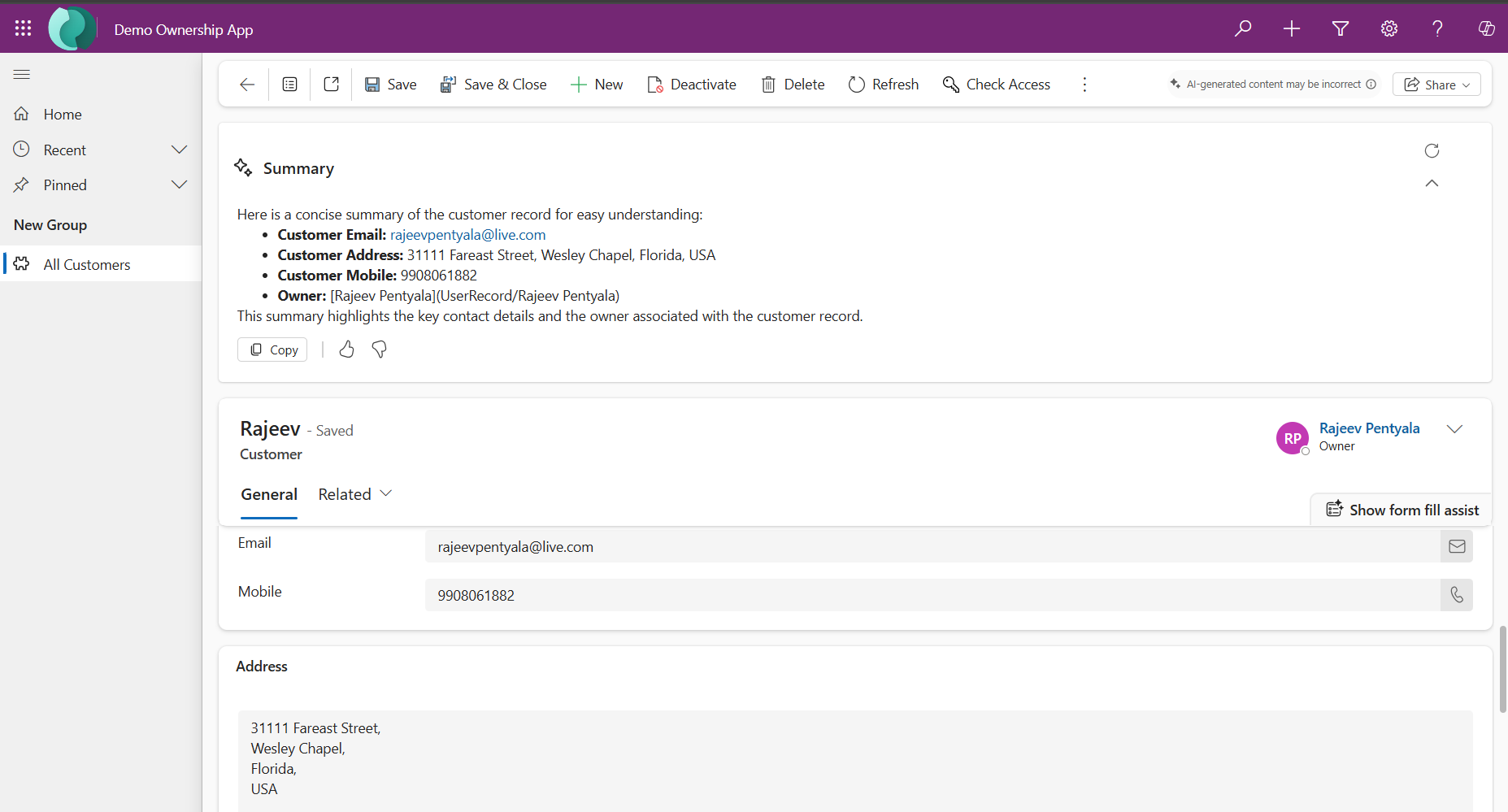
Did you know that you can turn your Model Driven App (MDA) record’s form from this:

to this, by showing Summary pane on the form with key details about the record.

With the Row summary feature in model-driven apps, we can show the AI-generated overview of key details about a record on the form.
Lets learn how to enable Row Summary for a table.
Prerequisite:
To enable and use this feature, the following criterion is required:
- A Power Platform administrator has enabled the AI insight cards environment setting. More information: Manage feature settings
Lets proceed with configuring Row Summary for a custom table named ‘Customer’.
Configure Row Summary on Table:
- Sign in to Power Apps
- Select Tables and open the table where you want to configure a row summary.
- Under Customizations, select Row summary
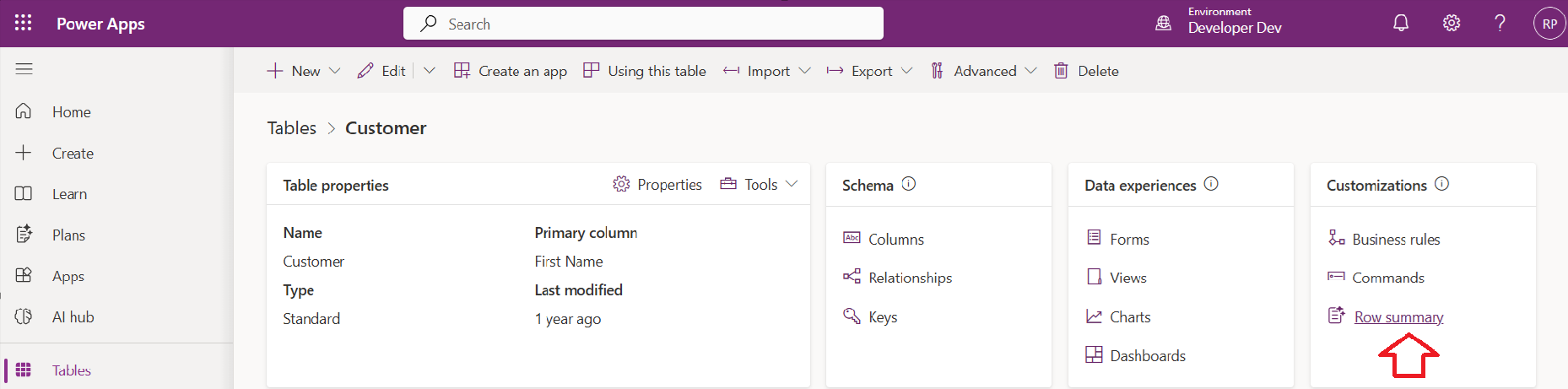
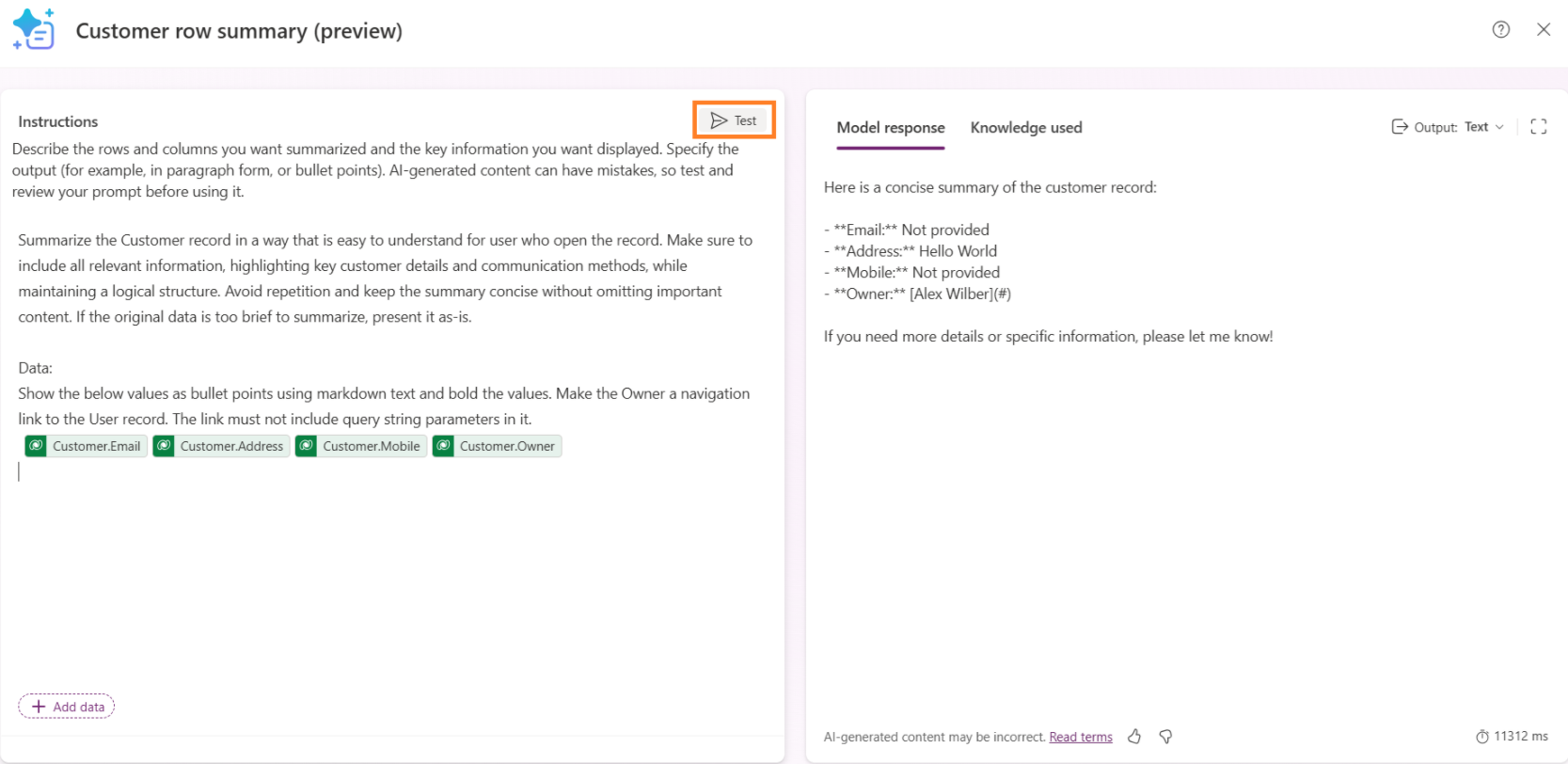
- A Prompt box will be opened.
- In the Prompt box, add the columns that you want included in the summary by selecting Add or by typing /. You can also specify formatting for the summary, such as make it a bulleted list or a paragraph. More information: Write a good prompt for the row summary

- Select Test to display a preview of the summary. The most recently edited row in the table is used to generate a test response.
- Once you’re satisfied with the columns and response from the test, select Apply to main forms.
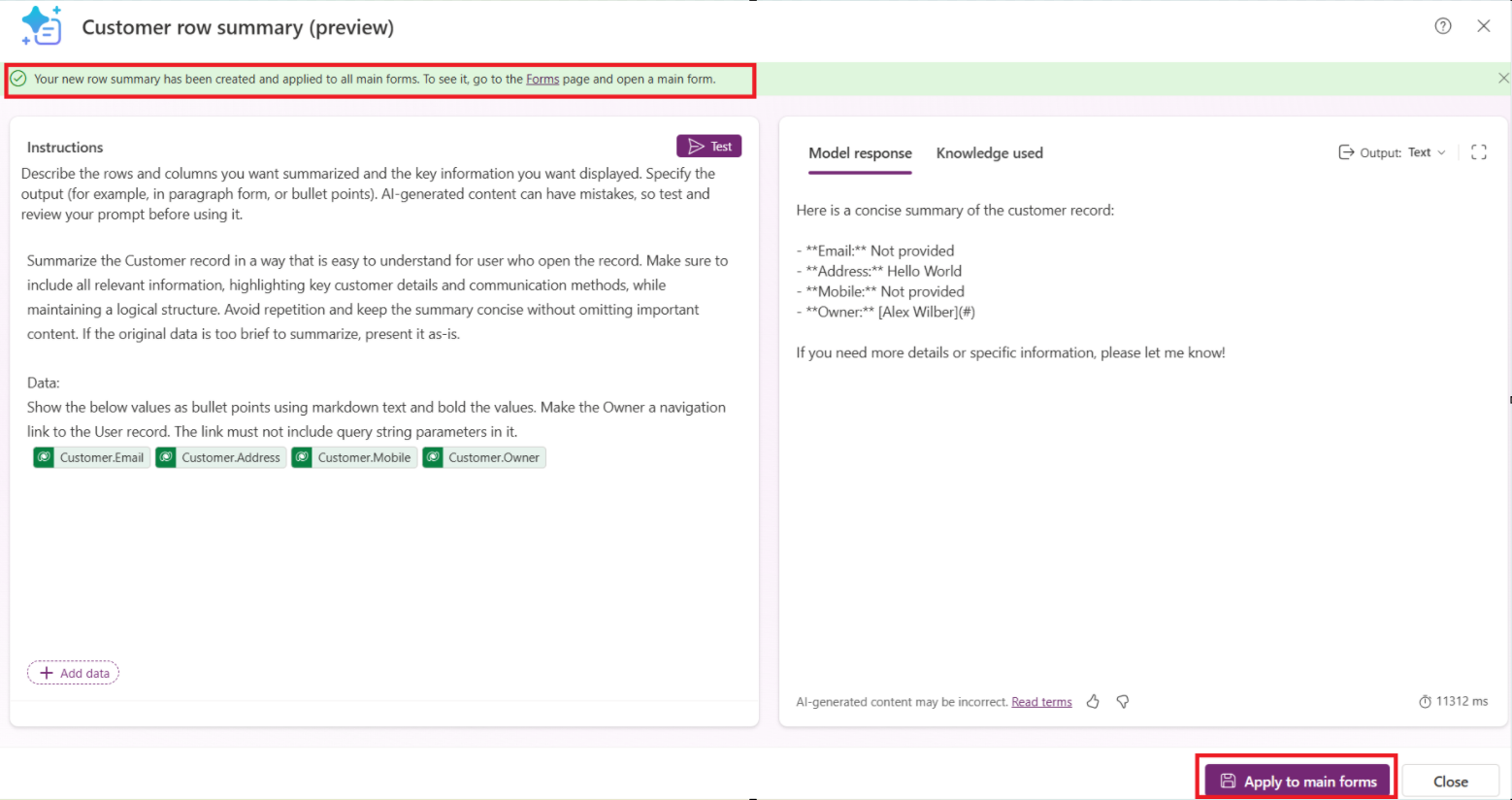
- After you apply a row summary, the summary displays on all main forms for the table.
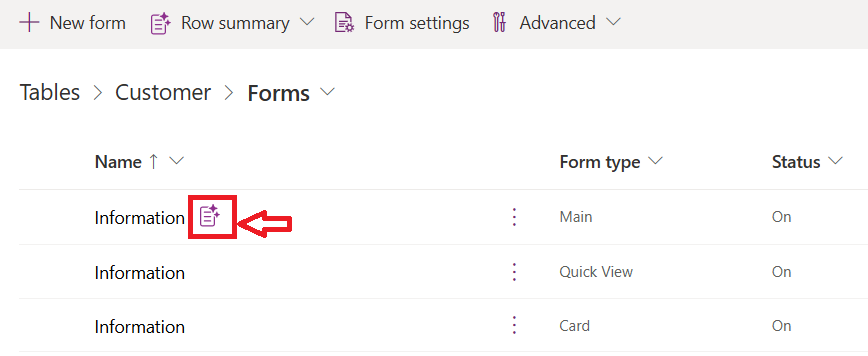
- We are done with configuration. You can open the record from your MDA and you should see the Summary pane on the record.
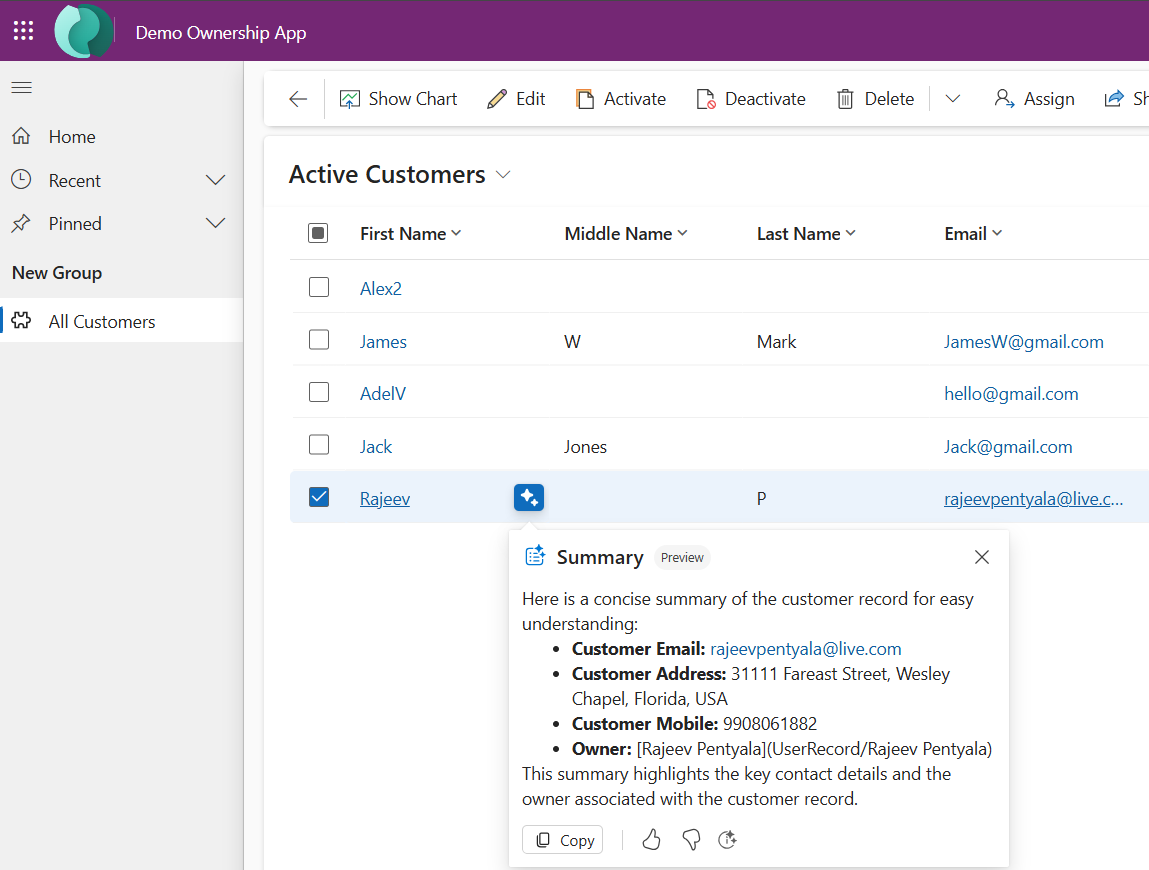
- The same Summary experience now will be available on the Main Grid as well.
Refer this article for more details.
🙂


 Rajeev Pentyala – Technical Blog on Power Platform, Azure and AI
Leave a comment