As you may already know, the Microsoft Dataverse connector in a Power Automate flow can be authenticated using a Service Principal.
What a is Service Principal:
- To learn how to create a Service Principal, refer to the official documentation: Power Platform Create a Service Principal.
- At a high level, a Service Principal (SP) is linked to an Azure App Registration in Microsoft Entra ID (formerly Azure AD).
In the example below, I’ve created a flow from a Dataverse solution, that uses a connection named SPDev, authenticated via Service Principal.

After saving the flow, you’ll notice that a Connection Reference is automatically created within your solution
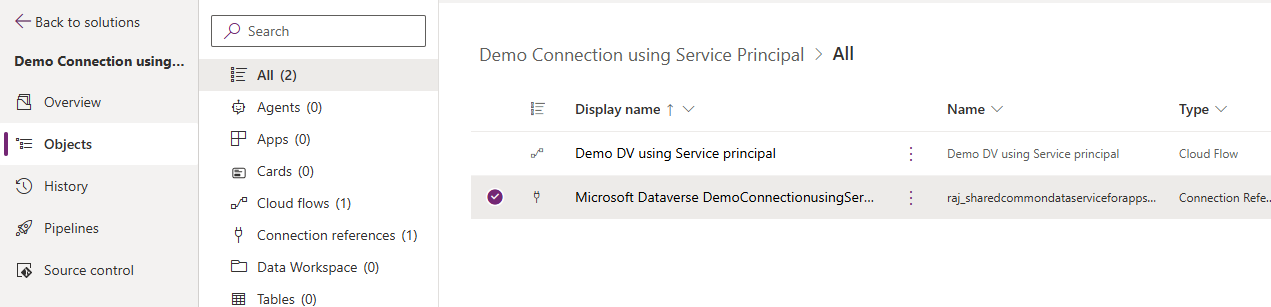
and the Connection Reference linked to the SPDev connection.
When you open the Connection Reference you notice its associated with connection SPDev.
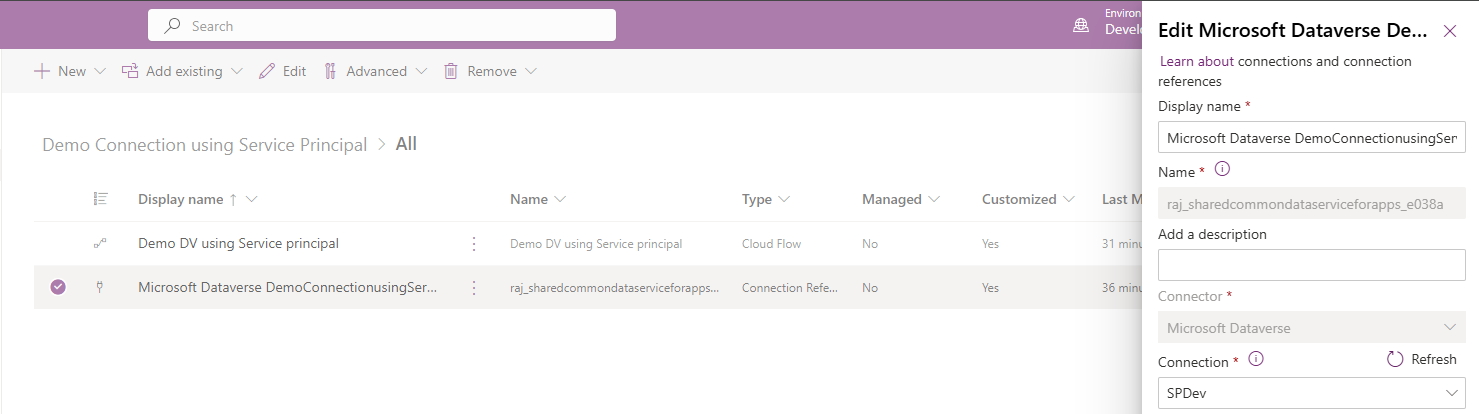
So far, everything works as expected.
However, a common real-world scenario arises: The Client Secret associated with the Service Principal expires.
When this happens, there’s no option in the Power Apps Maker Portal to update the secret.
If you go to Connections > SPDev > Switch account, nothing happens—no dialog, no prompt, no error.
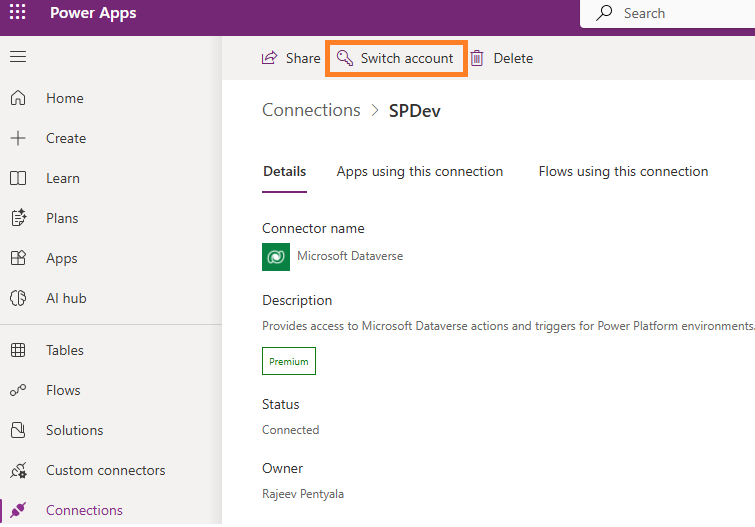
Let’s walk through how to update the SPDev connection to use the new client secret.
Update existing connection using PAC CLI:
To update an existing connection that uses a Service Principal, we’ll use the pac connection command set available in the Power Platform CLI (pac cli). If you are new to pac cli, check out my previous blog post : Using pac cli
Step 1: Verify Environment Context
- Run the following command to check your current authentication context:
pac auth list
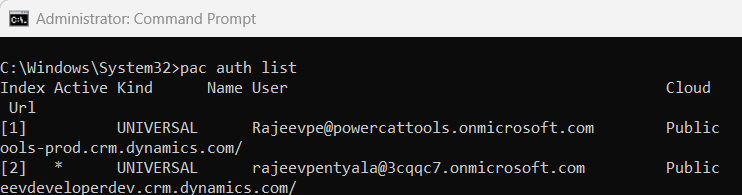
- Make sure you’re connected to the correct environment. If needed, use: pac auth create command.
Step 2: Update the Existing Connection
- Before you can update a connection, you’ll need the Connection ID.
- You can find this in the URL when you open the connection from Maker Portal.
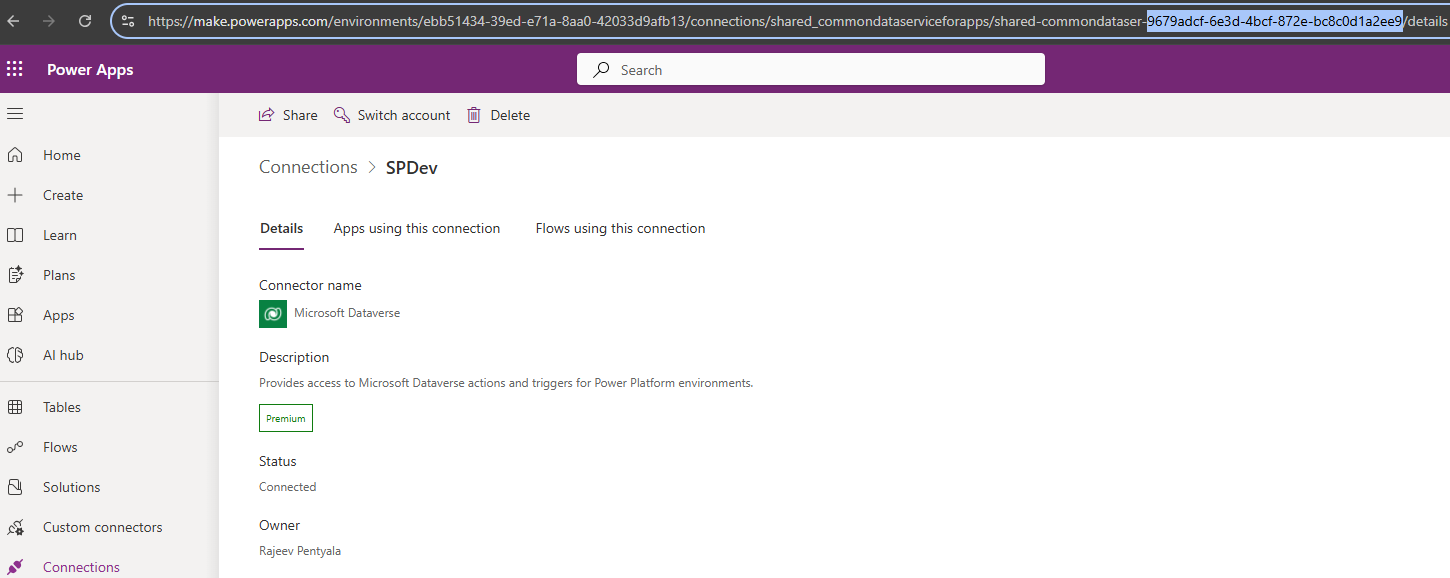
- Once you have the
connection-id, run the following command:
pac connection update -id <connection-guid> -t <tenant-id> -a <application-id> -cs <secret>

- This command updates the connection to use the new client secret.
Similarly you can also create a new new connection using pac connection create command.
Create a new Connection:
- Trigger following command to create a new Connection
pac connection create -n <connection-name> -t <tenant-id> -a <application-id> -cs <secret>

- Once you execute the command, the new connection will appear in the Maker Portal under Connections. In my example, a new connection named SPFromPACCLI was successfully created.
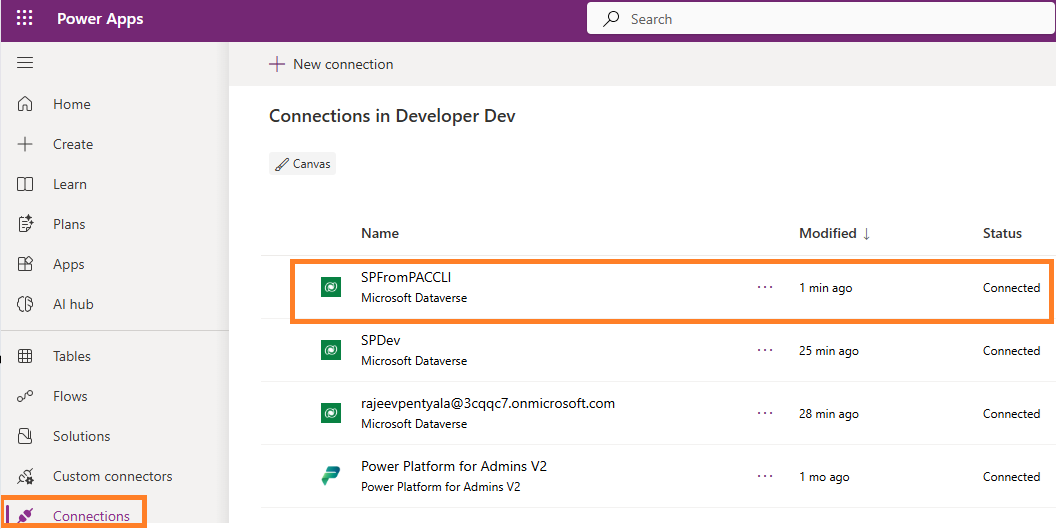
- If needed, you can go to the Connection Reference in your solution and switch it to use the newly created SPFromPACCLI connection.

That’s it!
I hope this helped you understand how to update or create Service Principal–based connections using pac connection command set.
🙂



 Rajeev Pentyala – Technical Blog on Power Platform, Azure and AI
Leave a comment