Did you know you can access detailed logs for your Power Apps—such as which user:
- Launched app
- Edited app
- Deleted app version
- Consented to the app’s APIs
- many more…
You can view all of these logs using Microsoft Purview , a comprehensive set of solutions that helps your organization govern, protect, and manage data effectively.

Coming back to accessing the Power App logs, we will be using Auditing solution available in Microsoft Purview.
In this article, I’ll walk you through the step-by-step process to configure a Power Platform environment to be audit-ready in Purview and show you how to access the audit logs.
As a first step, Choose the environment for which you want to view audit logs, Enable SAS Logging in Purview setting by following steps below.
‘Enable SAS Logging in Purview’ setting:
- Go to the Power Platform admin center and log in with tenant admin credentials.
- Select the environment and select Settings.
- Select Product > Privacy + Security.
- Turn on the Enable SAS Logging in Purview feature as shown below.
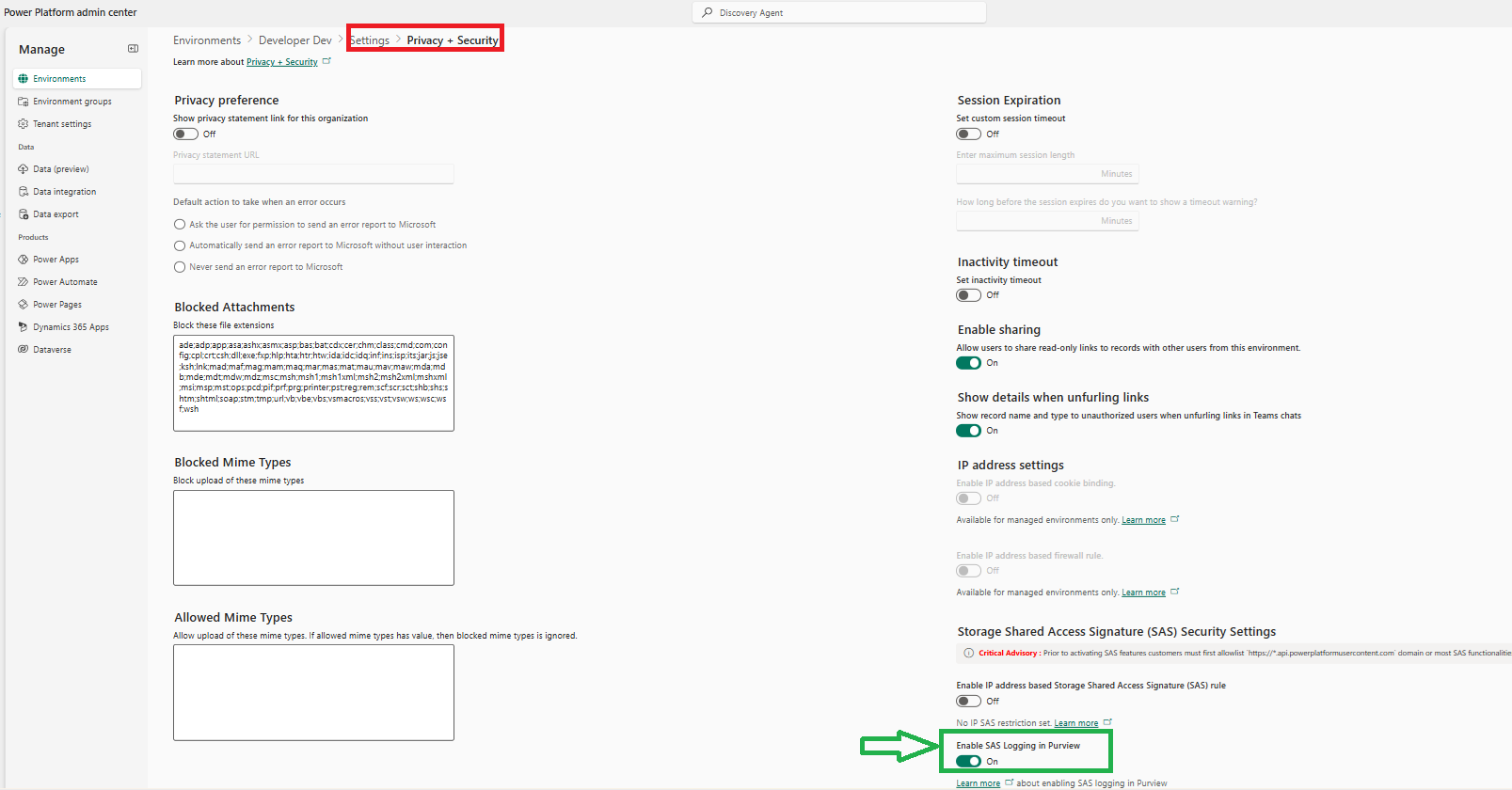
We’re all set on the Power Platform side—let’s proceed with the Purview subscription and start accessing the audit logs.
Purview trial subscription:
Follow below steps to get a 90 days trial, if you haven’t already.
- Sign in to the Microsoft Purview portal using work account.
- On the home page, go to the Trials and recommendations and select View all trials and recommendations.
- In the Purview and Priva trials section, find the Microsoft Purview solutions card and select Try now.
Once you’ve completed the trial subscription, you can access the Purview portal by following the steps below.
Accessing Purview Portal:
- Login to Purview portal.
- Look for the Audit solution as highlighted below.
- If you don’t see it on the home page, click View all solutions > Audit
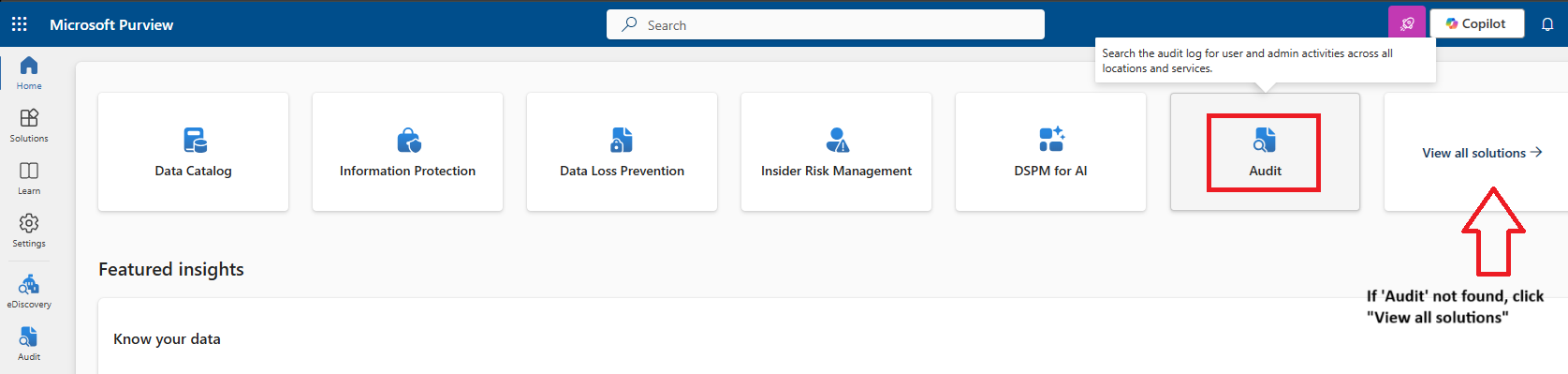
- The Audit solution page looks as below. You’ll initially see a banner message: Start recording user and admin activity. Click on it to begin.
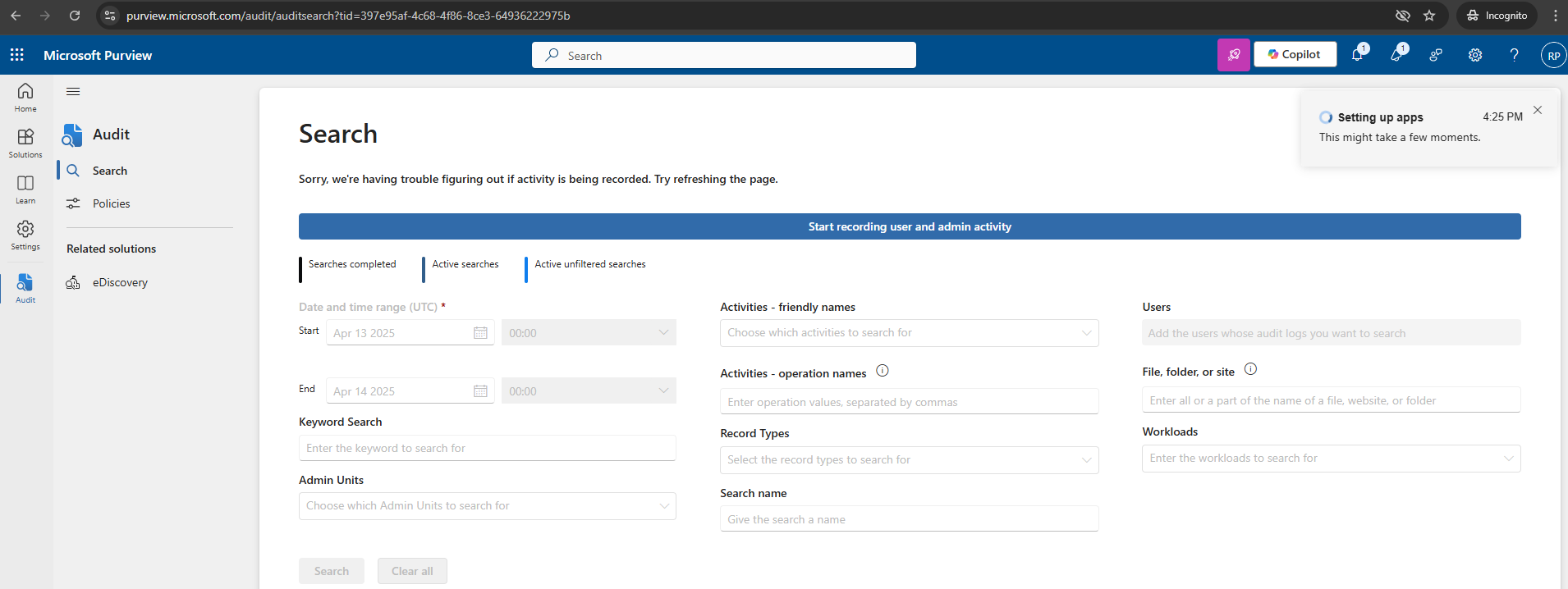
- Click Yes on the pop-up.
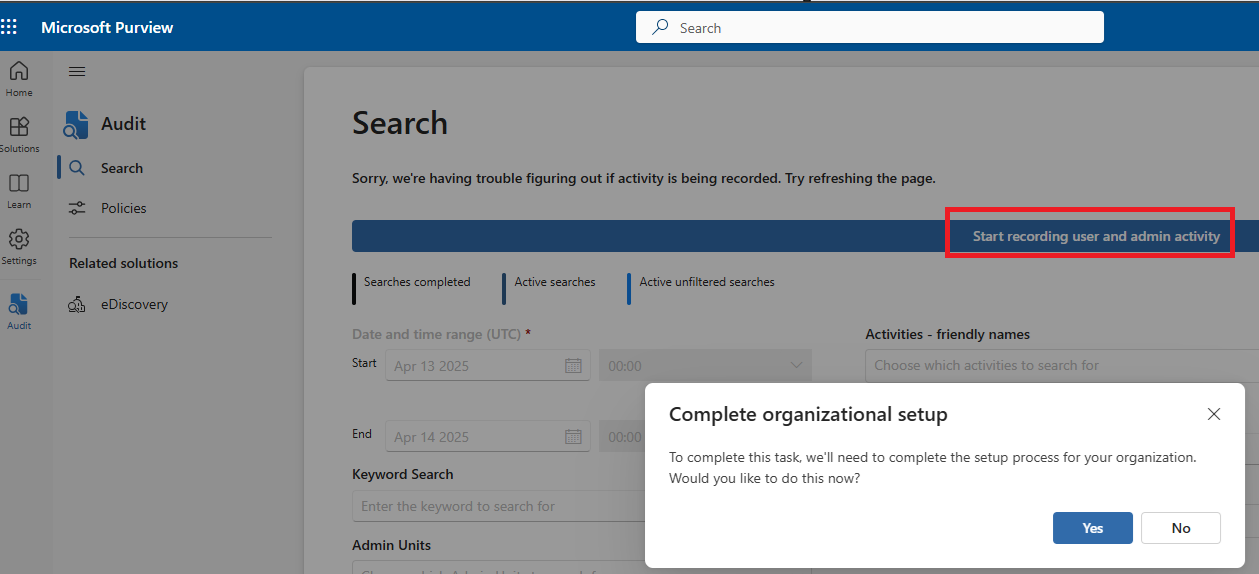
- The initial organization setup process takes time—it took about an hour in my case.
View logs:
- Once you complete the initial setup of the Audit solution, you’ll see a screen like the one shown below.
- To filter for specific Power Apps activities:
- Enter the Start and End date values.
- Open the Activities – Friendly names dropdown.
- Search for and select PowerApps app activities V2.
- In my example, I selected the following activities:
- Edited app
- Launched app
- Published app
- This means I want to see who edited, opened, or published apps within the selected time range. Please refer Power Apps Audit Events for the complete list of Events.
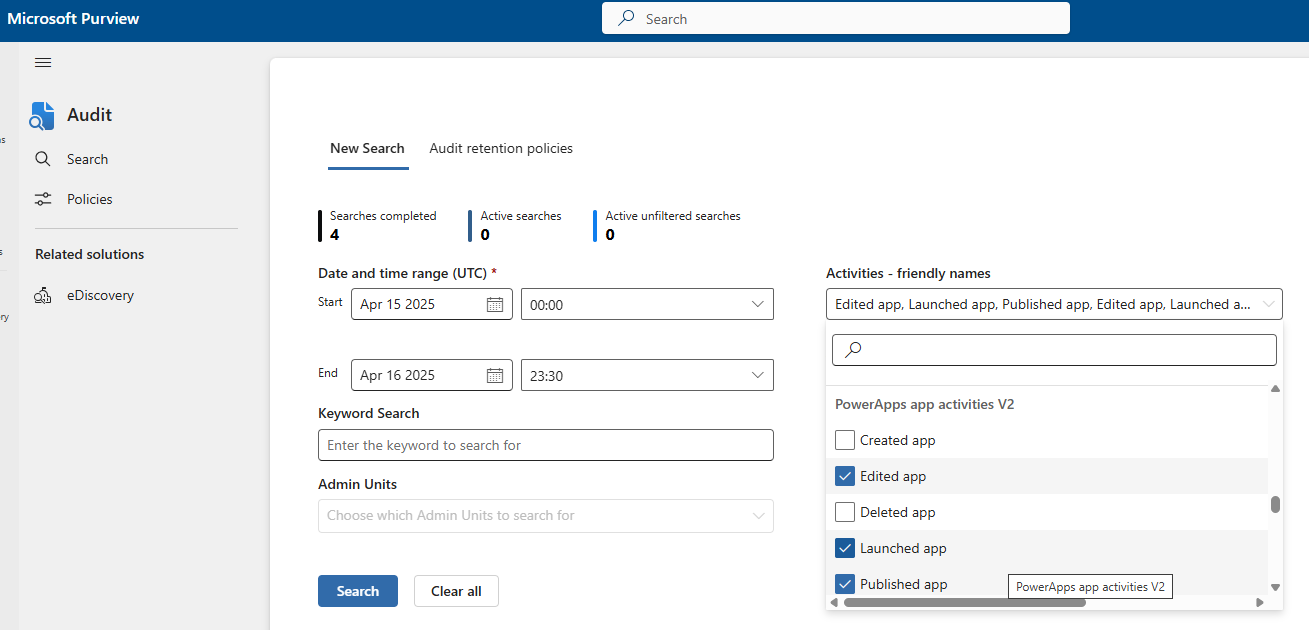
- Click on Search which queues your request. It may take a few minutes for the search to complete.
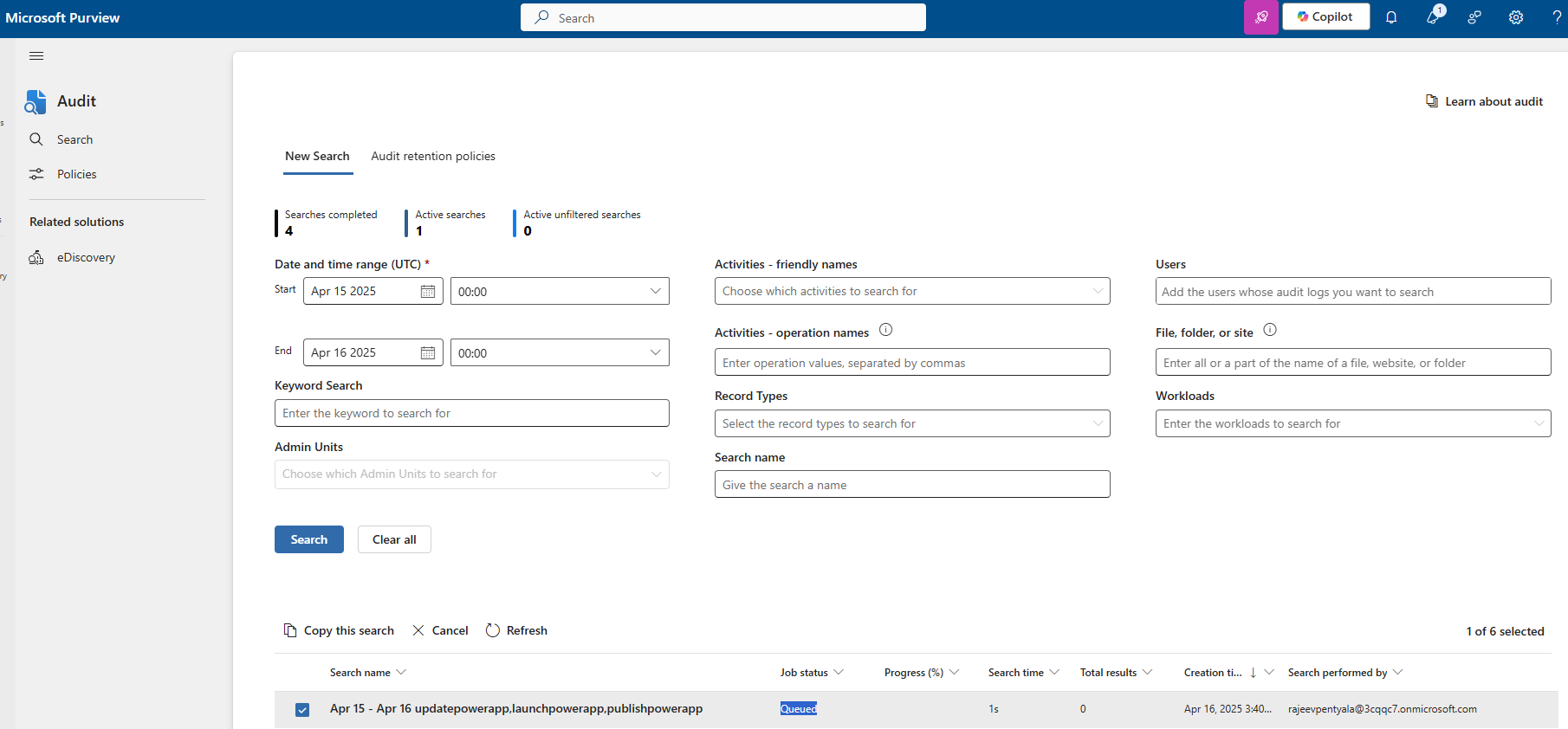
- You can view all your past searches in the grid, as shown below.
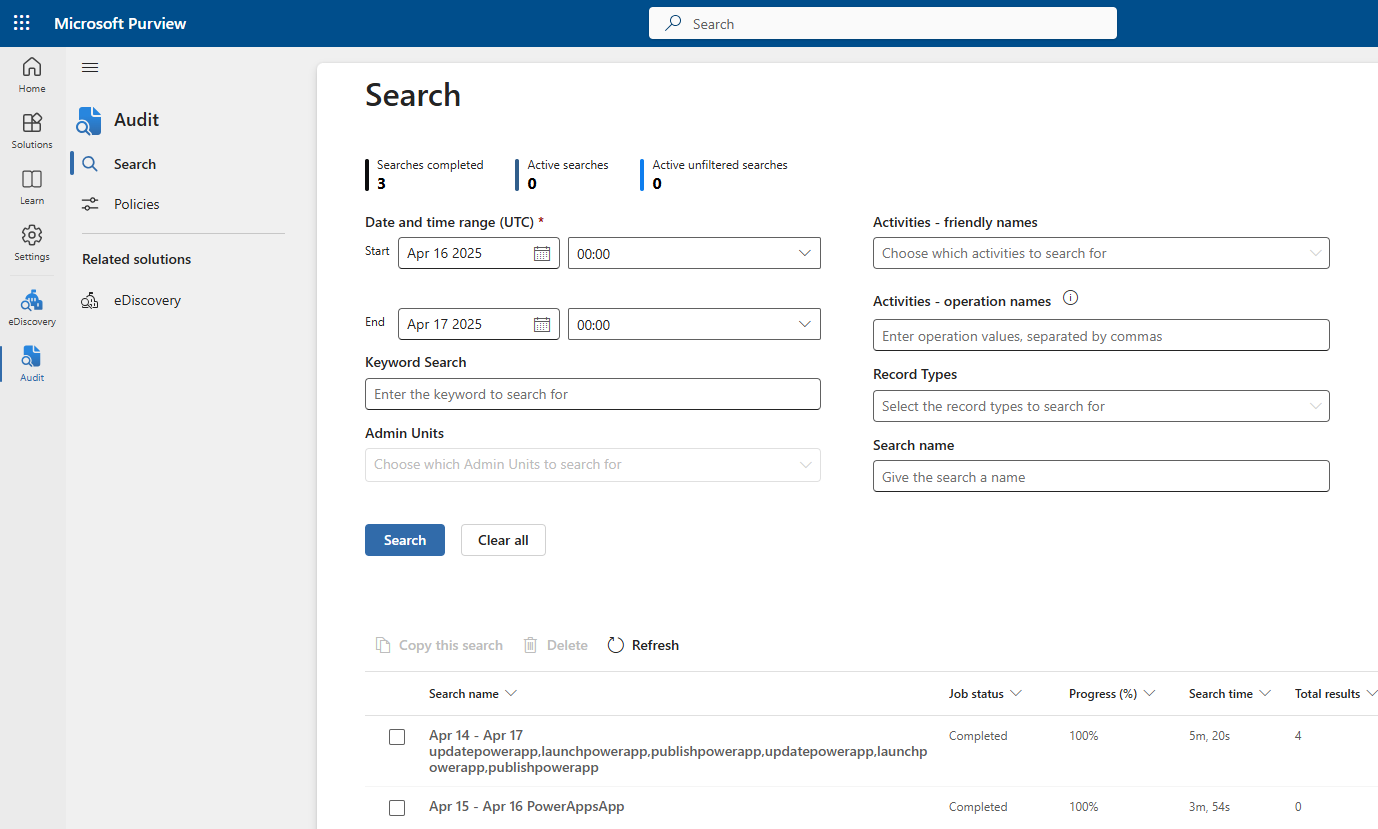
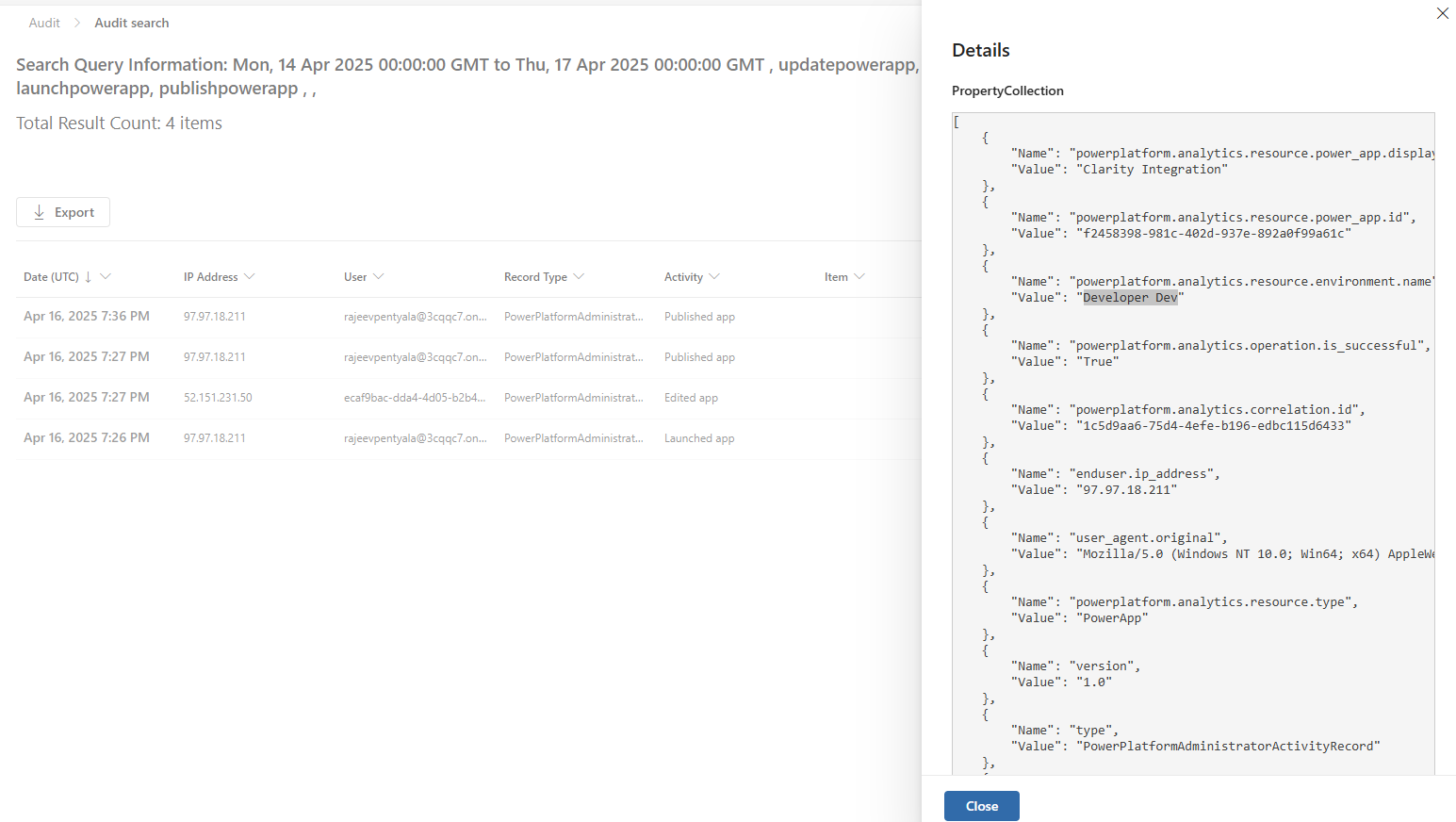
- Once the Job Status shows Completed, double-click the row to open the search results.
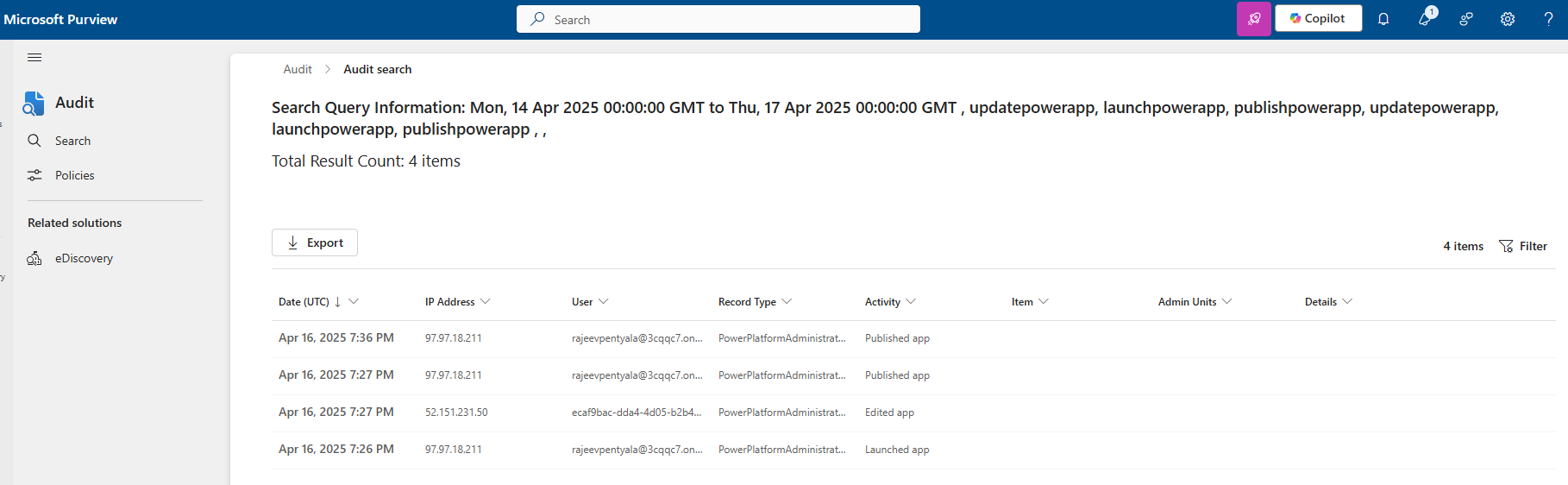
- Click on any of the record to view more details—such as Environment Name, App ID, App Name, User ID, User Role, and more—under the PropertyCollection
Purview ‘Audit’ capabilities:
There are two types of capabilities available in Audit (Standard) and Audit (Premium). Refer here for feature comparison.
Audit (Standard):
- Purview Audit (Standard) provides with you with the ability to log and search for audited activities and power your forensic, IT, compliance, and legal investigations.
- No audit log retention policies.
- The default retention period for Audit (Standard) is 180 days.
- Refer link for more details.
Audit (Premium):
- Audit (Premium) builds on Audit (Standard) by providing audit log retention policies, longer retention of audit records, high-value intelligent insights, and higher bandwidth access to the Office 365 Management Activity API.
- Refer link for more details.
Hope you found this helpful in understanding the basics of the Microsoft Purview Audit solution searching PowerApps events.
🙂


![[Step by Step] Beginner : Create a PCF control and add it to a custom page](https://rajeevpentyala.com/wp-content/uploads/2024/12/image-49.png)
 Rajeev Pentyala – Technical Blog on Power Platform, Azure and AI
Leave a comment