In this beginner’s guide to Power Pages, let’s learn how to automatically populate a Contact lookup field with the currently logged-in Portal User.
In my website, there’s a Subscription webpage featuring a basic form named Subscription. This form includes a ‘Contact’ lookup field, and I need it to automatically populate with the currently logged-in portal user.

To achieve this, I will be creating a Basic Form Data.
What is ‘Basic form metadata’:
- The Basic Form Metadata contains extra behavior modification logic to augment or override the functionality of form fields that is otherwise not possible with native basic form editing capabilities.
- For instance, if you want to assign a different label name to a field in the Portal than what is defined in Dataverse, you can create a Basic Form Metadata.
Setting up lookup with logged-in portal user:
- Copy the Contact lookup Logical name which we will need it in the next steps.

- Open the Portal Management app.
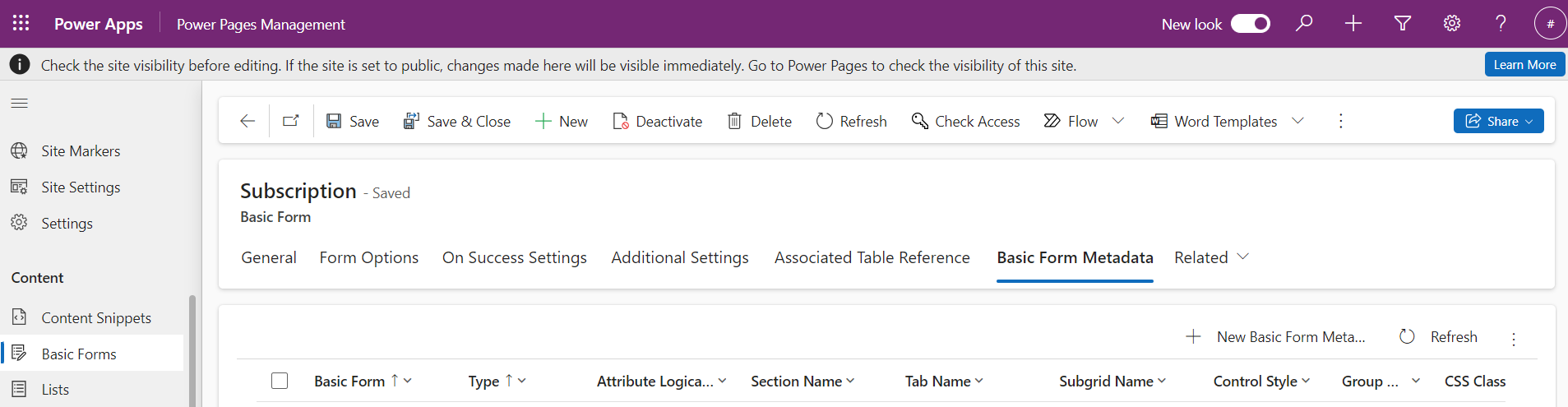
- Select the form (i.e., Subscription) you will to enhance from Basic Forms under the Content section.
- On the basic form that has fields that you would like to modify, go to Related > Basic Form Metadata
- Select New Basic Form Metadata.
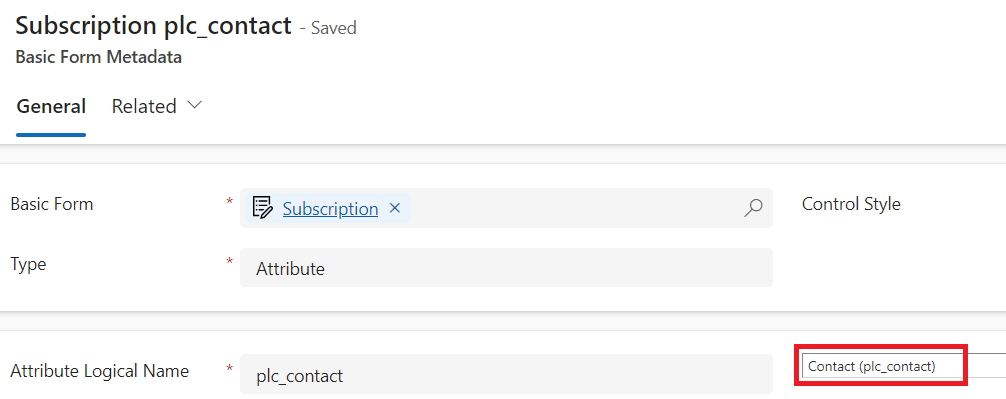
- Select Type as Attribute and from the dropdown select the Contact lookup which we copied in the first step.
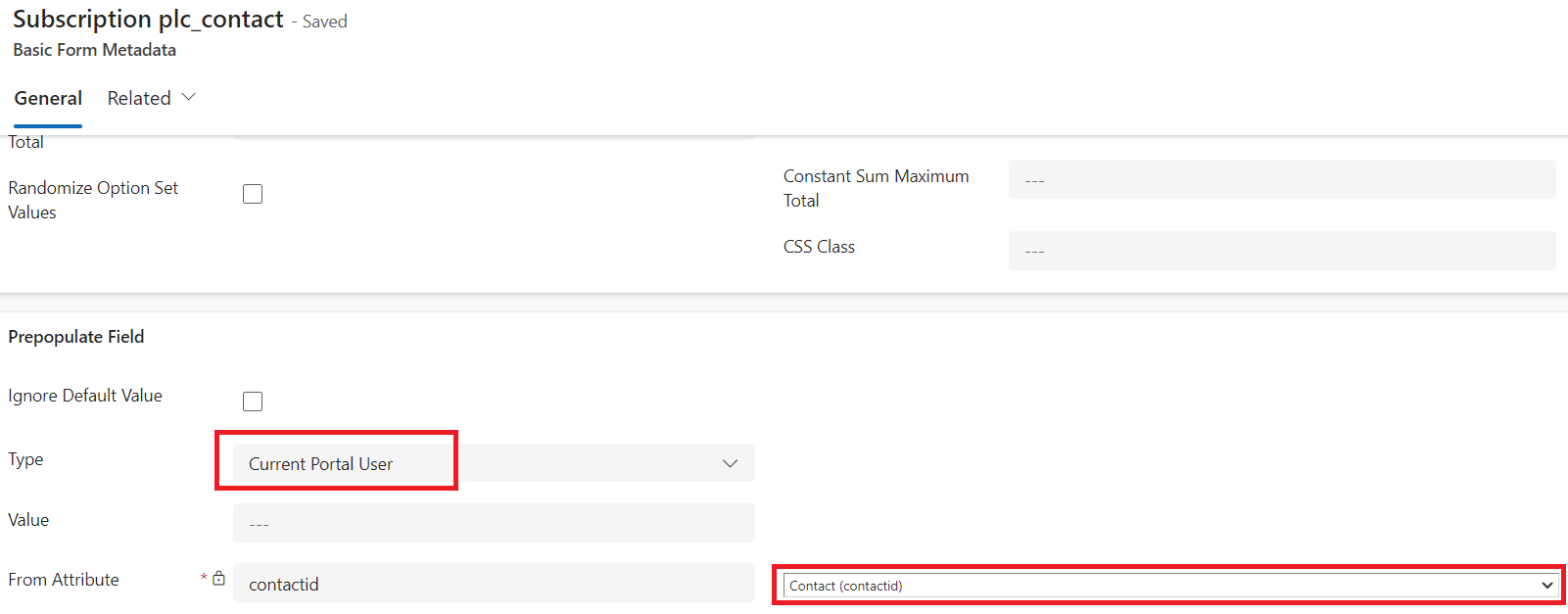
- Next, select Type as Current Portal User and Form Attribute as Contact (contactid)
- Save the Basic Form Metadata record.
- Go back to the Power Pages Studio and Sync the changes.

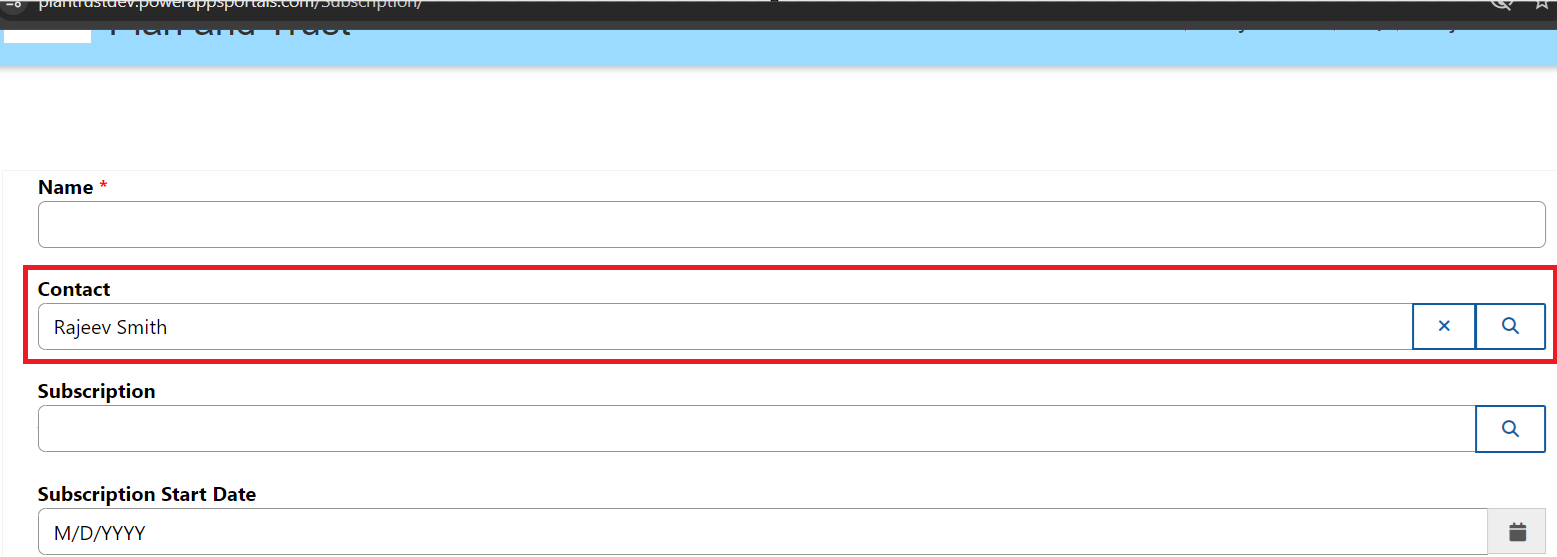
- Preview the website, and you’ll see the Contact lookup field automatically populated with the logged-in portal user.
🙂



 Rajeev Pentyala – Technical Blog on Power Platform, Azure and AI
Leave a comment