In this article, let’s learn how to display your favorite SVG icon in the Canvas App’s Image control.
SVG defines vector-based graphics in XML format. So to store the XML content I am defining a Named Formula variable svgIcons.

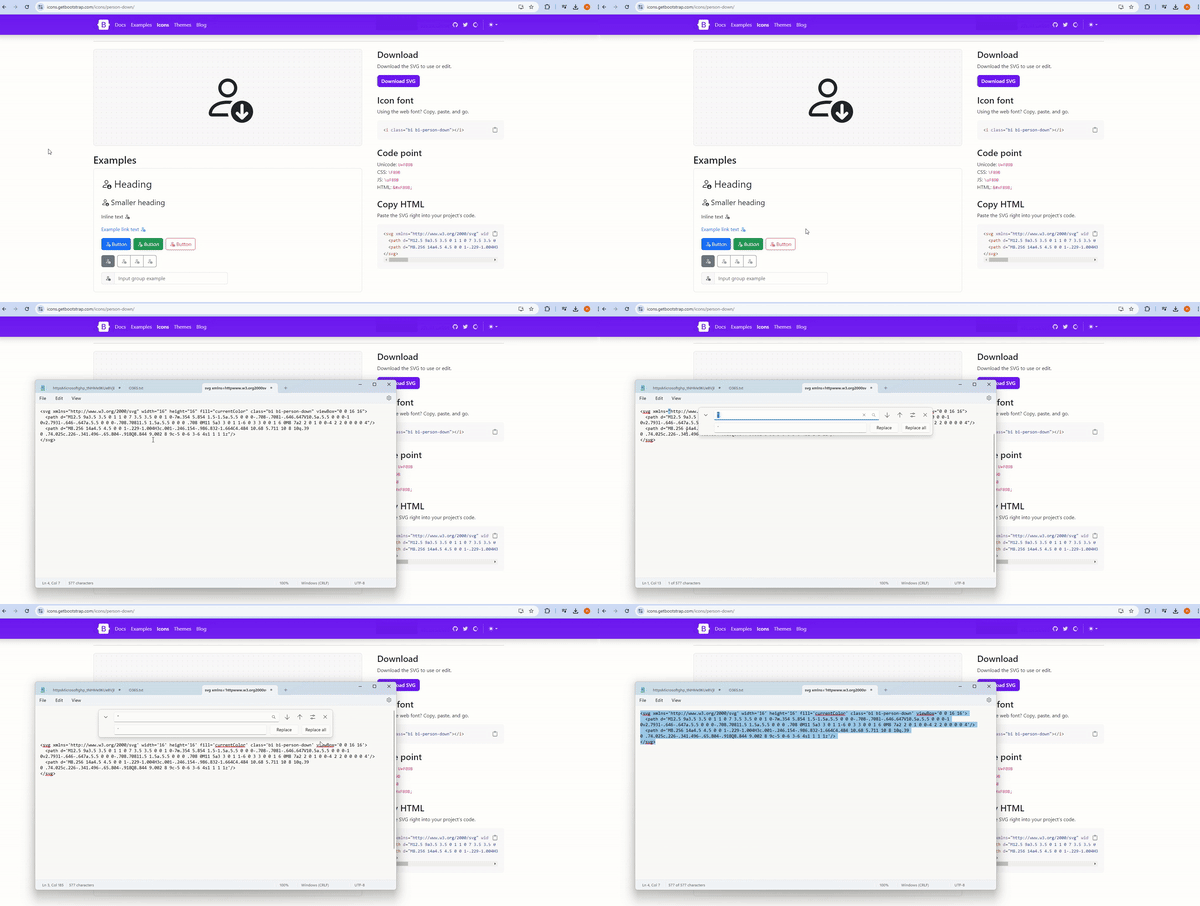
Next, we need to get the SVG image XML content from the web. You can obtain this from this free portal.
Search for and copy the HTML content of the SVG icon as shown below:

In the copied HTML, replace the double quotes (“) with single quotes (‘) using Notepad. Then, copy the modified HTML text.
Now go to Power Apps Studio and paste the copied HTML above in to the Formula.
Add an Image control to the screen and set the Image property as
"data:image/svg+xml;utf7," & EncodeUrl()Finally, pass the svgIcons.Icon1 as parameter to the EncodeUrl() function. This should display the image.

That’s it! This is how you can display your favorite SVG icon in the app.
You can follow the simplified approach mentioned here ,where you don’t need to need to manually replace double quotes with single quotes or perform other steps
🙂



![[Step by Step] Beginner : Create a PCF control and add it to a custom page](https://rajeevpentyala.com/wp-content/uploads/2024/12/image-49.png)
 Rajeev Pentyala – Technical Blog on Power Platform, Azure and AI
Leave a comment