As part of the preview feature, the Recycle bin kind of option is available under Data Management to recover table record data from any type of delete scenario within a specified configurable time frame.
To use this feature, it must be enabled in the environment where you want to restore Dataverse table records.
Enable restore table records in an Environment:
- Sign in to the Power Platform admin center as an admin (Dynamics 365 admin, Global admin, or Microsoft Power Platform admin).
- Select Environments and open the environment you want.
- Select Settings > Product > Features.
- Scroll down to view the Recycle Bin settings.
- Turn On the Recycle Bin setting.
- Specify the time interval, to be able to restore table records. You can restore table records up to 30 days after the record was deleted.
View and restore the deleted records in Power Apps:
- Sign in to the Power Platform admin center as a user with the system administrator security role.
- Select Environments and open the environment you want to view and restore deleted records.
- Go to Settings > Data management > View Deleted Records.

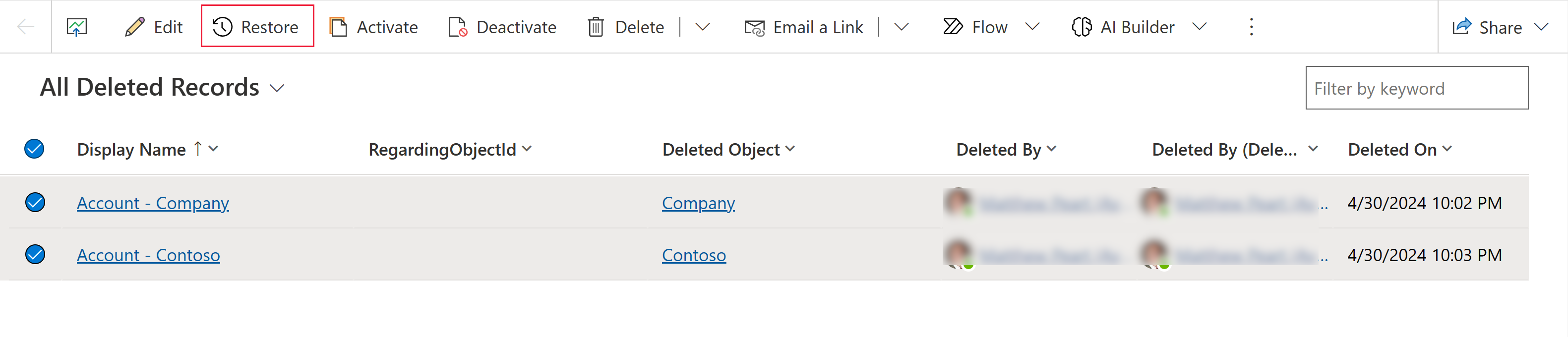
- You can view all the deleted records from all tables in a new tab.
- Select one or more records you wish to restore, and then select Restore on the command bar.

Known issues
Some records aren’t restored
- Some organizations add custom business logic that deletes records related to a record that is deleted.
- To restore related records deleted by custom business logic, you need to apply the opposite logic on the
Restoreoperation to recover the records when you restore the original record that was deleted. - However, Records deleted via the table relationship cascade behavior process can be restored.
Refer this link for more details.
🙂



 Rajeev Pentyala – Technical Blog on Power Platform, Azure and AI
Leave a comment