ShowColumns, AddColumns, RenameColumns and DropColumns are Power Fx functions which helps you to shape your collection. In this article, I will try to explain these functions with a simple scenario.
Scenario:
- Create a new Canvas App.
- Add a Dataverse Contact table as a Canvas App DataSource
- Read the Contact table to a Collection and by default, all the columns of the Contact table are added to the Collection.
- We will shape the collection to keep only the required columns.
- Add a new column ‘Fullname’ to the collection.
- Rename columns and remove unwanted columns.
Let’s get started and execute our scenario by building a simple Canvas App.
Steps to create the canvas App:
- Create a new Canvas App and add a Contact Dataverse table as Datasource.
- On App > OnStart write following formula to read the Contact table records in to a collection collContact.
Collect(
    collContact,
    Contacts
);- Execute the Run OnStart and check the collContact records, which contain all the columns of the Contact table.
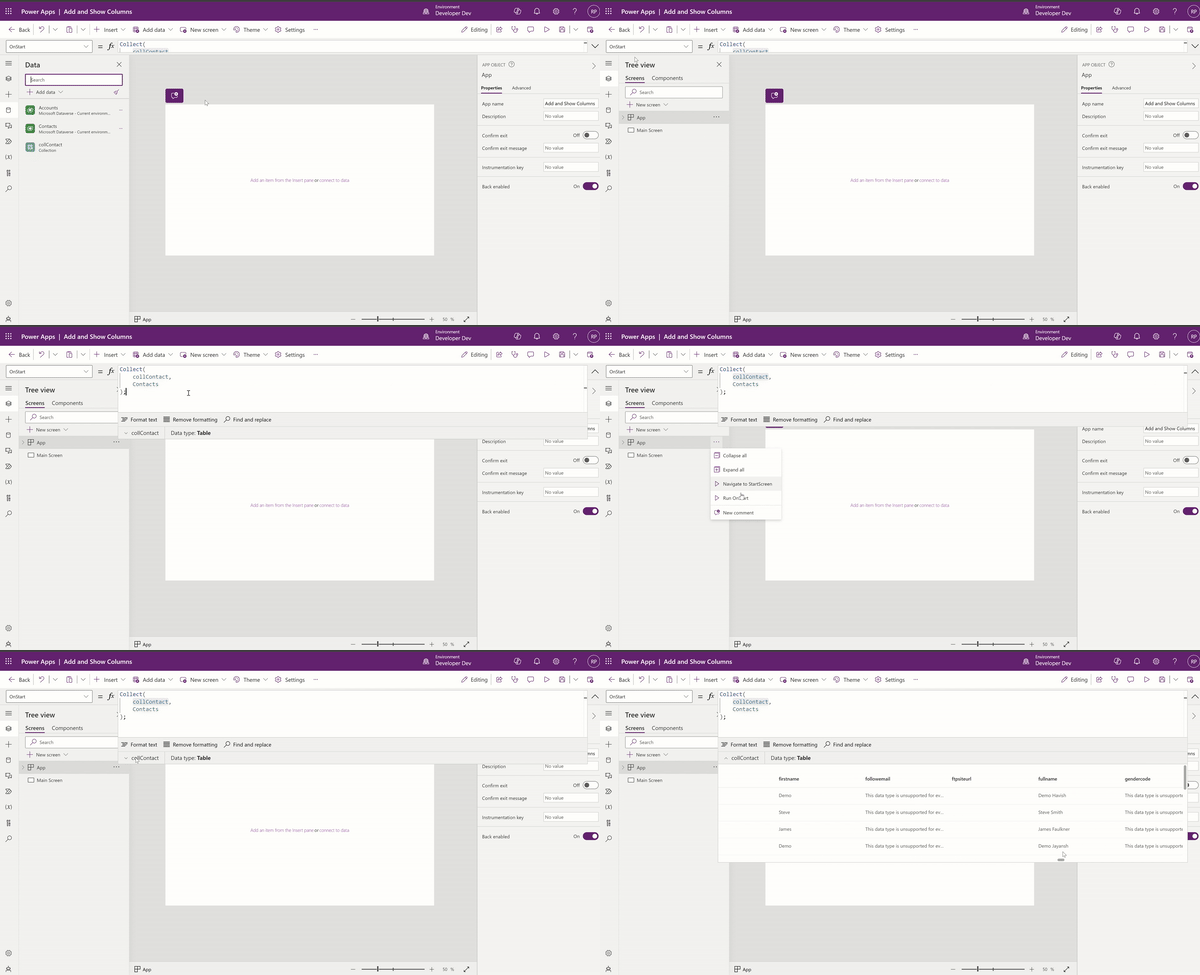
- Let’s say we only need to add the following highlighted columns to the collContact collection. We can use the ShowColumns function.

Using ShowColumns function:
- The syntax of ShowColumns function is as follows:
ShowColumns( Table, ColumnName1 [, ColumnName2, ... ] )

- Table - Required. Table to operate on.
- ColumnName(s) - Required. Names of the columns to include.- Let’s see how we can achieve our requirement of adding only specific Contact table columns to the collContact collection.
- Add following formula in App > OnStart
Collect(
    collContact,
    ShowColumns(
        Contacts,
        'First Name',
        'Middle Name',
        'Last Name',
        Email,
        'Mobile Phone'
    )
);- Execute the Run OnStart, and check the collContact records.

- The collContact collection will only have the columns you want. That’s the use of the ShowColumns function.
Using AddColumns function:
- The collContact collection now shows the firstname, lastname and middlename columns as below.

- How about creating a new column ‘Fullname’ by joining firstname, lastname, and middlename columns? Let’s see how to achieve that using AddColumns.
- Following is the syntax of AddColumns.
AddColumns( Table, ColumnName1, Formula1 [, ColumnName2, Formula2, ... ] )

  - Table - Required. Table to operate on.
  - ColumnName(s) - Required. Names of the columns to add.
- Formula(s) - Required. Formulas to evaluate for each record. The result is added as the value of the corresponding new column. You can reference other columns of the table in this formula.- Let’s achieve our requirement by updating the previous formula with the following formula:
Collect(
    collContact,
    AddColumns(
        ShowColumns(
            Contacts,
            'First Name',
            'Middle Name',
            'Last Name',
            Email,
            'Mobile Phone'
        ),
        Fullname,
        firstname & " " & middlename & " " & lastname
    )
);- Execute the Run OnStart and check the collContact records. collContact collection will now have a new Fullname column.

Using RenameColumn function:
- If you notice, the column names of the collContact collection are not intuitive. Lets rename the columns using the RenameColumns function.

- Following is the syntax of RenameColumns function.
RenameColumns( Table, OldColumnName1, NewColumnName1 [, OldColumnName2, NewColumnName2, ... ] )

  - Table - Required. Table to operate on.
  - OldColumnName(s) - Required. Names of the columns to rename from the original table.
- NewColumnName(s) - Required. Replacement names. - Lets achieve our requirement by updating the previous formula with the following formula:
Collect(
    collContact,
    RenameColumns(
        AddColumns(
            ShowColumns(
                Contacts,
                'First Name',
                'Middle Name',
                'Last Name',
                Email,
                'Mobile Phone'
            ),
            Fullname,
            firstname & " " & middlename & " " & lastname
        ),
        emailaddress1,
        'Email Address',
        firstname,
        'First Name',
        middlename,
        'Middle Name',
        mobilephone,
        'Mobile Number'
    )
);- Execute the Run OnStart and check the collContact records. collContact collection will now have the new column names.

Using DropColumns function:
- The collContact collection looks as below after applying above formulas.

- How about removing ‘First Name’, ‘Middle Name and ‘lastname’ from the collContact collection, since we already have the ‘Fullname’ column? Let’s drop the columns using the DropColumns function.
- Following is the syntax of DropColumns:
DropColumns( Table, ColumnName1 [, ColumnName2, ... ] )

  - Table - Required. Table to operate on.
- ColumnName(s) - Required. Names of the columns to drop.- Lets achieve our requirement by updating formula as below:
Collect(
    collContact,
    DropColumns(
        RenameColumns(
            AddColumns(
                ShowColumns(
                    Contacts,
                    'First Name',
                    'Middle Name',
                    'Last Name',
                    Email,
                    'Mobile Phone'
                ),
                Fullname,
                firstname & " " & middlename & " " & lastname
            ),
            emailaddress1,
            'Email Address',
            firstname,
            'First Name',
            middlename,
            'Middle Name',
            mobilephone,
            'Mobile Number'
        ),
        'First Name',
        'Middle Name',
        lastname
    )
);- Execute the Run OnStart and check the collContact records. collContact collection will not have the ‘First Name’, ‘Middle Name and ‘lastname’ columns.

Hope you understand the basics of ShowColumns, AddColumns, RenameColumns and DropColumns functions.
🙂



 Rajeev Pentyala – Technical Blog on Power Platform, Azure and AI
Leave a comment