In this article, I am going to explain how to create Custom Prompts and consume them in Power automate.
Let’s first start by understanding what a Prompt is, including Pre-built prompts and Custom prompts.
What’s a prompt?
- A prompt is a natural language instruction that tells a large language model (LLM) to perform a task.
- AI Builder provides a prompt builder that allows makers to write, test, save, and use prompts to generate text. AI Builder is a Microsoft Power Platform feature.
- The Power Platform empowers makers with prebuilt prompts for common business scenarios such as summarizing, classifying, extracting entities, translating, assessing sentiment, or drafting a reply.
- You can use prebuilt prompts in multiple experiences, such as:
- Dataverse low-code plug-ins
- Power Apps formulas
- Power Automate
What’s a custom prompt?
- Custom prompts give makers the freedom to instruct the GPT model to behave in a certain way or to perform a specific task.
- Prompt builder provides the flexibility to create your own custom prompt by defining input variables that enable incorporating dynamic runtime content within a prompt.

Now that you understand what a custom prompt is, let’s see how to create one and use it in Power Automate.
Create Custom Prompt:
- Sign in to Power Automate and select AI hub on the left pane
- On the left pane, select AI prompts > Create text with GPT using a prompt.

- In the next pane, on the lower-right corner, select Create custom prompt.

- In this example, I am going to provide a simple prompt to fetch the state names based on the ‘Country’.
- I want the ‘Country’ to be a dynamic value, so I prepared my prompt as follows:
Generate a list of states for country {dynamic value}- In place of ‘{dynamic value}’, I clicked on ‘Add dynamic value’ and added the dynamic value named ‘CountryName’.

- Rename the prompt to State name by country.

- We can also test the prompt by using Test your prompt option as shown below.

- Click on Save custom prompt
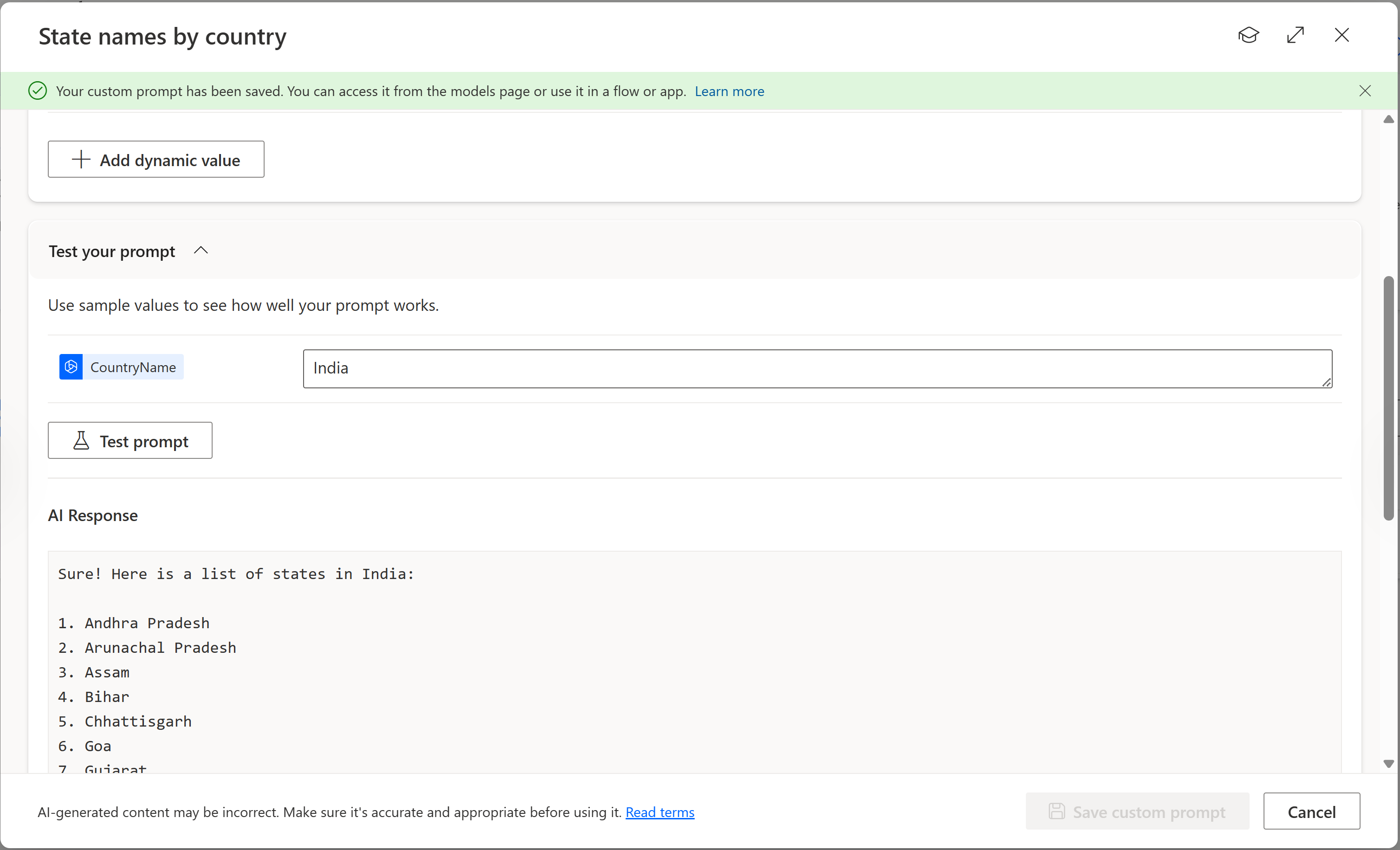
We have created our Custom Prompt. Let’s see how to use it in a flow.
Use Custom Prompt in a flow:
- Create a new manually triggered cloud flow and add a Initialize Variable control as shown below.

- In the Manually trigger a flow action, add an input named ‘CountryName’ as shown below. This input is used to read the country name and pass it to the prompt.

- In the Initialize Variable control, set the Value to the input parameter ‘CountryName’ of the ‘Manually trigger a flow‘ action. We will use this variable in the next Create test with GPT using a prompt action.

- Now add AI Builder > Create test with GPT using a prompt action to trigger the Custom Prompt.

- Select the Create test with GPT using a prompt action, and select:
- Prompt : State name by country
- Input CountryName : variables(‘varCompanyName’)

- Save and test the flow.
- Provide the ‘CountryName’ and click on ‘Run flow’.

- You will see that prompt response is available in body > predictionOutput > text

- You can read and use the prompt response in subsequent flow actions.
That’s all for this post. In summary, we’ve learned about prompts, how to create a custom prompt, and how to use it in a cloud flow.
🙂



 Rajeev Pentyala – Technical Blog on Power Platform, Azure and AI
Leave a comment