In this article, I will demonstrate how to construct the URL of the ‘failed flow run’ instance and include it as a hyperlink in an email body.
Scenario:
I use the ‘Scope’ control to handle errors in my flows. Whenever an error occurs, I need to send an email with the details and a link to the failed flow.
Flow steps looks as below:

Now that you understand the scenario, let’s explore how to construct the URL for the failed flow run and embed it in the email body.
Steps to form the ‘failed flow link’ and embed in a mail body:
- Add a Compose action and name it as varFailedFlowUrl. In the Inputs > Add dynamics content > Expression add the following expression. This expression assists in forming the URL for the ‘failed flow run’, which you can use in the next email action.
concat('https://make.powerautomate.com/environments/',workflow()['tags']['environmentName'],'/flows/',workflow()['name'],'/runs/',workflow()['run']['name'])
- Next, add a ‘Send an email’ action and click on ‘Code View’ button, as shown below.

- Complete the required fields such as ‘To’, ‘Subject’ and form the ‘Body’ as per your requirements.
- Now, to embed the ‘failed flow run’ URL in the email’s body, add an anchor tag (i.e.,<a>) with varFailedFlowUrl, which we formed in previous Compose action. The anchor tag looks as follows.
<a href="@{outputs('varFailedFlowUrl')}"> Create Candidate from Form Response </a>
- Once you complete the above step, your action looks as follows.

- That’s it! Save and test the flow.

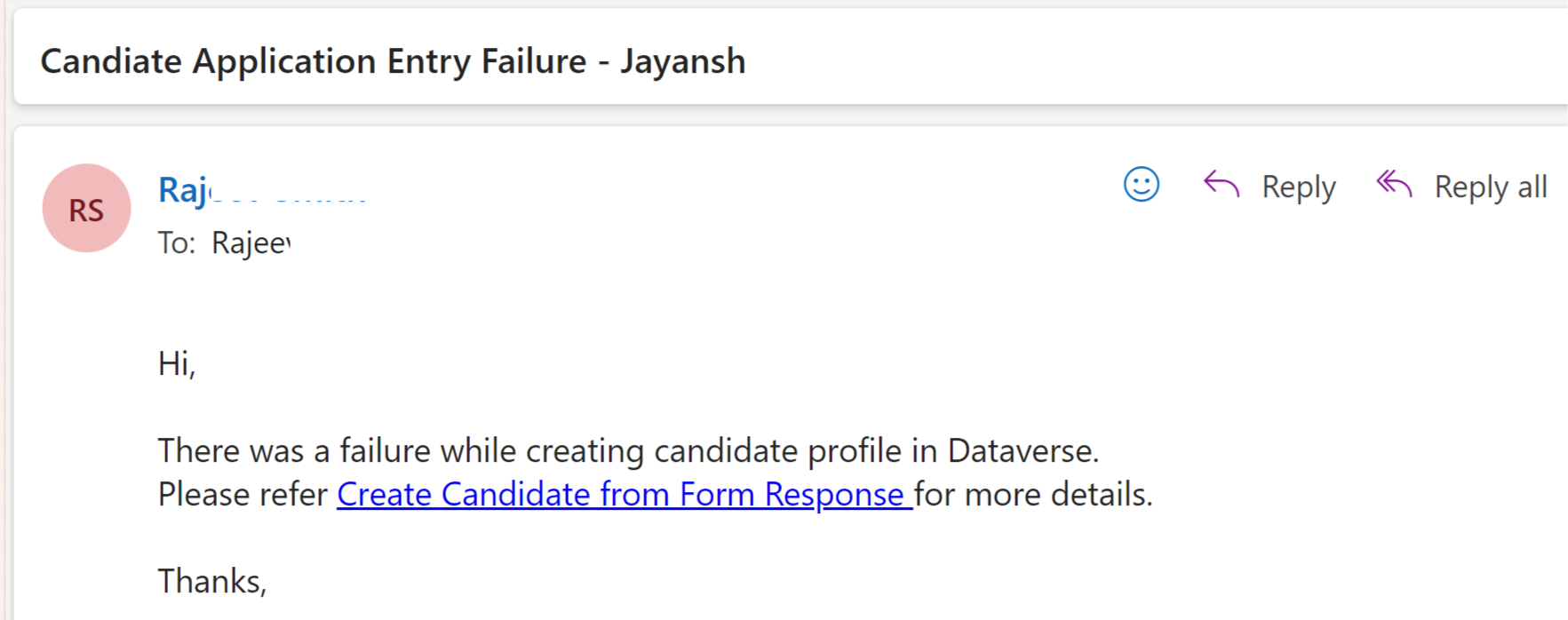
- Also, check the email, and you should see a link that will take you to the failed flow run.
🙂


![[Step by Step] Beginner : Create a PCF control and add it to a custom page](https://rajeevpentyala.com/wp-content/uploads/2024/12/image-49.png)
 Rajeev Pentyala – Technical Blog on Power Platform, Azure and AI
Leave a comment