In this blog post, I am going to quickly explain the use cases of the Sequence function.
The Sequence function generates a single column table of sequential numbers, such as 1, 2, 3. The name of the column is Value. Sequence(4) is equivalent to [1,2,3,4].
Syntax
Sequence( Records [, Start [, Step ] ] )
- Records – Required. The number of records to create. Must be in the range 0 to 50,000.
- Start – Optional. The starting number for the sequence. Default is 1.
- Step – Optional. The increment for each successive number in the sequence. Step can be negative to count down from the Start. Default is 1.
Lets explore few use cases using the Sequence function. For this, I’ve added a Dropdown modern control to my canvas app.
Display 10 numbers starting from 100 :
Sequence(10,100)
- In the formula Sequence(10,100), we passed,
- ’10’ as the first argument, indicating that 10 items need to be generated.
- ‘100’ as the second argument, representing the starting number.
Display first 10 Even numbers :
Sequence(10,2,2)
- In the formula Sequence(10,2,2), we passed,
- ’10’ as first argument, indicating that 10 items need to be generated.
- ‘2’ as the second argument, representing the starting number.
- ‘2’ as the third argument, representing the increment. Since the even numbers follow the pattern 2, 4, 6, 8, …, with an increment of 2, we set ‘2’ as the third parameter for the increment.
Display next 7 dates from Today:
ForAll(Sequence(7),Today() + Value)- To display the next 7 dates starting from today, we need to use the Sequence function along with the ForAll function.
- However, if you notice, the values in the dropdown are appearing as large numbers instead of dates.

- To fix this,
- Select the dropdown control.
- Click on Edit > Add field
- Select the ‘Value’ as shown below.
- Click on ‘Add’.
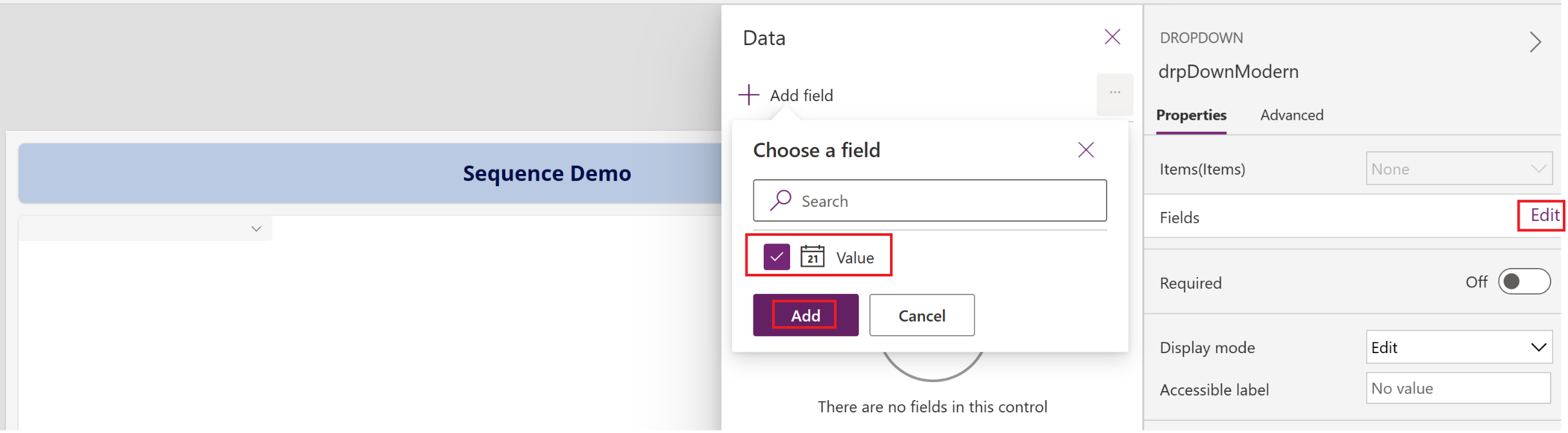
- Now, the large numbers are converted into valid dates as shown below.
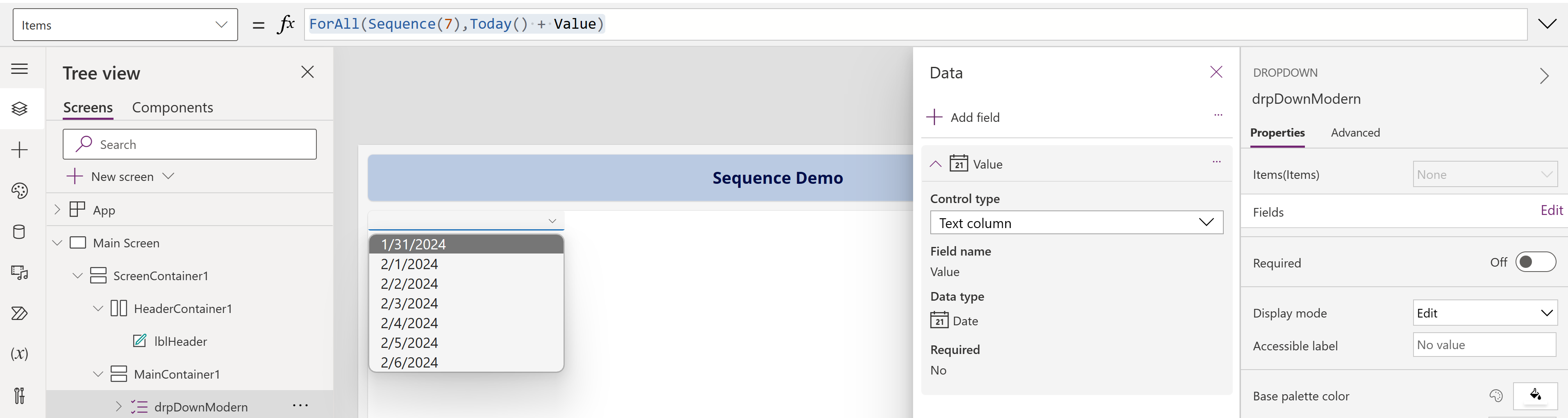
- The formula ForAll(Sequence(7),Today() + Value)
Display all the dates for the month of December in the year 2024:
ForAll(Sequence(31),Date(2024,12,Value))
- The formula ForAll(Sequence(31),Date(2024,12,Value))
- As December has 31 days, we passed ’31’ as the first argument of the Sequence function.
- Since we used ForAll function, the loop is triggered 31 times.
- Value is the current value of the loop.
- We used Date() function to generate the dates starting from December,2024.
- Finally the, Date(2024,12,Value), generates 31 dates for December,2024.
Generate test data:
Hope you gained a better understating of the Sequence function.
🙂
![[Quick Tip] Canvas App | Generate test data using Sequence function | Rajeev Pentyala - Microsoft Power Platform Avatar](https://rajeevpentyala.com/wp-content/uploads/2018/08/cropped-rajeev_pentyala.jpg?w=40)


 Rajeev Pentyala – Technical Blog on Power Platform, Azure and AI
Leave a comment