At a tenant level in Power Platform, we can control certain actions using settings listed in this Tenant Settings page.
For example, if you want to restrict the creation of Trial environments, Developer environments, or Production environments to only Admins, you can configure these using the settings listed in Tenant Settings .
In this article, I will explain how to set the Tenant settings both through the Power Platform Admin Center and using Power Platform CLI commands.
Update Tenant Settings from Admin Center:
We can access and update the Tenant Settings from Power Platform Admin Center by following the steps below.
- Connect to Power Platform Admin Center
- Navigate to Settings
- From the list, you can select and modify a specific setting. For example, if you want to restrict the creation of a ‘Trial’ environment to ‘Admins’ only, choose the setting as shown below.

- Similarly, you can also control the Developer environment assignments and Production environment assignments, as mentioned above.
So far, we’ve seen how to configure Tenant settings from Power Platform Admin Center. Now, let’s explore how to bulk update these settings using Power Platform CLI.
To perform bulk updates using Power Platform CLI, we will following these two steps.
- Download the current Tenant settings to a JSON file
- Modify the Tenant settings in the JSON file and upload it back.
Let’s see how to put the above steps into action.
Download the existing Tenant settings to a JSON file:
To download the Tenant settings to a JSON file, we will use the pac admin list-tenant-settings command, as shown below.
If you are new to pac cli, please refer to one of my previous articles on how to get started.
- After you become familiar with the pac CLI, open the command prompt.
- Make sure you connect to the desired environment using the pac auth create command.
- Additionally, execute pac auth list command to double-check which tenant you have connected to.

- Next, we need to execute the pac admin list-tenant-settings command. As shown below, the pac admin list-tenant-settings command accepts –settings-file parameter, which is the path to the generated config file.

- Execute the pac admin list-tenant-settings command. This command generates a JSON file locally, as shown below.
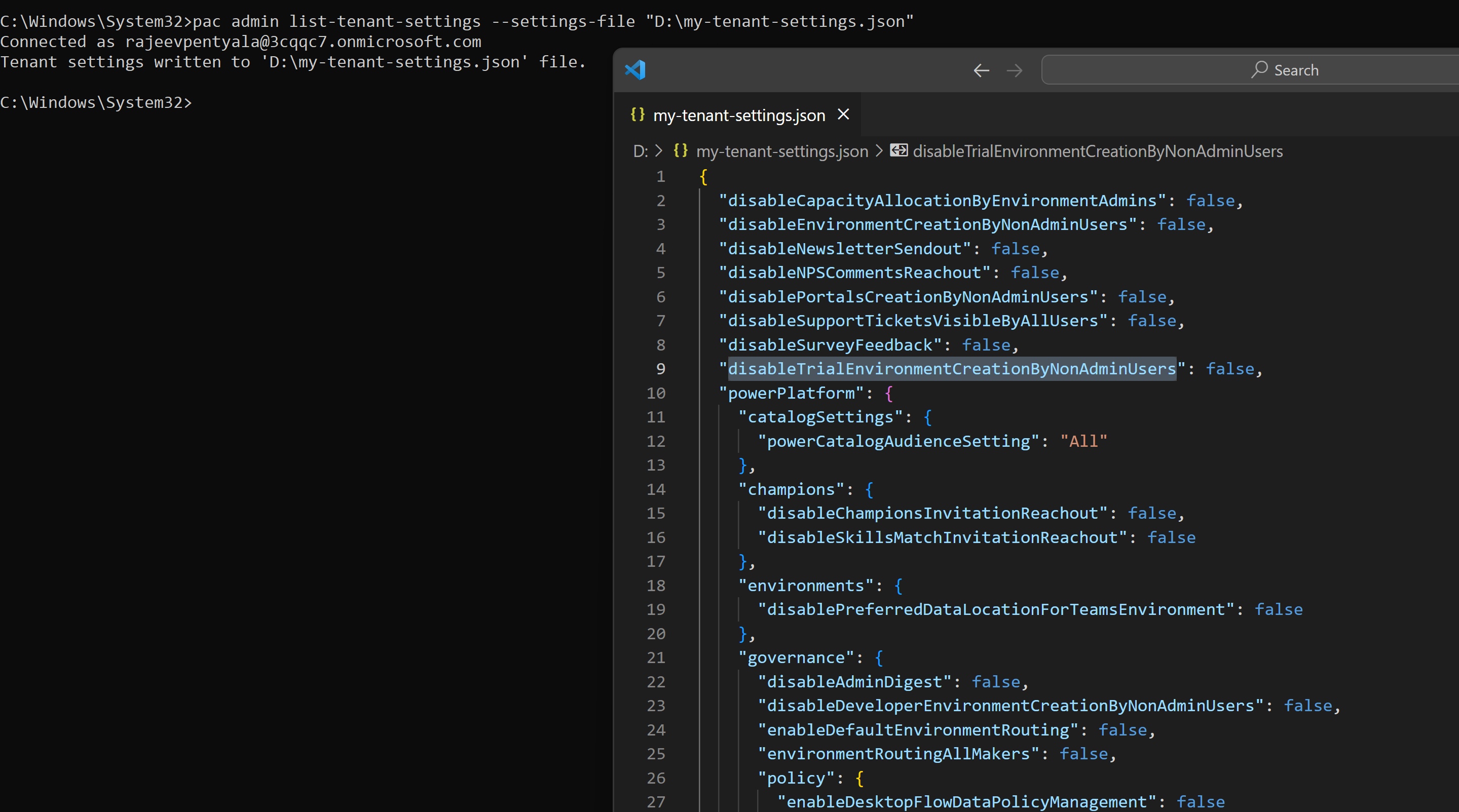
Now that we have the current tenant settings generated locally in a JSON file, let’s see how to update the file and upload it back.
Bulk update the Tenant settings:
- Open the settings JSON file generated above, update the settings as shown below, and save the file
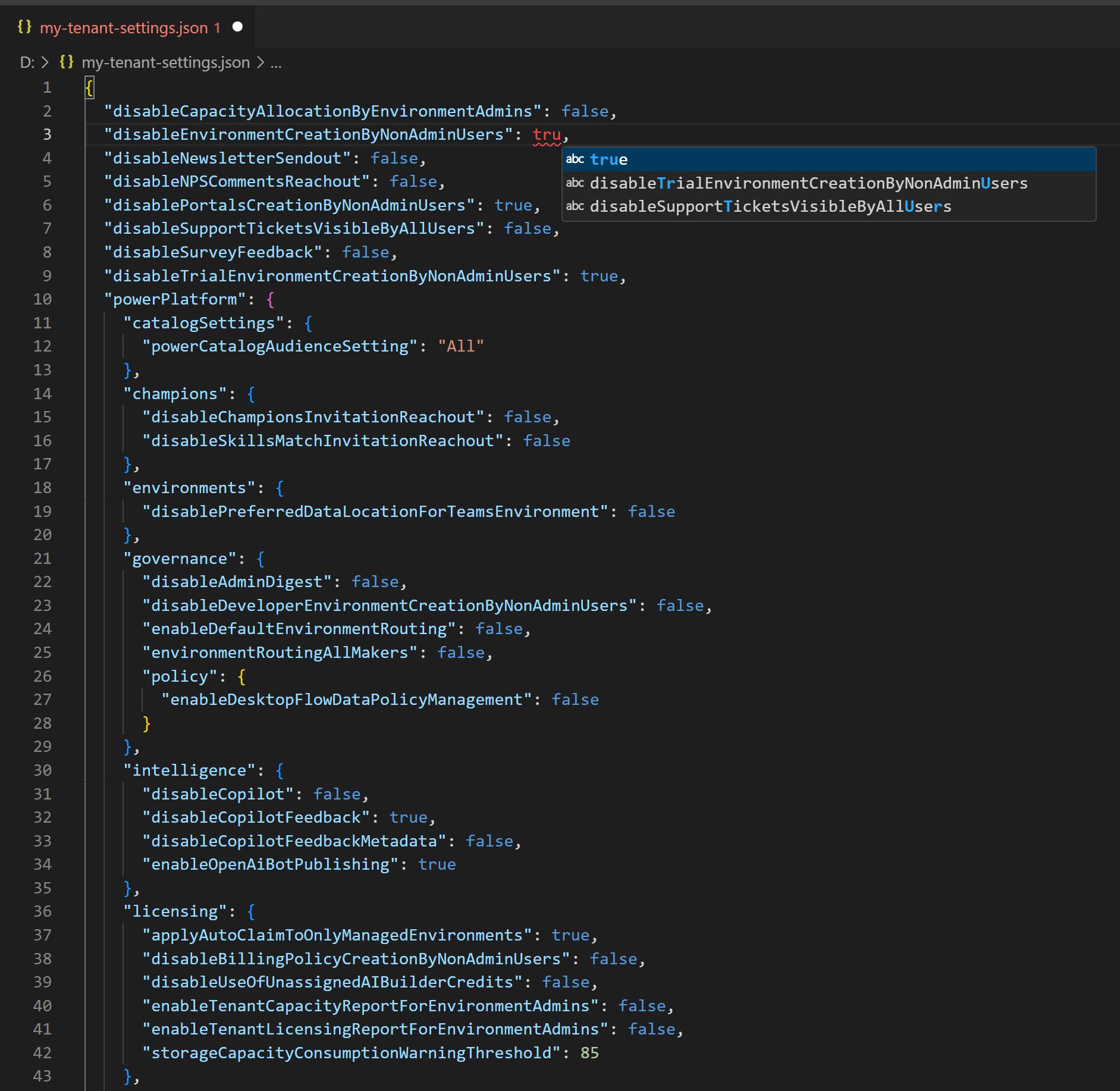
- Now that we have updated the settings, we need to execute the pac admin update-tenant-settings command by passing the updated settings JSON file path as a parameter. This action will update the Tenant settings as configured in the settings JSON file.

- Execute the pac admin update-tenant-settings command as shown. Successful execution will bulk update your Power Platform tenant settings.

Benefits of using Pac commands to update Tenant settings:
While you can simply update the Tenant settings from the Power Platform Admin Center, let’s understand the benefits of using Pac commands.
- As of writing this blog, Power Platform Admin Center settings page does not list all the available settings.
- By using pac admin list-tenant-settings , you can periodically keep a snapshot of Tenant settings (i.e., Versioning) in a JSON file, which you can compare if needed.
- pac admin update-tenant-settings allows you to bulk update the Tenant settings and update settings that you can’t modify via the Power Platform Admin Center settings page.
🙂


![[Step by Step] Beginner : Create a PCF control and add it to a custom page](https://rajeevpentyala.com/wp-content/uploads/2024/12/image-49.png)
 Rajeev Pentyala – Technical Blog on Power Platform, Azure and AI
Leave a comment