In this article, I will showcase how to clean up the ‘git history’ in those situations where you accidentally committed something in the past which you would want to clean from history.
To understand why we need to bother about git history at all, let me explain with a simple scenario by creating a new repository and make few commits with sensitive data.
- Create a new repository on the GitHub portal. I’ve named my repository CleanGitHistory.

- Add a new file using ‘Create new file’ option as shown below.
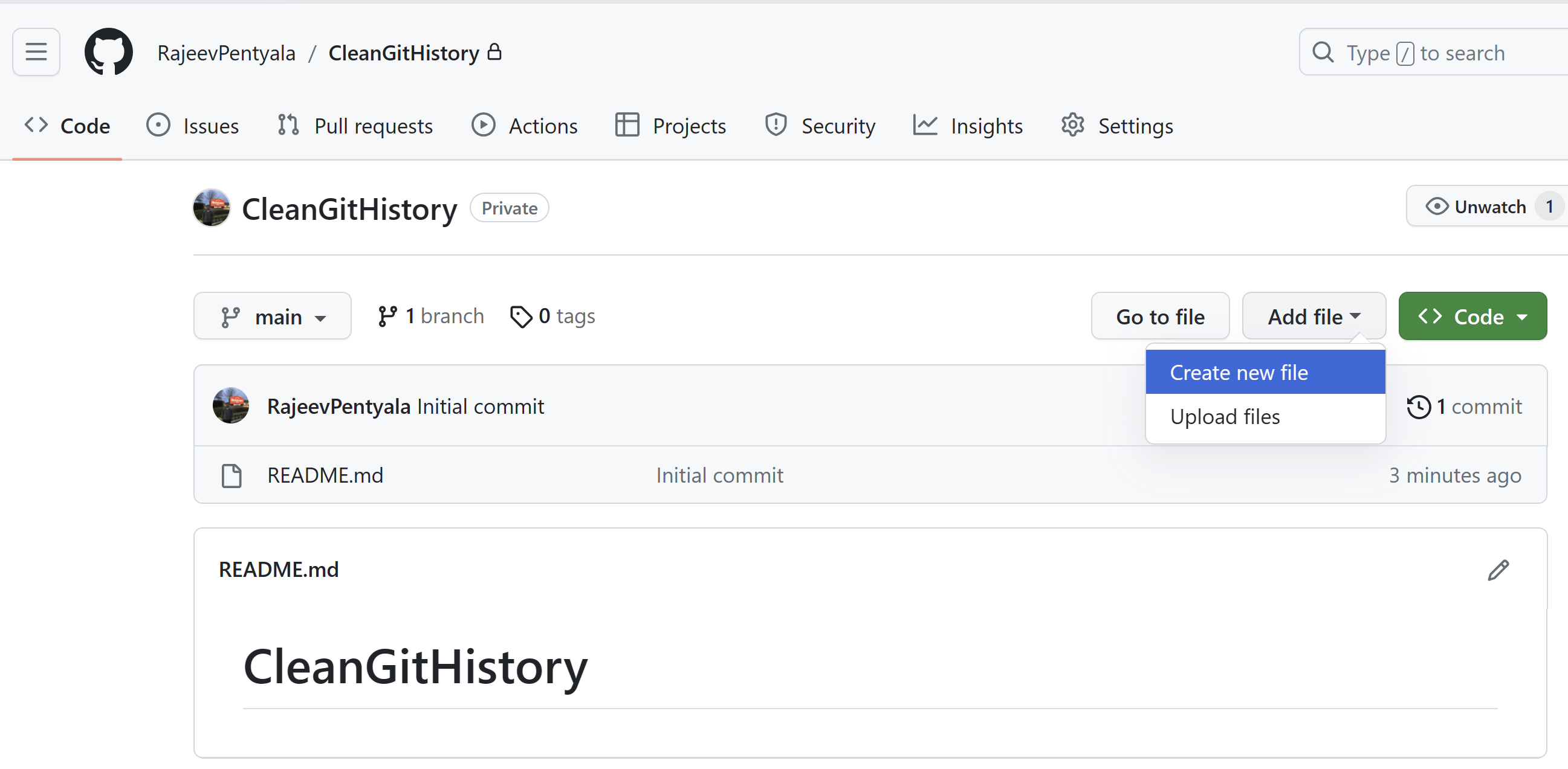
- I’ve named the file Connections.json and added the ‘id’ and ‘password’ (i.e., password1) as shown below. Click on ‘Commit Changes’ to commit the new file.

- To demonstrate multiple commits, I will reopen the Connections.json file and make several commits by changing the ‘Password’ node from ‘password1’ to ‘password2’ and ‘password3’.

- Despite using the repository seamlessly for code commits, I received a security threat report highlighting the presence of stored passwords. Storing sensitive information like passwords in a repository is discouraged due to security concerns.
- I promptly removed the password and committed the Connections.json file.
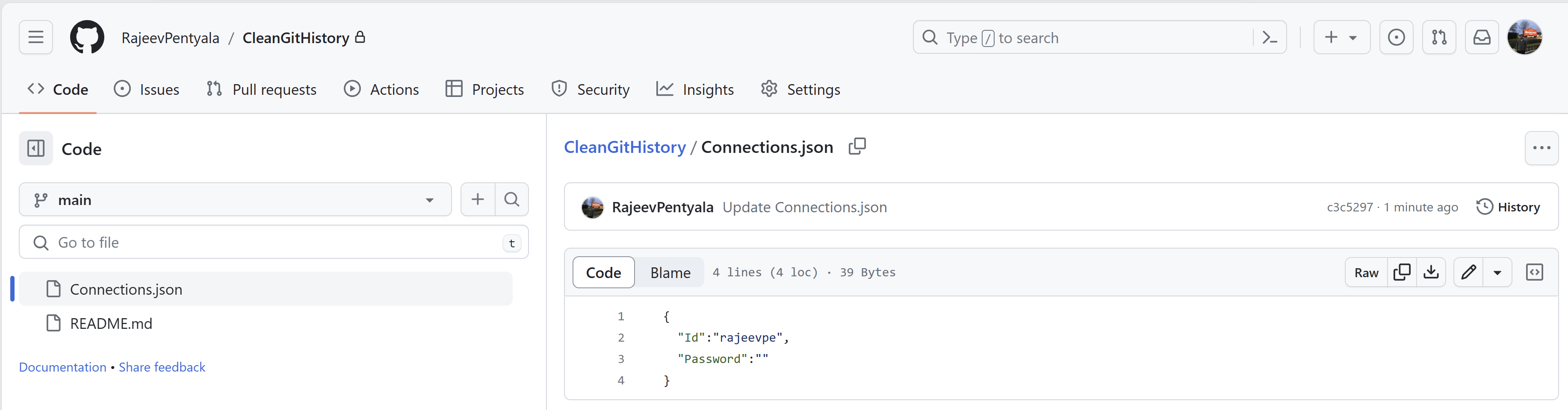
- I initially felt relieved, thinking I had successfully removed sensitive information from my repository. However, upon checking the ‘History’ of the Connections.json file, I discovered a total of 4 commits.

- When I opened one of the previous commits and reviewed the change history, I realized that the passwords were still visible. This means that anyone with access to this repository can see the passwords.
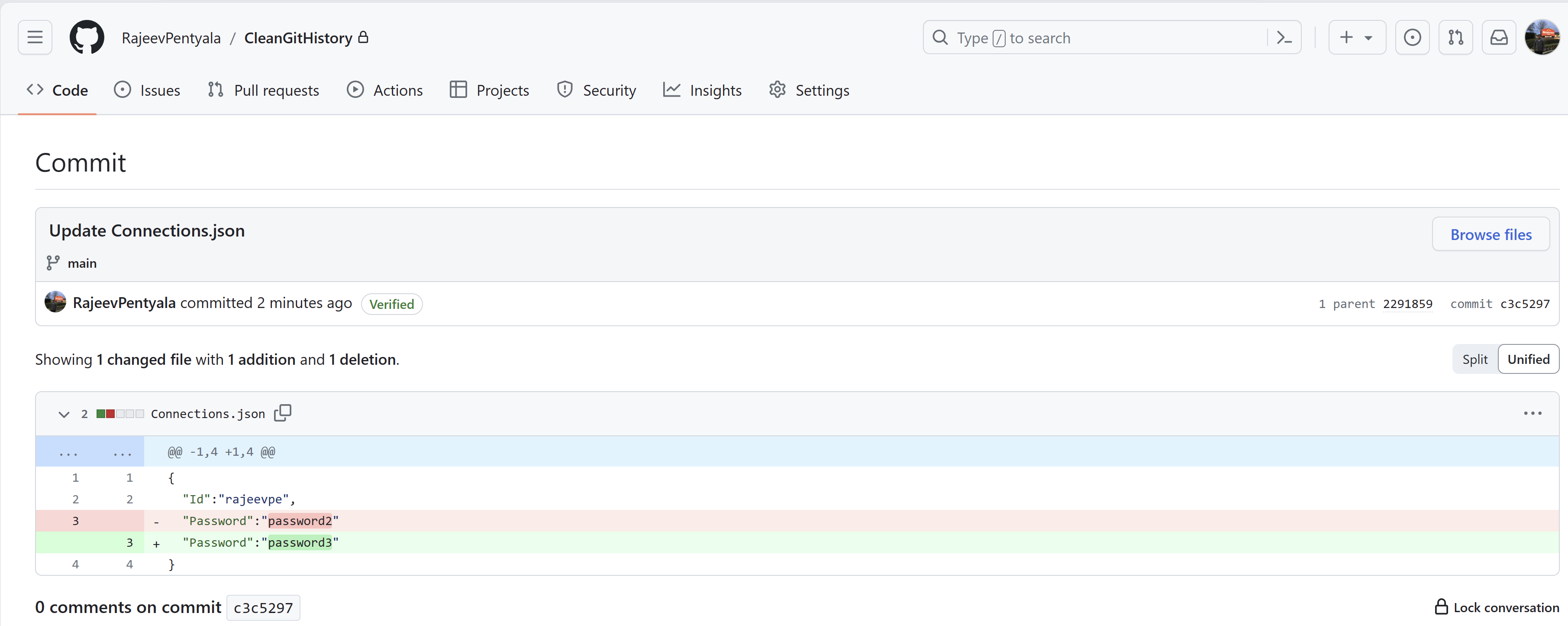
- To address this situation, we have a couple of options, suc as:
- Delete the Connections.json file’s commit history.
- Replace password content with random text, rather than deleting commit history of Connections.json.
- In this article I will show how to perform option#1 (i.e., Delete the Connections.json file’s commit history) using BFG Repo-Cleaner tool
Installing and Configuring the bfg-repo-cleaner Tool:
- The bfg-repo-cleaner tool requires Java to be installed on your machine.
- Download and install the latest Java from here. As I’m using a Windows machine, I selected the ‘Windows’ tab and installed the ‘x64 Installer’.

- After installing Java, open the command prompt and enter the ‘java –version’ command. It should display the current version as shown below.

- With Java now installed, let’s proceed to download the BFG-Repo-Cleaner tool from here. Click the ‘Download’ button.

- I’ve downloaded and saved the .jar file as ‘bgf.jar’ in a folder named ‘CleanupSecrets‘ as shown below.

- Open the command prompt and point to the CleanupSecrets folder.

- We’ve successfully downloaded and set up the BFG-Repo-Cleaner tool, and we’re ready to proceed with cleaning the git history.
Cleaning Git history using the BFG-Repo-Cleaner tool:
- To run the BFG-Repo-Cleaner tool on our Git repository, start by copying the ‘.git’ URL from the ‘Code’ tab, as shown below.
- My repo’s git url is : https://github.com/RajeevPentyala/CleanGitHistory.git

- Next, from the ‘Command prompt’, we need to clone a fresh copy of our repo, using the
--mirrorflag.
- Trigger the clone mirror command pointing to the git repo url which we copied in the previous step.
- git clone –mirror https://github.com/RajeevPentyala/CleanGitHistory.git
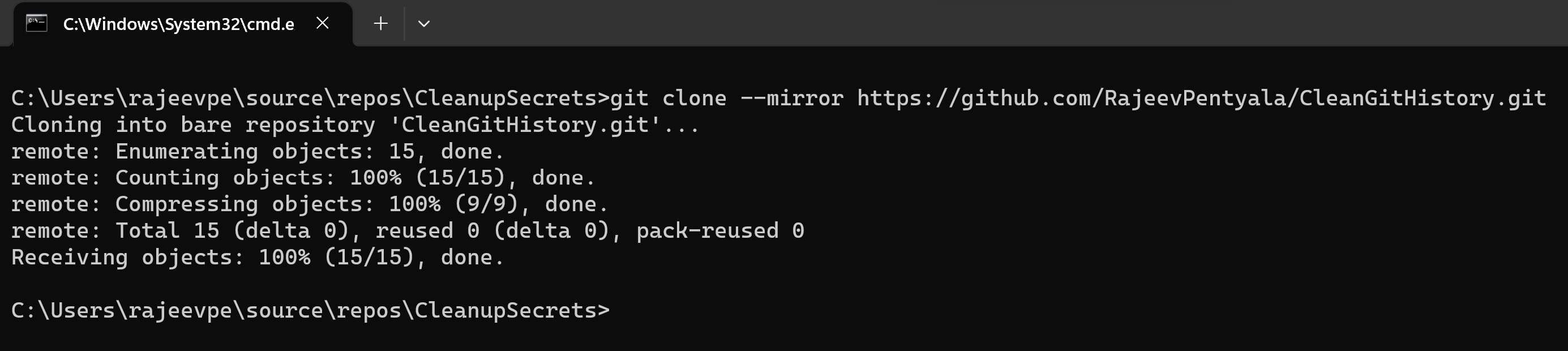
- Once cloned, if you go to the CleanupSecrets folder, you should see a new folder ‘CleanGitHistory.git’.

- Now trigger the ‘delete-files’ command to delete a specific file from the commit history using command java -jar bfg.jar –delete-files <File_Name> <repo.git>
- In our scenario, as we need to delete the Connections.json file’s commit history so the command will be java -jar bfg.jar –delete-files Connections.json CleanGitHistory.git

- Go ahead and run the java -jar bfg.jar –delete-files Connections.json CleanGitHistory.git command.


- You should see the ‘BFG run is complete!’ message highlighted above, indicating a successful process.
- Go to the CleanupSecrets folder, you should see following 2 folders.

- At this stage, we need to point the command prompt to the ‘CleanGitHistory.git’ folder using ‘cd’ command as below.
- cd CleanGitHistory.git

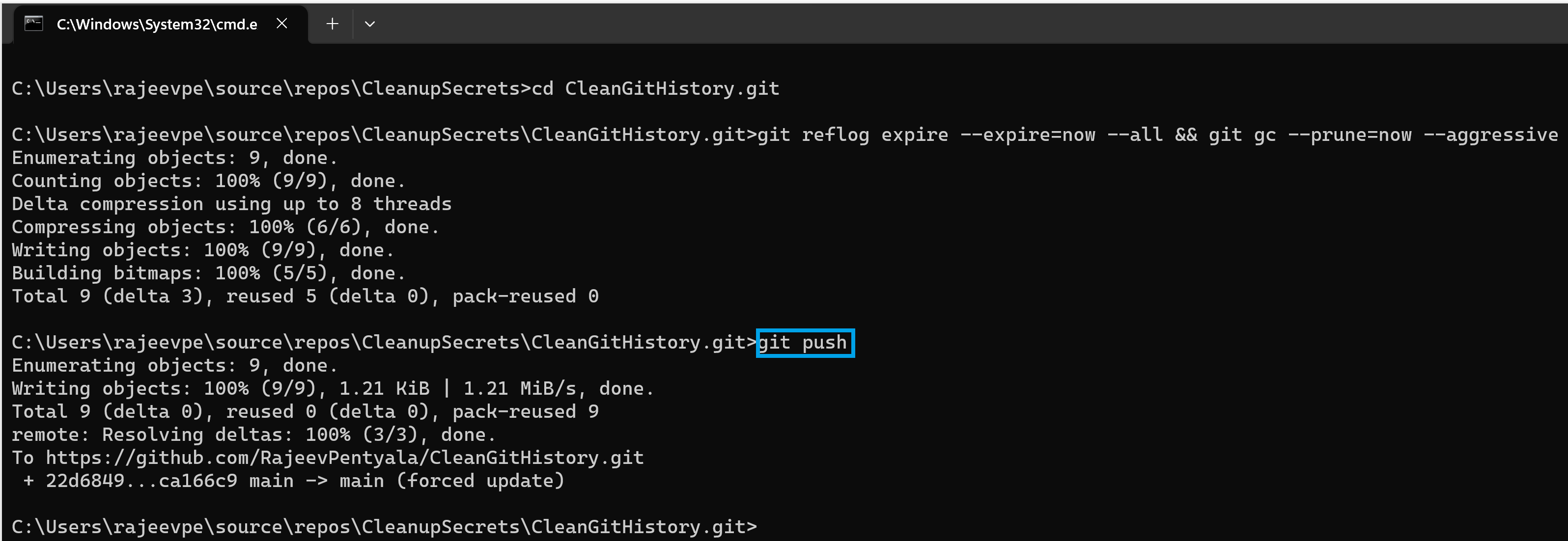
- Trigger git reflog command, which is used for Git to record updates made to the tip of branches.
- git reflog expire –expire=now –all && git gc –prune=now –aggressive

- Finally execute a ‘Git Push’ command to commit the changes from local to Git server.
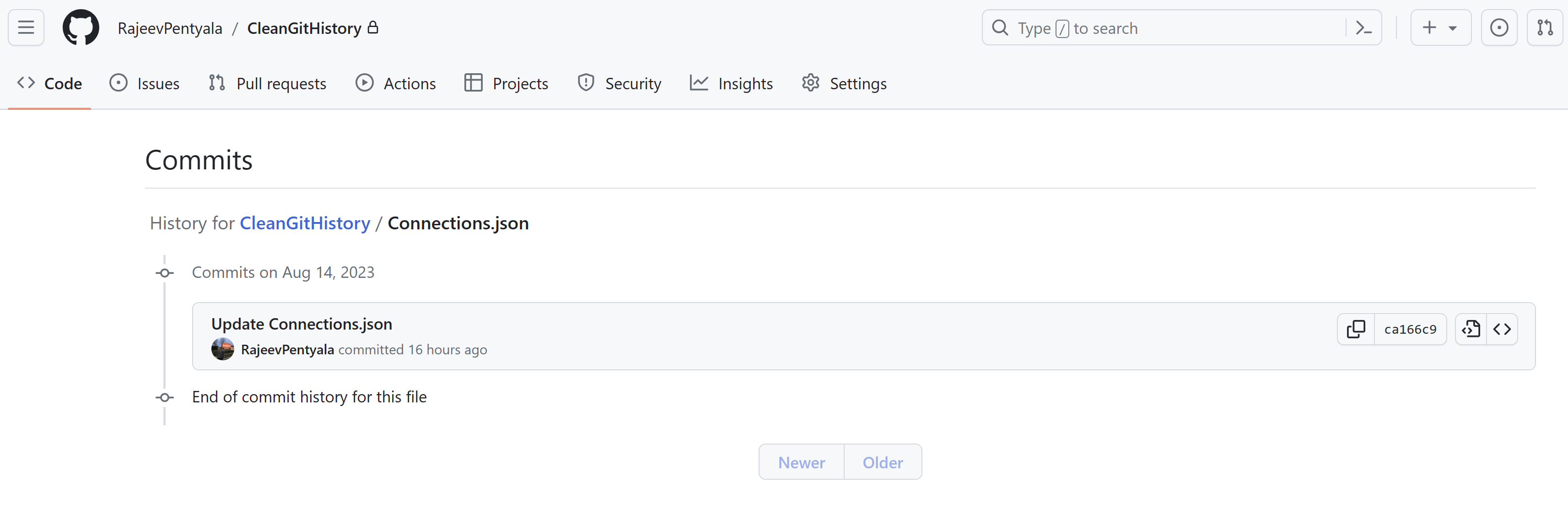
- That’s it. If you go to the ‘History’ of Connections.json file, you will notice only the latest commit, and all past commits containing passwords will have been deleted.
- Note that, you can also delete multiple files from git history as below using pattern match.

In next article, I will demonstrate the option #2 using the bfg –replace-text command.
🙂



![[Step by Step] Beginner : Create a PCF control and add it to a custom page](https://rajeevpentyala.com/wp-content/uploads/2024/12/image-49.png)
 Rajeev Pentyala – Technical Blog on Power Platform, Azure and AI
Leave a comment