In one of my previous articles, I’ve explained the steps to show popups. In this article, lets see how to auto close popups after certain duration using Timer control.
Scenario:
Enter the desired duration to display the popup, then click ‘Go’ to activate the popup, which will automatically disappear after the specified duration.

Basics of Timer control:
- Timers can, determine how long a control appears or change other properties of a control after a certain amount of time has passed.
- Following are the Key Properties of the Timer.
- Duration – How long a timer runs in milliseconds. The maximum is 24 hours and Default is 60 seconds.
- OnTimerEnd – Actions to perform when a timer finishes running.
- Repeat – Whether a timer automatically restarts when it finishes running.
Now that you know the scenario and the basics of Timer control, lets see how to build the timed popups.
Steps to build timed popups:
- Refer this article for the steps to show a popup.
- To capture the duration and trigger the popup, add a ‘Text Input’ (i.e.,txtDuration) and a ‘Button’ (i.e., btnShowPopup) controls.

- In the btnShowPopup control’s OnSelect,
- Set the ‘howPopup variable which we use to show/hide the popup. This step has been documented in length in article.
- Also set the ‘popUpduration‘ variable by reading the txtDuration‘s text.

- To time the popup visibility, add a Timer control on to the form.
- Set the ‘Duration’ property of Timer as popUpduration.
- As the Timer runs in milliseconds, multiplying it by 1000 converts in to seconds.
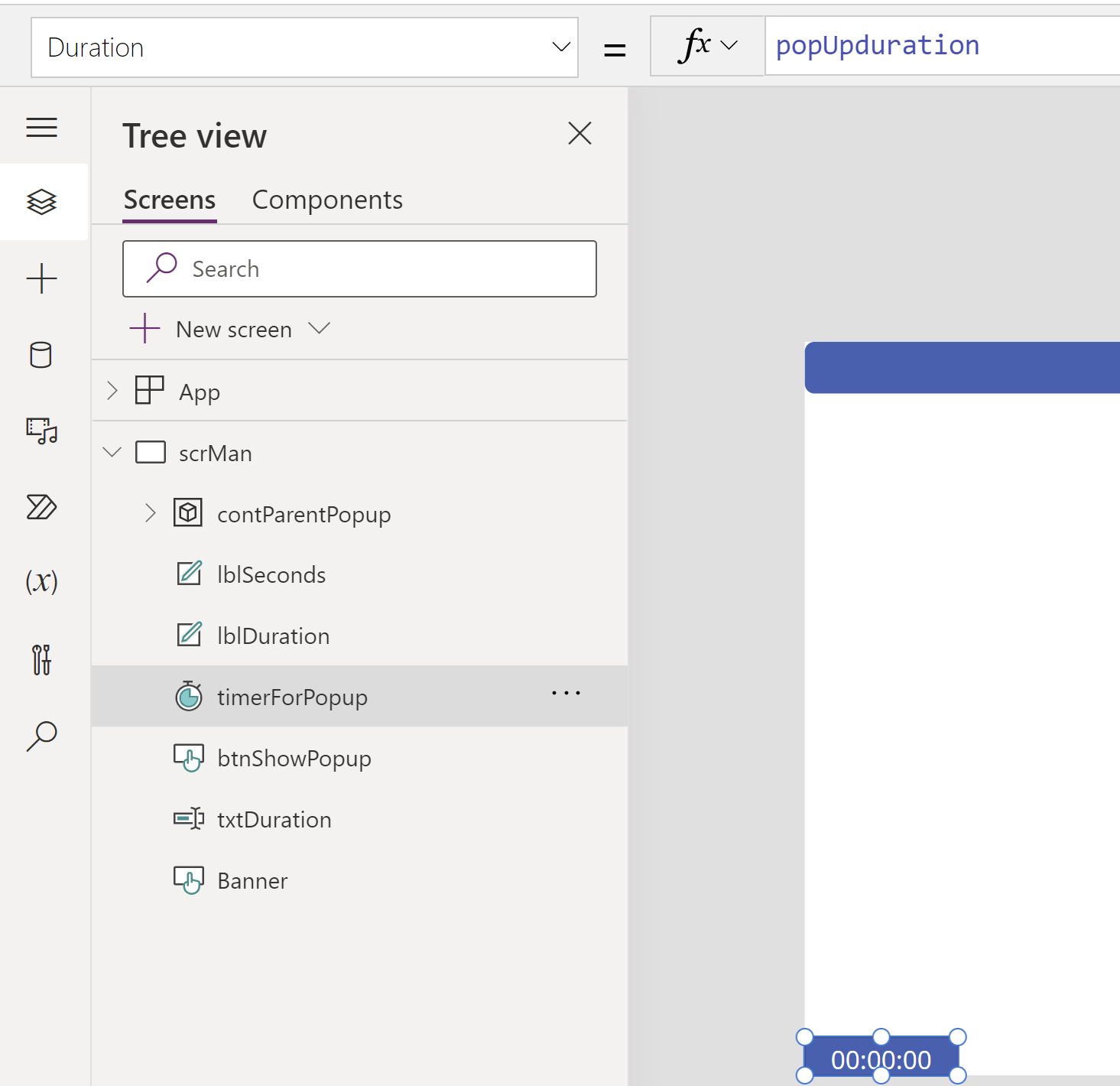
- As the Duration determines how long a timer runs, we show the popup till the timer completes the Duration.
- To hide the popup after the Timers duration, use the OnTimerEnd event which triggers when the timer finishes running.
- On the Timer control’s OnTimerEnd event,
- Set the showPopup variable to false.
- Set the popUpduration to 0.

- That’s it, you got the timed popups.
- One last thing, to show the popup text with decrementing duration, use the following formula.
"I am a timed popup that will automatically disappear after " & RoundUp(
    (timerForPopup.Duration) / 1000 - (timerForPopup.Value/1000),
    0
) & " seconds."
- Hide the Timer control by setting the Visible to ‘false’ as we don’t need to show on the form.
🙂
![[Step by Step] Power Apps | Show pop ups in Canvas App | Rajeev Pentyala - Microsoft Power Platform Avatar](https://rajeevpentyala.com/wp-content/uploads/2018/08/cropped-rajeev_pentyala.jpg?w=40)


 Rajeev Pentyala – Technical Blog on Power Platform, Azure and AI
Leave a comment