In this article let me show you how you can fetch the labels of Choice/Choices columns of a Dataverse tabels.
Scenario:
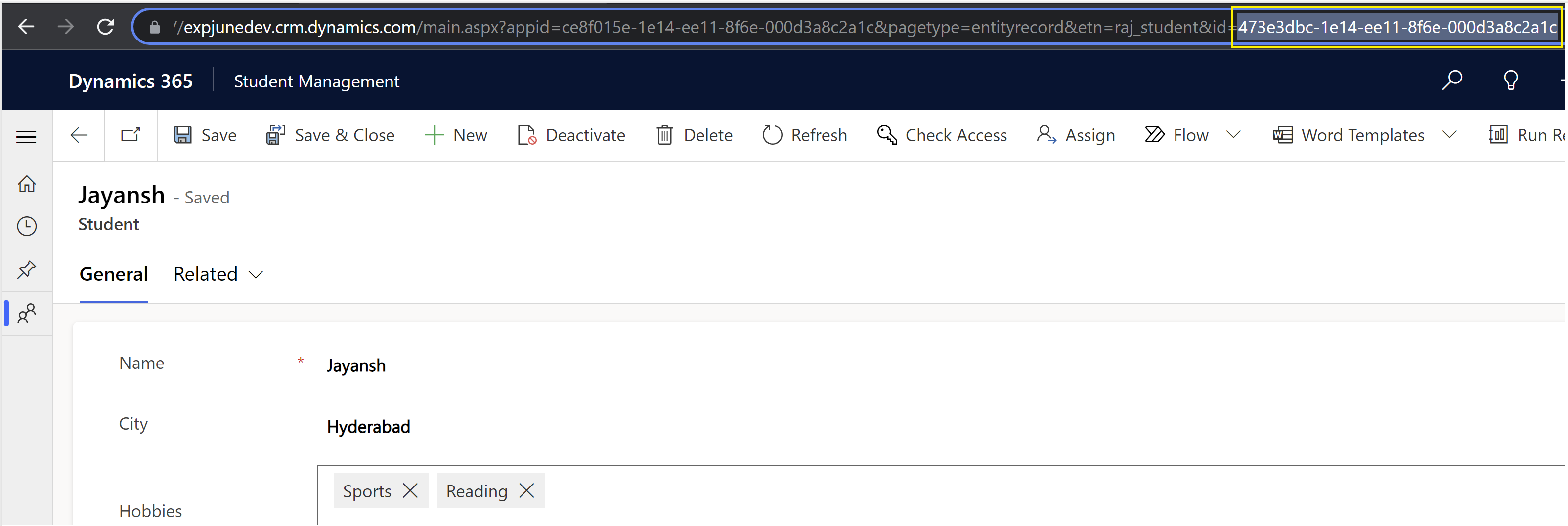
I’ve a following ‘Student’ table with a Choice (i.e., City) and a Choices (i.e., Hobbies) columns.

By default, cloud flow Dataverse actions fetches the ‘Value’ of Choice columns. Lets see how to fetch the ‘Label’ of both ‘City’ and ‘Hobbies’ columns from the cloud flow.

Create the flow:
- I am going to use Get a row by ID action of Dataverse in this example. So first copy the record GUID from the browser URL as highlighted below.
- Create a new Instant flow and add a Get a row by ID Dataverse action as shown below. Paste the record GUID copied in the above step in the ‘Row ID’ column.

- Additionally, use Select Columns to specify which columns you want to retrieve by entering unique names of those columns.

- Save the flow and run the flow by using ‘Test’ button.

- In the above ‘OUTPUTS’ pane, notice that ‘City’ and ‘Hobbies’ got the ‘Value’ not the ‘Label’ (i.e., Hyderabad).
- Lets see how we get the ‘Label’ of ‘City’ and ‘Hobbies’.
- If you expand the ‘body’, it contain the labels as a separate ‘FormattedValue’ nodes for each Choice columns.
- See beloe highlighted formatted value nodes for ‘Hobbies’ and ‘City’.
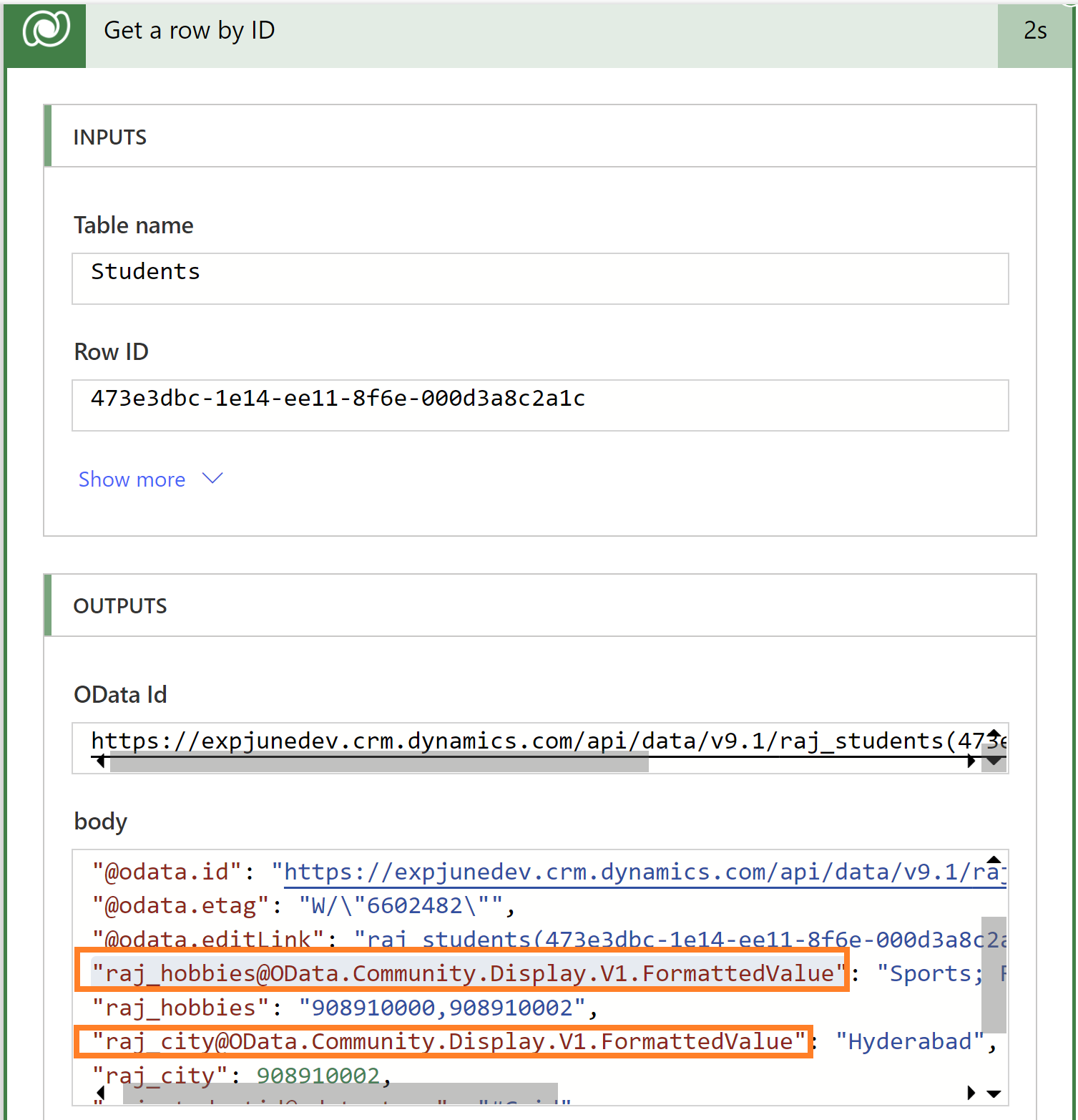
- As a next step, copy and save locally, the ‘FormattedValue’ nodes of both ‘Hobbies’ and ‘City’ columns, which looks as below.
"raj_hobbies@OData.Community.Display.V1.FormattedValue"
"raj_city@OData.Community.Display.V1.FormattedValue"- Go back to flow editor and add a Compose action and map the ‘Hobbies’ column of from the Get a row by ID action.

- The ‘Expression’ of Compose action looks as below.
@{outputs('Get_a_row_by_ID')?['body/raj_hobbies']}- All we need to do is modify the expression by adding the FormattedValue nodes by following below 2 modifications.
- Remove the beginning @{ and ending } and the expression should look below.
- outputs(‘Get_a_row_by_ID’)?[‘body/raj_hobbies’]
- Now replace raj_hobbies with the copied FormattedValue content (i.e., raj_hobbies@OData.Community.Display.V1.FormattedValue). Modified expression should look as below.
- outputs(‘Get_a_row_by_ID’)?[‘body/raj_hobbies@OData.Community.Display.V1.FormattedValue‘]
- Remove the beginning @{ and ending } and the expression should look below.
- Now replace the existing Compose expression with our updated expression.
- I’ve added a note to the ‘Compose’ with full formula for better understanding.

- Click OK. Save and test the flow.
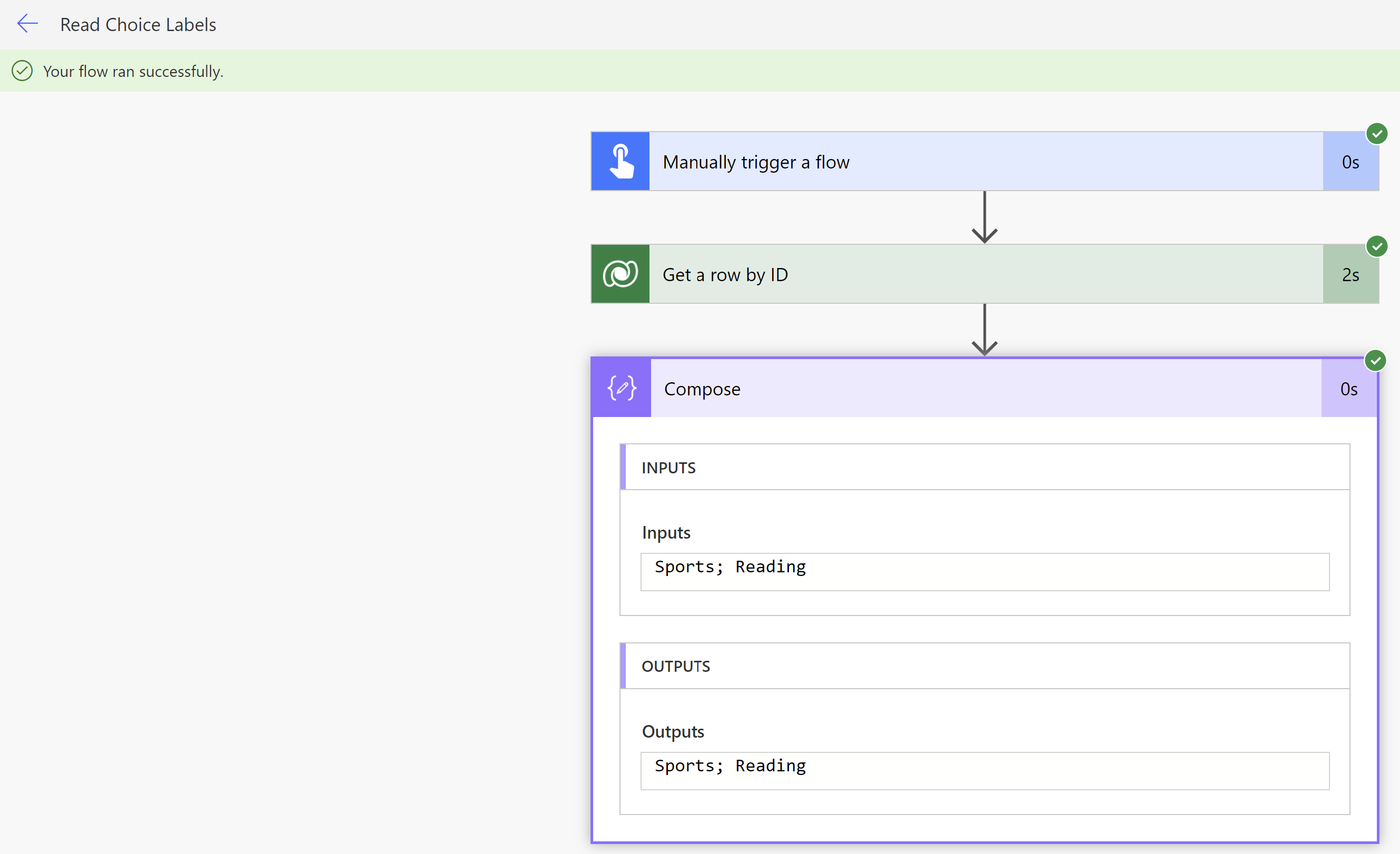
- You should get the Hobbies labels as below.
- Repeat the same for City choice column.
🙂


![[Step by Step] Beginner : Create a PCF control and add it to a custom page](https://rajeevpentyala.com/wp-content/uploads/2024/12/image-49.png)
 Rajeev Pentyala – Technical Blog on Power Platform, Azure and AI
Leave a comment