In this article, lets see how to determine whether the logged in user has a specific set of security roles.
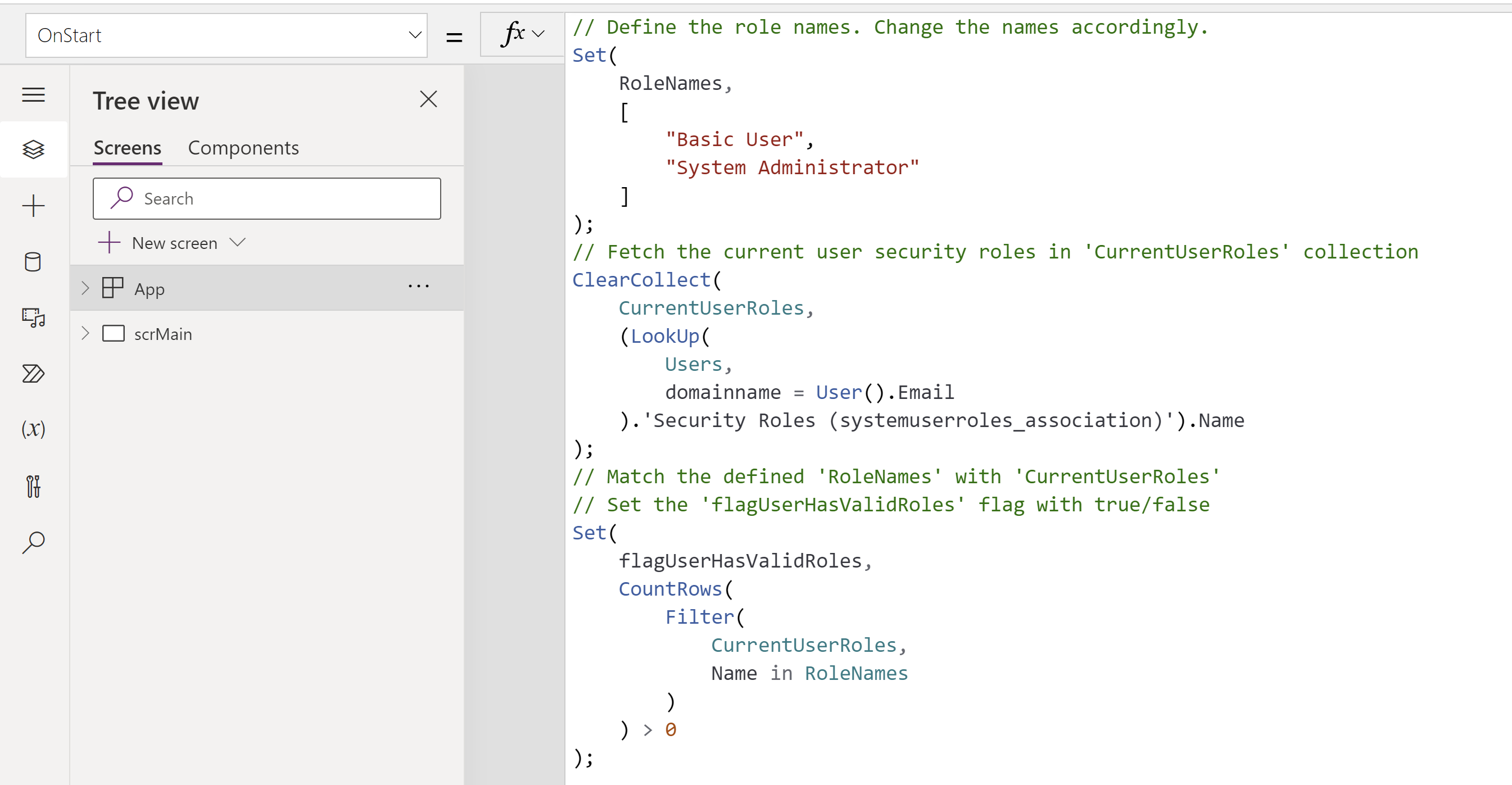
Following is the formula we will be using to fulfill the requirement.
// Define the role names. Change the names accordingly.
Set(
    RoleNames,
    [
        "Basic User",
        "System Administrator"
    ]
);
// Fetch the current user security roles in 'CurrentUserRoles' collection
ClearCollect(
    CurrentUserRoles,
    (LookUp(
        Users,
        domainname = User().Email
    ).'Security Roles (systemuserroles_association)').Name
);
// Match the defined 'RoleNames' with 'CurrentUserRoles'
// Set the 'flagUserHasValidRoles' flag with true/false
Set(
    flagUserHasValidRoles,
    CountRows(
        Filter(
            CurrentUserRoles,
            Name in RoleNames
        )
    ) > 0
);
Steps to use the formula:
- Make sure you add ‘Users’ and ‘Security Roles’ data sources to your Canvas App.

- On the App’s OnStart copy and paste the above formula.
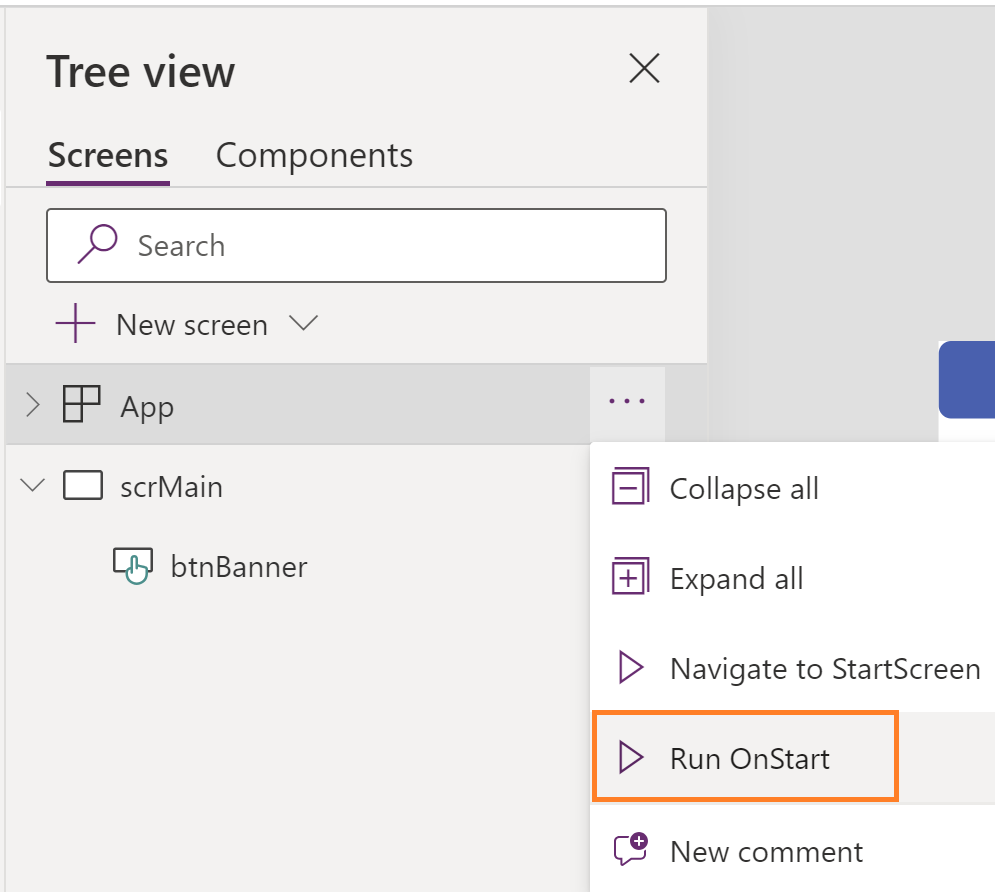
- Trigger the App’s ‘Run OnStart’ as shown below.
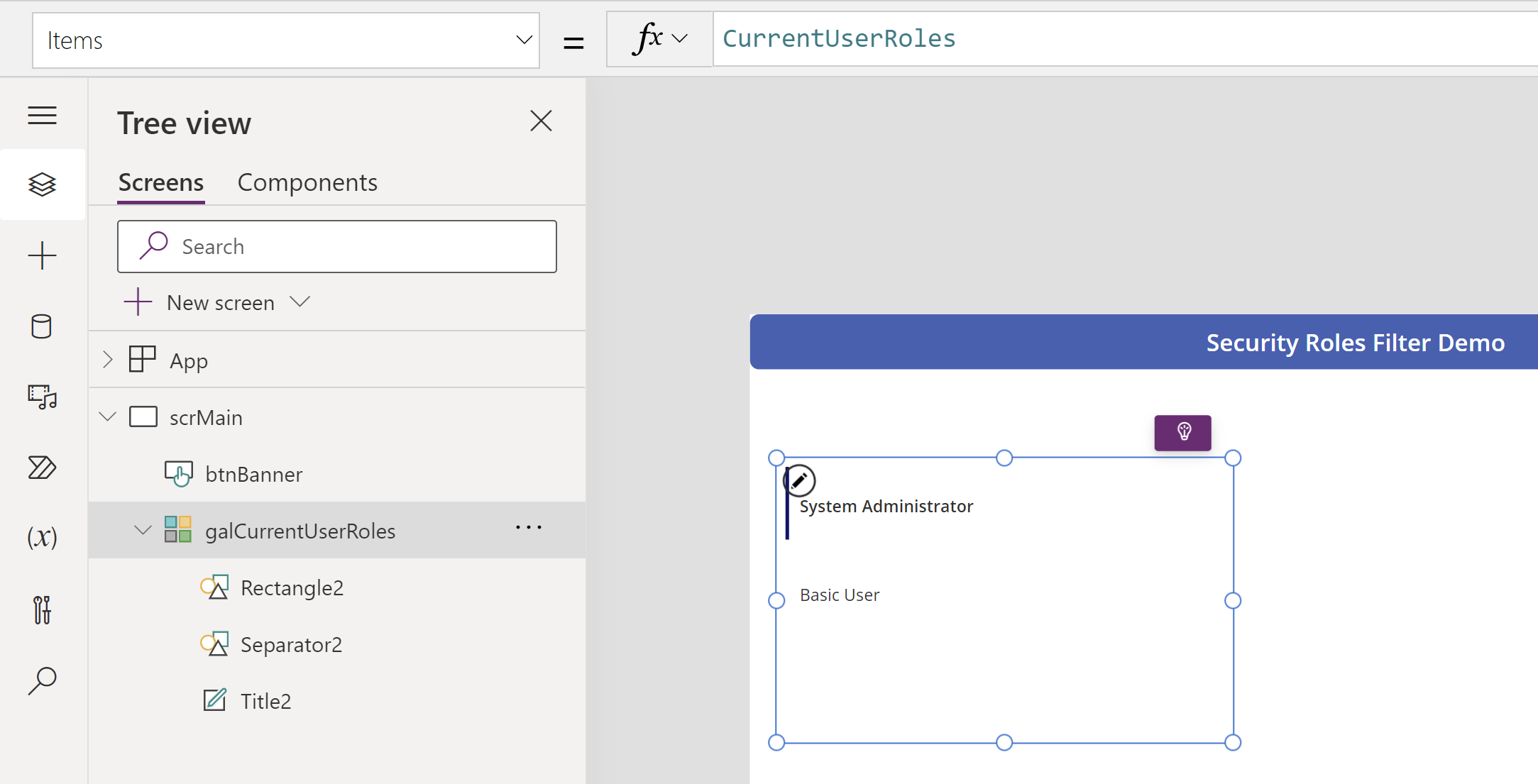
- To test, add a gallery and map ‘CurrentUserRoles’ collection. You should see the logged in users existing roles.
- You can use the flagUserHasValidRoles global variable as per your requirements in all your screens, like to hide/show controls, filtering records etc.

🙂




 Rajeev Pentyala – Technical Blog on Power Platform, Azure and AI
Leave a comment