Assume that you are a Power Apps maker and you have built an app and shared it with users. A few users have reported issues, and you would like to know the following from the users to troubleshoot:
- Browser
- Operating System (OS)
- Session ID
- Tenant ID
So what’s the best way to get those details. The solutions is by using a Host object in Power Apps.
What and how to use the Host object:
- The Host object in Power Apps provides information about the current host running the app.
- The host object is currently only available in custom pages and canvas apps.
- To access the Host object, expand the App object at the top of the Tree view pane and then select it.

Host object properties:
BrowserUserAgent:
- The text property BrowserUserAgent contains the complete user agent string that the browser uses to identify itself when running the app.
- For example, a browser user agent string might be:
- Mozilla/5.0 (Windows NT 10.0; Win64; x64)
- AppleWebKit/537.36 (KHTML, like Gecko)
- Chrome/109.0.0.0 Safari/537.36 Edg/109.0.1518.78`

OSType:
- The OSType property provides the name of the operating system where the app is running.
- Examples : Windows, macOS, iOS, Android, Linux

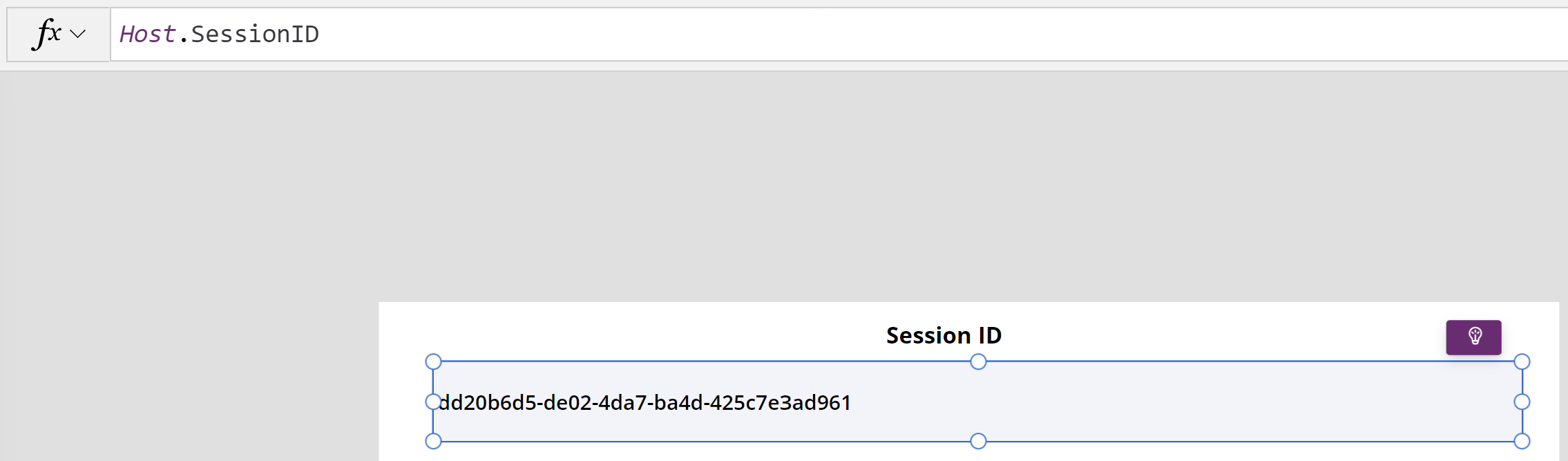
SessionID:
- The SessionID property returns the GUID that identifies the current session.
- The TenantID property provides the Globally Unique Identifier (GUID) that specifies the Azure Active Directory (AAD) tenant associated with the presently authenticated user.

🙂


![[Step by Step] Beginner : Create a PCF control and add it to a custom page](https://rajeevpentyala.com/wp-content/uploads/2024/12/image-49.png)
 Rajeev Pentyala – Technical Blog on Power Platform, Azure and AI
Leave a comment