In this article, lets understand the Filter, Patch, For All and more functions and formulas using following ‘Car and Customer’ scenario. I will be using Dataverse formerly CDS as Data Source.
- Create a ‘Manufacturer’ table to store Car manufactures.
- Use OOB ‘Contact’ table to store Customers.
- Create a ‘Cars’ table to store Cars.
- Configure ‘Contact’ and ‘Manufacturer’ look ups in ‘Cars’ table.
Lets proceed first by understanding ‘Data Model’ and then with creating ‘Canvas’ App.
Dataverse Data Model:
- ‘Cars’ form with ‘Manufacturer’ and ‘Customers’ look up.

- ‘Cars’ view.

Configuring Canvas App
Lets build the Canvas App, with following features:
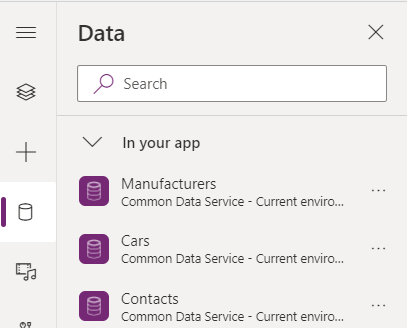
- Add “Manufacturers”, “Cars” and “Contact” (i.e., Customer) Data Sources.
- Add ‘combManufacture’ Combo box to show ‘Active’ Manufacturers.
- Select ‘Data source’ as ‘Manufacturers’.
- Select ‘Active Manufacturers’ from the ‘Views’.

- Add ‘combCustomers‘ Combo box to show ‘Active’ Customers (i.e., Contacts).
- Select ‘Data source’ as ‘Contacts’.
- Select ‘Active Contacts’ from the ‘Views’.

- Filter the ‘Cars’ by selected ‘Manufacturer’ and set to ‘collCars’ collection variable.
- Formula : ClearCollect(collCars,Filter(Cars,Manufacturer.Manufacturer=combManufacture.Selected.Manufacturer));

- Add ‘galCars’ Gallery control and select the ‘Data Source’ as the collection variable from previous step.
- In the Gallery, add a ‘Checkbox’ control to enable selection and a Label to show the ‘Customer’.

- On check of ‘Checkbox’ add the selected ‘Car’ to ‘selCars’ collection variable, using ‘OnCheck’ event.
- Formula : Collect(selCars, ThisItem);

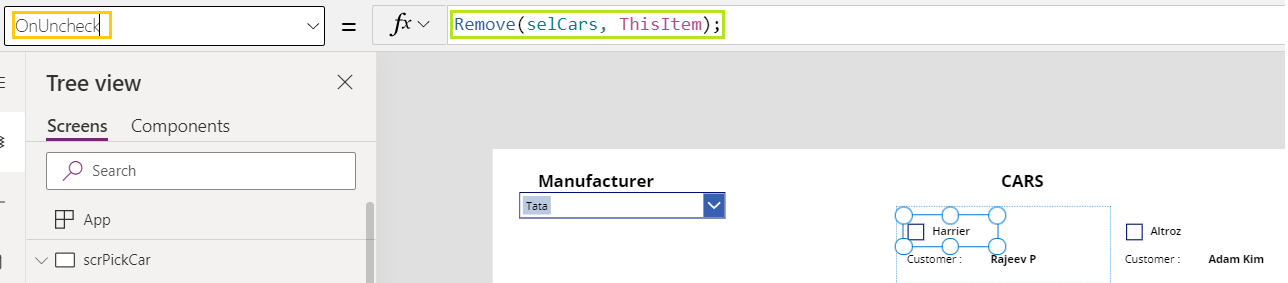
- On uncheck of ‘Checkbox’ remove the selected ‘Car’ from ‘selCars’ collection variable, using ‘OnUncheck’ event.
- Formula: Remove(selCars, ThisItem);
- Add ‘Set Owner’ button to map the selected Cars and Customer.
- First move the selected ‘Cars’ from ‘selCars’ collection to ‘tempCollection‘ by renaming ‘Primary’ column to “ID” using RenameColumns function.
- Use ForAll function to loop through ‘tempCollection‘ (i.e., Selected Cars) and update the ‘Contact’ lookup with ‘combCustomers‘ selected record using Patch function.
- Reset the Cars Gallery(i.e., Reset(galCars)) to refresh.
- Display the message using Notify function.
- Clear the collection variables.
- Formula: ClearCollect(tempCollection,RenameColumns(selCars,”crbb8_carid”,”ID”));ForAll(tempCollection,Patch(Cars,LookUp(Cars,Car=ID),{Contact:combCustomers.Selected}));Reset(galCars);Notify(“Update Successful..”,NotificationType.Success);Clear(tempCollection);Clear(selCars);

- Add ‘Clear Owner’ button to unmap the selected Cars and Customer.
- To unmap the Customer with Car, clear ‘Contact’ look up by setting ‘Blank()’ function (i.e., {Contact:Blank()}).
- Use ‘For All’ and ‘Patch’ functions as above to update the record.
- Formula : ClearCollect(tempCollection,RenameColumns(selCars,”crbb8_carid”,”ID”));ForAll(tempCollection,Patch(Cars,LookUp(Cars,Car=ID),{Contact:Blank()}));Reset(galCars);Notify(“Update Successful..”,NotificationType.Success);

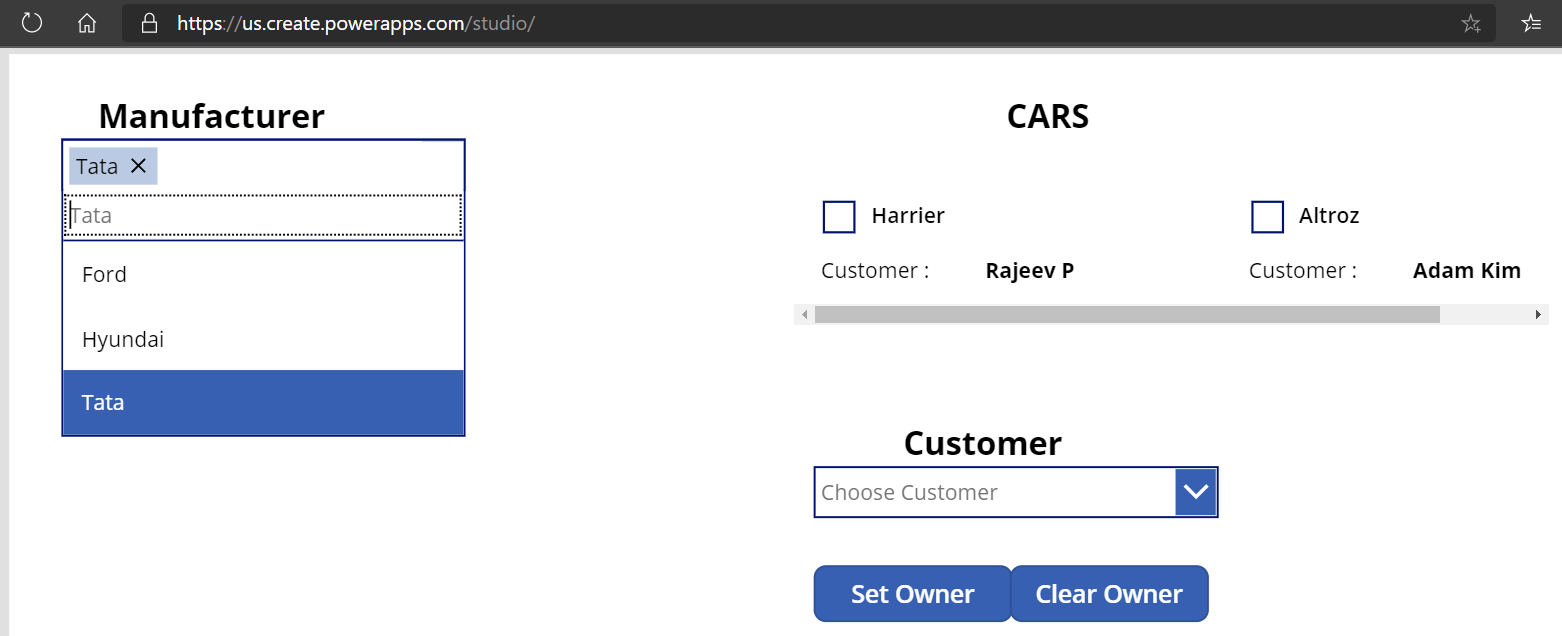
- Now run the App and you should see screen as below.
Refer this article for PowerApps functions and formulas.
🙂




![[Step by Step] Beginner : Create a PCF control and add it to a custom page](https://rajeevpentyala.com/wp-content/uploads/2024/12/image-49.png)
 Rajeev Pentyala – Technical Blog on Power Platform, Azure and AI
Leave a comment