In this article, lets see how to work with ‘Sub grids’ on ‘Entity Forms’ in Portals.
Lets take a scenario to understand this better, In Dynamics:
- Create a new custom Entity named ‘Employee’
- Create a related entity ‘Child’ to capture children details of ‘Employee’
- Configure a single portal screen, to capture ‘Employee’ and ‘Children’
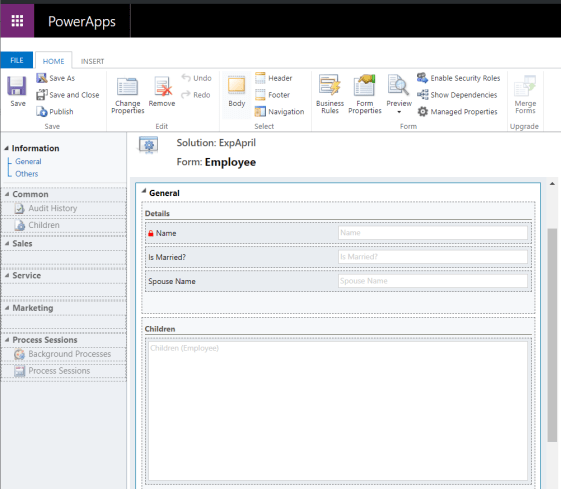
Below is how the ‘Employee’ entity form with ‘Children’ sub grid, in Dynamics, looks like:
High level design steps:
- Create a new ‘Entity Form’ for ‘Employee’ Dynamics form
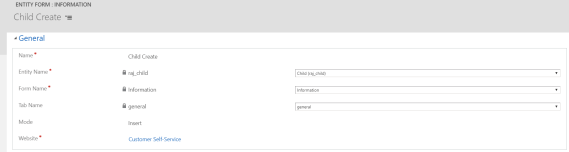
- Create a new ‘Entity Form’ (i.e.,Child Create) for ‘Child’ entity to ‘Insert’ (i.e., Mode=Insert) record
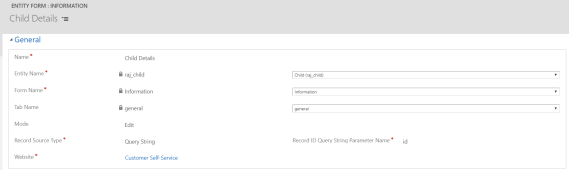
- Create a new ‘Entity Form’ (i.e., Child Details) for ‘Child’ entity to ‘Edit’ (i.e., Mode=Edit) record
- On ‘Employee’ entity form, configure ‘Child’ ‘Sub grid’ using ‘Entity Form Metadata’
- Add ‘Create’ and ‘Details’ actions on Sub grid.
Now lets see step by step.
Create new ‘Entity Form’ Employee:
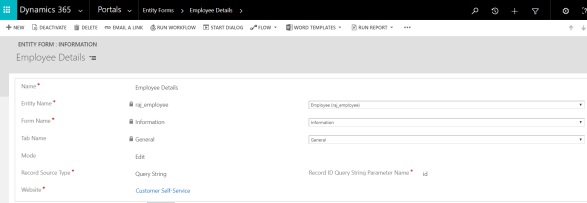
- Create a new ‘Employee Details’ Entity Form pointing to ‘Employee’ entity and ‘Information’ form.
- Now lets see how the ‘Employee’ form looks in the portal.

- If you notice, there is a grid section ‘Children’ available on Portal form, however its unusable, as there are no ‘Create’ or ‘Edit/Details’ options.
Configure ”Entity Form Metadata’:
With ‘Entity Form Metadata’, we can make sub grid usable. We can add actions (i.e.,Create/Edit/Details buttons) and to the sub grid.
- Go to ‘Employee’ form site map and click on ‘Entity Form Metadata’
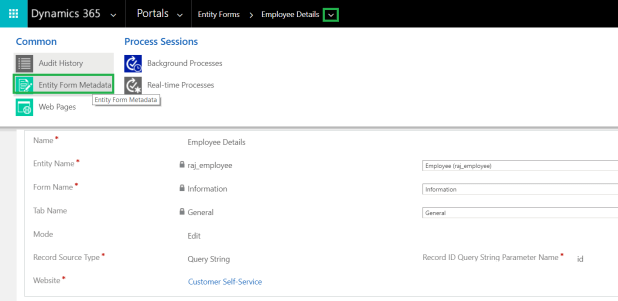
- Under the ‘Type’ select ‘Subgrid’ and choose your ‘Subgrid Name’
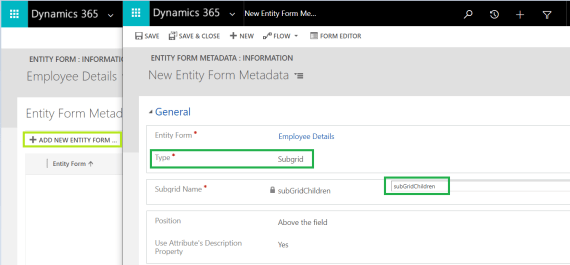
- Next, we need to configure ‘Create’ and ‘Edit’ buttons to the sub grid.
- Under the ‘Grid Configuration’ tab, click on ‘Create’ and fill the ‘Entity Form’ (i.e.,Child Create) details
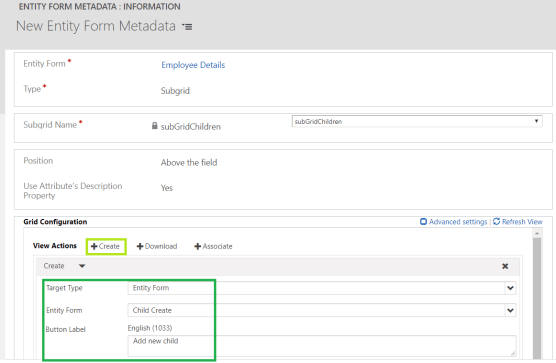
- To add, Edit/Details action click on ‘Details’ and fill the ‘Entity Form’ details
- Note: Even though, I choose ‘Details’ action, my associated ‘Entity Form’ (i.e.,Child Details) is set form mode ‘Edit’ which can be used to view and edit.
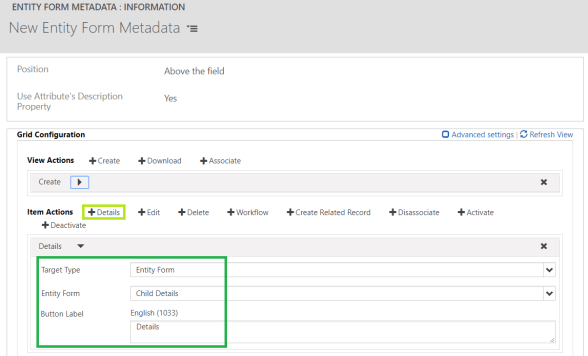
- Save the ‘Entity Form Metadata’.
Test the functionality:
- Login to your portal
- Clear the Portal Cache by navigating to “Portal URL+‘/_services/about’”
- Note: This step is optional and needed only if you don’t find your changes in portal
- Open the ‘Employee’ record and now you should see ‘Child’ grid with ‘Add new child’ button.
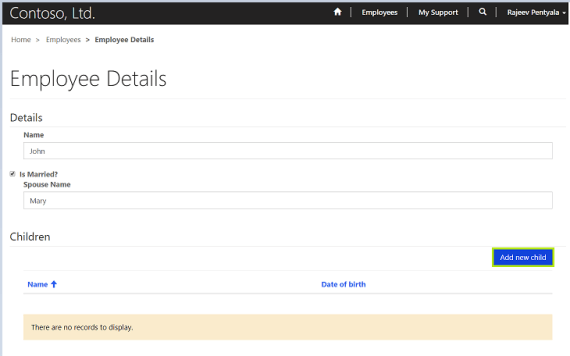
- Click ‘Add new child’ button and it will open up ‘Child Create’ entity form.

- Click ‘Submit’ which saves the record.
- Now either click on 1st column or ‘Details’ button to ‘Edit’ the record which opens up ‘Child Details’ Entity form.
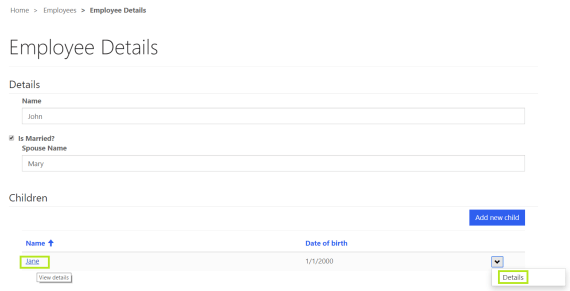
- Modify the data, if needed and click ‘Submit’

🙂


![[Step by Step] Beginner : Create a PCF control and add it to a custom page](https://rajeevpentyala.com/wp-content/uploads/2024/12/image-49.png)
 Rajeev Pentyala – Technical Blog on Power Platform, Azure and AI
Leave a comment