In this article I am going to provide details and code snippets on how to upload attachment to Azure blob storage from console application.
Prerequisites:
Below are the prerequisites to run the code snippet and upload the file
- Azure subscription:You need an Azure subscription as the first step.
- You can spin up 30 days trail Azure subscription. Click here
- Note: You need to share valid credit card details to complete the subscription and you will be charged 2 INR.
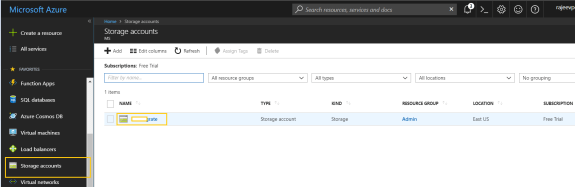
- Storage Account:Add a storage account
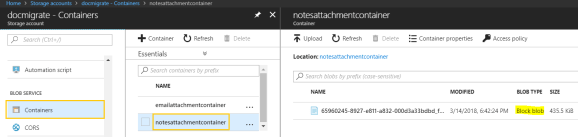
- Container:
- Add a Container
- Copy the Container Name.
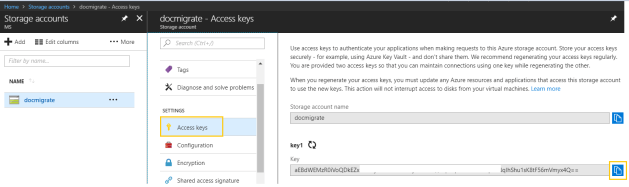
- Access Keys:Need the ‘Key’ to connect to Azure Blob from your C# console.
- Copy and keep below 2 values as shown in screenshot
- Storage Account Name
- Key 1
- Copy and keep below 2 values as shown in screenshot
- Nuget package:Add below nuget packages to your console project
-
- Microsoft.WindowsAzure.Storage
-
C# Code Snippet:
// Namespaces
using Microsoft.WindowsAzure.Storage;
using Microsoft.WindowsAzure.Storage.Auth;
using Microsoft.WindowsAzure.Storage.Blob;private static void AddFileToBlob(){
var accountName = “{Storage Account Name}“; // Refer Prerequisites for value
var keyValue = “{key 1}“; // Refer Prerequisites for value
var useHttps = true;
var connValid = true;// Establish connection to Azure
var storageCredentials = new StorageCredentials(accountName, keyValue);
var storageAccount = new CloudStorageAccount(storageCredentials, useHttps);
var blobConString = storageAccount.ToString(connValid);// Retrieve storage account from connection string.
storageAccount = CloudStorageAccount.Parse(blobConString);// Create the blob client.
CloudBlobClient blobClient = storageAccount.CreateCloudBlobClient();// Set container name
CloudBlobContainer container = blobClient.GetContainerReference(“{Container Name}“); // Refer Prerequisites for value// Set your blob name; It can be anything
CloudBlockBlob blockBlob = container.GetBlockBlobReference(“{Your desired blob name}“);// Set your file path which you want to upload to blob
using (var fileStream = System.IO.File.OpenRead(@”D:\ABC.PNG”)) {
blockBlob.UploadFromStream(fileStream);
}Console.WriteLine(“File added to Blob!!!”);
}
🙂



 Rajeev Pentyala – Technical Blog on Power Platform, Azure and AI
Leave a comment