In one of our requirement, we had to create a new “Incoming Phone Call” activity against the calling ‘Contact’, whenever a call received.
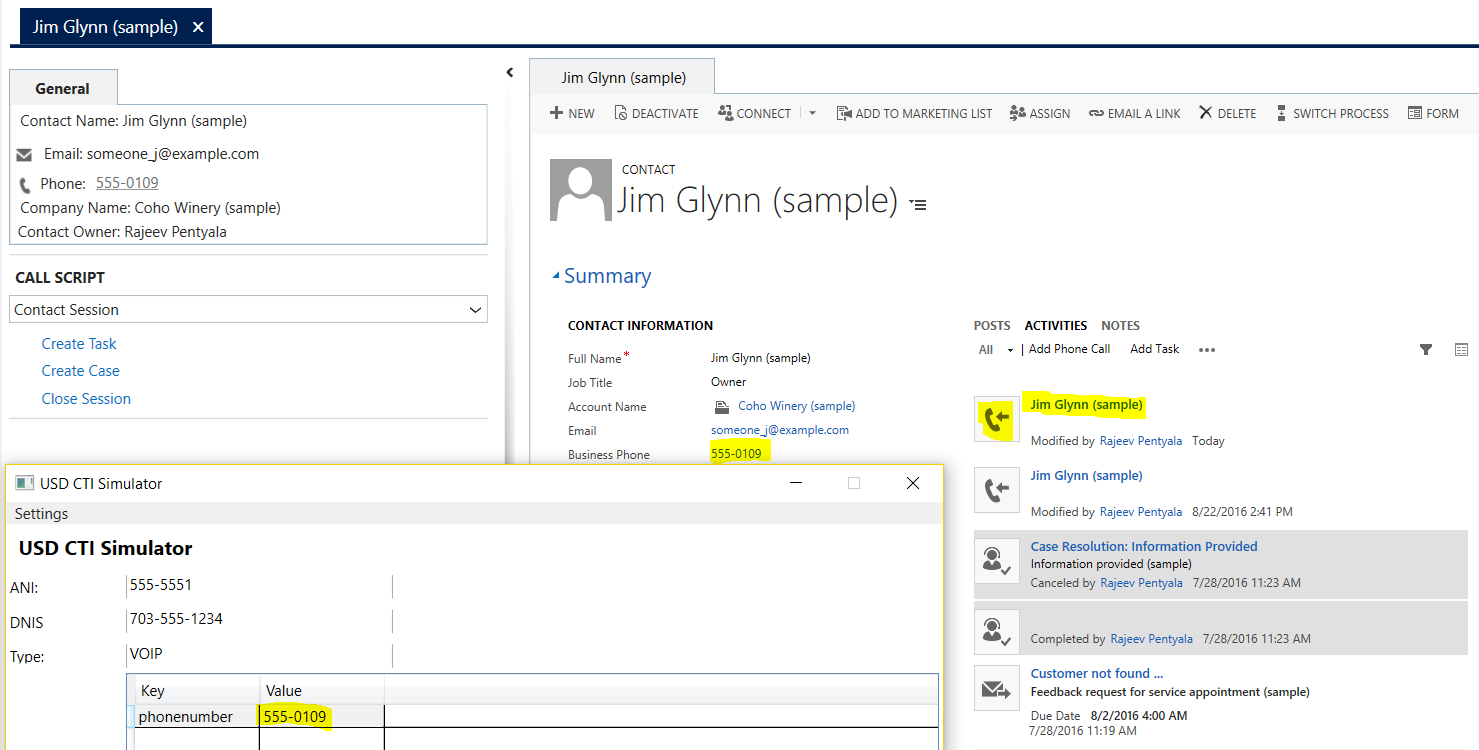
In this article, I am using “CTI Simulator” (Download) to generate an incoming call.
Refer MSDN article contains a Walkthrough on how to
- Catch the phone call (Triggered from Simulator)
- Search ‘Contacts’ in CRM with the ‘Phone number’
- If match found, open the ‘Contact’ in USD.
Open Calling Contact Record in USD
- In USD configurations in CRM, create a “Windows Navigation Rule”, to open a ‘Contact’ record, if there is a Contact with incoming phone number.
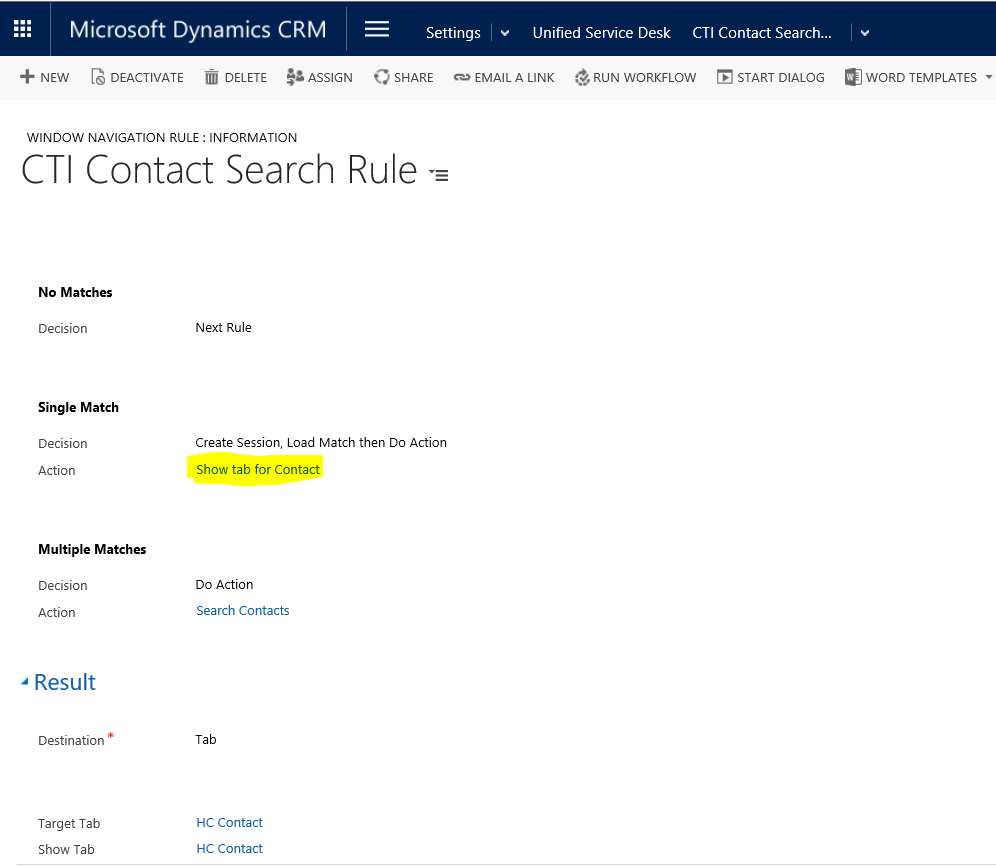
- In the Action Call “Show tab for Contact”, we set focus on ‘Contact’ which was opened in USD.

Create Phone Call Activity
- Now coming back to our requirement, we need to create an “Incoming Phone Call” for the matched ‘Contact’, which got opened in USD.
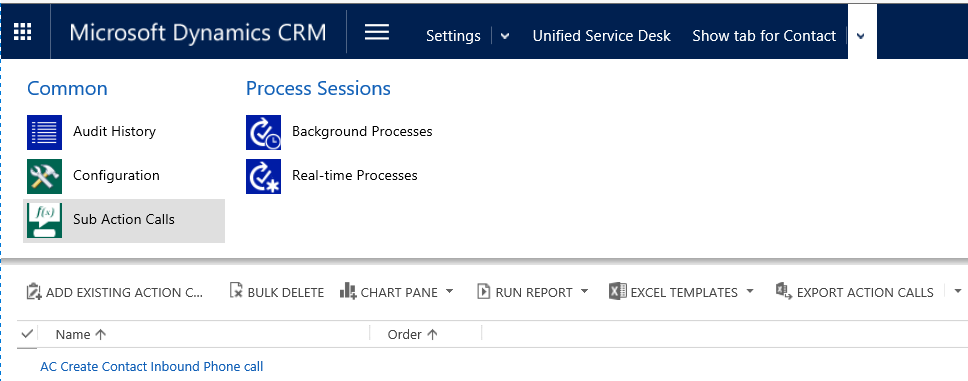
- To achieve this, create a Sub Action Call “AC Create Contact Inbound Phone call”, under “Show tab for Contact”.
- In “AC Create Contact Inbound Phone call”, define a “CreateAction” to create “Phone Call” copying information from “Contact”.
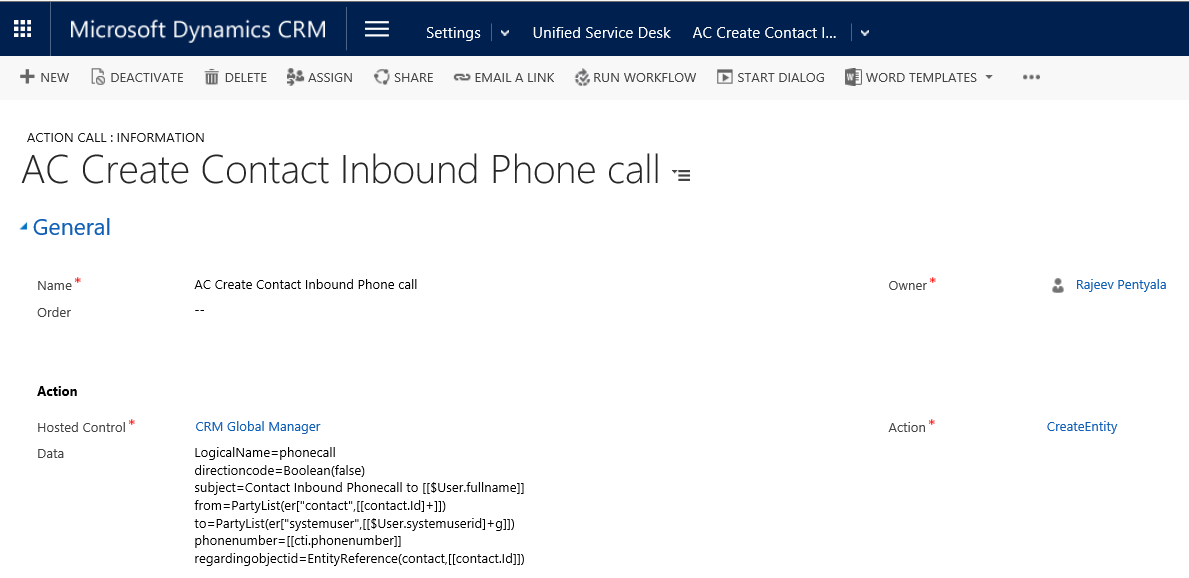
- Data:
LogicalName=phonecall
directioncode=Boolean(false)
subject=Inbound Phonecall to [[$User.fullname]]
from=PartyList(er[“contact”,[[contact.Id]+]])
to=PartyList(er[“systemuser”,[[$User.systemuserid]+g]])
phonenumber=[[cti.phonenumber]]
regardingobjectid=EntityReference(contact,[[contact.Id]])
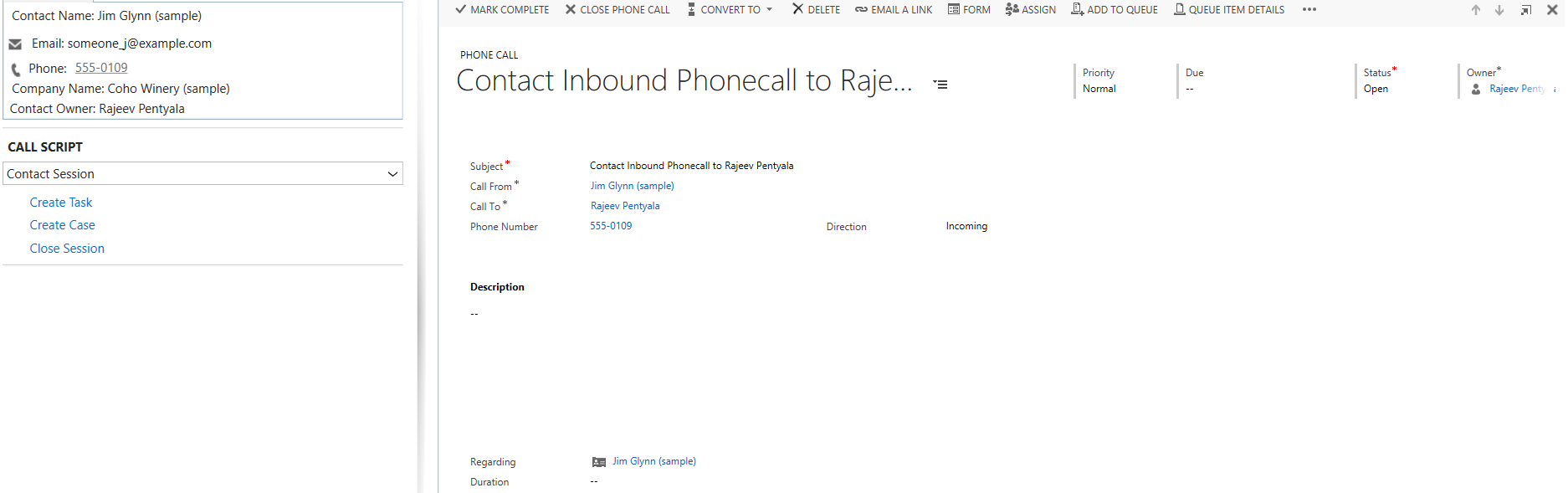
- The ‘AC Create Contact Inbound Phone call‘ action call triggers after ‘Show tab for Contact‘ and a new ‘Phone Call’ gets created.
🙂



![[Step by Step] Beginner : Create a PCF control and add it to a custom page](https://rajeevpentyala.com/wp-content/uploads/2024/12/image-49.png)
 Rajeev Pentyala – Technical Blog on Power Platform, Azure and AI
Leave a comment