Document Generation is a new feature introduced in CRM 2016. Document Generation simplifies converting your CRM data to either Word or Excel documents.
Below are the steps to
- Download Template
- Configure Template
- Upload Template
- Generate Document.
Download the Document Template
- Navigate to ‘Settings -> Templates’
- Choose ‘Document Templates’

- Click ‘New’ button
- Choose the type of document (Excel\Word) and choose entity

- Select the Related entities, if you want to populate your Document with data from related entities too. I chosen ‘Contact’ in this example.

- Once you download the template you can open and create a template by mapping the fields from CRM.
- But what if you don’t find the ‘Developer’ tab?

Steps to enable ‘Developer’ tab
- Open the word document
- Go to File -> Options -> Customize Ribbon
- Select the ‘Developer’ option and click ‘Ok’

- Once you get ‘Developer’ tab on Word document, choose ‘XML Mapping’ pane and choose “urn:microsoft-crm/…../{entity_name}/1/”

Configure Document Template
- In this example, I am going to configure a Document Template with Account details along with all associated Contacts.
- To add Account Name choose ‘Name’ from ‘XML Mapping’ pane and right click and choose ‘Plain Text’.
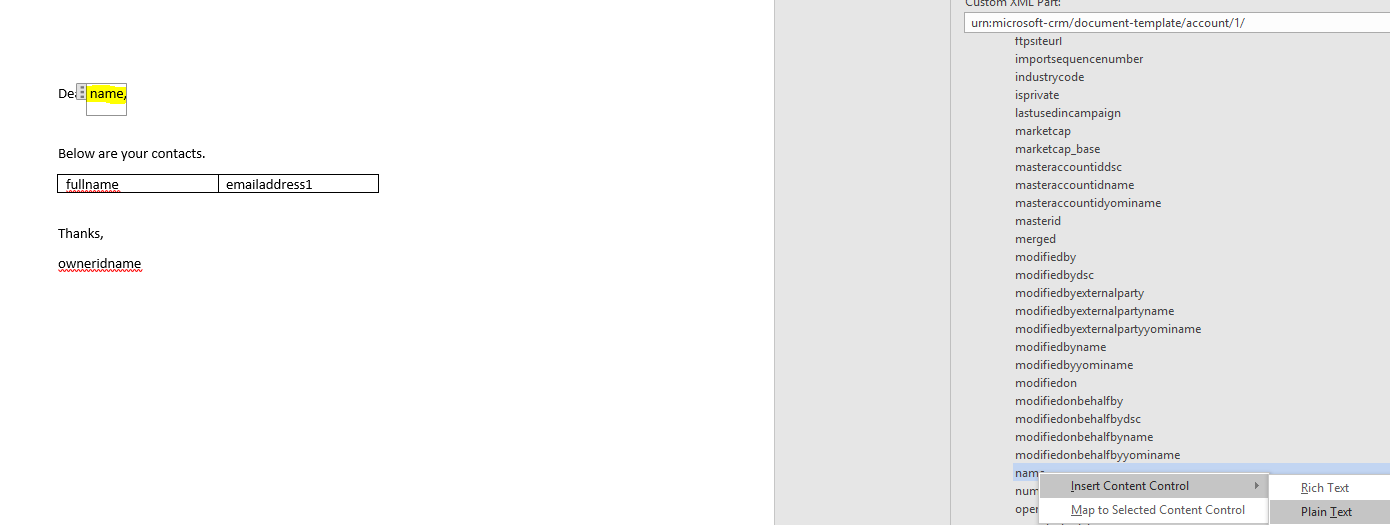
- If you have to display multiple rows (i.e., Contacts of an Account record) add a table and map fields from ‘Contact’.

Upload Document Template
- Once you are done with content preparation, save the document and upload back to CRM using ‘UPLOAD TEMPLATE’.

- I name my Document Template with ‘Account_Venilla’.


- We are done with configuring ‘Document Template’. Next step is generate the document from the Entity.
- We can also upload ‘Document Template’ through SDK using ‘DocumentTemplate‘ class.
Document Generation
- Open Account record
- Select ‘Word Templates -> {Document_Template_Name}’

- Download the document and open.
- You would see some thing as below

🙂



 Rajeev Pentyala – Technical Blog on Power Platform, Azure and AI
Leave a comment