I was exploring ‘Enhanced SLA’ feature in CRM 2015. I created my first basic enhanced SLA with below steps
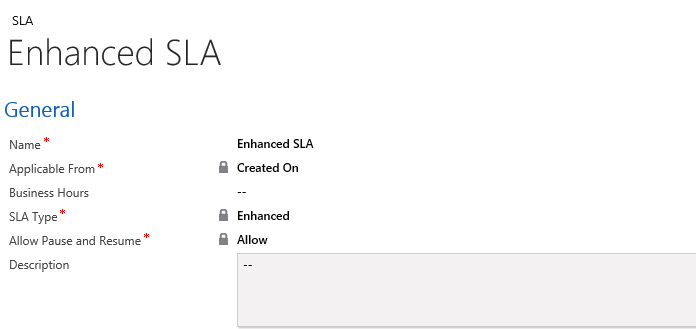
- Created a new SLA
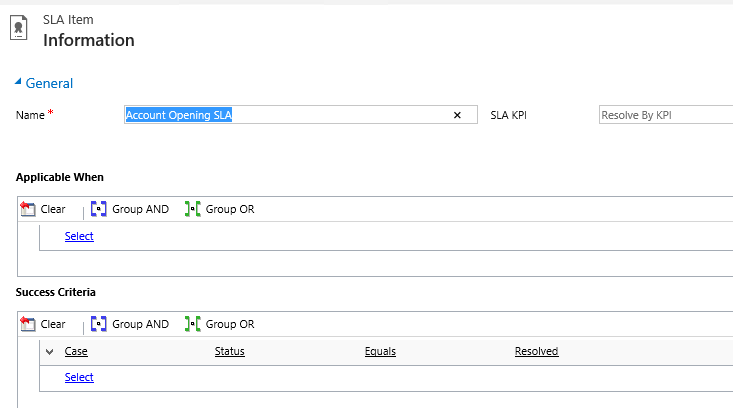
- Added a new ‘SLA Item’ with no ‘Applicable When’ criteria (i.e., SLA should kick in for all Case’s if no criteria given) and ‘Success Criteria’ as Case Status ‘Resolved’
- Set the Failure Duration as ‘5 minutes’ and Warn Duration as ‘1 Minute’

- Activated the SLA

- Created a new Case.
- But no Timer or ‘SLA KPI’ records logged when I expanded ‘Enhanced SLA Details’ section.
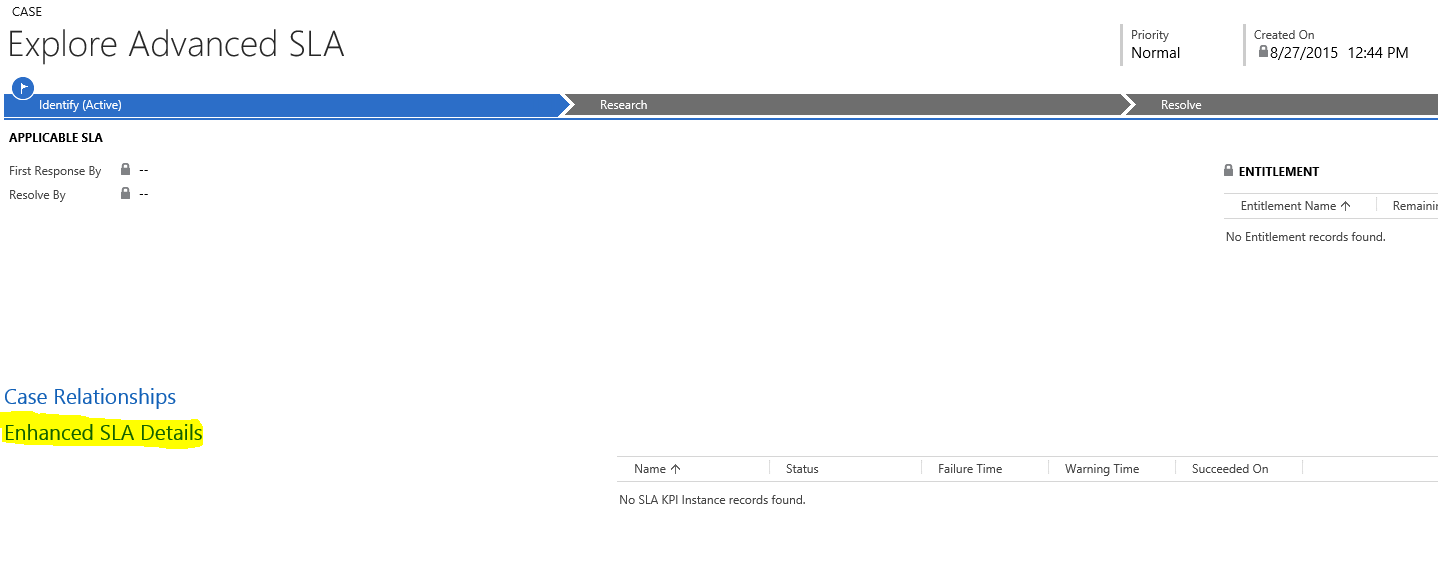
Reason
- There was no ‘Entitlement’ configured
- So what is an Entitlement? ‘Entitlements’ are correlated to Customers (i.e., Either Account or Contact) in the system and define what kind of support your customers are eligible for.
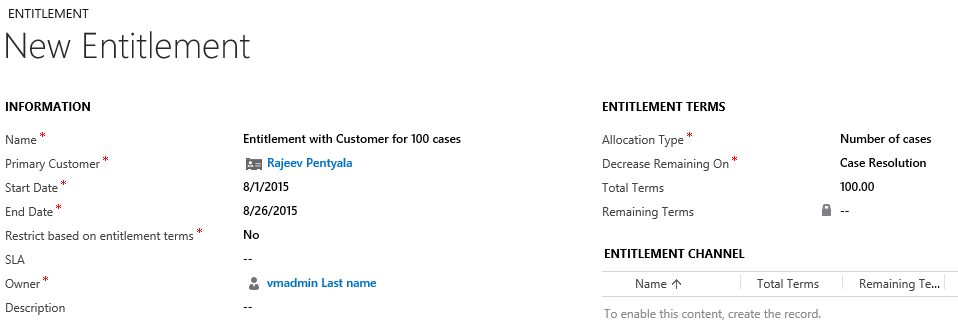
Note : If you don’t want to configure ‘Entitlement’ make to set SLA as Default which will be applicable for all Customers.
Fix
- Since I am just exploring SLA’s, I did not create an ‘Entitlement’ instead I made my SLA as ‘Default’
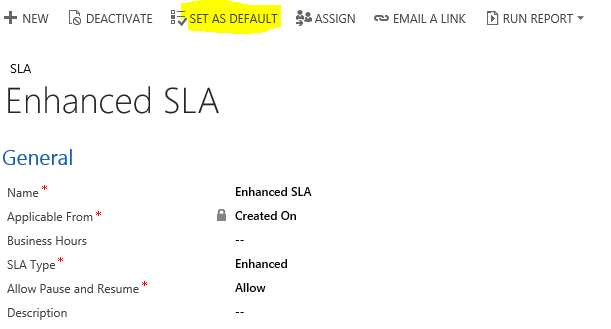
- Created a new Case and this time got the OOB Timer and SLA KPI record in sub-grid.

Additional Details
- How to Pause a SLA
- Using ‘Enhanced SLA’ you can put SLA on ‘HOLD’ by choosing Case ‘Status’ with pre-configured ‘Case Status’ (Refer screen how to configure Status)
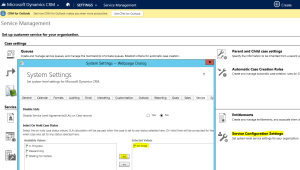
Enhanced SLA – Set ‘HOLD’ status - Go to the ‘Case’ and choose Status = ‘On hold’ and Save

Case – Choose ‘On Hold’ status - See the Resolve in set to ‘Paused’



🙂



 Rajeev Pentyala – Technical Blog on Power Platform, Azure and AI
Leave a comment