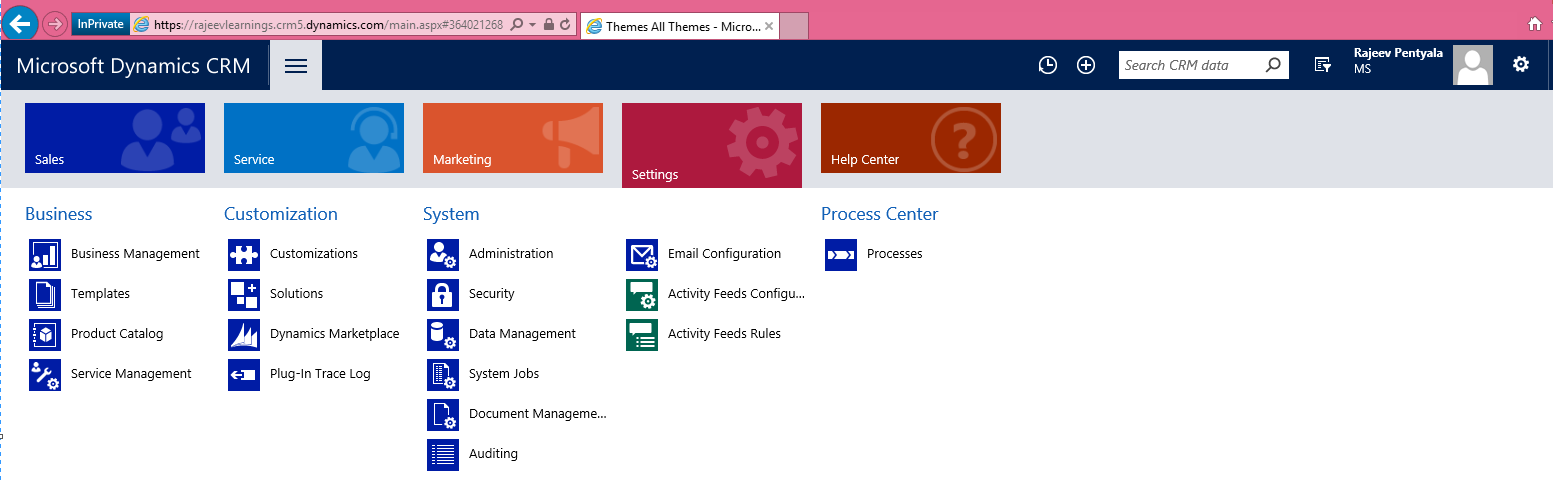
With the advent of CRM Online 2015 Update 1, we got much awaited New Navigation Bar pattern (Vertical Stacked Menu) and Themes. New Navigation Bar –
Themes –
- With Themes, We can create a custom look and feel, to our CRM web application.We can change CRM applications
- Logo
- Navigation bar color
- Header color
- Default entity color
- Default Custom entity color
- Control Shade & Border
- We can define multiple themes, but only one can be set and published as the default theme.
- The theme customization is supported in Microsoft Dynamics CRM for Outlook
- To create a new Theme, Navigate to Settings -> Customizations -> Themes
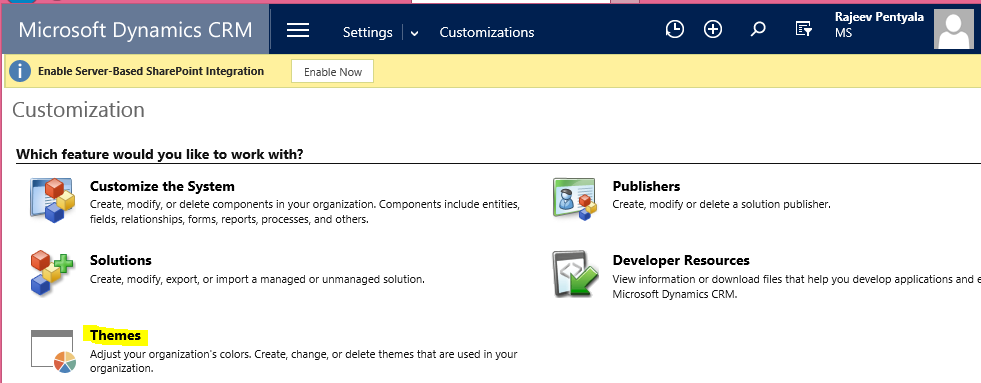
- We can create your own theme and Publish (Once published, Theme propagates to all Users)

- You can Clone new Theme from existing Theme and Preview
- “Preview Theme”, sets a cookie in browser allows us to use theme until either you exit the preview or delete cookies.
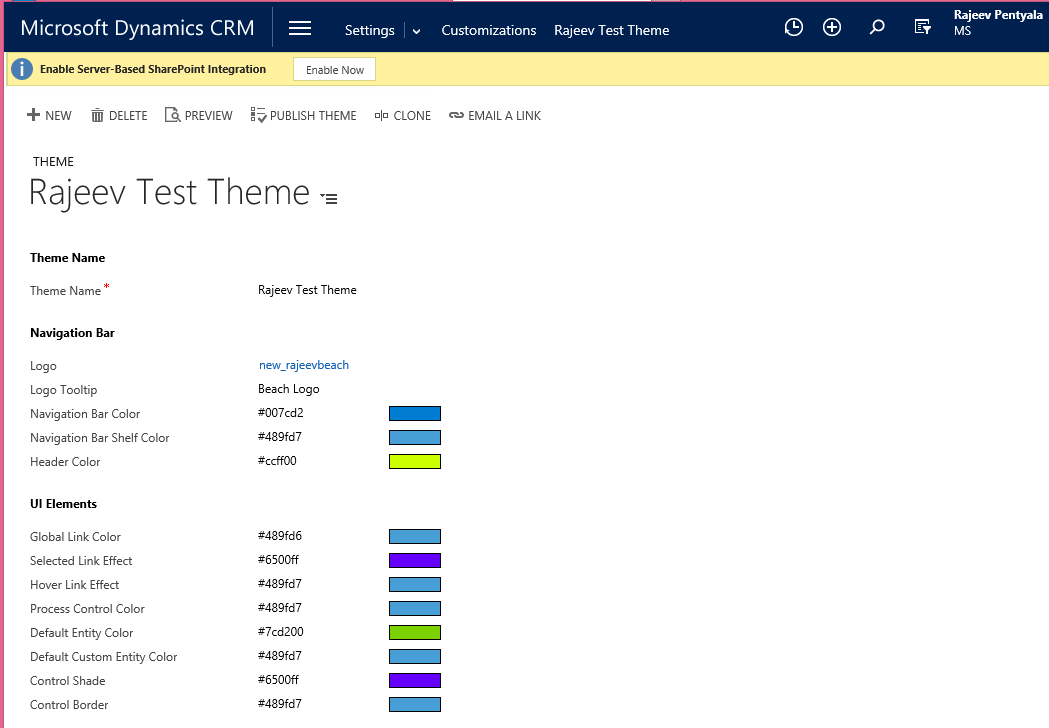
Below is sample theme I created, I added my own Jpg web resource as ‘Logo’ and got color hexadecimal codes from Color Hex site
Deploying Themes across Organizations
- We cannot include ‘Theme’ in CRM Solutions as Theme is not solution aware.
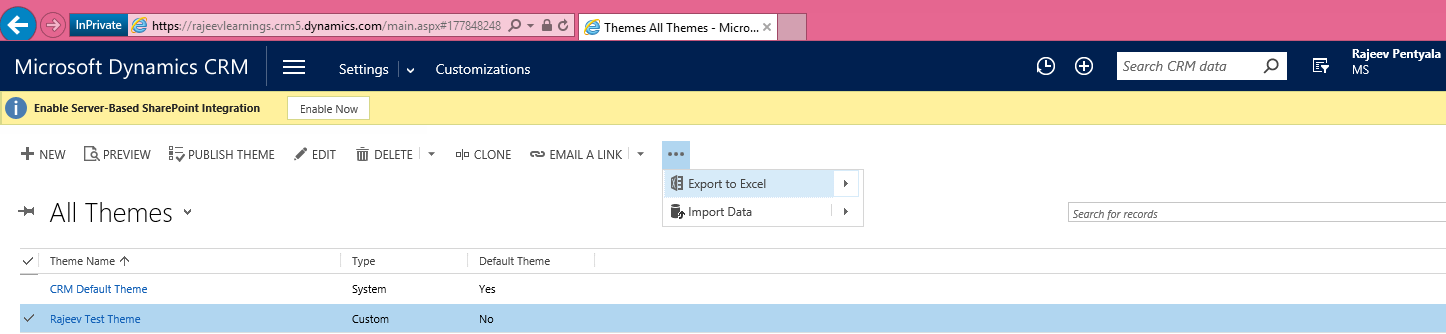
- However, you can export the Theme and import it to target solution.
- The imported theme must be published to take an effect
Theme Best Practices

Changing Specific Entity Color
- We can change the color of desired entity in Entity Definition


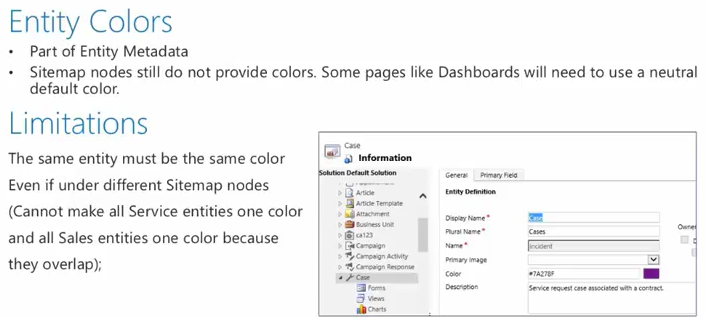
Refer MSDN Article for more details. 🙂



![[Step by Step] Beginner : Create a PCF control and add it to a custom page](https://rajeevpentyala.com/wp-content/uploads/2024/12/image-49.png)
 Rajeev Pentyala – Technical Blog on Power Platform, Azure and AI
Leave a comment